Refund Notes
We’re sorry to see you go, and we truly appreciate you giving JNews Twenty a try. If you’ve decided that it’s not the right fit for you, you can cancel your subscription and request a refund as long as it meets the following conditions:
- Refunds are only available for the first payment of your subscription.
- Upgraded products or subscriptions that have already been renewed or charged through recurring payments are not eligible for a refund.
- Refund requests must be submitted within 14 days of your purchase.
- Requesting a refund will cancel the subscription associated with the license. As a result, you will lose access to JNews Twenty features and updates associated with that subscription.
- The refund will be issued to the original payment method used to purchase the subscription.
Important:
Before proceeding with the refund process, please make sure that at least 7 days have passed since your purchase. Otherwise, the Refund button will not appear.
Also, make sure you access the refund option through Manage License, not directly through Purchase History. The refund option is only available when you access the purchase details through the Manage License page.
How to Request a Refund?
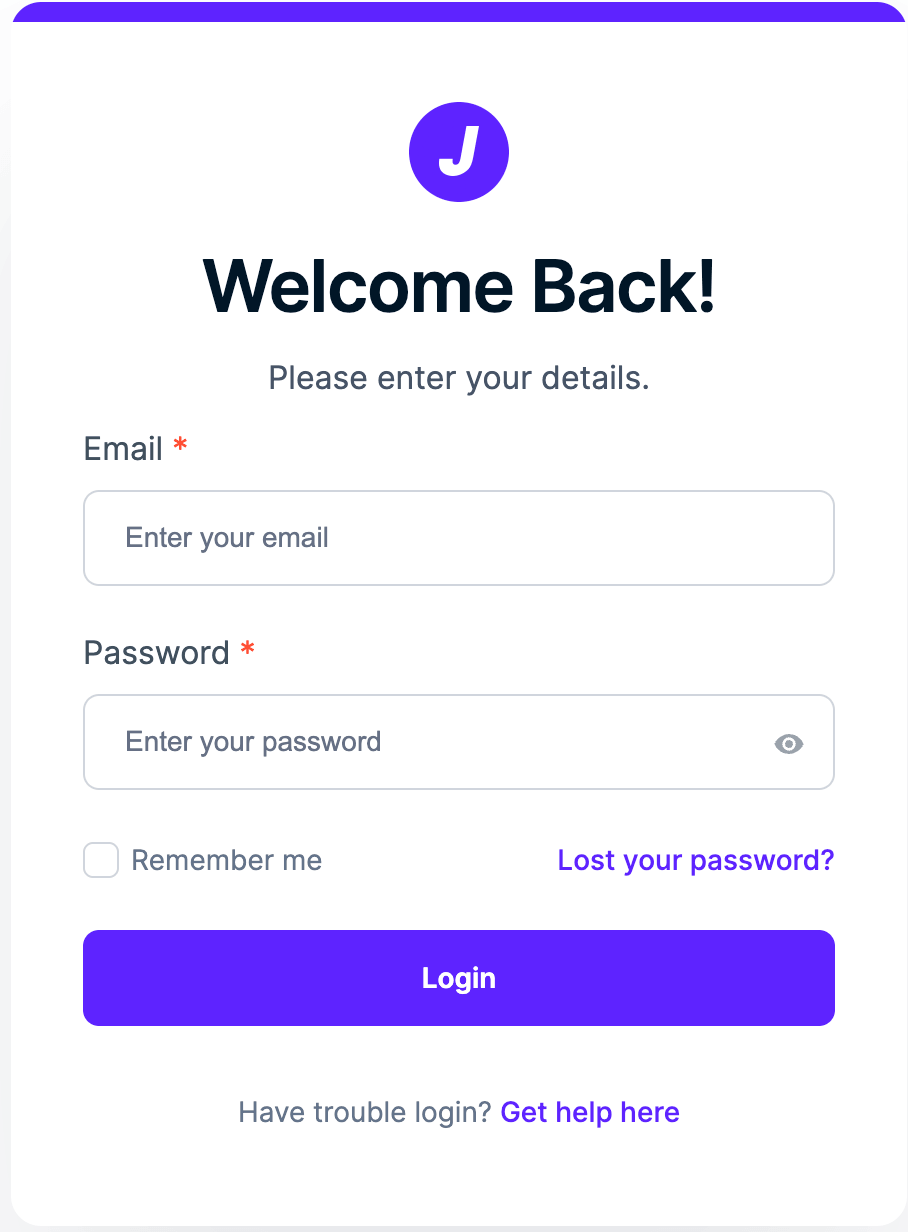
1. Log in to your JNews account
First, log in to your pro.jnews.io account.
2. Go to the Manage License page
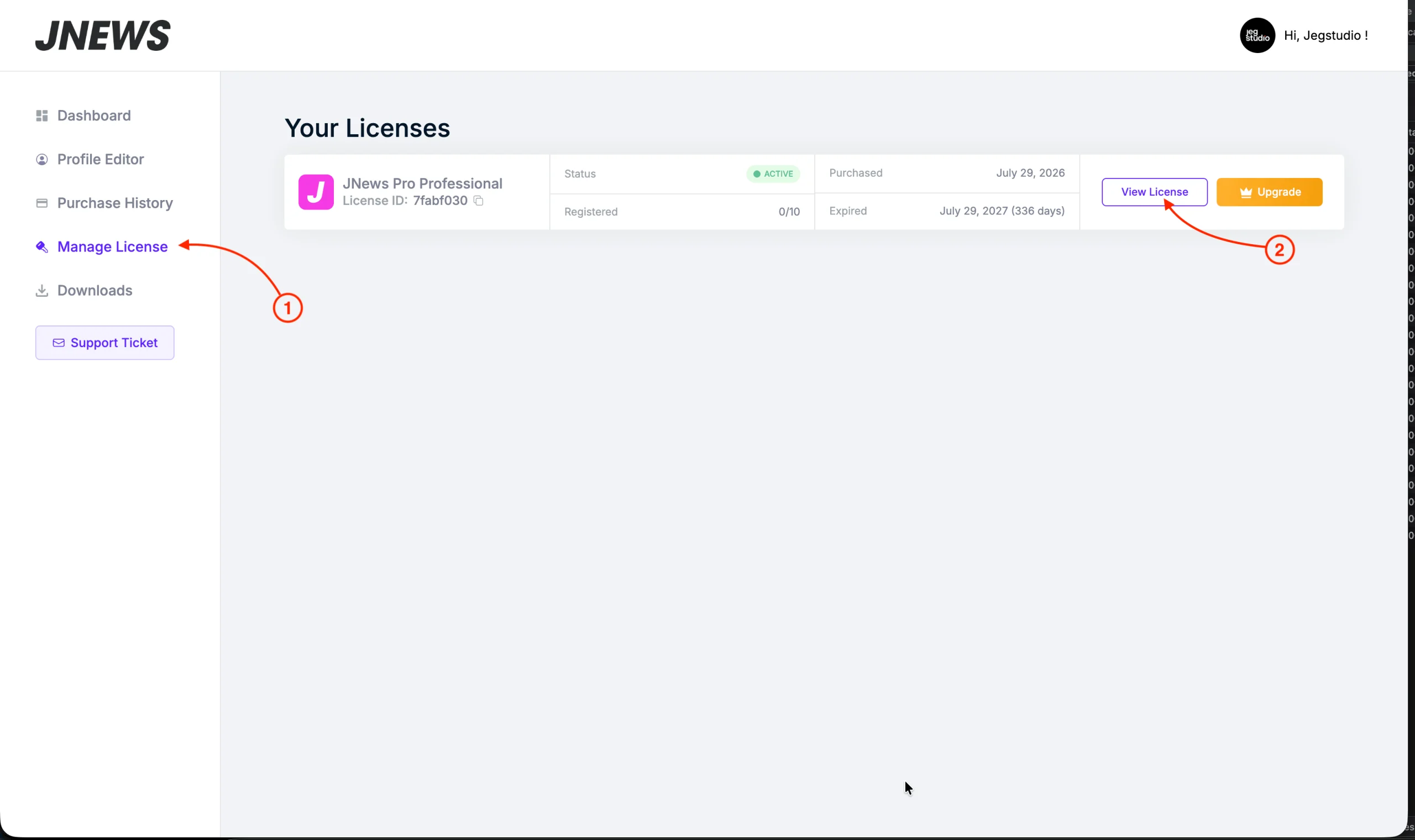
After logging in, open the Manage License page and choose the JNews Twenty license that you want to refund, then click the View License button to open its details.
3. Open the Purchase History
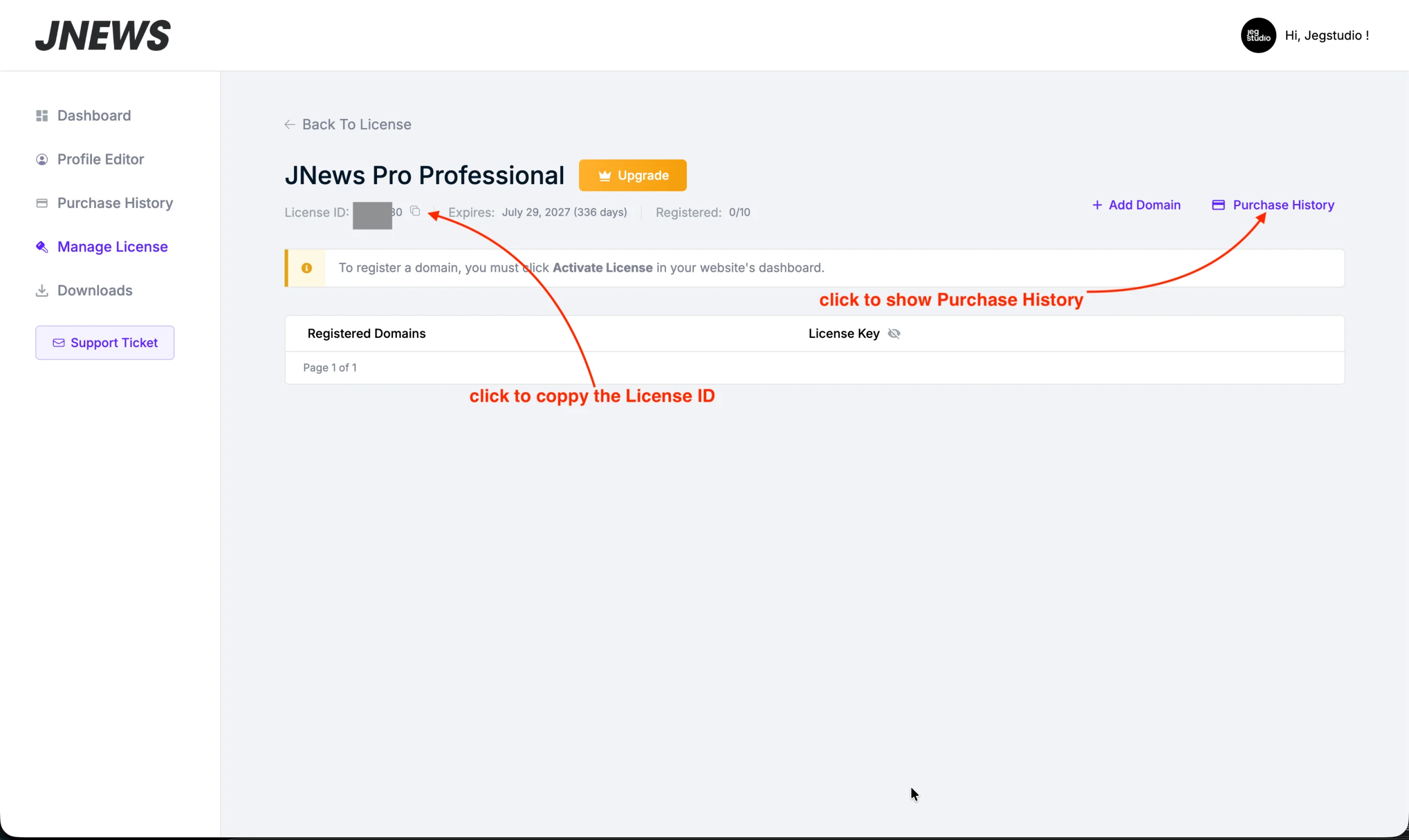
On the License Detail page, click Purchase History to view the transactions associated with the license.
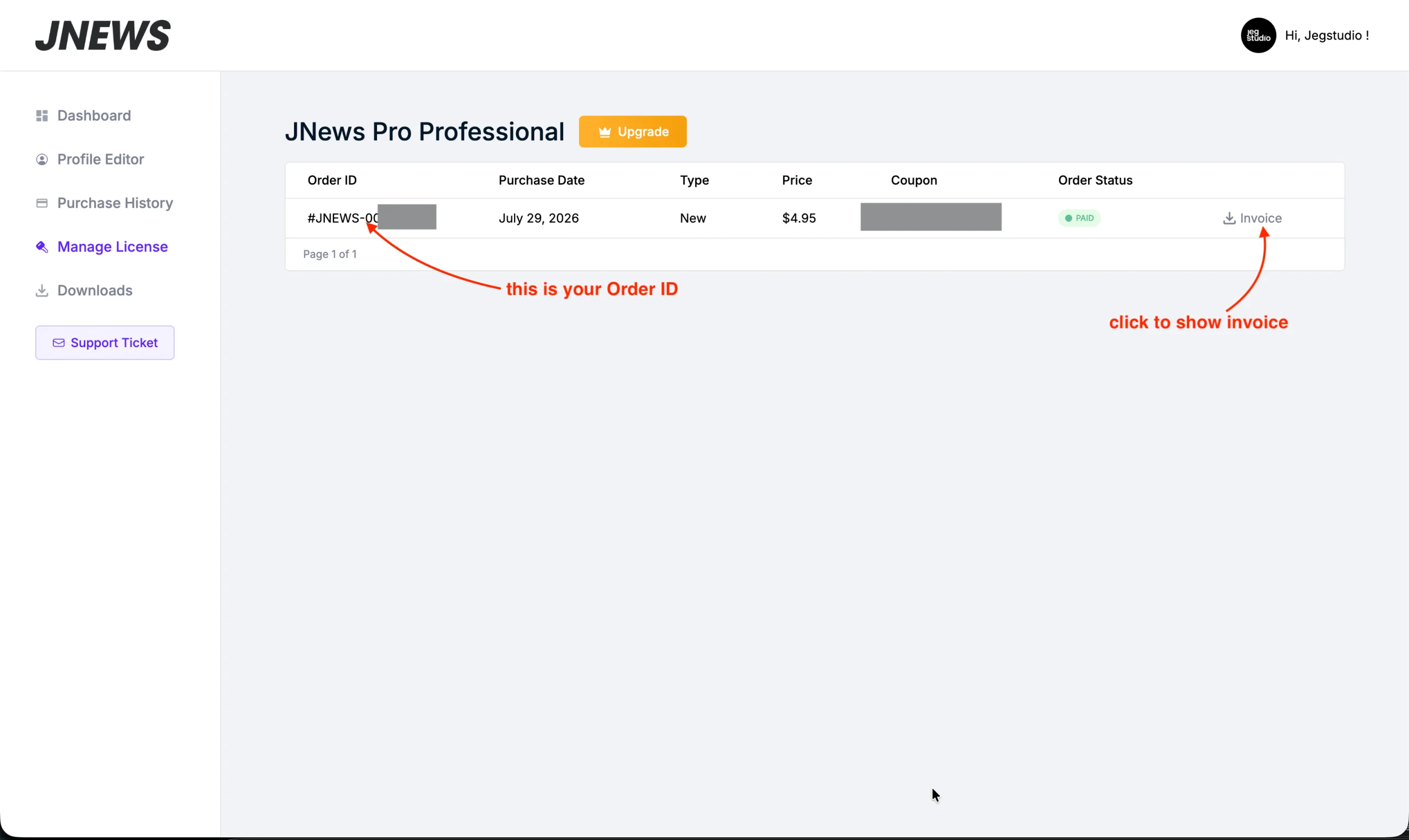
4. Open the latest invoice
From the Purchase History page, open the invoice for the latest eligible transaction.
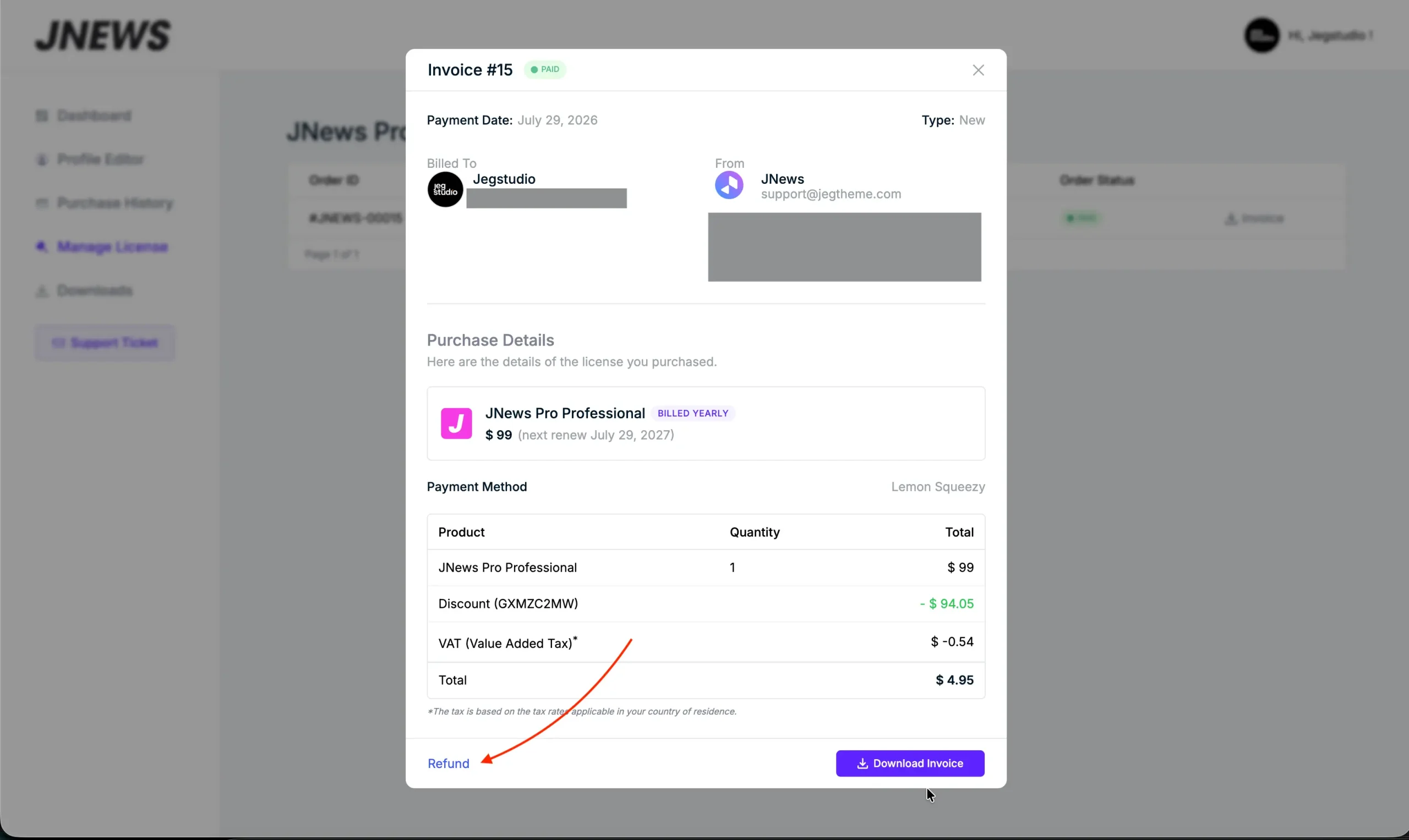
5. Click the Refund button
Scroll to the bottom of the invoice, then click the Refund button.
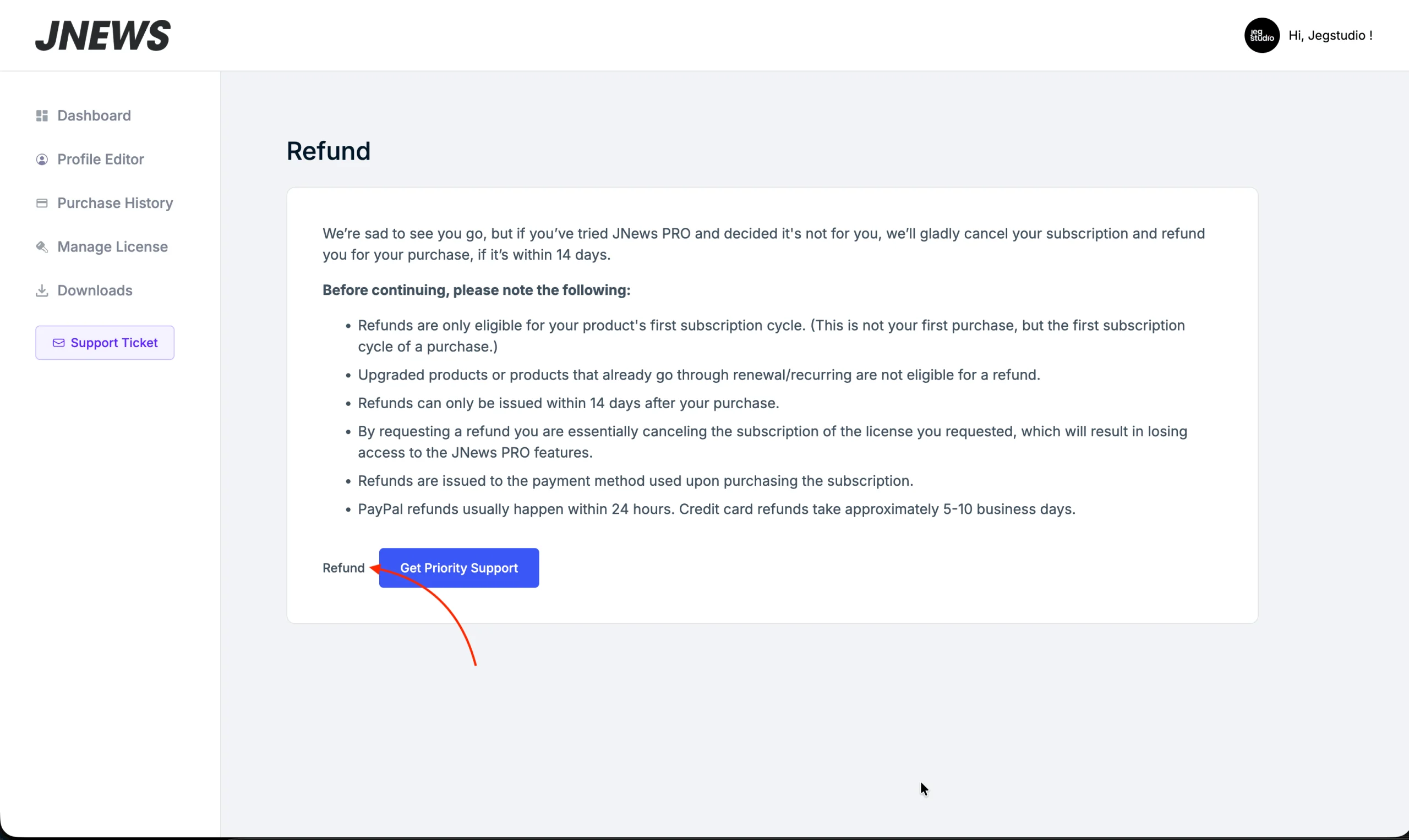
6 Review the refund notice
Read the refund notice carefully. If you want to continue, click the Refund button.
If you are still unsure or need help with JNews Twenty, you can click the Get Priority Support button instead.
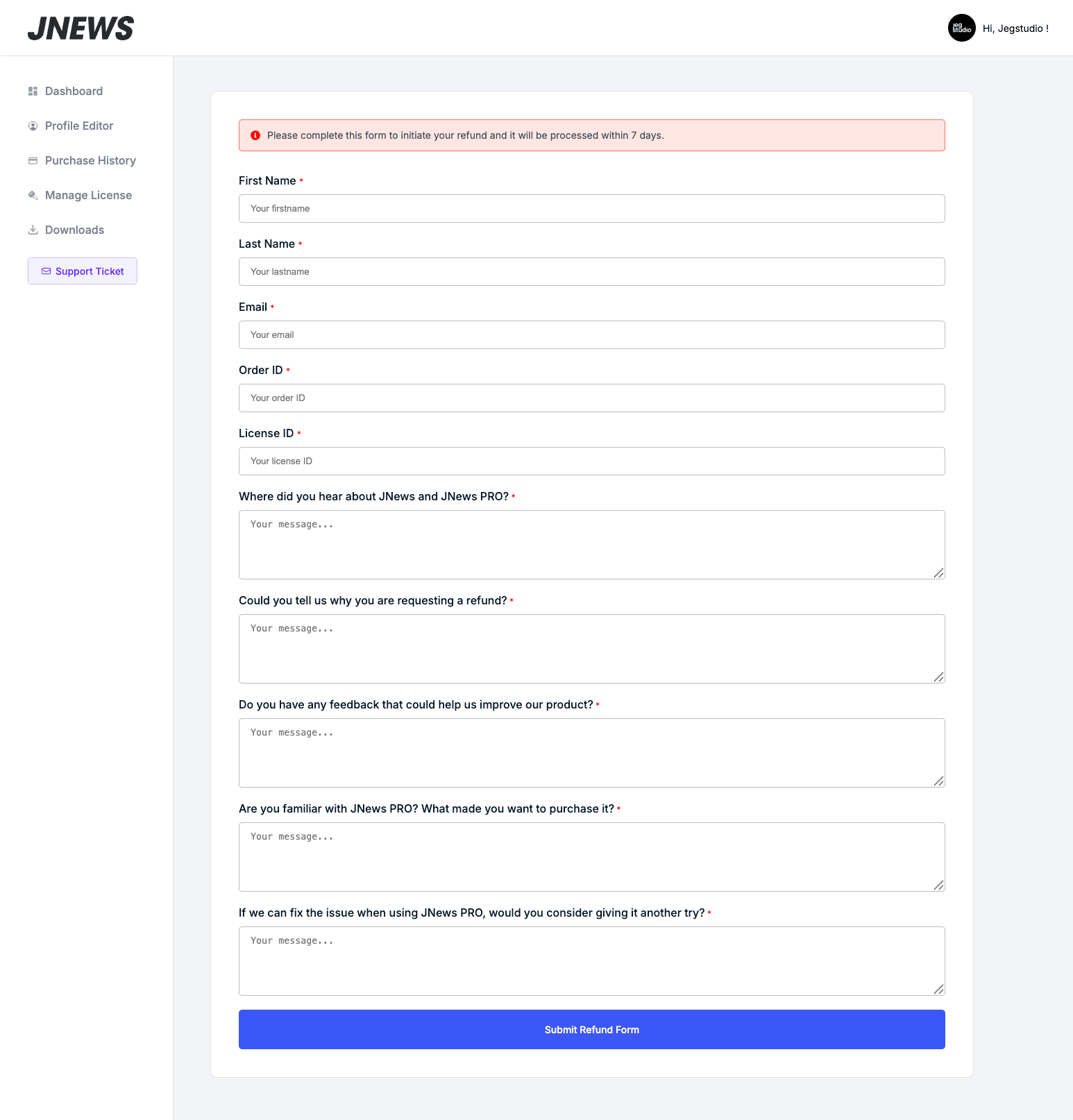
7. Submit the refund form
If you decide to continue with the refund, complete and submit the refund form.
Please note that your refund will be processed within 7 days after the refund form is submitted.
8. Confirm that the refund request was submitted
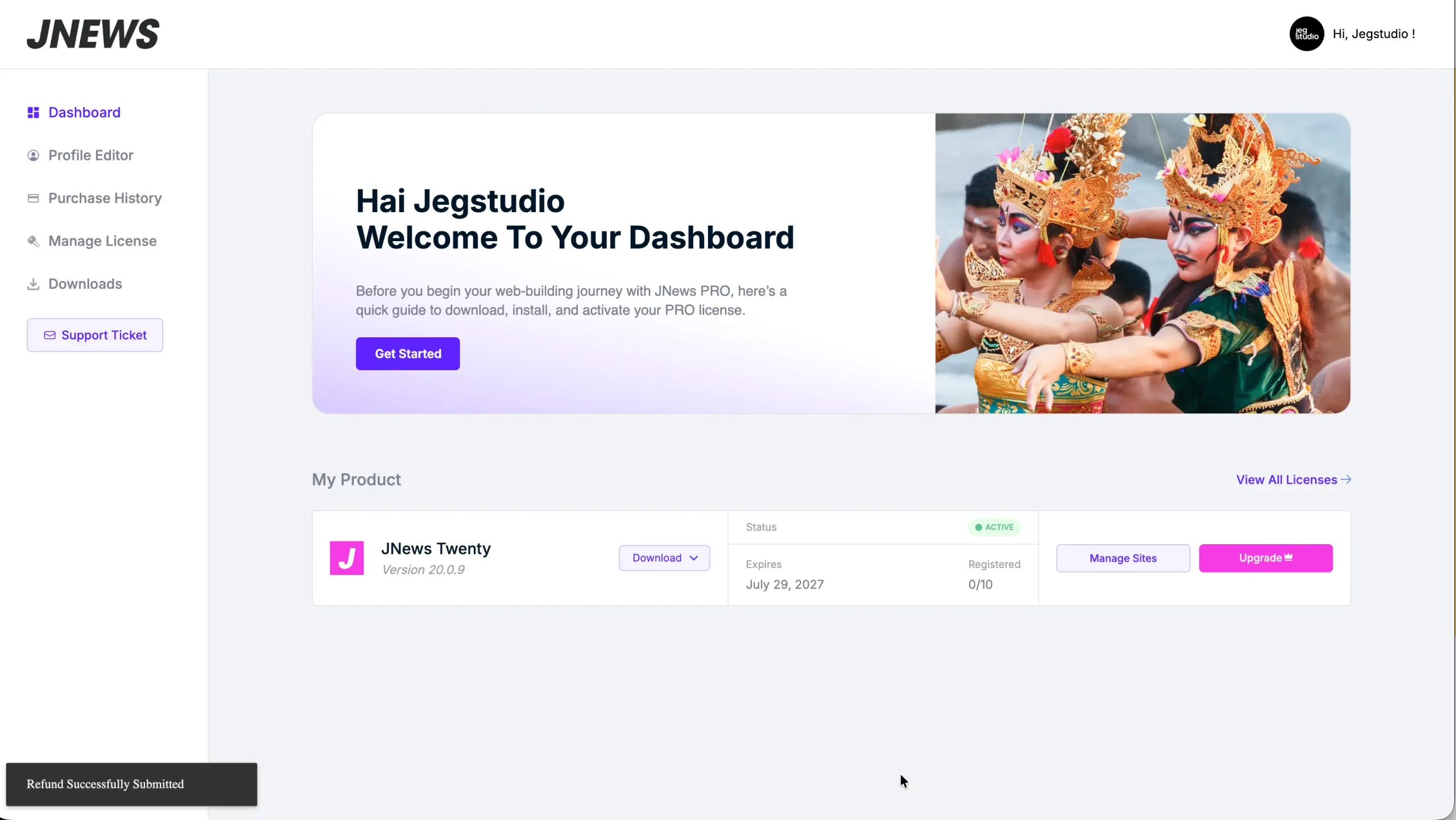
After the refund form is successfully submitted, you will be redirected back to the dashboard.
A Refund Successfully Submitted notification will appear at the bottom-left corner of the page to confirm that your request has been received.