
This guide explains how to downgrade your website from JNews Twenty to the previous JNews Classic version.
NOTE: If you upgraded JNews directly on your live website without testing it on a staging site or creating a backup first, and the upgrade causes issues on your website, you can downgrade to the previous JNews Classic version by following the steps below.
We strongly recommend creating a complete backup of your website before starting the downgrade process.
1. Downgrade All JNews Plugins
JNews Twenty includes newer versions of JNews plugins that may not be compatible with JNews Classic. Before downgrading the theme, you need to downgrade all active JNews plugins on your website.
Download the previous versions of the JNews plugins from the following link.
Replace the current JNews plugin files on your website with the versions provided in the folder.
Make sure you only replace JNews-related plugins that are currently installed or active on your website.
2. Downgrade the JNews Theme
After downgrading the JNews plugins, replace your current JNews Twenty theme with the previous JNews Classic version.
Download the JNews Classic theme from the following link.
Then follow these steps:
- Go to Dashboard > Appearance > Themes.
- Click Add New.
- Click Upload Theme.
- Select the
jnews-theme.ziptheme ZIP file you downloaded. - Click Install Now.
- WordPress will detect that JNews is already installed. Click Replace current with uploaded or the available replacement option to replace JNews Twenty with JNews Classic..
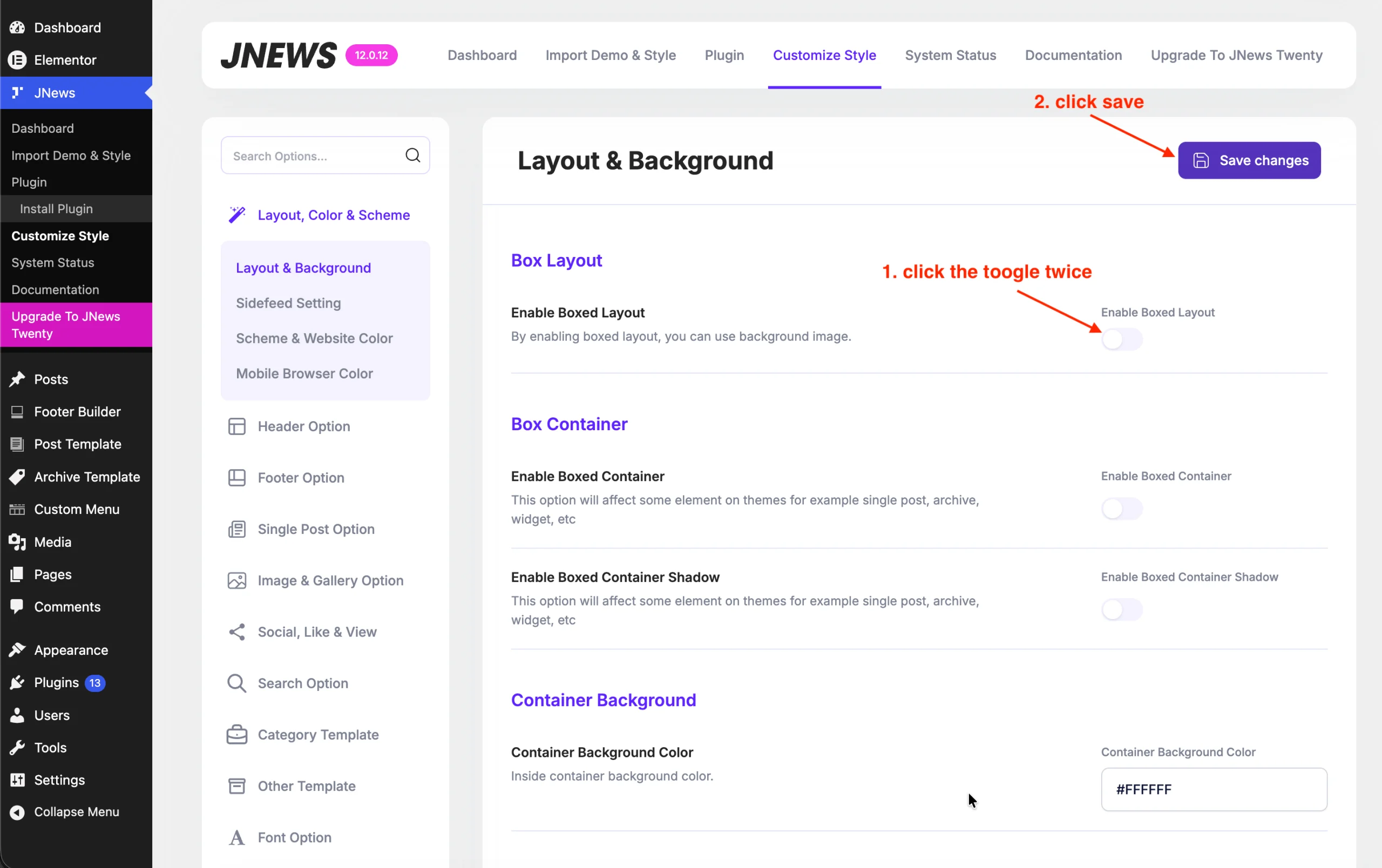
3. Re-save the Customizer setting
This step is required to regenerate the JNews data and styles after downgrading. You can do this by going to JNews > Customize Style, then enable or disable one of the options and saving the changes.
4. Clear All Website Caches
After replacing the theme and plugins, clear all available caches to prevent files from JNews Twenty from being loaded together with JNews Classic.
Clear the following caches if they are available on your website:
- WordPress caching plugin cache.
- Server-side cache.
- CDN cache.
- Browser cache.
5. Check Your Website
After completing the downgrade, check your website to make sure JNews Classic is working correctly.
We recommend checking the following areas:
- Homepage, posts, pages, categories, and archive pages.
- Header, navigation menus, widgets, sidebars, and footer.
- JNews plugins and their functionality.
- Elementor, WPBakery, or Gutenberg layouts used on your website.
- Custom code and Child Theme modifications.
- Desktop, tablet, and mobile layouts.
If you still encounter issues after downgrading to JNews Classic, please contact our support team and provide details about the issue so we can investigate it further.