
This guide explains how to migrate your website from JNews Classic (ThemeForest version), to JNews Twenty.
Important: Before starting, create a complete backup of your website, including the database and website files. We also recommend testing the migration on a staging website first.
1. Purchase JNews Twenty
JNews Twenty requires a separate license from JNews Classic. You can purchase a JNews Twenty license from the following page.
Please note that one license can only be activated on one domain. For example, a license activated on yourdomain.com cannot also be activated on staging.yourdomain.com.
2. Download JNews Twenty
Go to your JNews account download page.
Open the Downloads menu, click the Download button, and choose one of the following files:
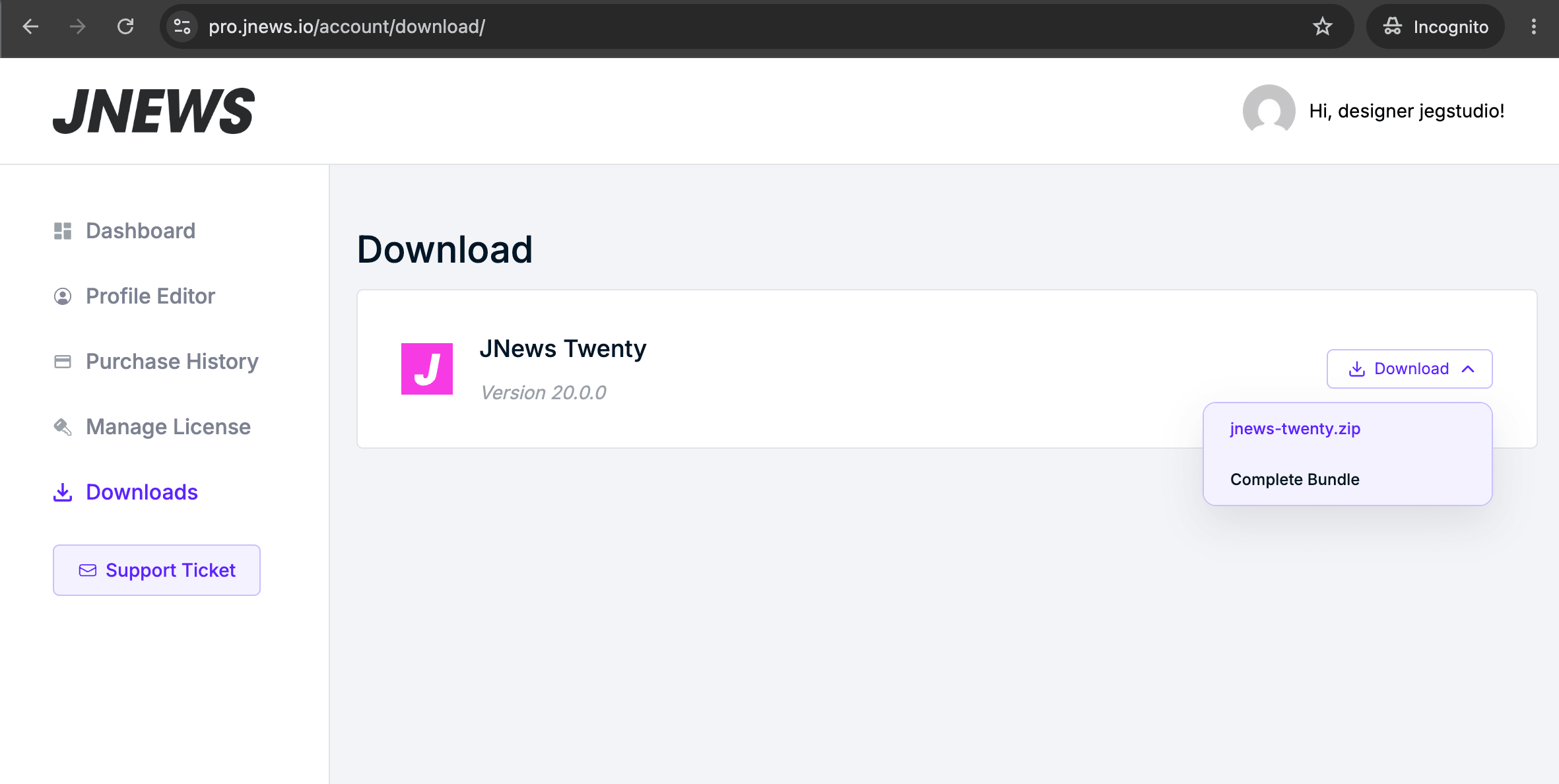
- jnews-twenty.zip: Contains the installable JNews Twenty theme.
- Complete Bundle: Contains both jnews-twenty.zip and jnews-child.zip.
Choose jnews-twenty.zip to download only the installable file for upgrading your JNews theme to JNews Twenty
3. Upgrade Theme File
Upgrading to JNews Twenty follows the same process as a regular JNews theme update.
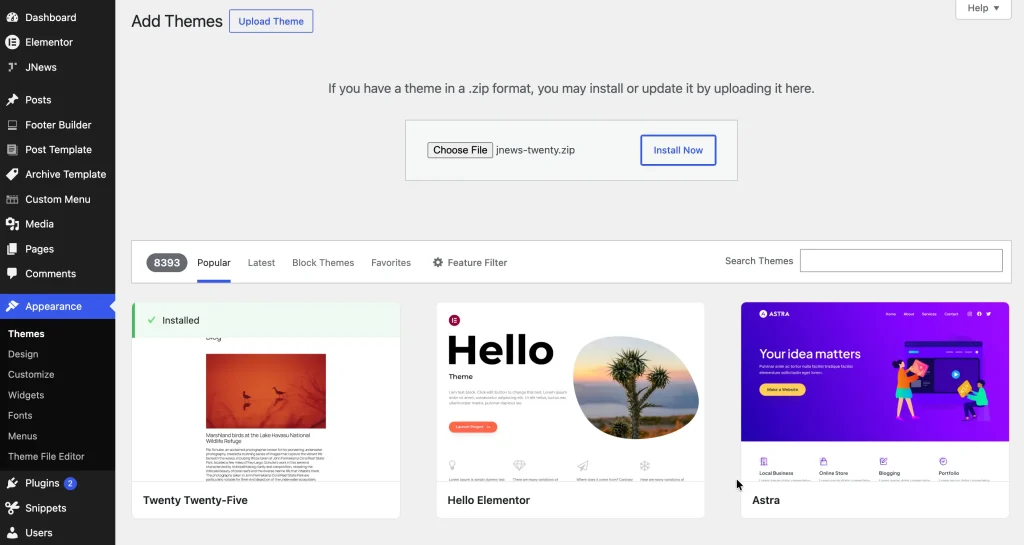
- Go to Dashboard > Appearance > Themes.
- Click Add New.
- Click Upload Theme.
- Select the jnews-twenty.zip file.
- Click Install Now.
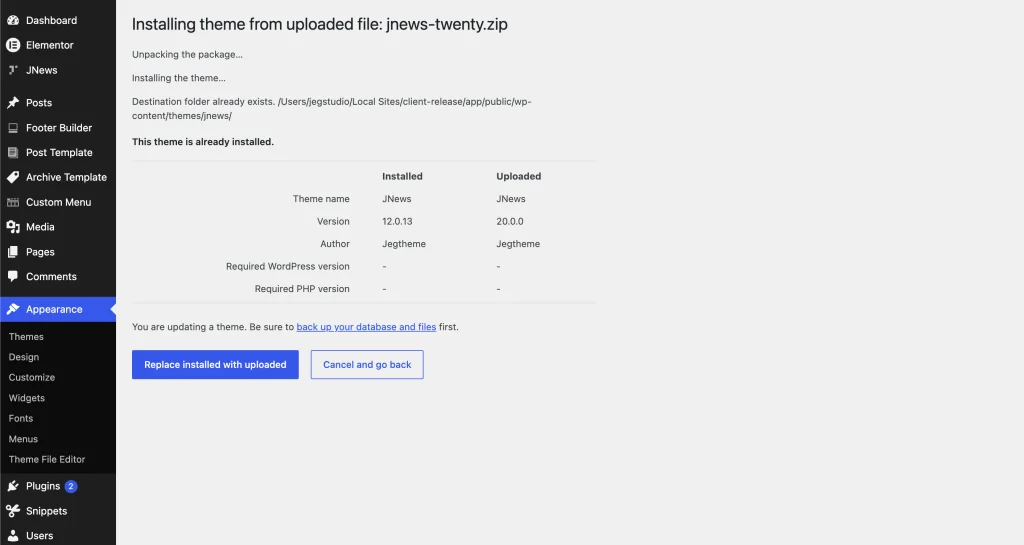
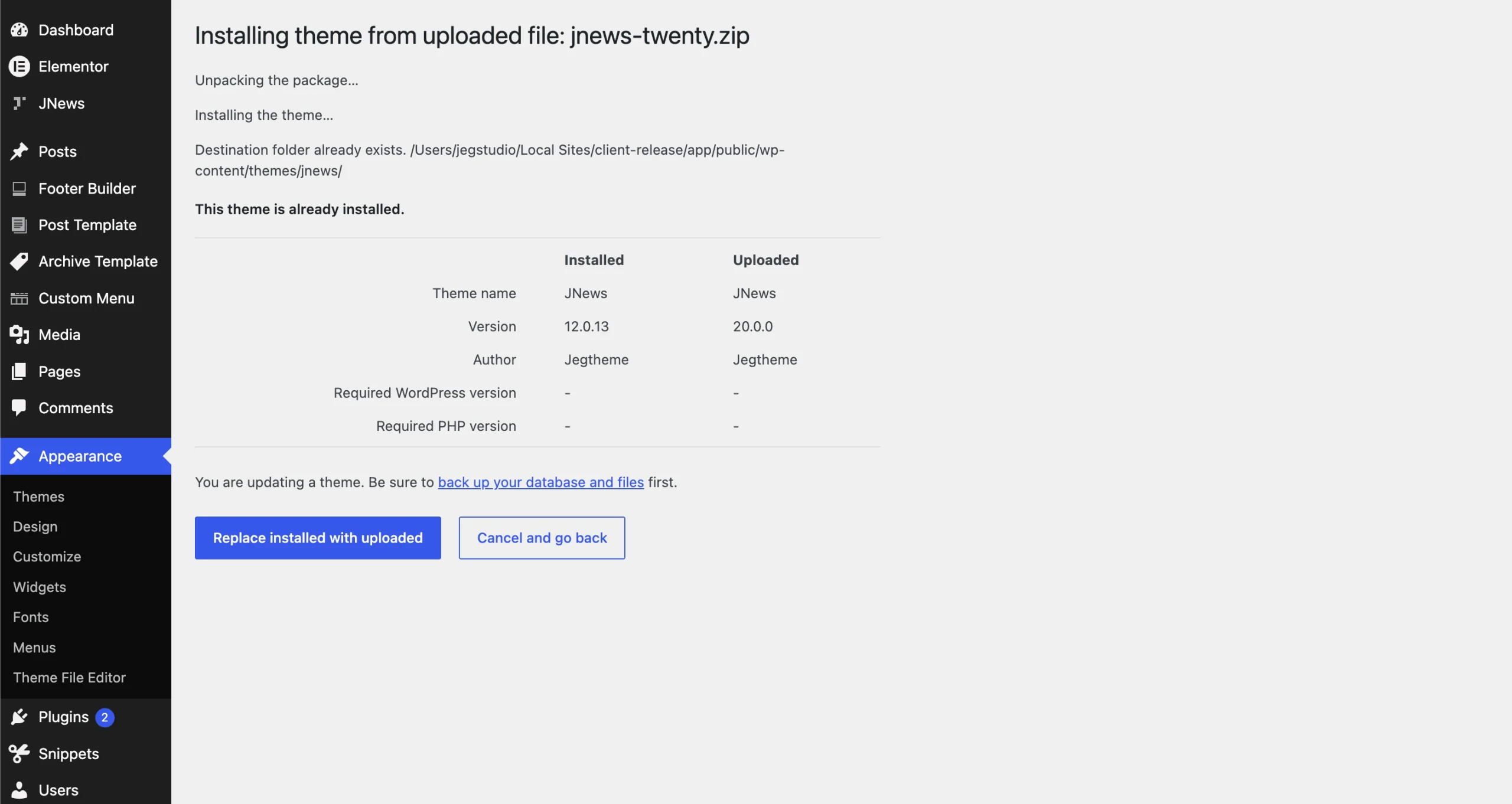
- After the installation process is complete, you will see a notice confirming that the theme is already installed. You will then be asked to confirm the theme update using the jnews-twenty.zip file you just uploaded. Click Replace Installed With Uploaded to update the JNews theme to JNews Twenty.
4. Activate the JNews Twenty License
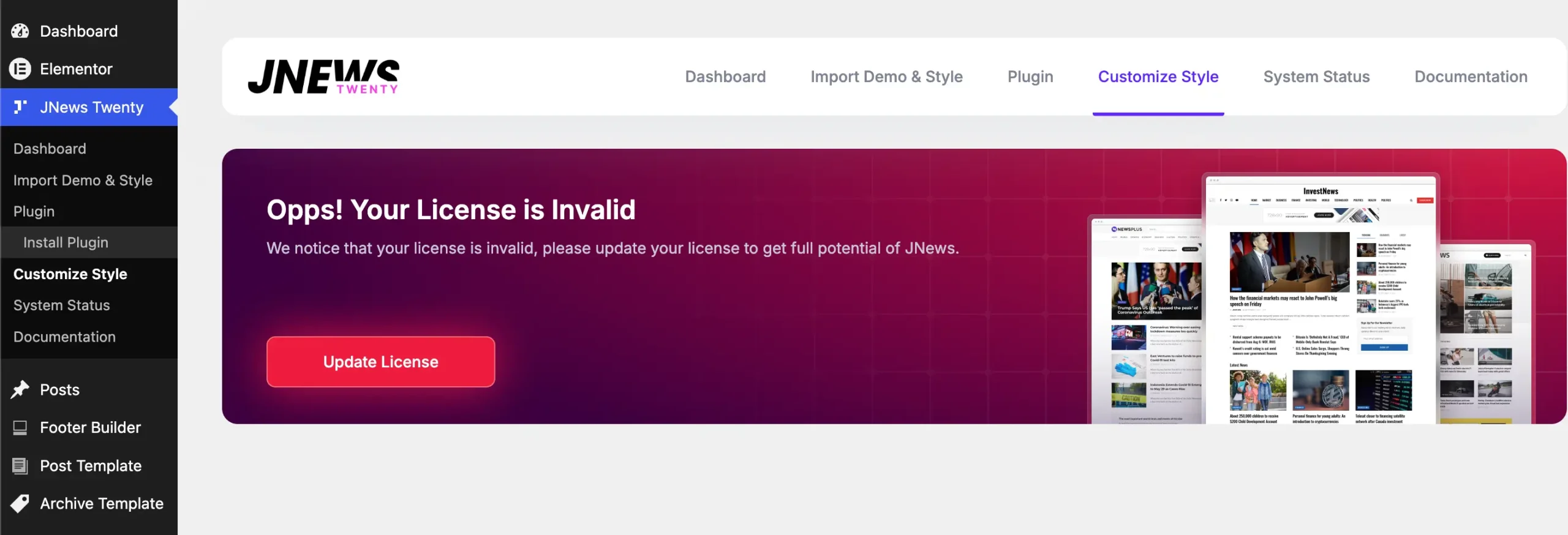
Due to changes in the licensing system used by JNews Twenty, your license will be marked as Invalid because it is still using a JNews Classic license from ThemeForest. To validate your license, click the Update License button on the JNews Dashboard.
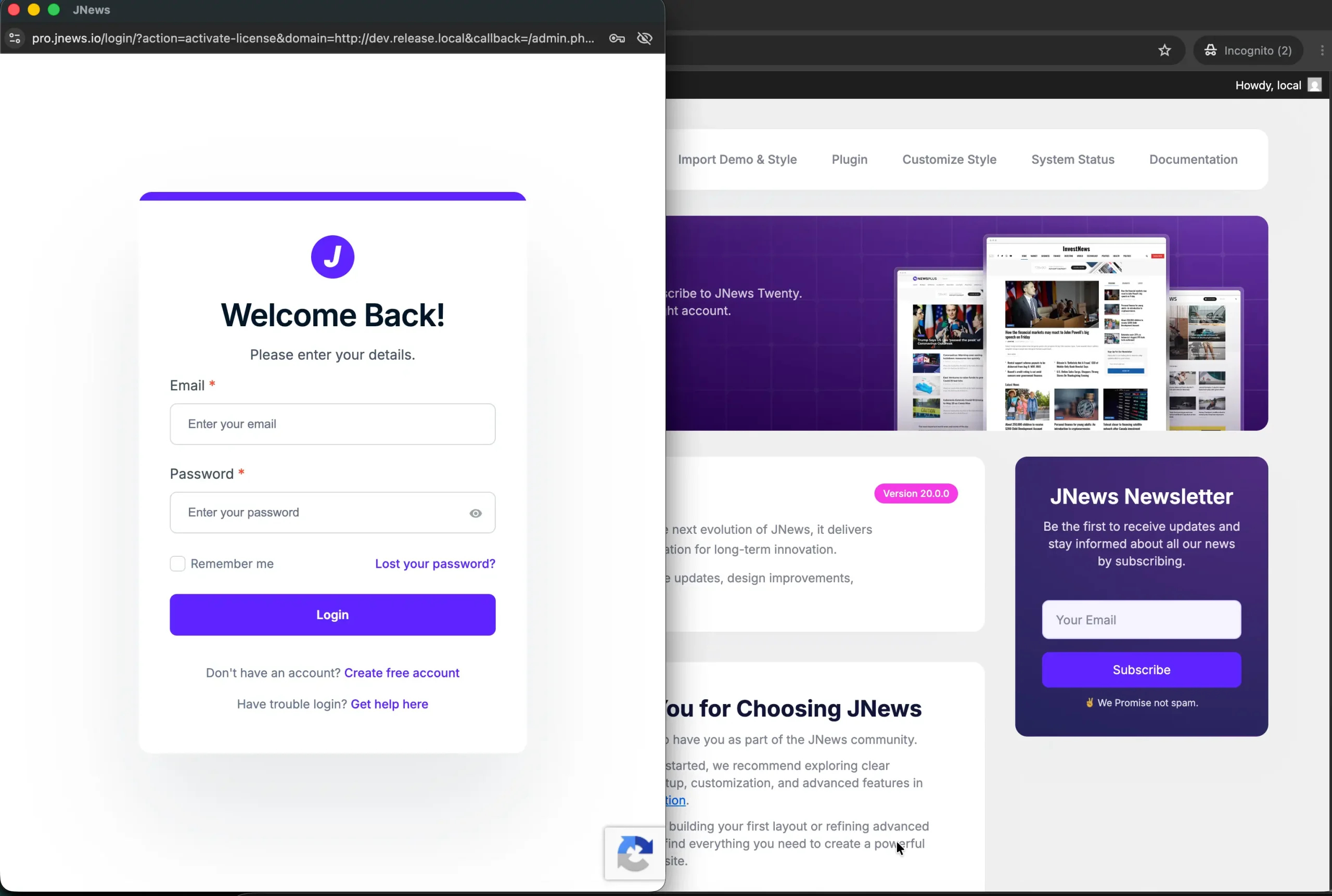
A popup that redirects you to https://pro.jnews.io/ will appear. If you haven’t logged in, please log in first.
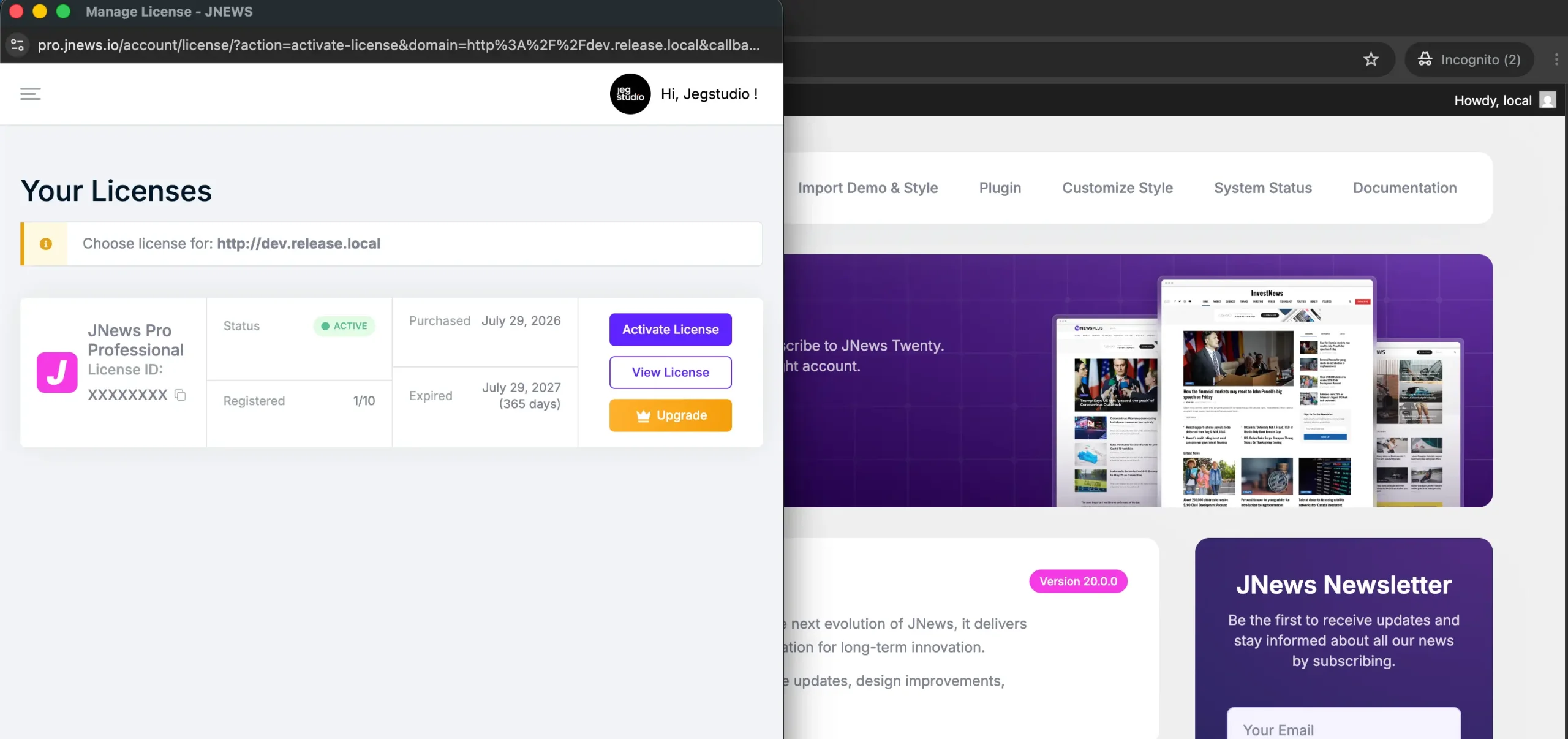
After logging in, you can select the license you want to register and click the Activate License button, and you will be redirected back to your dashboard with your license active
5. Update All JNews Plugins
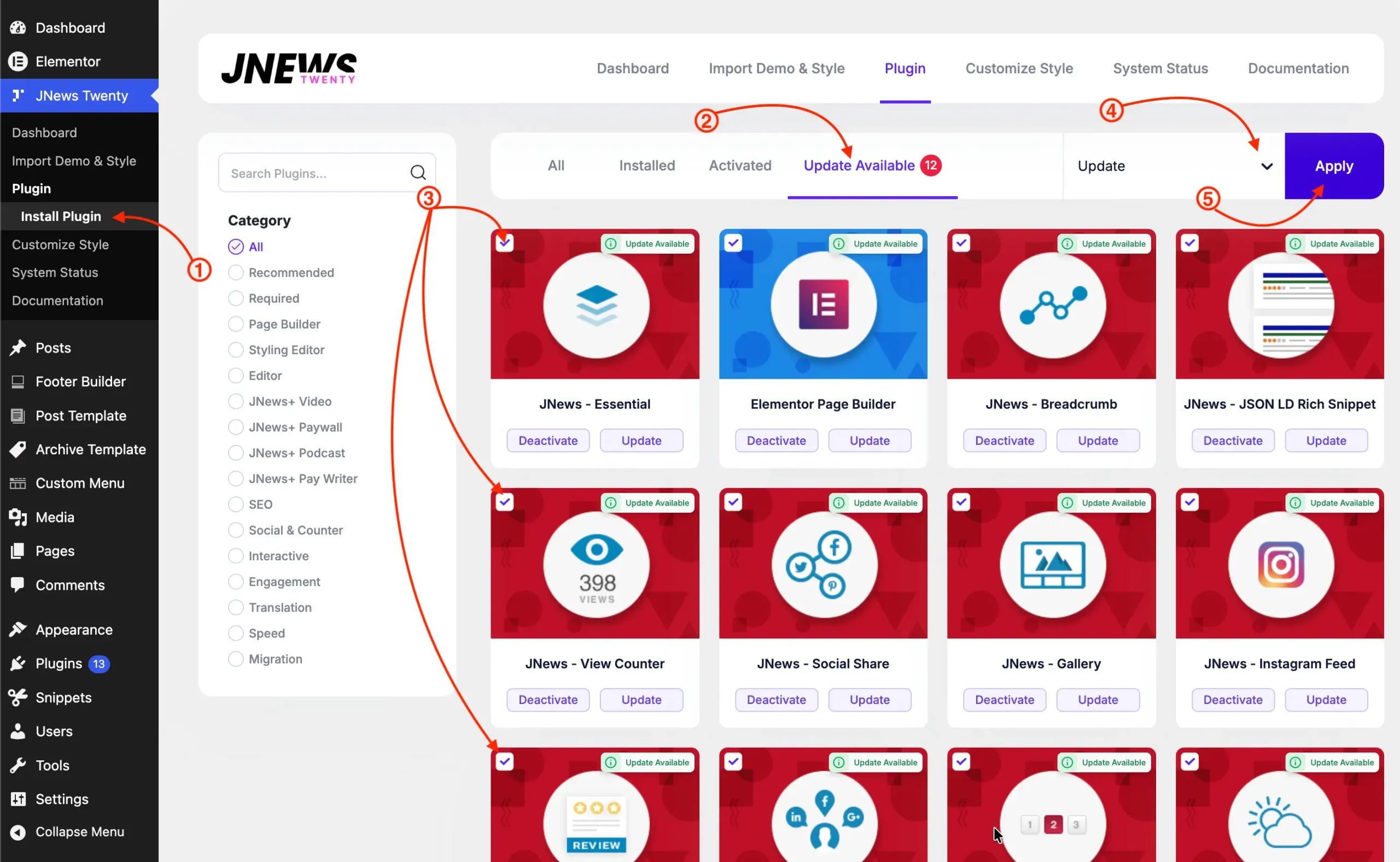
To ensure that all JNews plugins are compatible with the latest JNews Twenty update, you need to update all plugins provided by the JNews theme. You can update them through Dashboard > JNews > Plugin > Install Plugin > Update Available. After that, select all JNews plugins, change the Bulk Action option to Update, then click the Apply button to update all selected plugins.
6. Check Your Website
After activating JNews Twenty, check the following parts of your website:
- Clear your website, plugin, server, and CDN caches.
- Check the homepage, posts, pages, and archive pages.
- Check the header, menus, widgets, sidebars, and footer.
- Make sure all required JNews plugins are active and updated.
- Check custom code and Child Theme modifications.
- Test the website on desktop, tablet, and mobile devices.
Keep your website backup and the JNews Classic theme until you confirm that the migration is complete. If you have any questions or encounter any issues while upgrading to JNews Twenty, you can contact our support team through the following forum.