Activating a license for JNews Twenty is different from activating a license for JNews Classic, the version available on ThemeForest. If you are still using JNews Classic, you can follow the license activation guide at the following link.
Before activating your JNews Twenty license, make sure you have purchased a JNews Twenty license through the following link.
Please note that each license can only be activated on one domain. For example, if you activate the license on yourdomain.com, you cannot use the same license on staging.yourdomain.com.
Activating License Directly
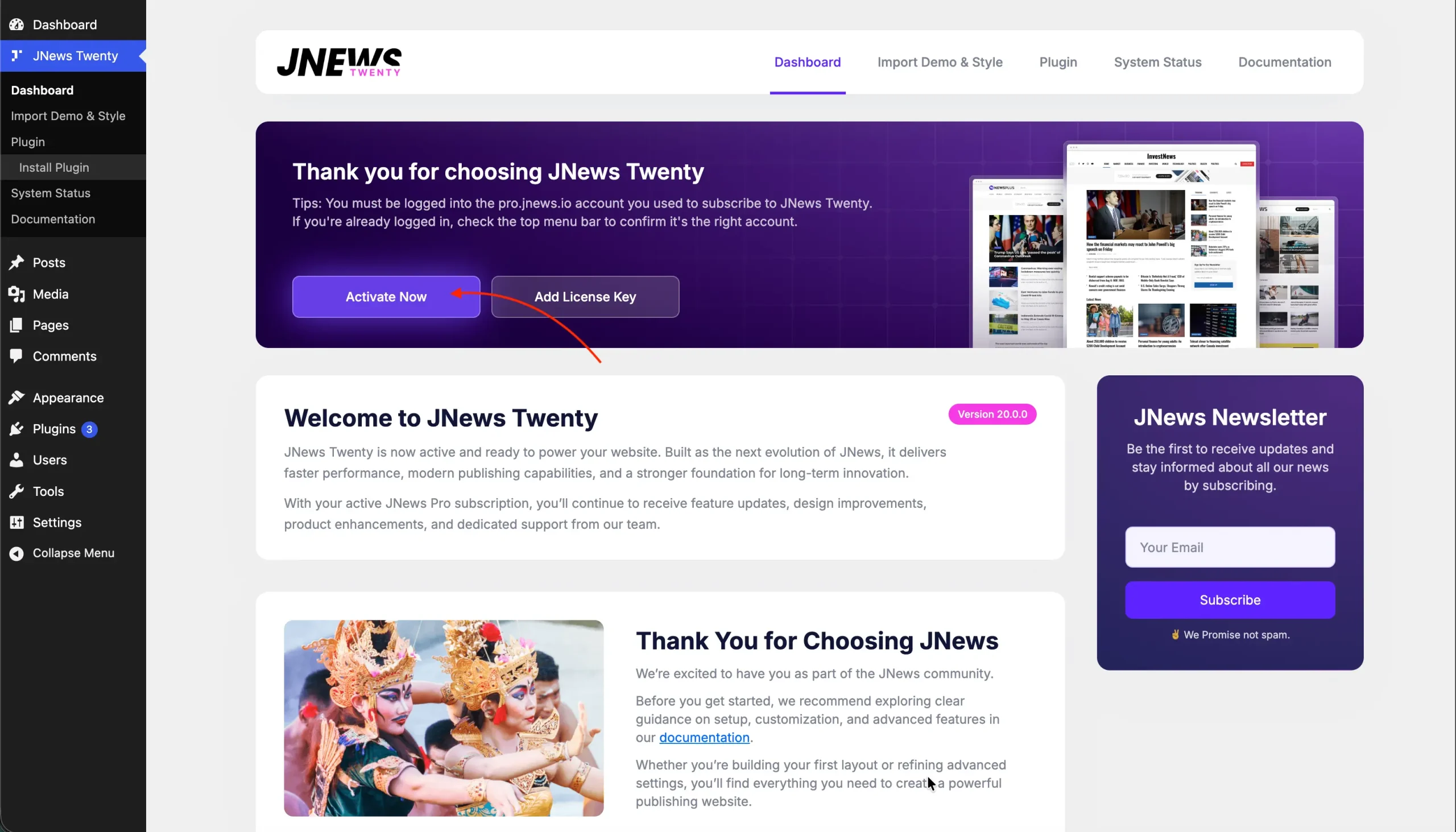
If you see the notification like the illustration below, this means that your theme is not yet activated.

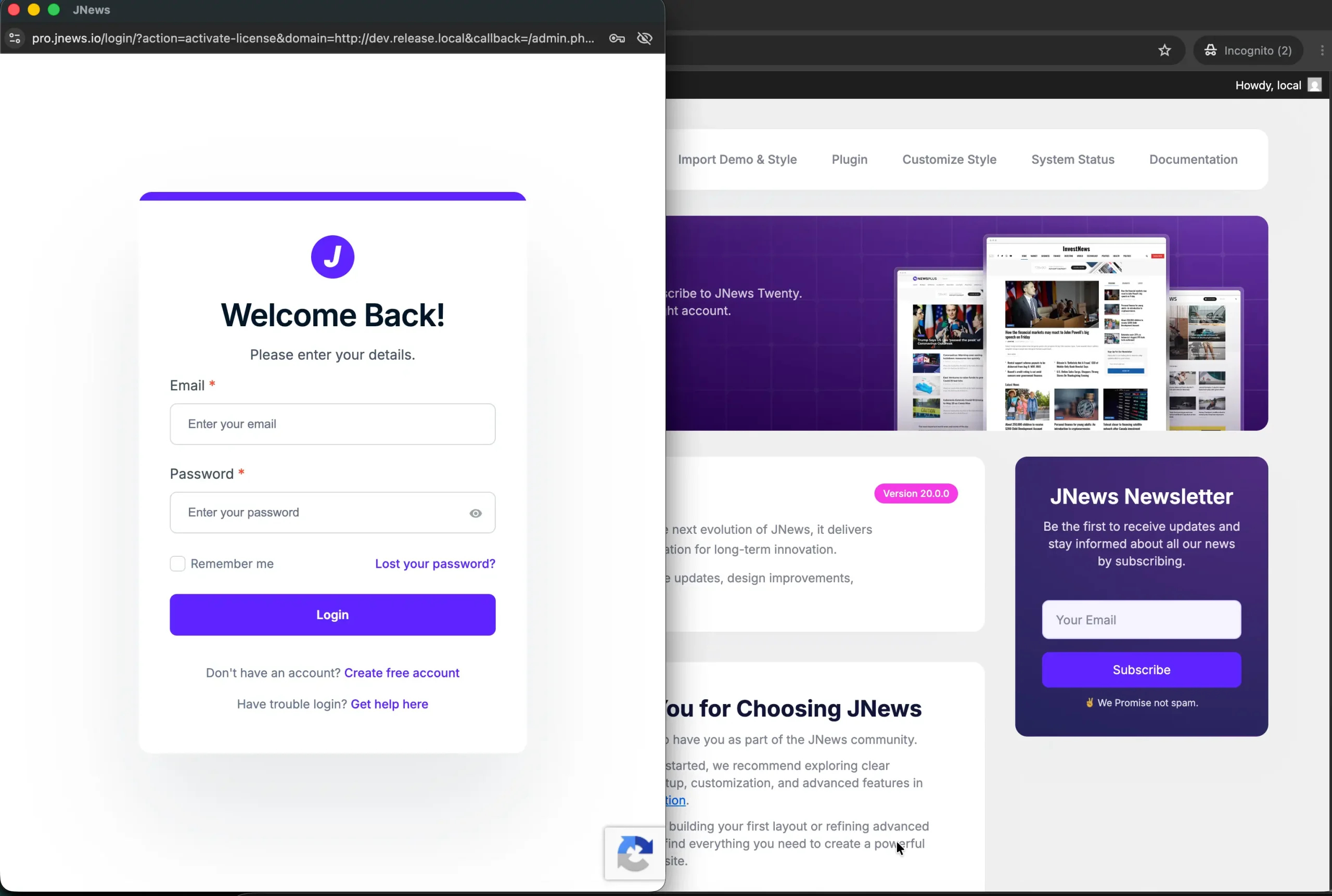
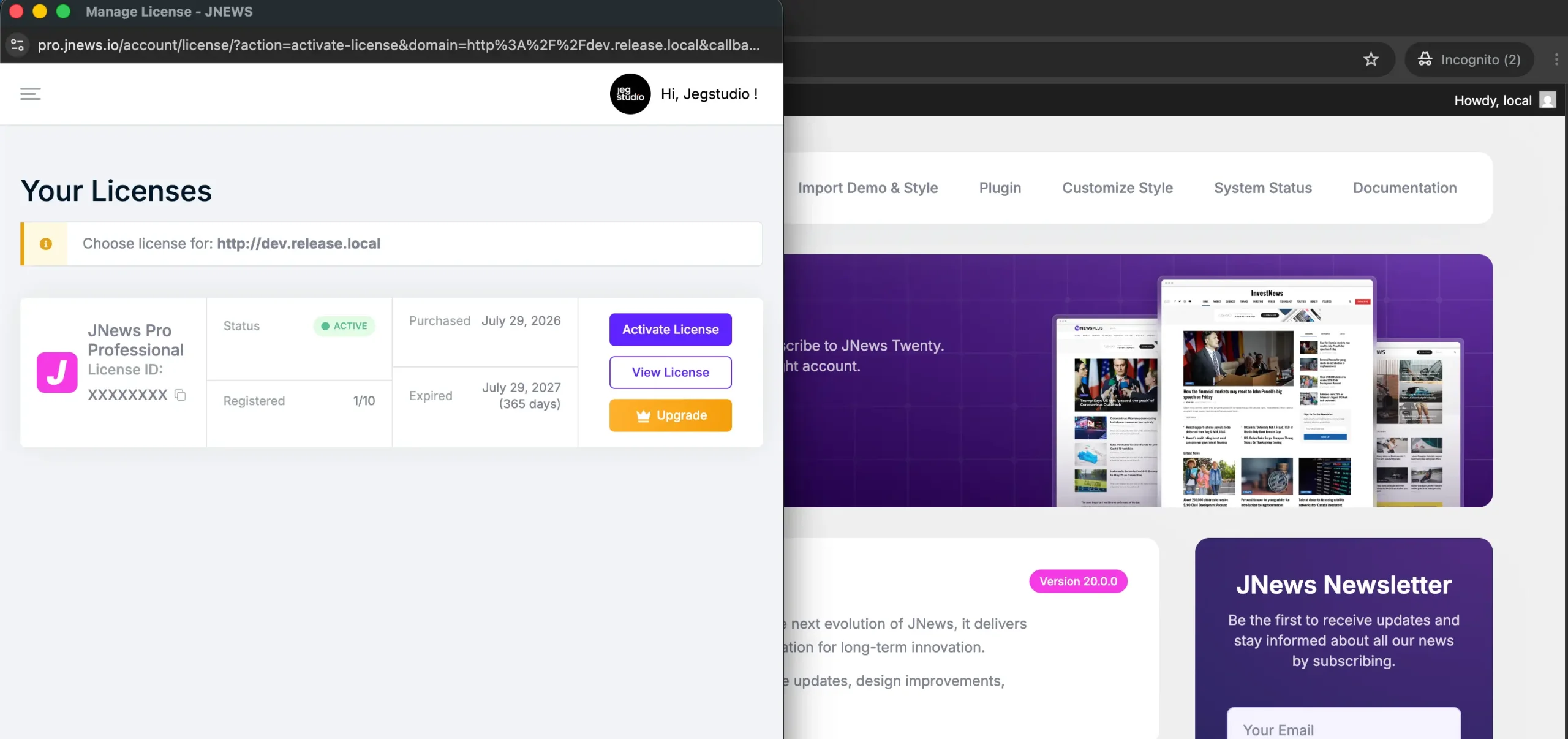
You can activate the theme license from Dashboard > JNews > Dashboard menu and then click the Activate Now button. A popup that redirects you to https://pro.jnews.io/ will appear.
If you haven’t logged in, please log in first.
After logging in, you can select the license you want to register and click the Activate License button, and you will be redirected back to your dashboard with your license active
Activating License Using Key
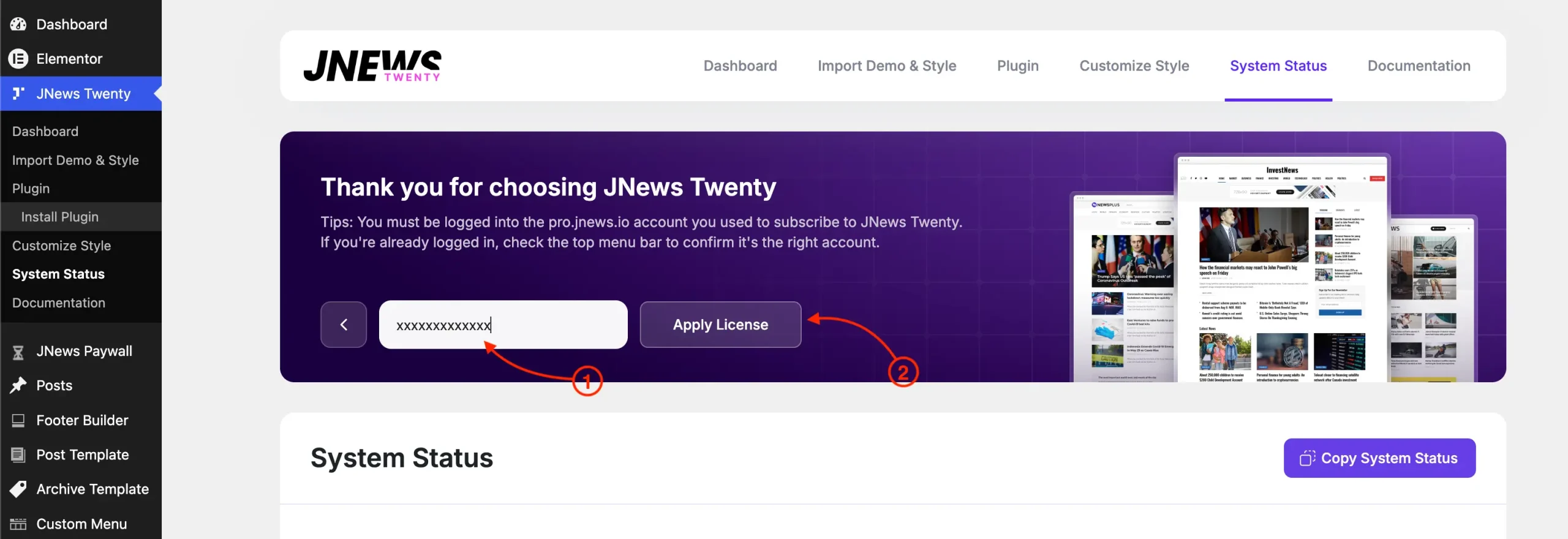
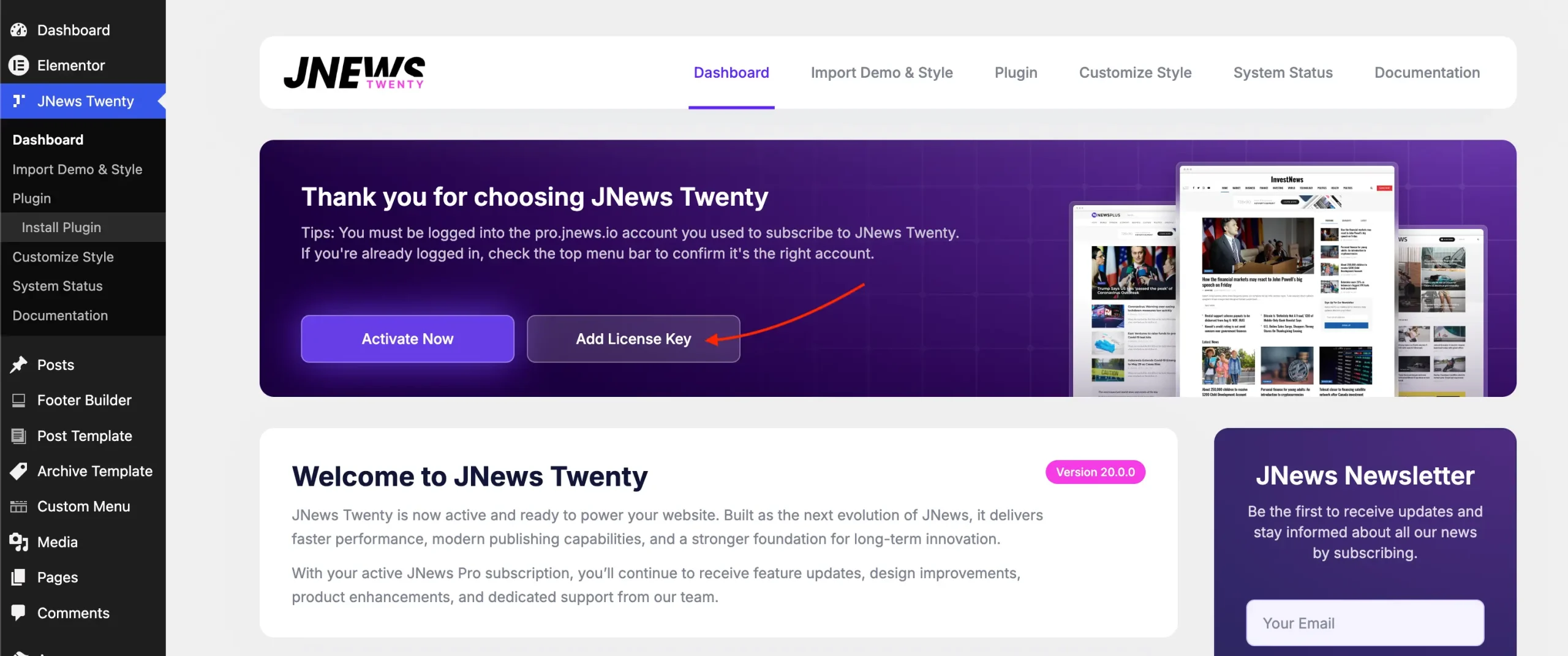
Go to the`Dashboard > JNews > Dashboard` menu and then click the Add License Key button.
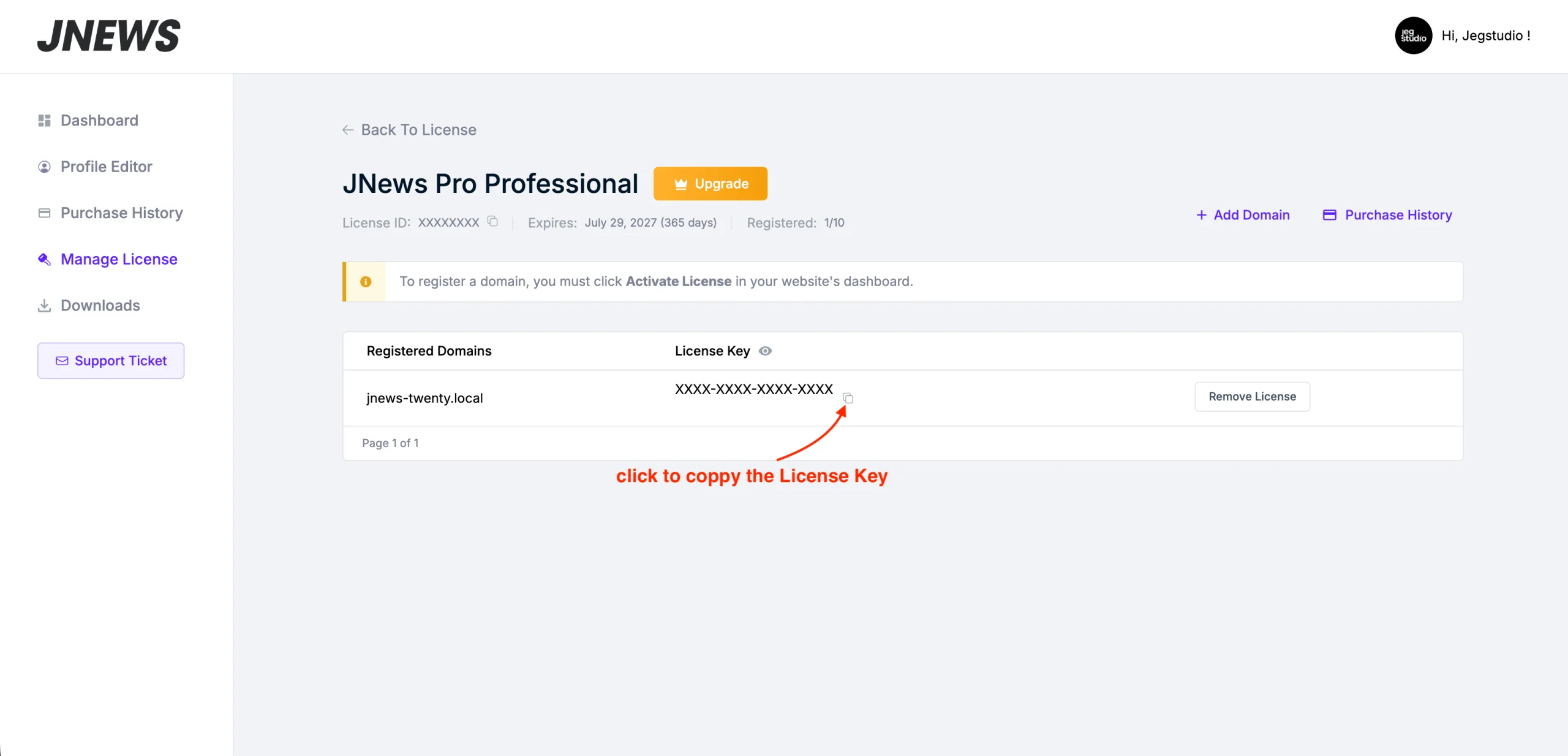
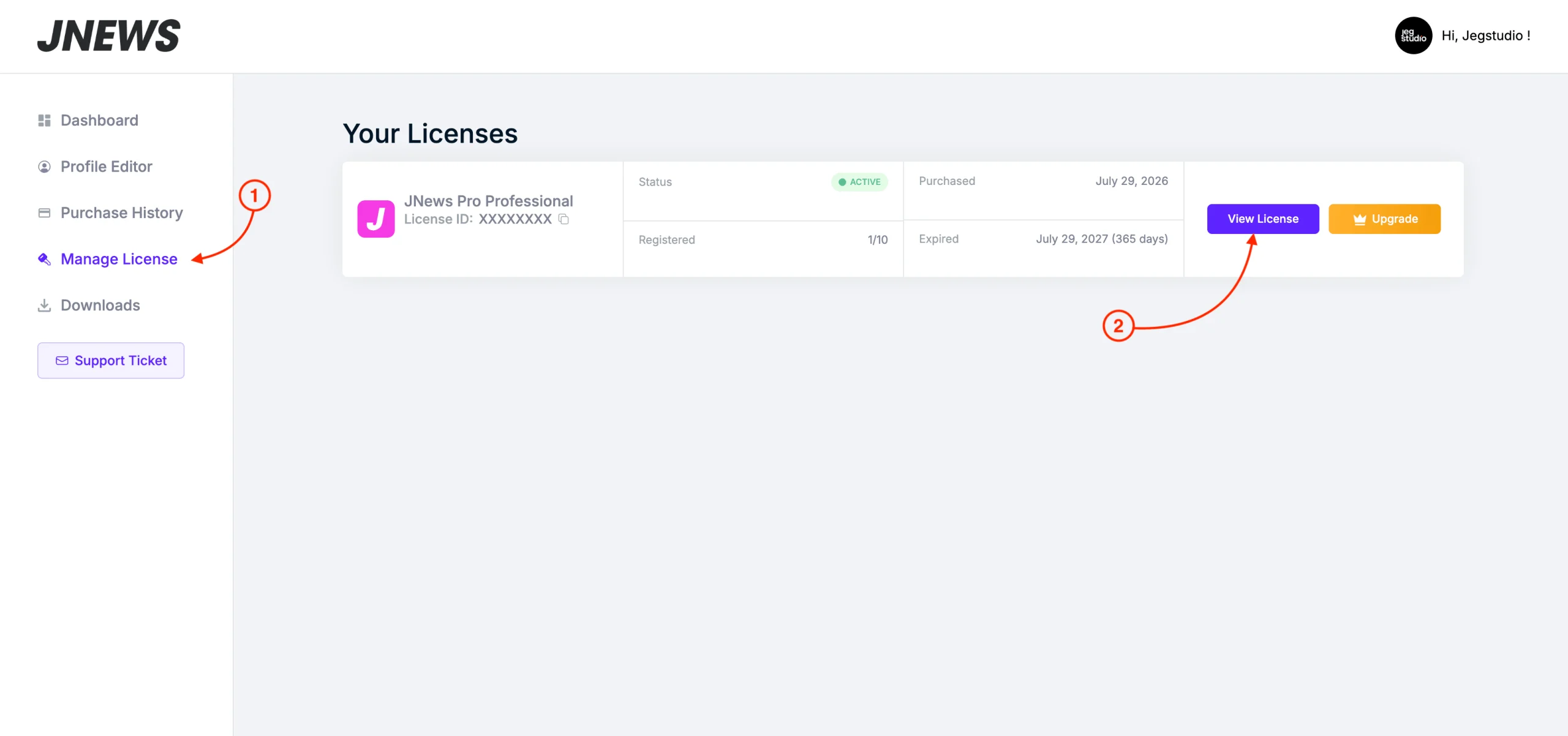
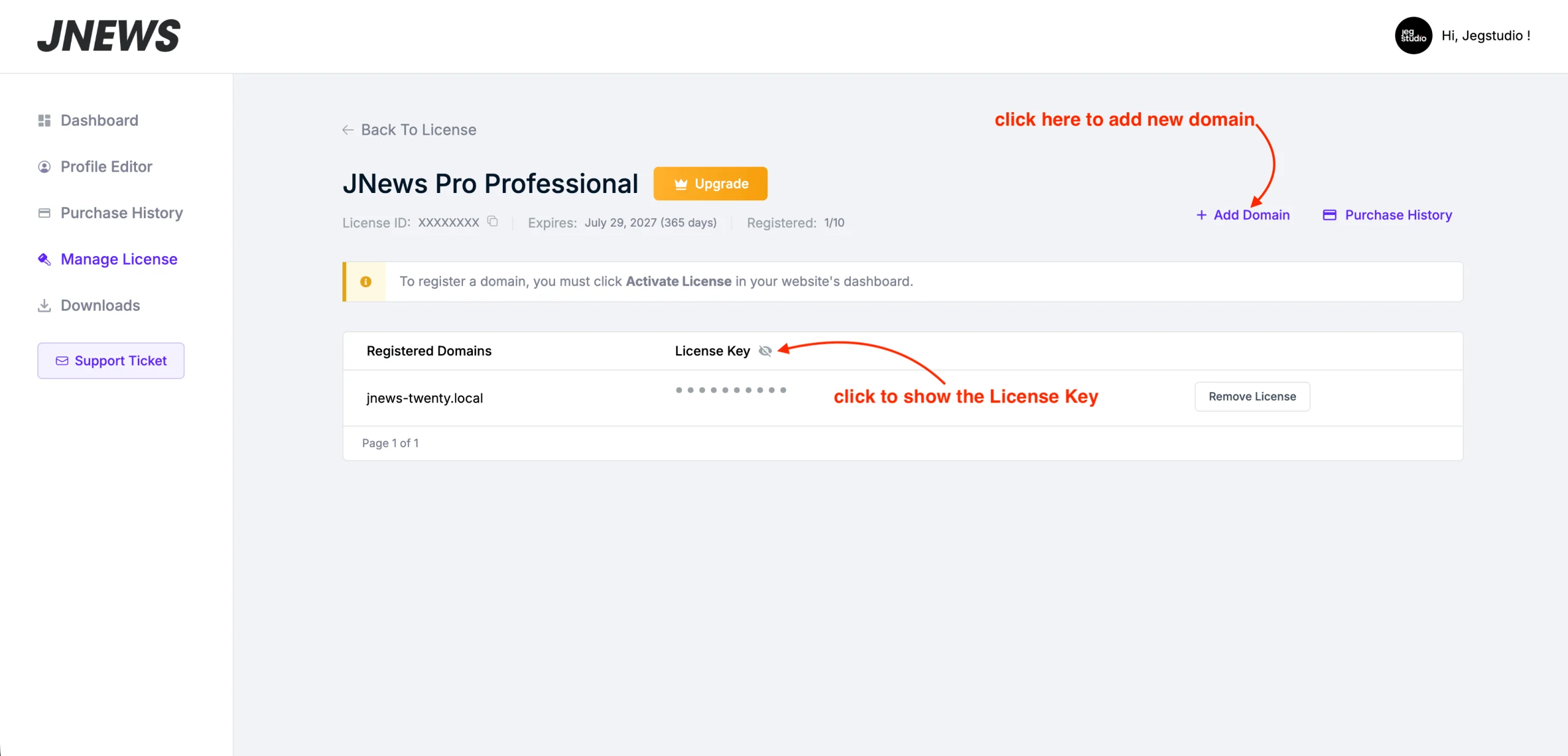
To get your license key, go to your account page and head to Manage License, select a license, and click View License
Click the Add Domain button, input your domain name, and click the Eye button to show the license Key for the selected domain
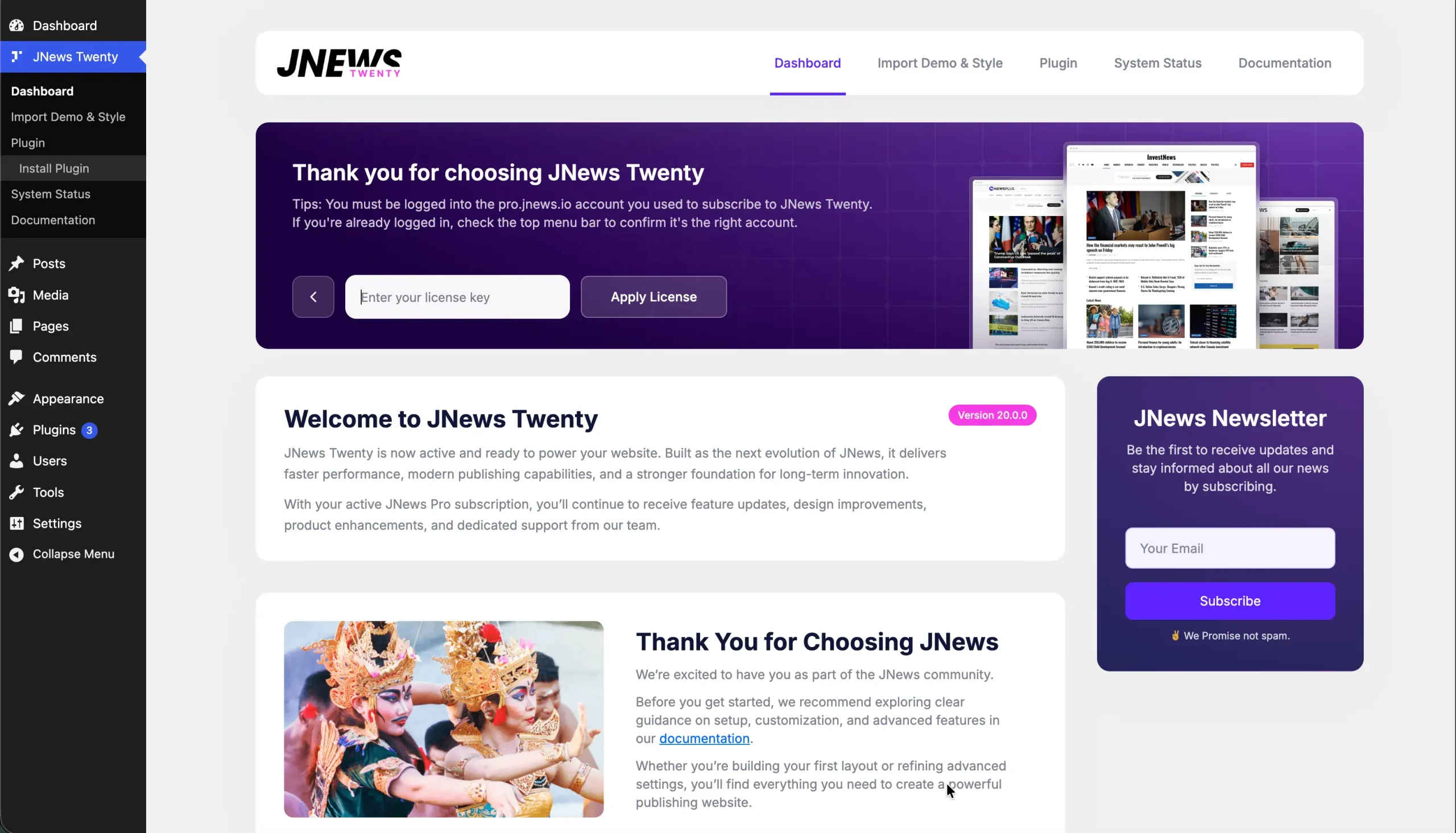
Click the Copy to Clipboard button, and than Paste the code on the JNews Dashboard and click the Apply License button