
Webstories allow you to display your story in visual narrative form with fascinating animations and tappable interactions. Integrated with the Google web story plugin will give you an easy way to create beautiful and engaging content with a visually rich and intuitive dashboard.
There’re a few things that we’ll explain to you on this section :
1. Installation & Requirements
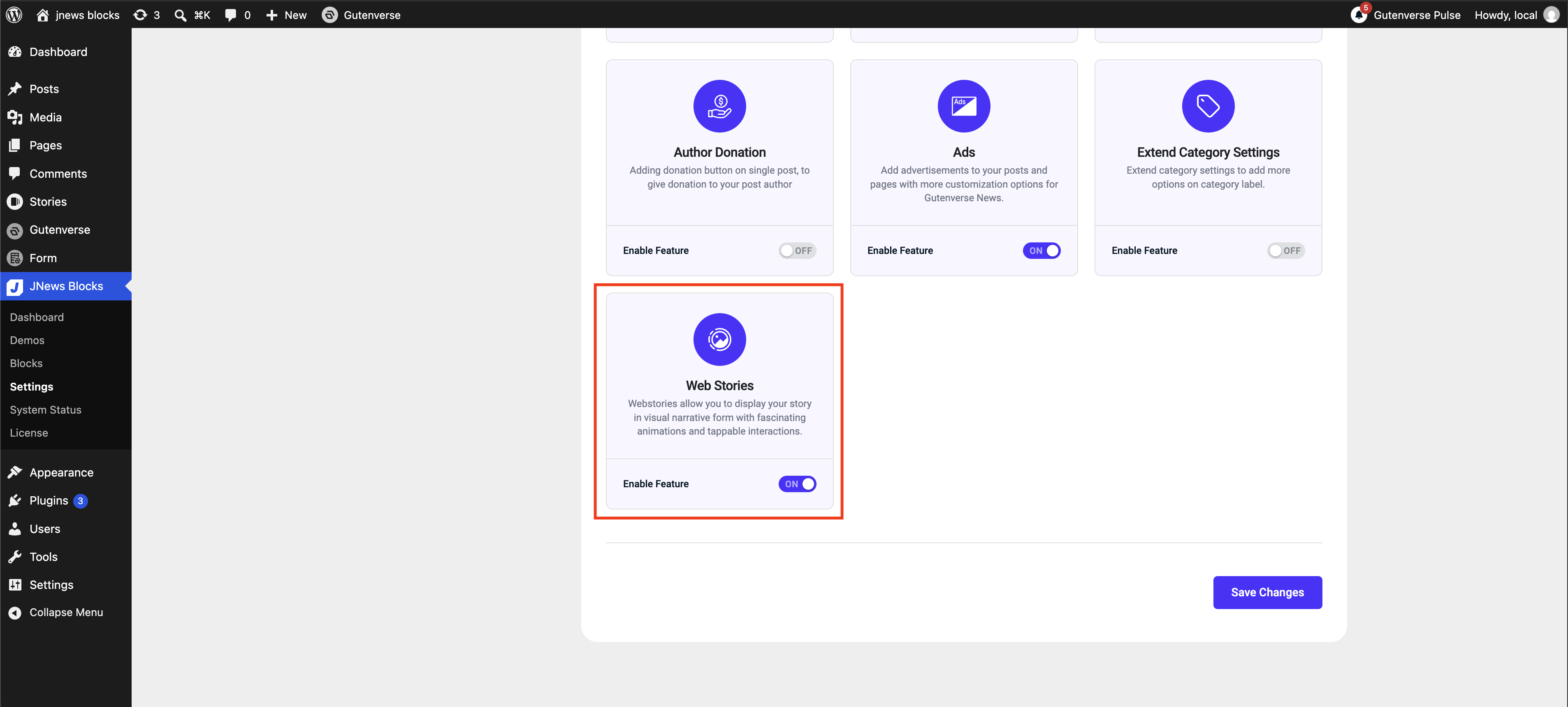
To enable and use the Webstories feature, you need to have a JNews Blocks Pro license. After that, you need to activate the following plugins:
- Gutenverse
- Gutenverse Pro
- JNews Blocks
- JNews Blocks Pro
- Web Stories
After that, you can go to the JNews Blocks -> Settings -> Additional Features menu and enable the Webstories feature.
2. Create a Web Story Post
to create a web story post please go to dashboard and navigate to Stories → Add New Story
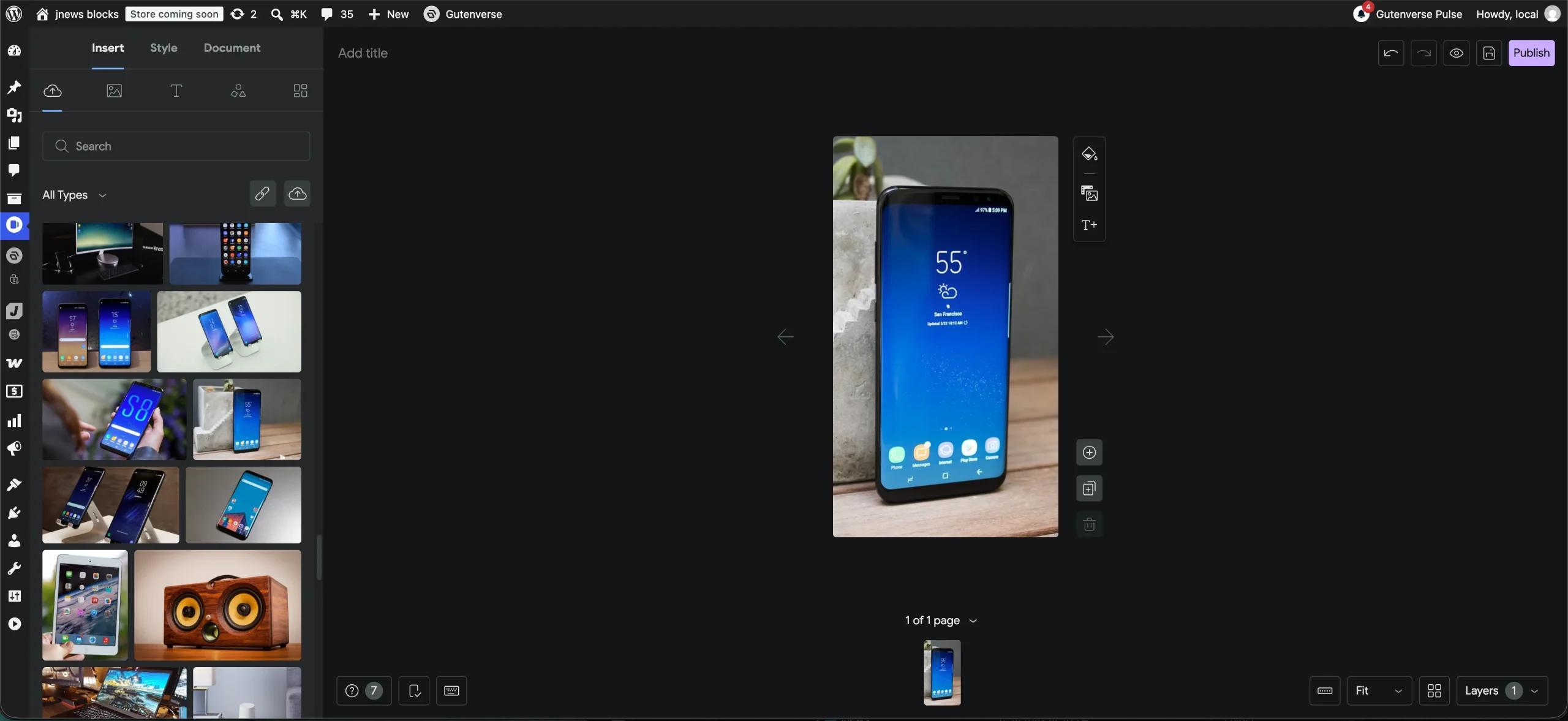
Stories Dashboard has these following key features
- Beautiful and expressive page templates
- Easy drag-and-drop capabilities
- Convenient access to WordPress’ media library
- Customizable color and text style presets
3. Add Story block
After creating and saving your web story you can add it into Webstories element to display it to your readers, you can add the Webstories block in gutenberg editor.
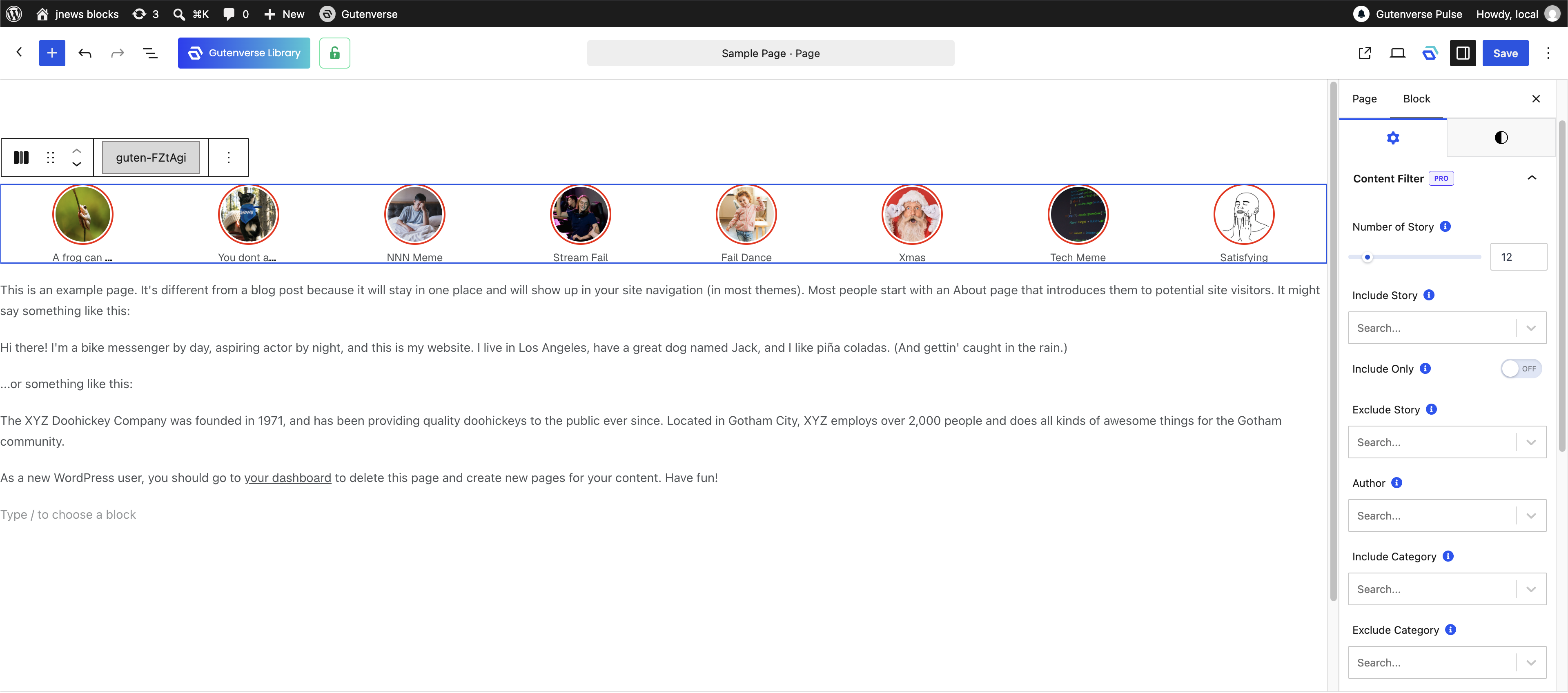
After adding the Web Stories block to the Gutenberg editor, you can customize the number of stories and their display style. The Number of Story option determines how many stories are retrieved by the query, while Number of Item determines how many stories are displayed on a single screen. You can also choose from several display styles, including Circle, Square, List, Portrait, and Grid, to match the layout of your website.
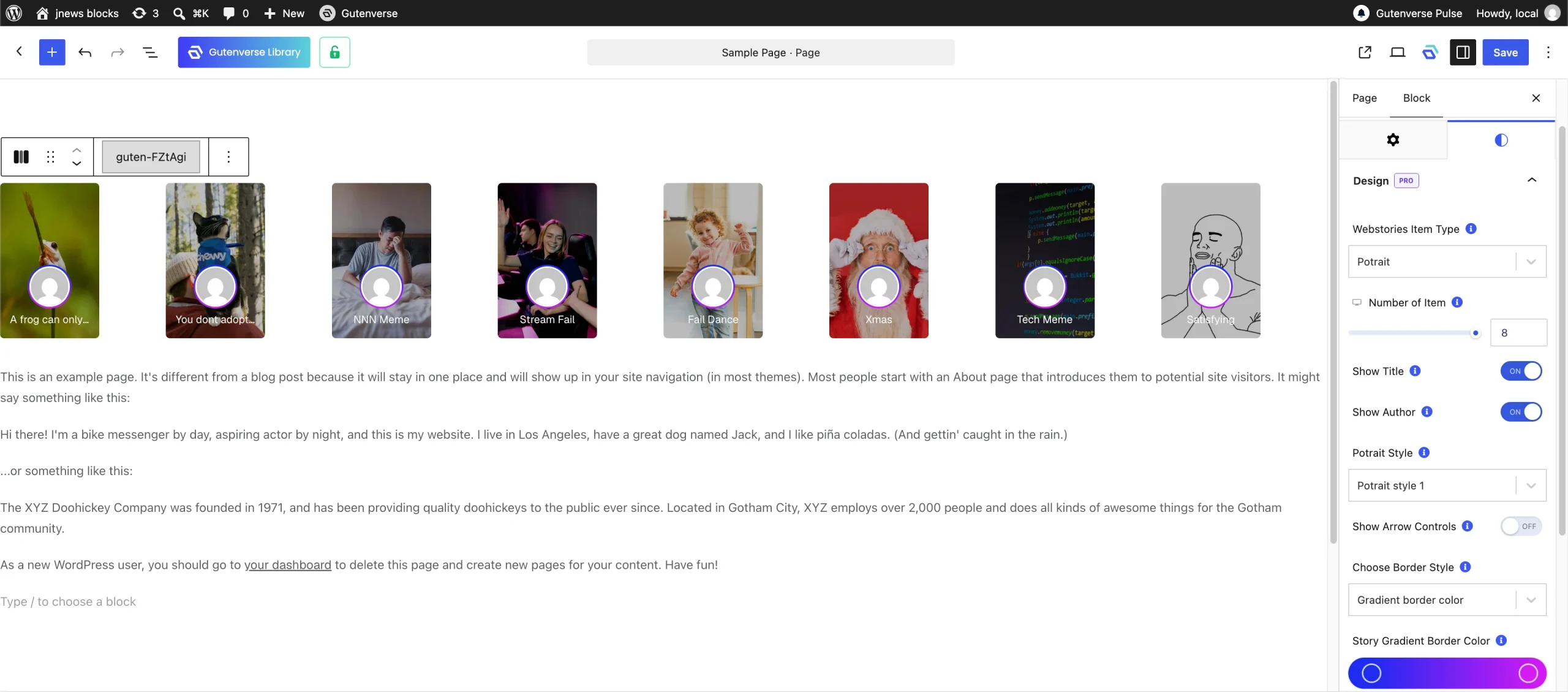
In addition, you can customize the block further with options such as Background Overlay or Border Color. Feel free to explore the available options to find the style that best suits your website.