
The Category Setting feature in JNews Blocks gives you control over how categories behave and are displayed on your single posts. Whether you have posts assigned to multiple categories and need to highlight a specific one, or you use certain categories purely for internal organization and want to hide them from the public, this feature has you covered.
There’re a few things that we’ll explain to you on this section :
- Installation & Requirements
- How to Use the Feature
- Setting a Primary Category
- Hiding Categories
- Override Category label color
1. Installation & Requirements
To use the Category Setting feature, you need to have a JNews Blocks Pro license. After that, you need to activate the following plugins:
- Gutenverse
- Gutenverse Pro
- JNews Blocks
- JNews Blocks Pro
Once all of these plugins are activated, make sure you have activated your JNews Blocks Pro license. The Category Setting feature will be automatically active and ready to use without any additional configuration.
2. How to Use the Feature
The Category Setting options are integrated directly into the JNews Blocks Metabox, located at the top right of the Gutenberg editor. This allows you to adjust the category behavior seamlessly while writing or editing your content. To access it:
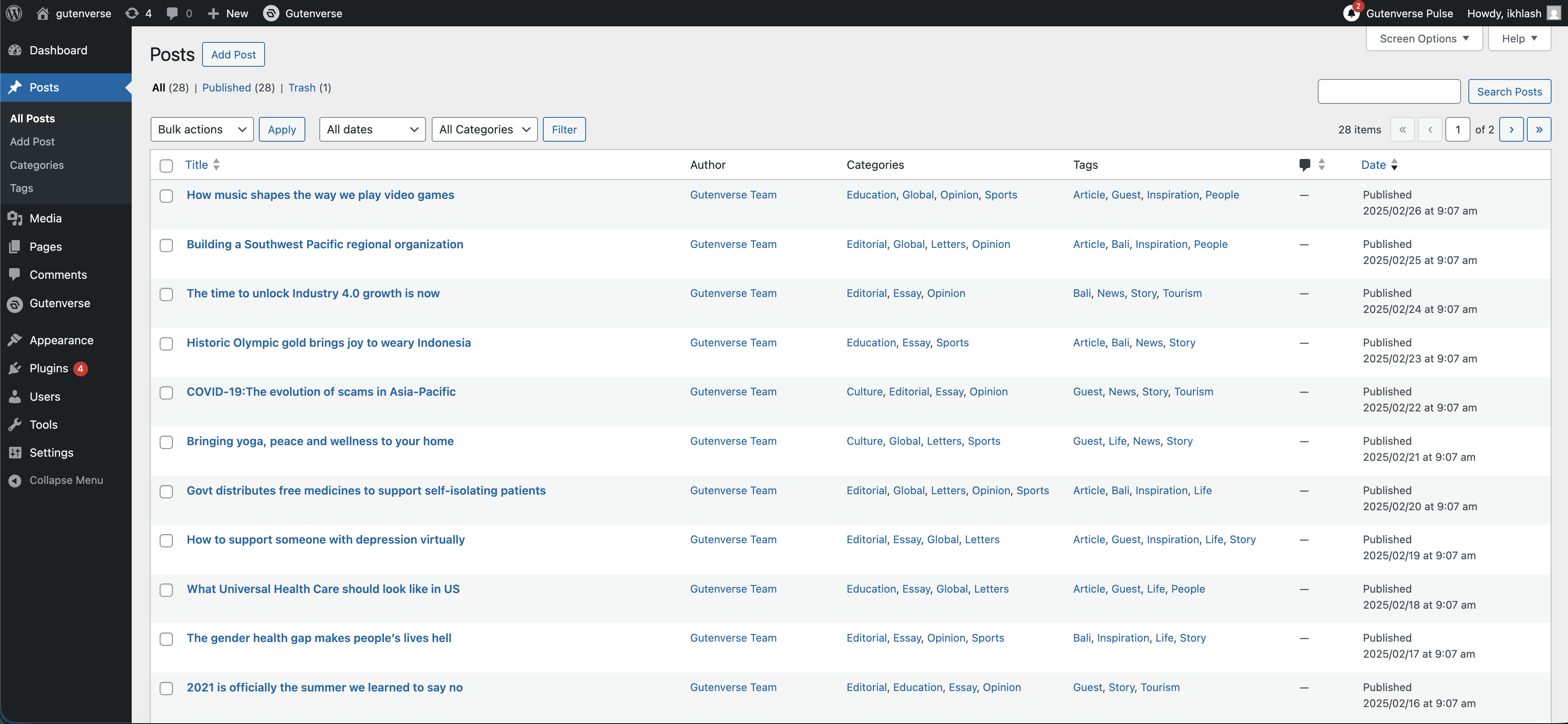
1. Open any Post in the WordPress Block Editor (Gutenberg). You can do this by navigating to Posts > All Posts in your WordPress dashboard, or by clicking Edit Post on the top admin bar while viewing the post on the frontend.
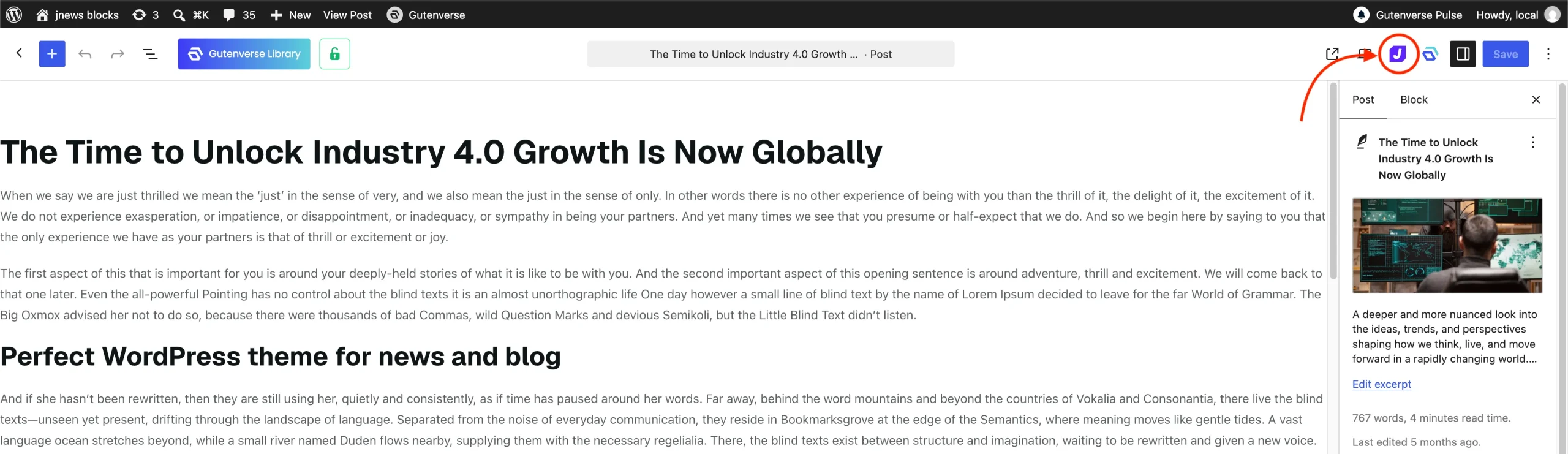
2. Look for the JNews Blocks Metabox icon at the top right corner of the editor.
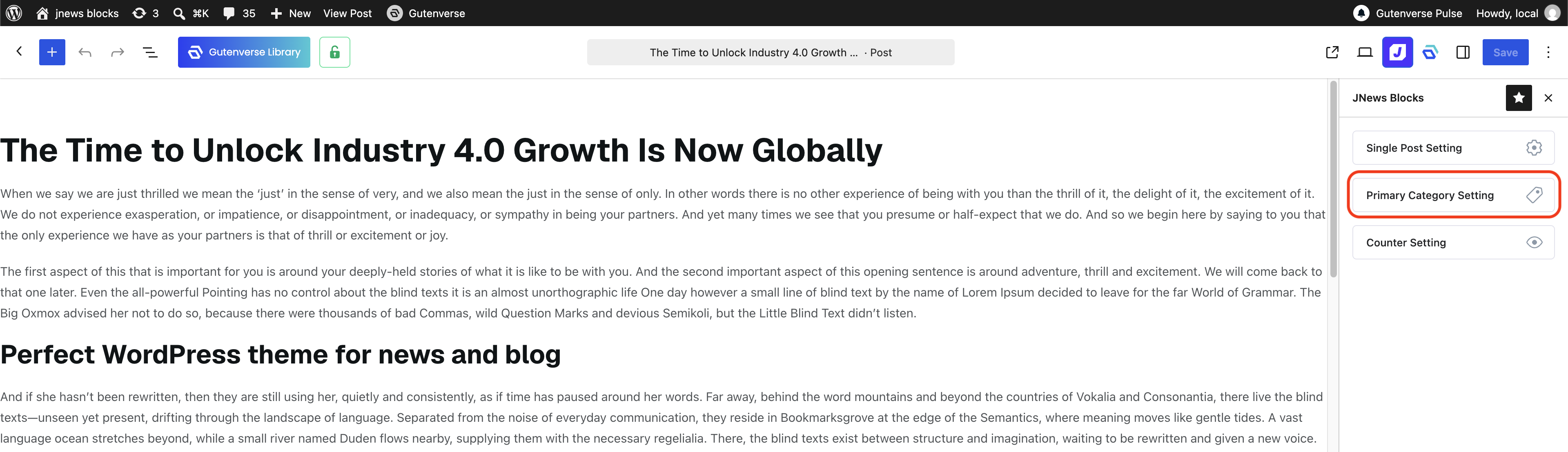
3. Click the icon to open the JNews Blocks Sidebar. Both of these features are located under the Primary Category Setting panel.
3. Setting a Primary Category
When a post is assigned to multiple categories, it can sometimes be difficult to control which category is displayed in prominent areas like in category badges or breadcrumbs. To set a Primary Category follow these step below:
1. Inside the Primary Category Setting panel, you will see a list or dropdown of the categories currently assigned to the post.
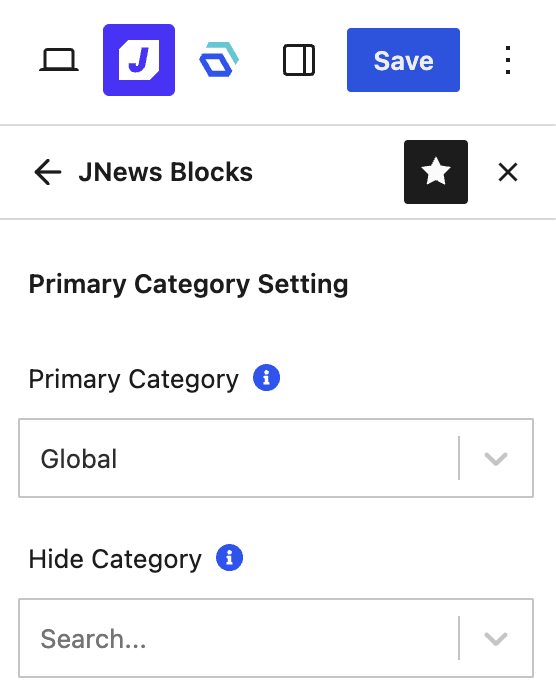
2. Select the category you want to designate as primary.
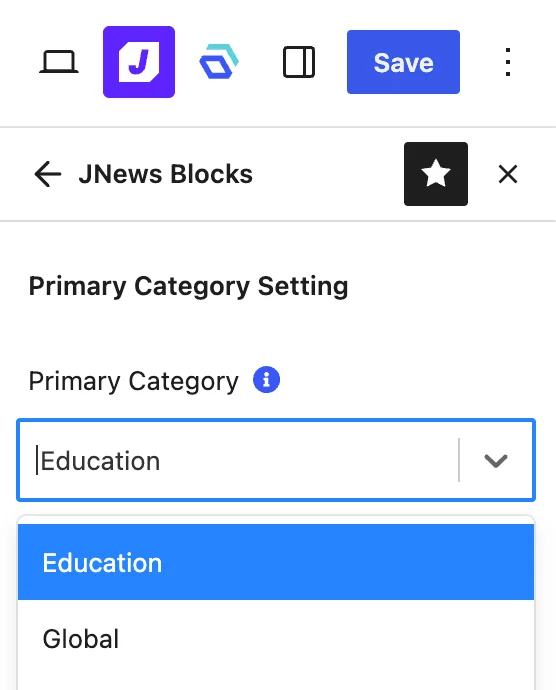
3. Save or Publish your post. The selected category will now be prioritized on the frontend.
Below is an example showing how the selected Primary Category overrides the default display on the frontend:

Also, if you are using Breadcrumb from Gutenverse:

4. Hiding Categories
Sometimes, you may assign a category to a post for internal filtering, content organization, or related posts algorithms, but you don’t necessarily want that category to be visible to your readers on the frontend. The Hide Category option allows you to selectively hide specific categories from the post’s public-facing category list. The hidden categories remain attached to the post on the backend, but they will automatically be filtered out when categories are displayed to your visitors. To hide categories follow these step below:
1. Inside the same Primary Category Setting panel, look for the option to hide categories.
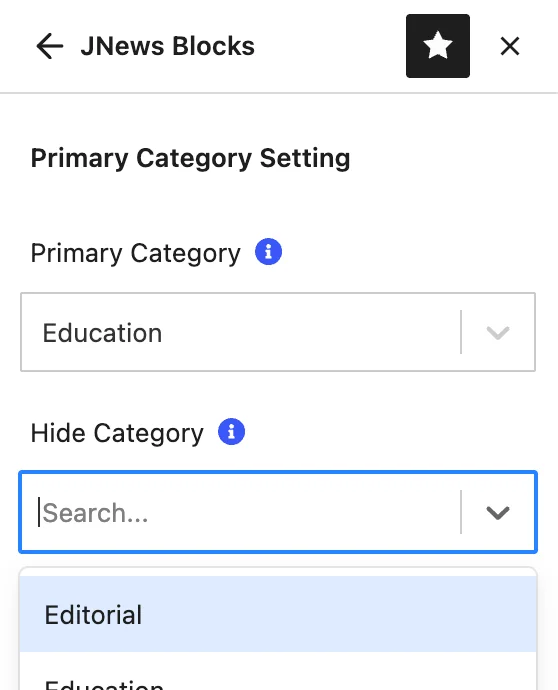
2. Select the specific categories you wish to hide from the frontend display.
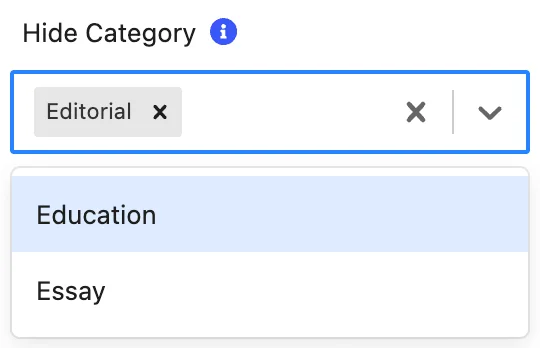
3. Save or Publish your post. The selected categories will no longer appear for this specific post.
The category you selected will not appear in the category on Post Meta blocks on the frontend:

5. Override Category label color
Override Category Color feature lets you customize the label colors for individual categories. These colors apply to modules with Allow Override Color enabled, allowing each category to have its own color scheme.
To use this feature, please navigate to JNews Blocks > Settings > Additional Features, turn on Enable Feature for Extend Category Settings, then click Save Changes.
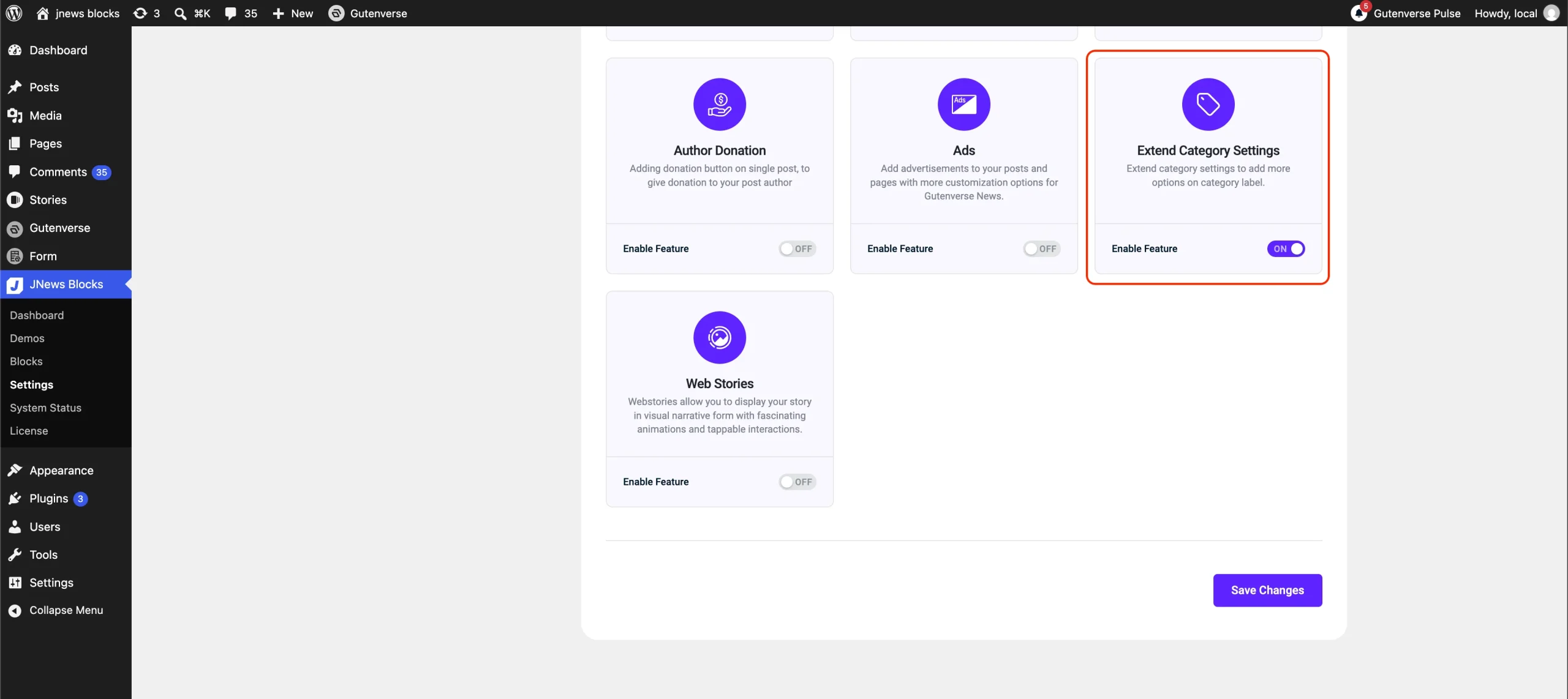
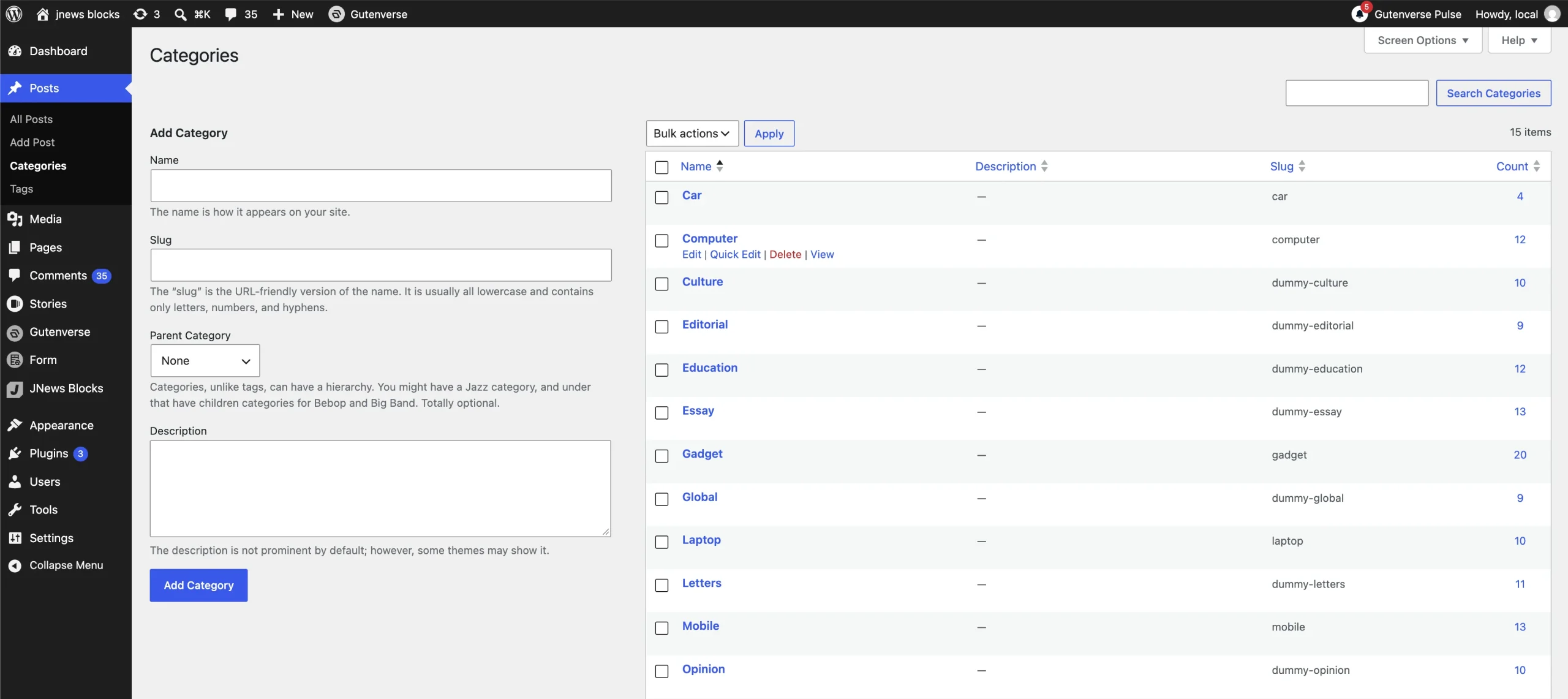
Go to Posts > Categories, then click Edit on the category you want to customize.
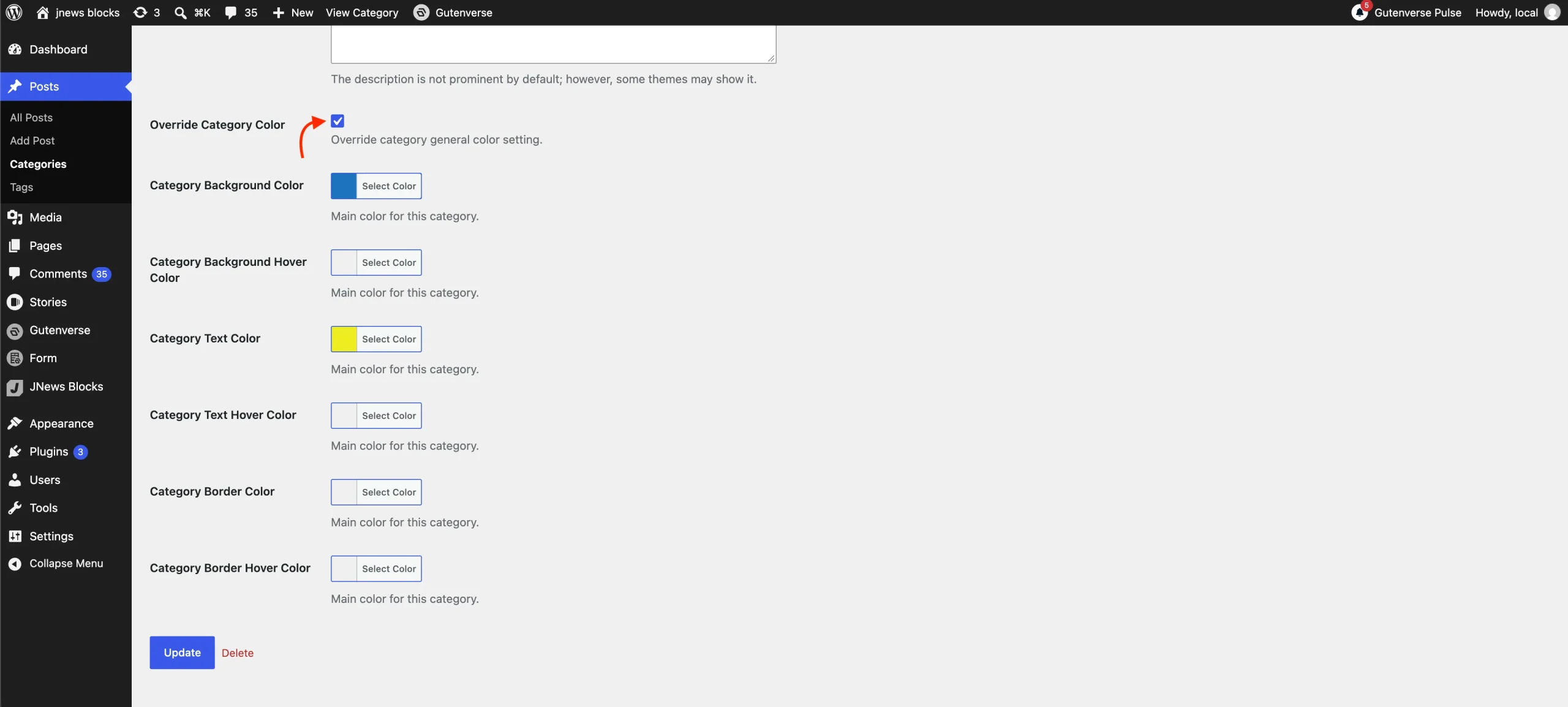
On the Edit Category page, select the Override Category Color checkbox. The color options will appear.
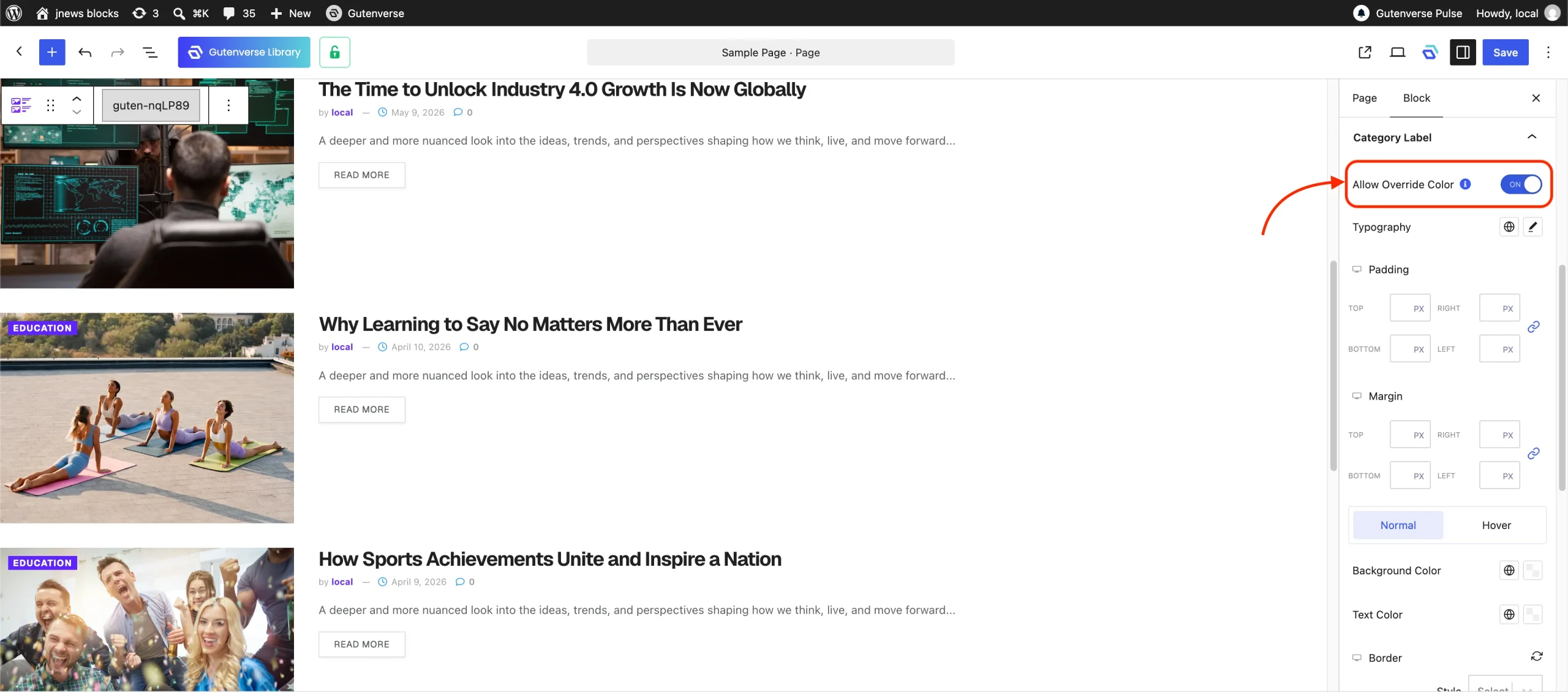
Click Update to save your category settings. Then open the page containing your JNews Blocks module in the WordPress editor, then select the module you want to customize. In the module settings, open the Category Label panel and enable Allow Override Color. Click Save to save the page. Enable this option for each module where you want the category’s custom colors to apply.
The category labels in the selected module will use the colors saved on the Edit Category page, including the hover colors you configured.
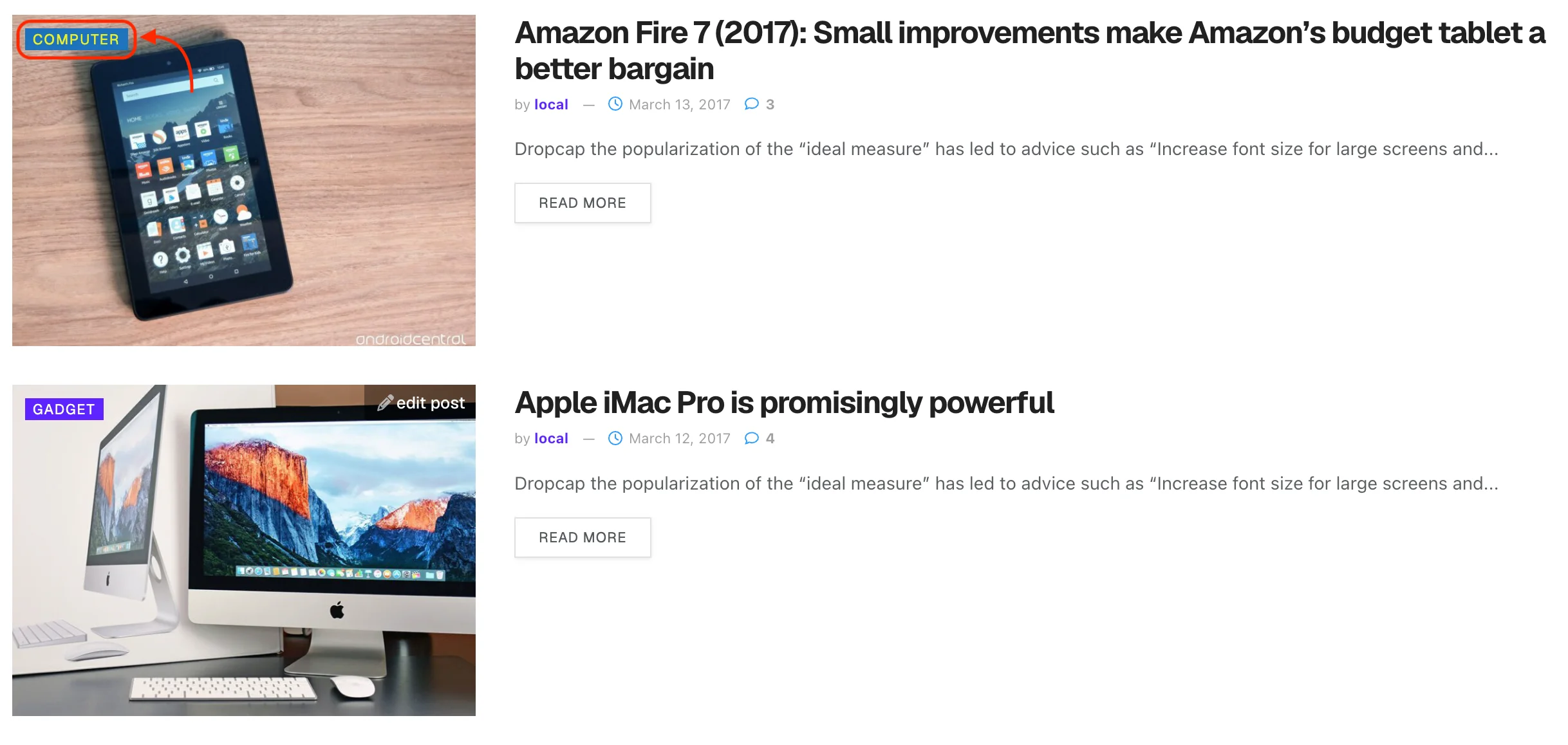
Repeat these steps for other categories to assign different color combinations. This allows each category to have its own label colors. For example, the Computer category can use a blue background with yellow text, while other categories use different colors.