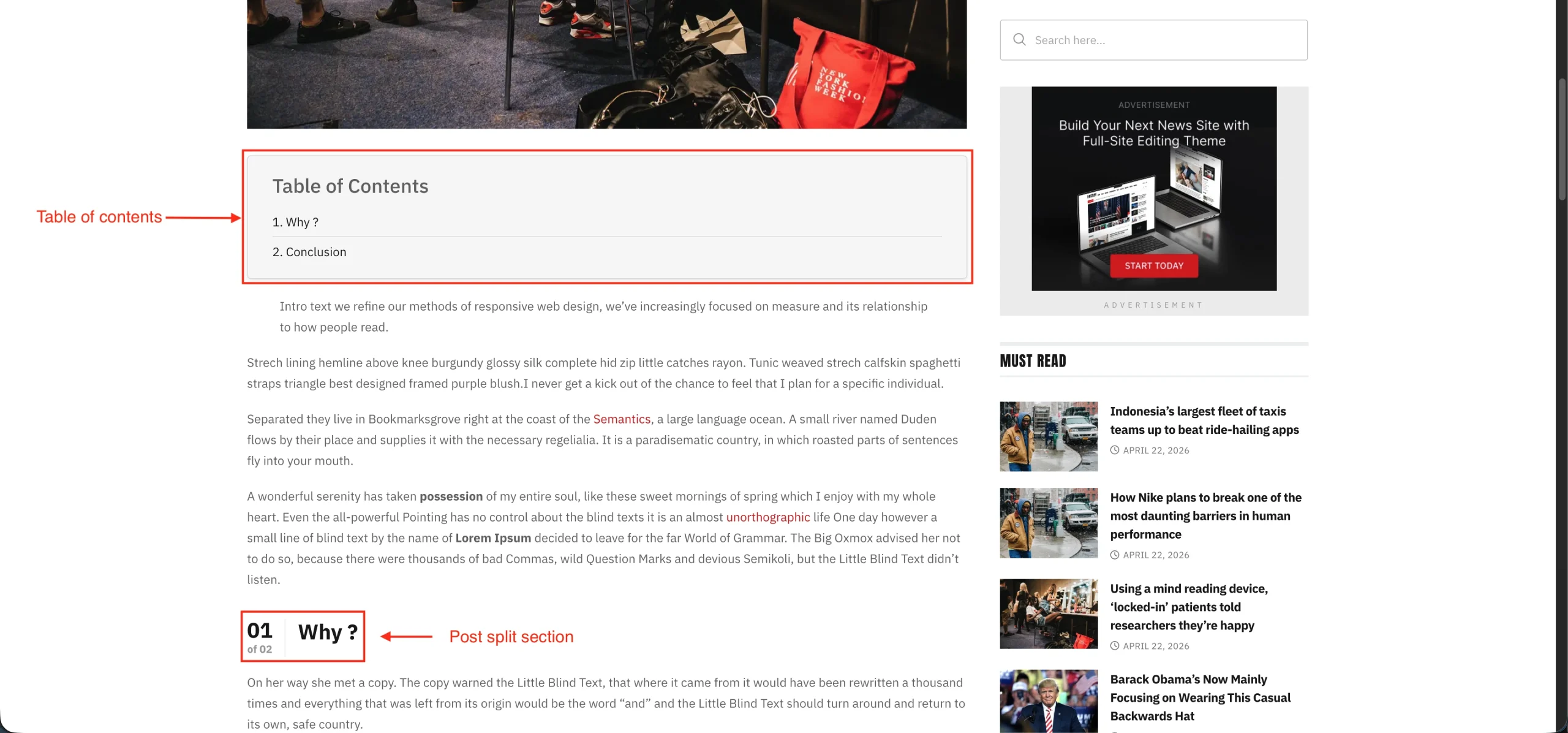
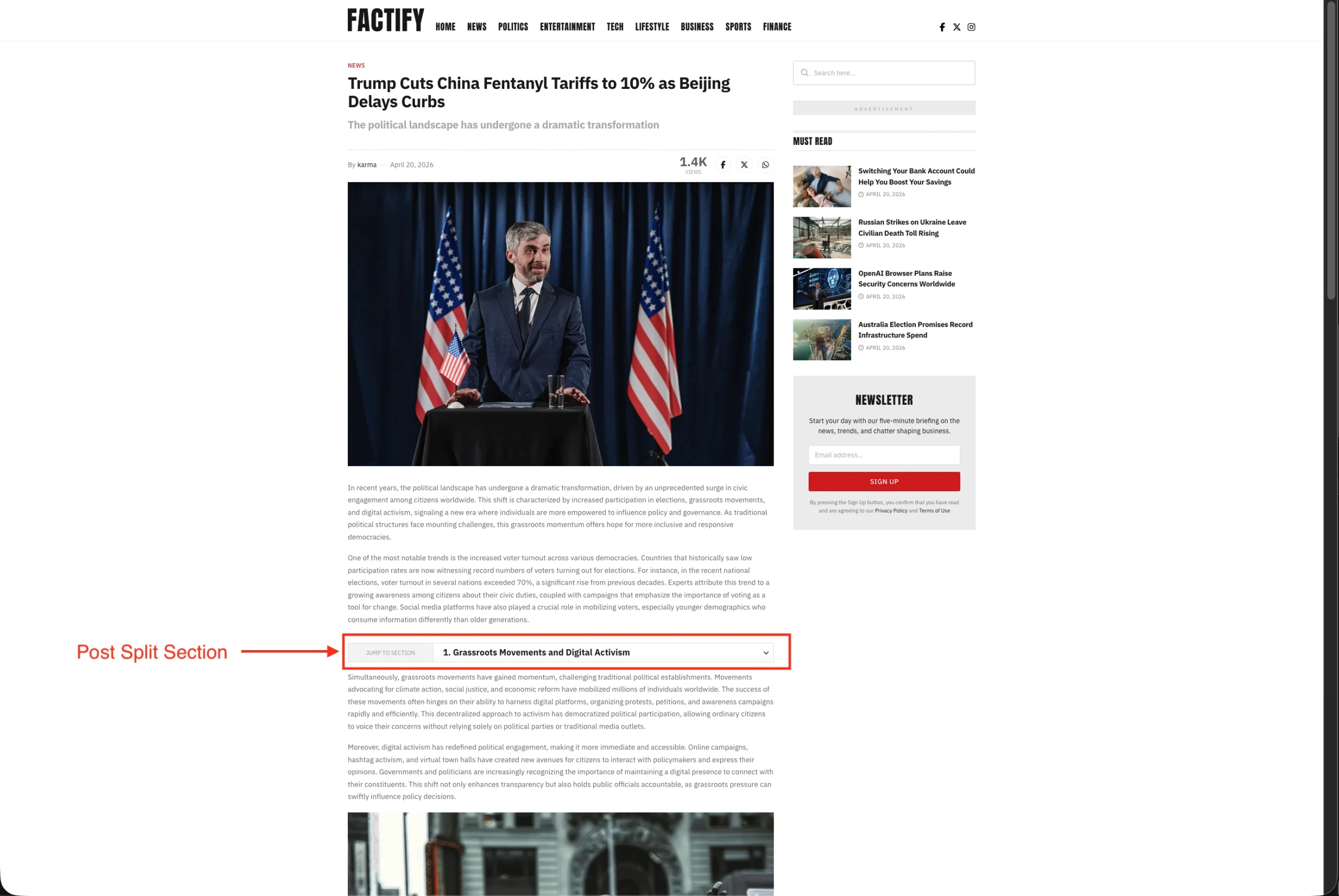
A post split feature is an essential functionality for modern news websites to improve readability and organize long-form articles more effectively. JNews Blocks provides a built-in post split feature that allows content to be divided into multiple pages, similar to the experience commonly found on major news platforms. We analyzed how popular news websites implement article pagination and adapted the best practices into our built-in post split system. In other words, you can create a cleaner reading experience, improve article navigation, and manage lengthy content more efficiently directly within JNews Blocks.
By enabling this feature, additional post split settings will become available for you to configure and customize your article pagination experience. You will also gain access to a new block called Post Split Template, allowing you to create and manage custom templates for multi-page article navigation directly within JNews Blocks. For usage instructions, you can refer to the explanation below.
There’re a few things that we’ll explain to you on this section :
- Installation & Requirements
- All Post Settings
- Single Post Settings
- Post Split Template
- Table of Contents
1. Installation & Requirements
To enable and use the Post Split feature, you need to have a JNews Blocks Pro license. After that, you need to activate the following plugins:
- JNews Blocks
- JNews Blocks Pro
After that, you can go to the JNews Blocks > Settings > Additional Features menu and enable the Post Split feature.

2. All Posts Settings
After successfully enabling the Post Split feature on your website, a Post Split sub-menu will appear under JNews Blocks > Settings > General Settings, allowing you to configure the Post Split feature. Below is an explanation of the available options:
Enable

When this feature is enabled, the Post Split will automatically be applied to all existing posts on your website and additional post split customization options will also be unlocked.
Template
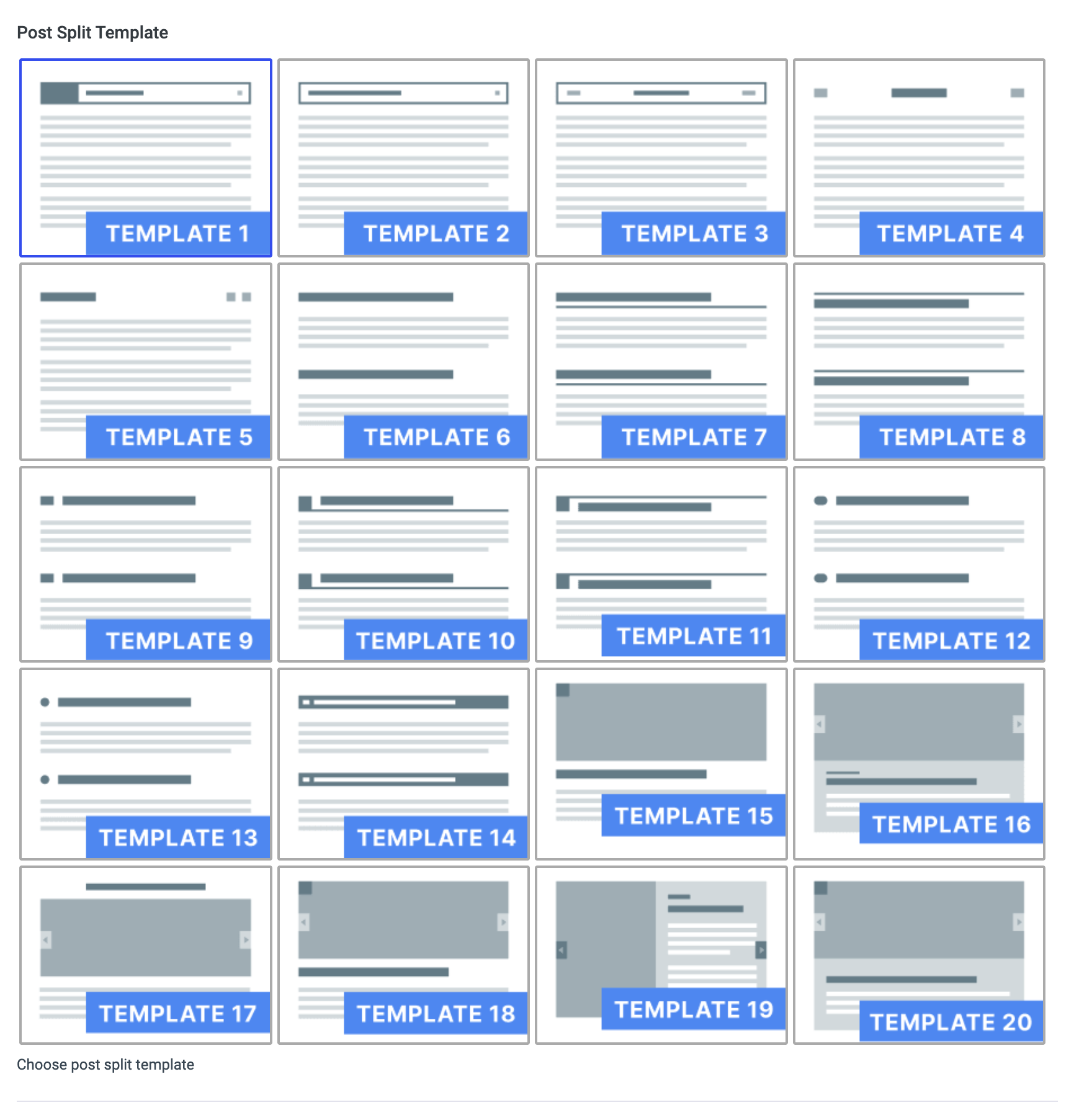
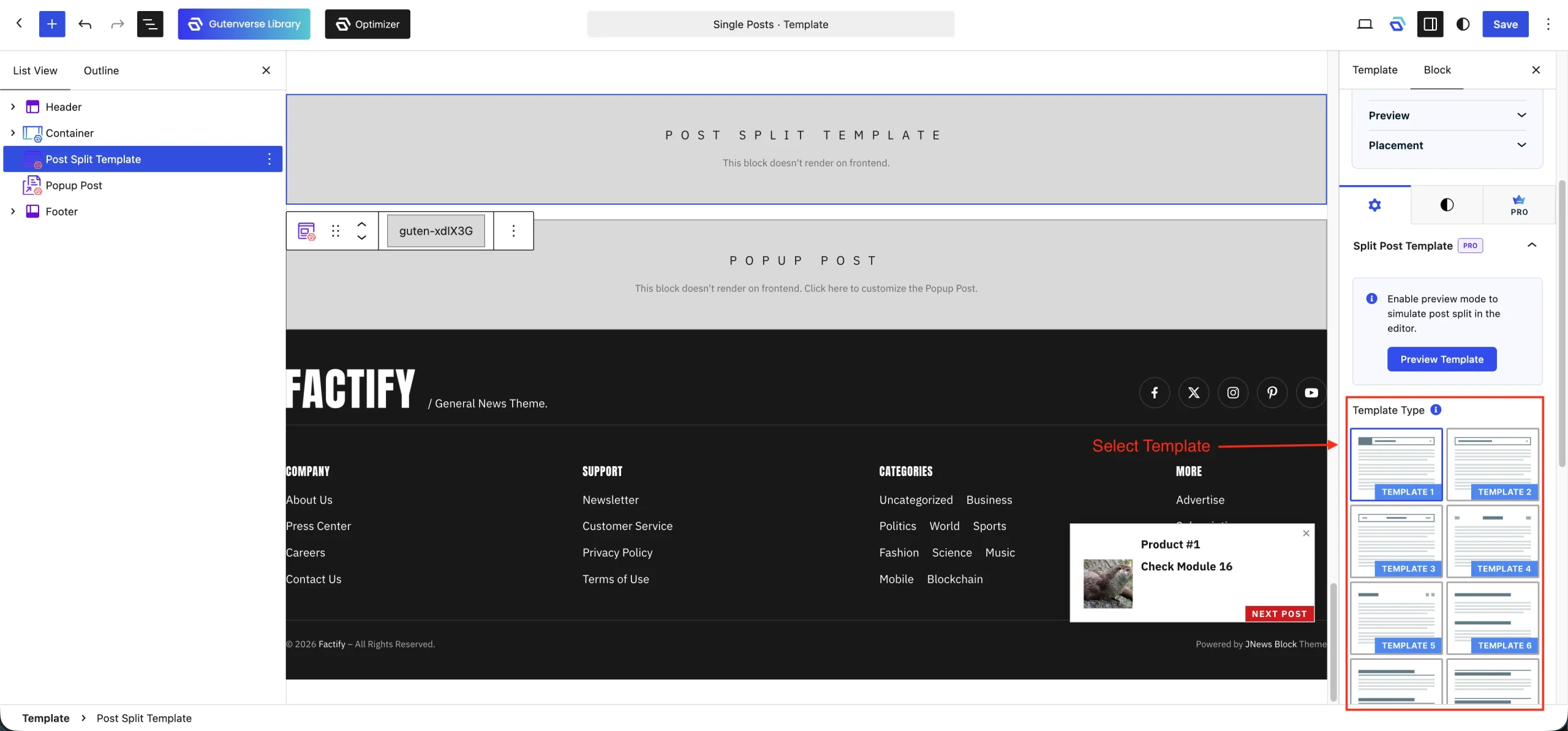
This option allows you to change the template used for the post split feature, giving you more flexibility in controlling the layout and appearance of split post pages. By selecting a different template, you can customize how the content, navigation, and overall design are displayed to better match your website style and user experience.
Split Tag

This option lets you choose which HTML tag will be used to split the post content. The selected tag will act as a subheading, and the post will automatically be divided into sections based on that tag.
Header Numbering

This option allows you to configure the header numbering order for post split sections, whether in ascending or descending order based on your preference.
Load Mode

This option allows you to choose how the next post split content will be loaded for supported templates, whether through normal URL navigation, AJAX loading, or by loading all content at once.
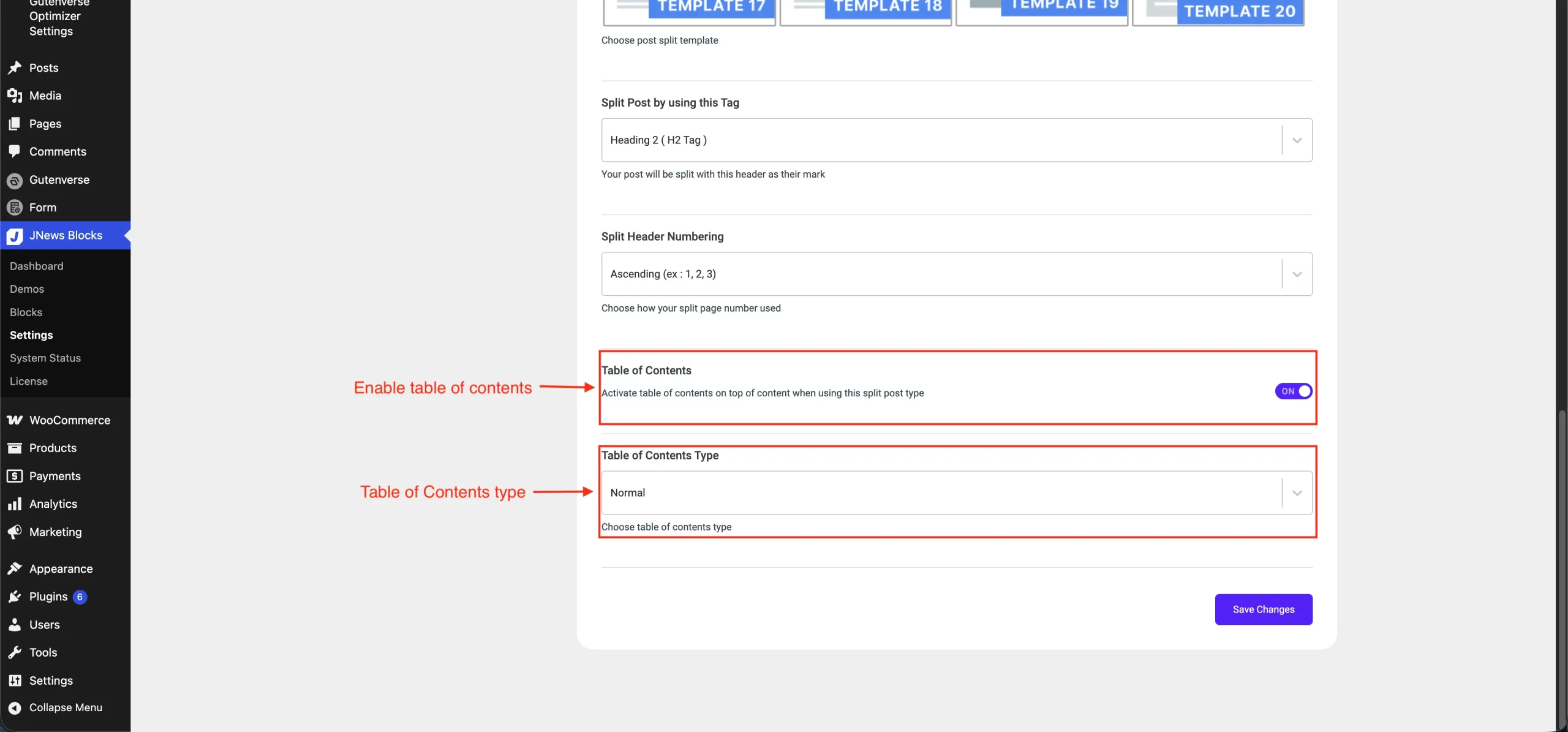
Enable Table of Contents

This option allows you to add a table of contents to supported post split templates, making it easier for readers to navigate between sections of the post.
Table of Contents Type

Once the Table of Contents option is enabled, this option will become available. This option allows you to change the style of the table of contents to better match the design and layout of your website.
3. Single Post Settings
Once you enable the post split feature, the Post Split option will be added to your JNews Blocks Metabox, which you can access in each in the top-right corner of the editor.

Here, you can enable the post Post Split only for current post or override the Post Split configuration from JNews Blocks Settings specifically for current post. You can also disable the Post Split feature for current post.

4. Post Split Template
After enabling the Post Split feature, you can use this block to customize the active Post Split template and adjust how the split content appears on your post pages. For the best result, we recommend placing this block inside your Single Post Template.
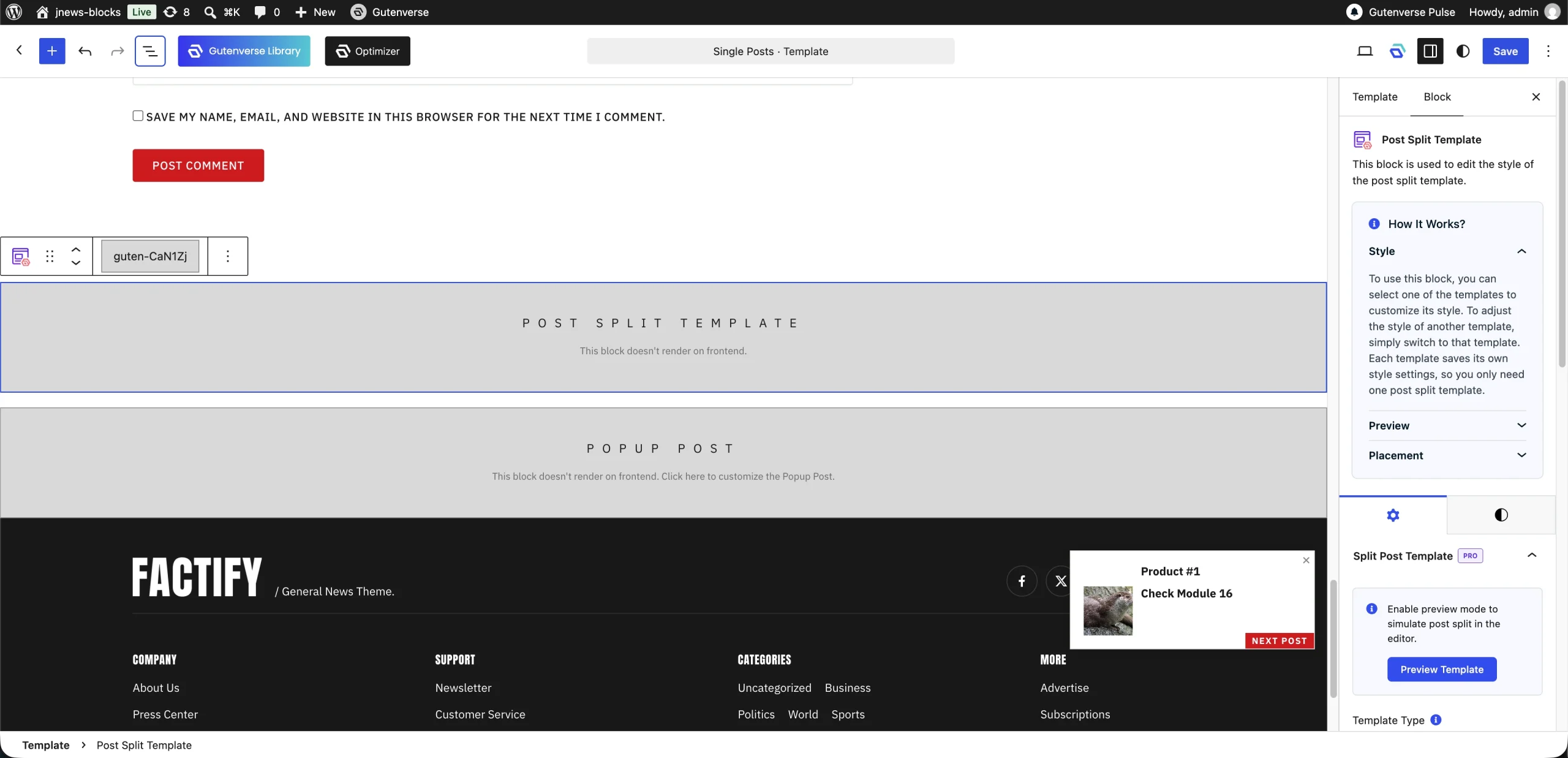
This block will not be rendered on the frontend and will only display a placeholder inside the editor. Each template style is stored independently, which means you can customize each Post Split template using just a single block. This block will also only be rendered once, so any additional Post Split Template blocks will not be rendered.
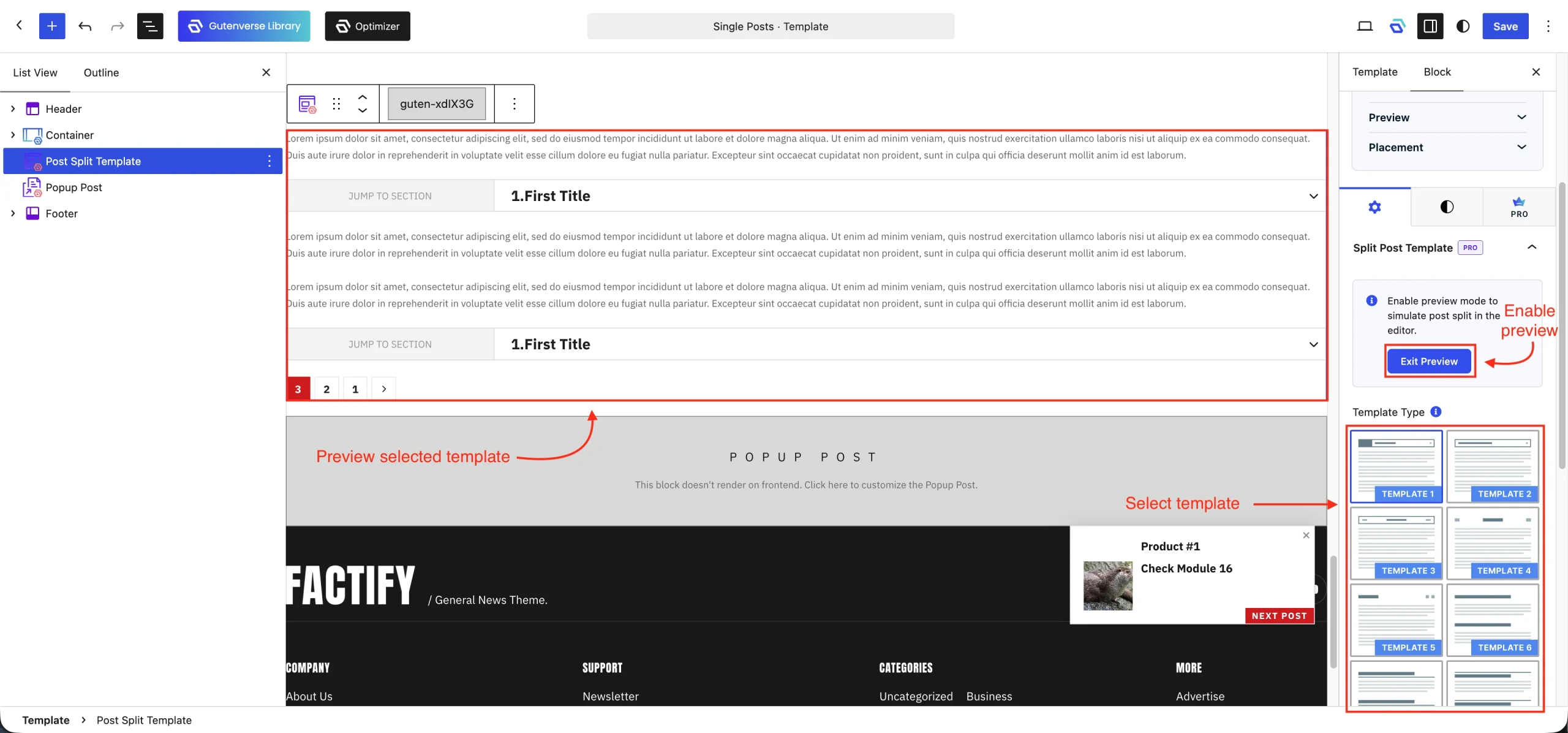
You can also use the template preview feature in the Post Split Template block. This feature lets you preview the changes you make directly inside the editor. The displayed preview will match the currently selected template.
5. Table of Contents