
JNews comes with several demos that each has unique design on various purposes and needs. We combine all of JNews feature, design, color, and element on each of our demo to get perfect result based on the demo purpose.
You might want to use one of our demos on your site and don’t need to create everything from scratch. Just simply “one click” and everything’s done.
The imported demo will show you about the website structure, theme setting, content structure, design template, etc, so you will be more familiar working with JNews. The imported demo is also fully customizable. Feel free to play around with your own design.
JNews Block Theme provides two ways to import a prebuilt demo: through the setup wizard when you first activate the theme, or from JNews Blocks > Demos in your WordPress dashboard.
There’re a few things that we’ll explain to you on this section :
- Importing a Demo Using the Setup Wizard
- Importing a Demo from the Dashboard
- Switching to Another Demo
- Managing Demo Content
- Uninstalling a Demo
- Troubleshooting Demo Errors
Importing a Demo Using the Setup Wizard
We highly recommend to check your System Status before importing content in order to make sure the importing process running as expected. You can find more complete information about system requirements by following this link.
You can backup the files and the database. In case something goes wrong with your web server, you could rollback your site to previous state. Please visit this page for more complete information about backup.
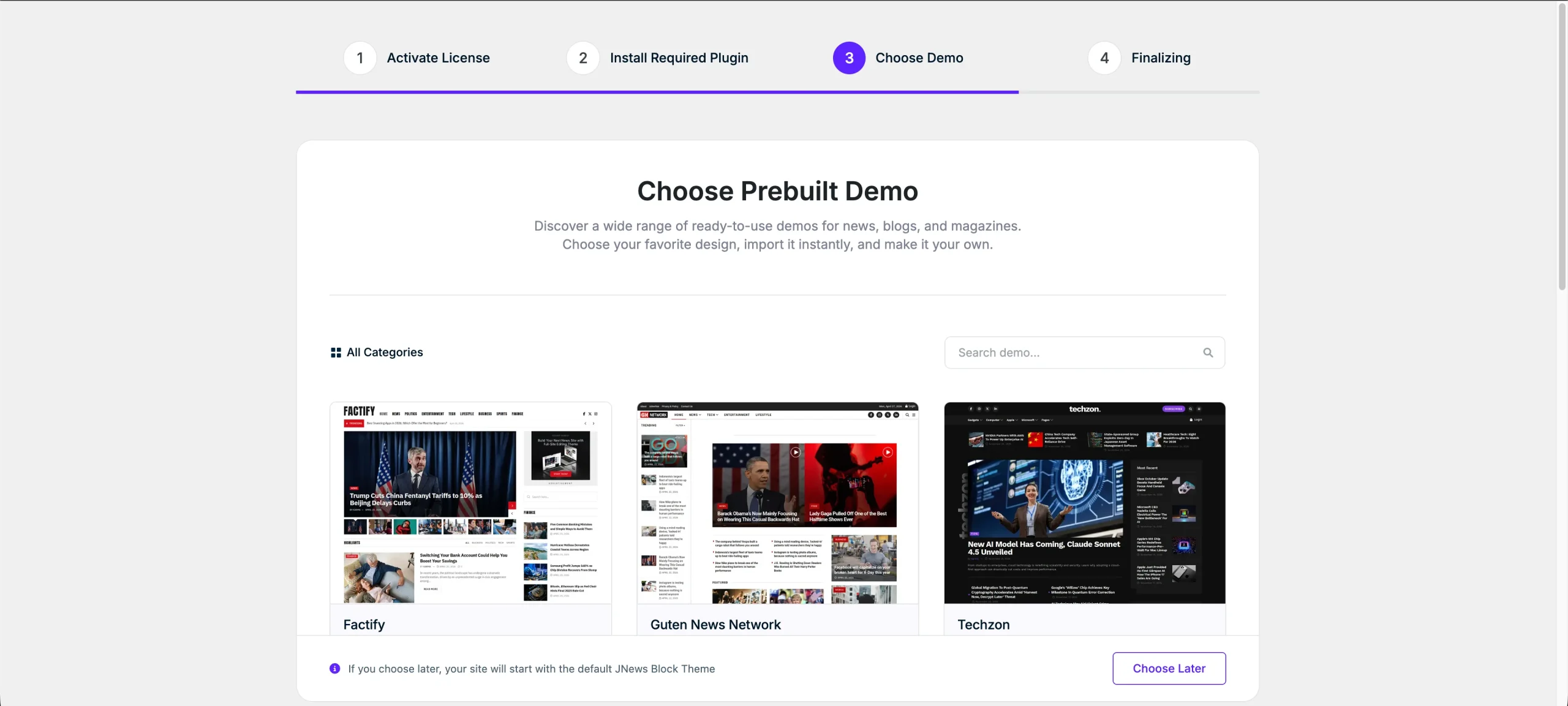
After installing and activating JNews Block Theme, complete the first two steps of the setup wizard: activate your license and install the required plugins. For detailed instructions, please refer to the License Activation and Required Plugin Installation documentation.
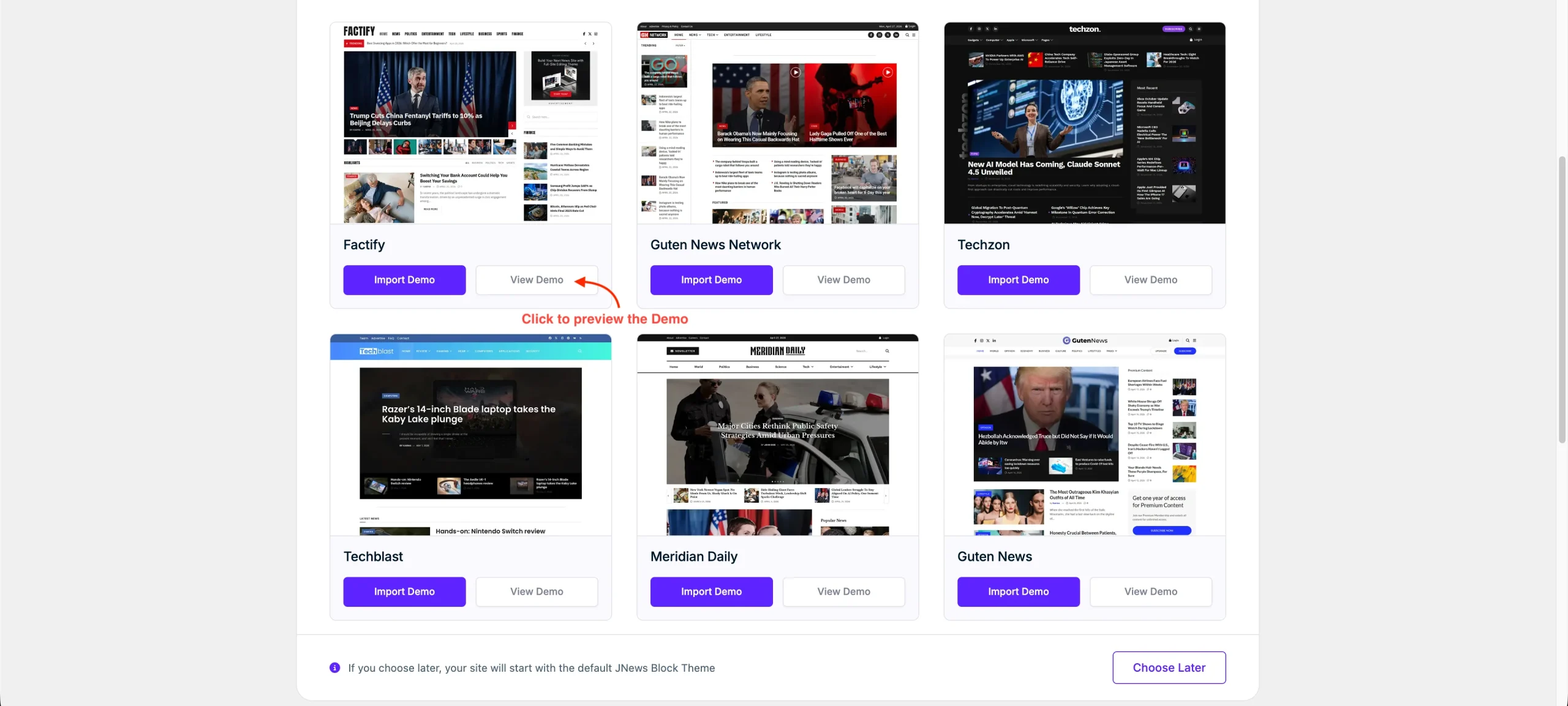
Demo selection is the third step of the setup wizard. Browse the available designs and click View Demo to preview a design before importing it. Once you have chosen a demo, click Import Demo to open the import dialog.
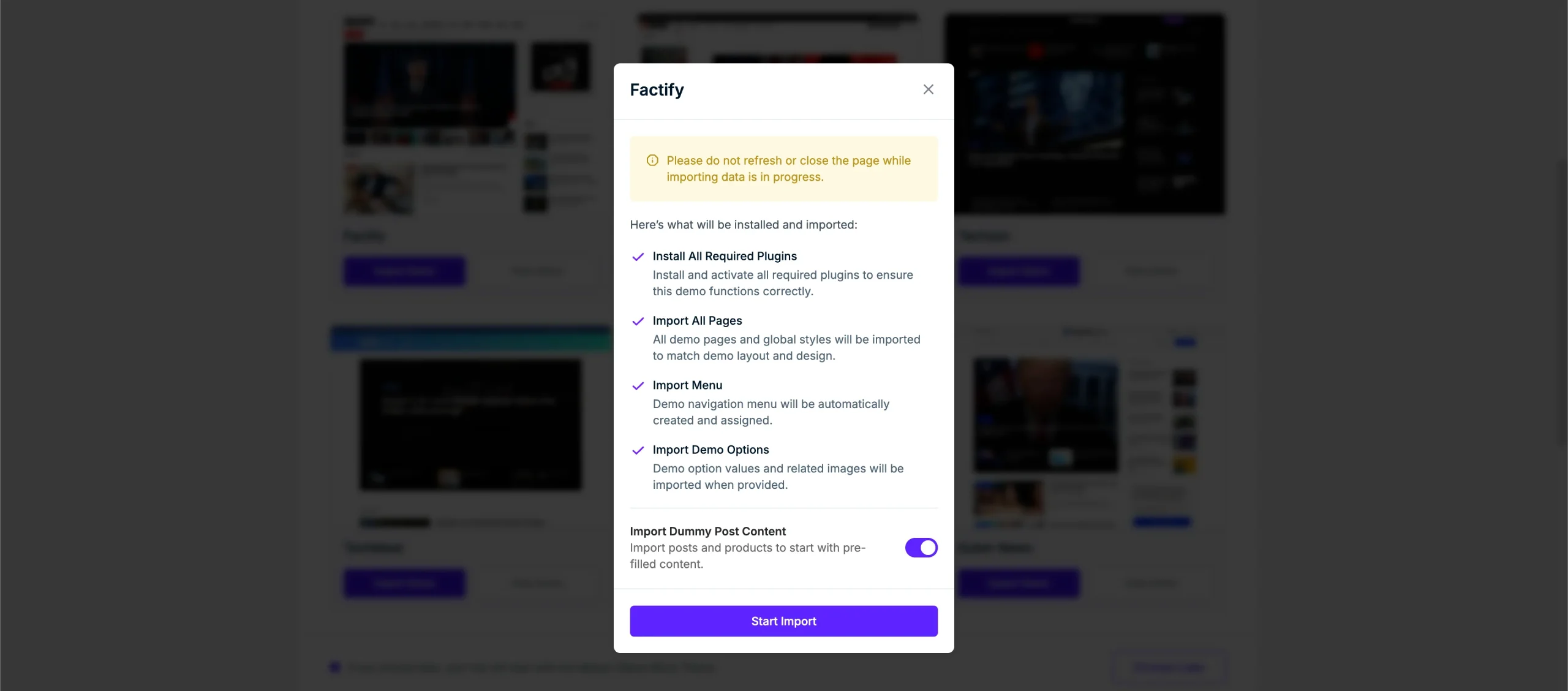
The dialog displays the plugins, pages, global styles, navigation menu, and demo options that will be installed or imported. You can also configure Import Dummy Post Content to import sample posts and products for a website with prefilled content. For more information about Demo Content, please refer to this section. Please review the information, before click Start Import.
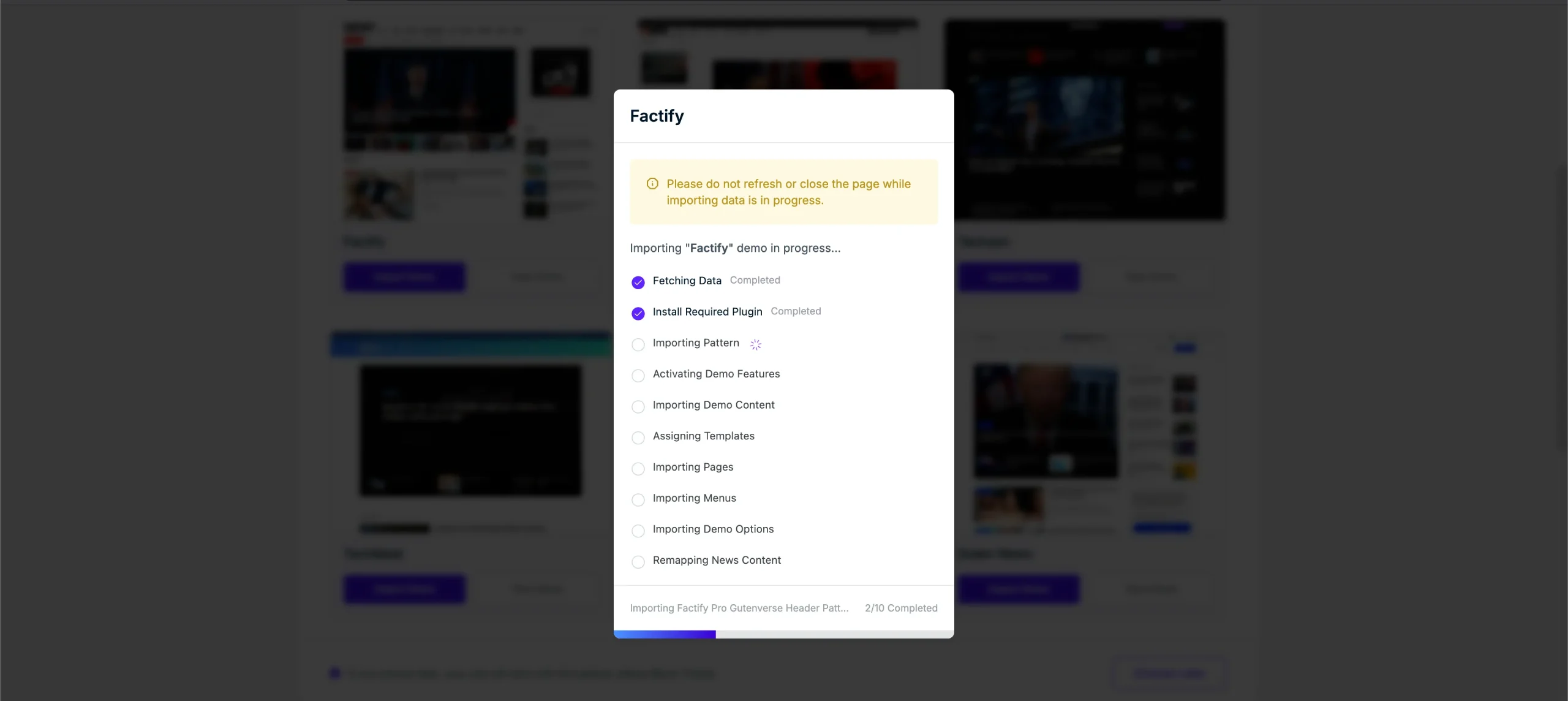
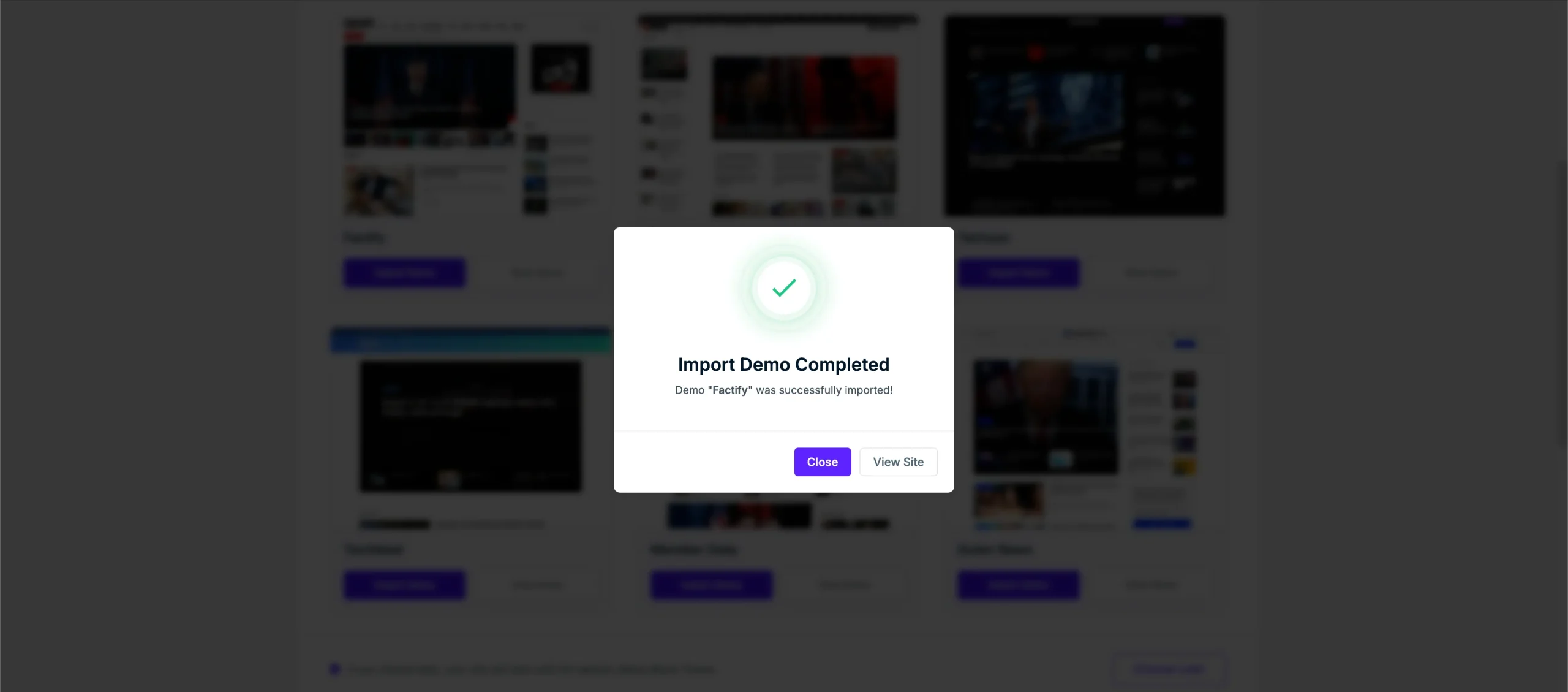
Keep the page open and do not refresh it while the import is in progress. Once the process is complete, visit your website to review the imported demo and begin customizing it.
Importing a Demo from the Dashboard
If you skipped demo selection during setup or want to import a demo later, you can open your WordPress admin dashboard and navigate to JNews Blocks > Demos.
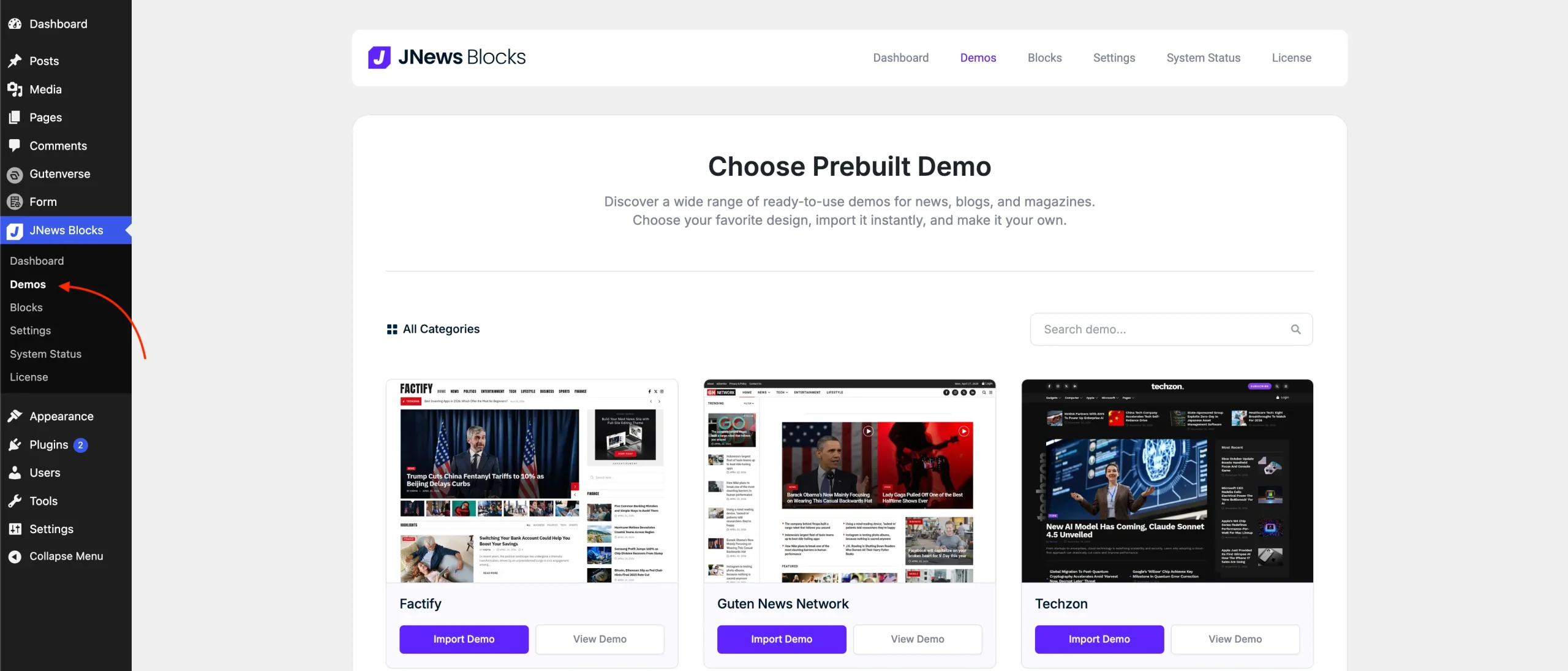
Same as on the setup wizard, on the Demos page, browse the available designs or use the search field to find a specific demo. Click View Demo to preview a design, and click Import Demo on your chosen demo to open the import dialog.
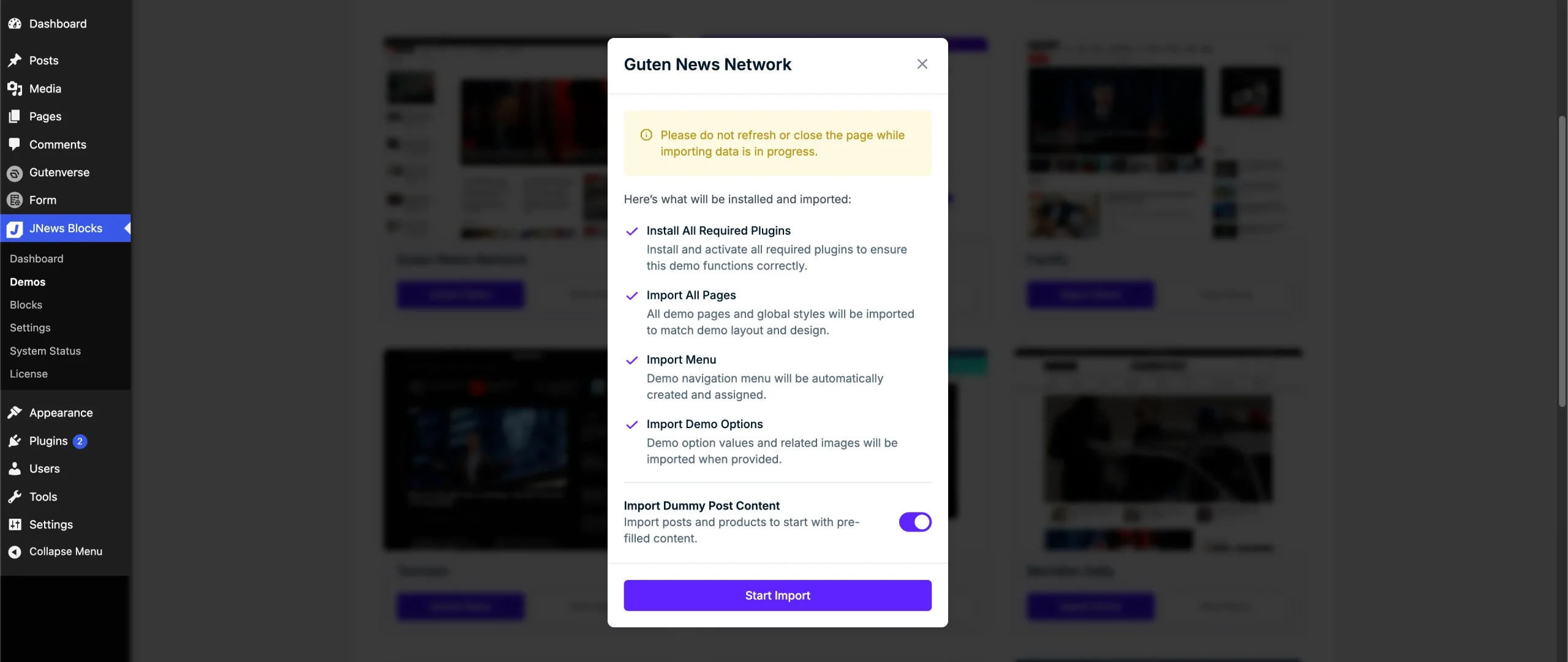
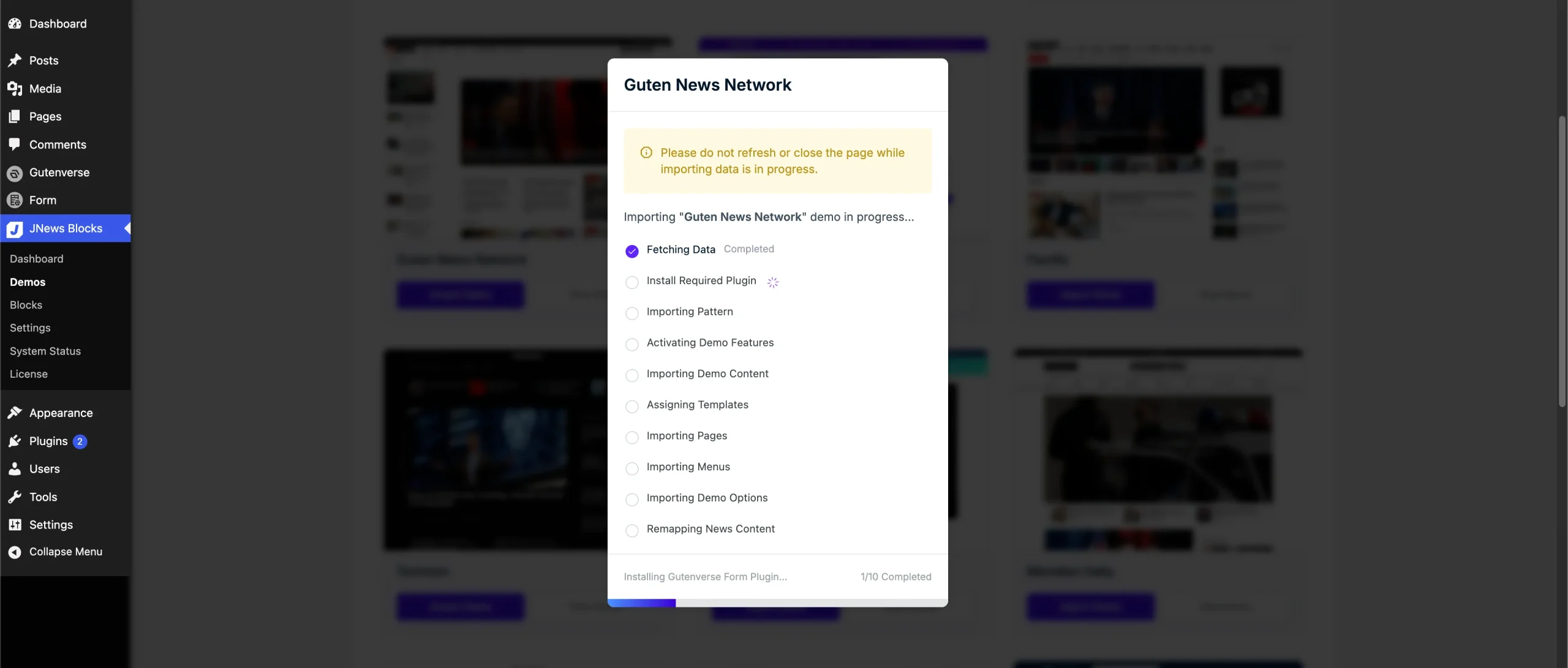
Review the import information and click Start Import. Wait for the process to finish without refreshing or closing the page. Once the import is complete, visit your website and customize the demo to suit your content and branding.
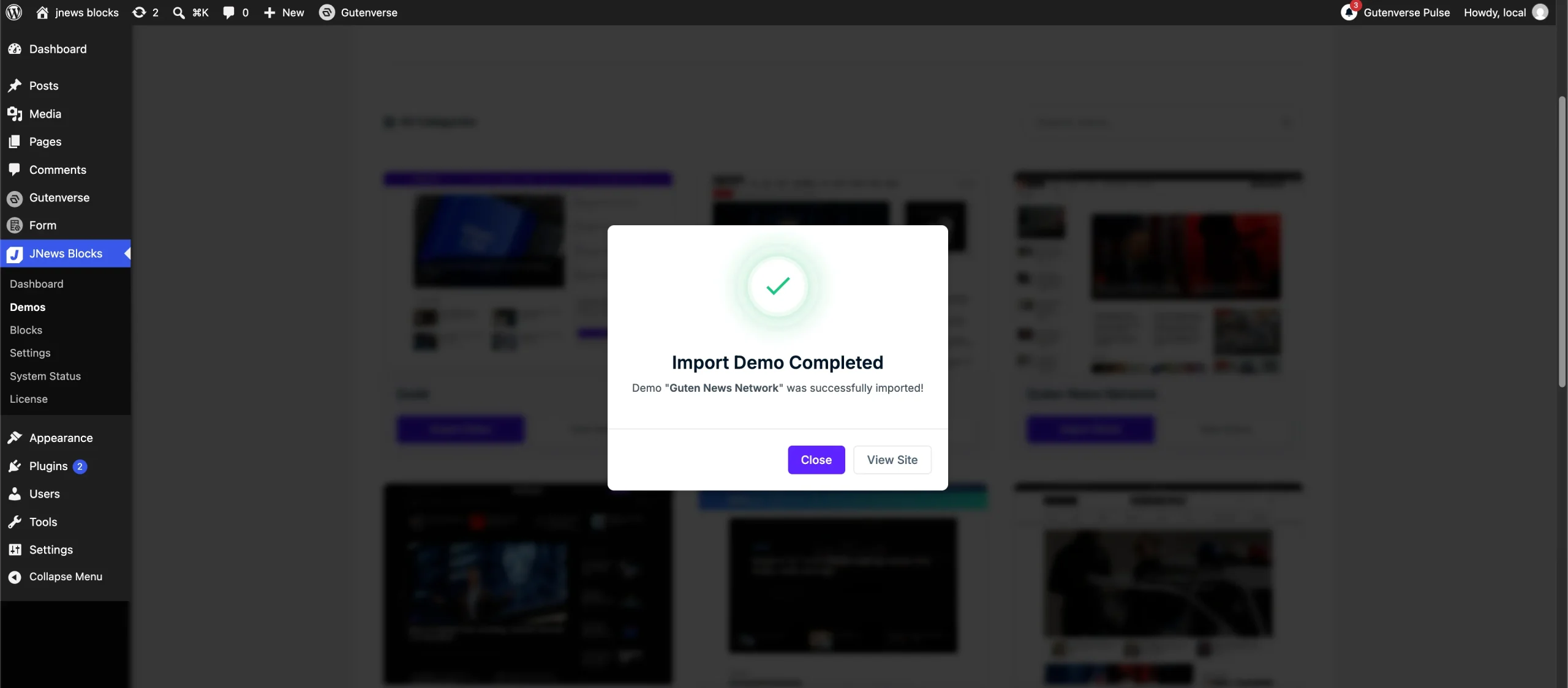
Switching to Another Demo
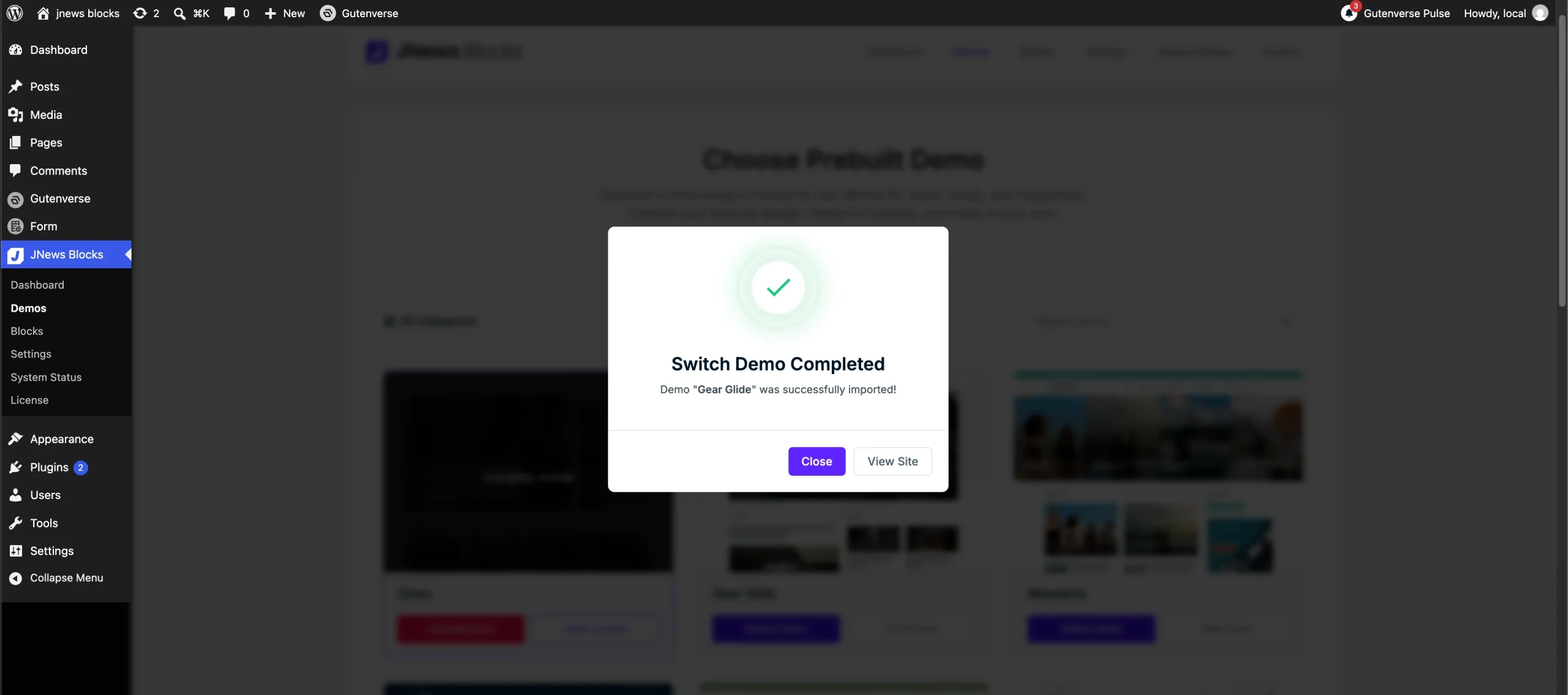
If your current demo does not suit your website, you can switch to another design. Your active demo is marked Currently Active. Browse the available designs or use the search field, then click View Demo to preview a design. Once you have chosen a replacement, click Switch Demo to open the confirmation dialog.
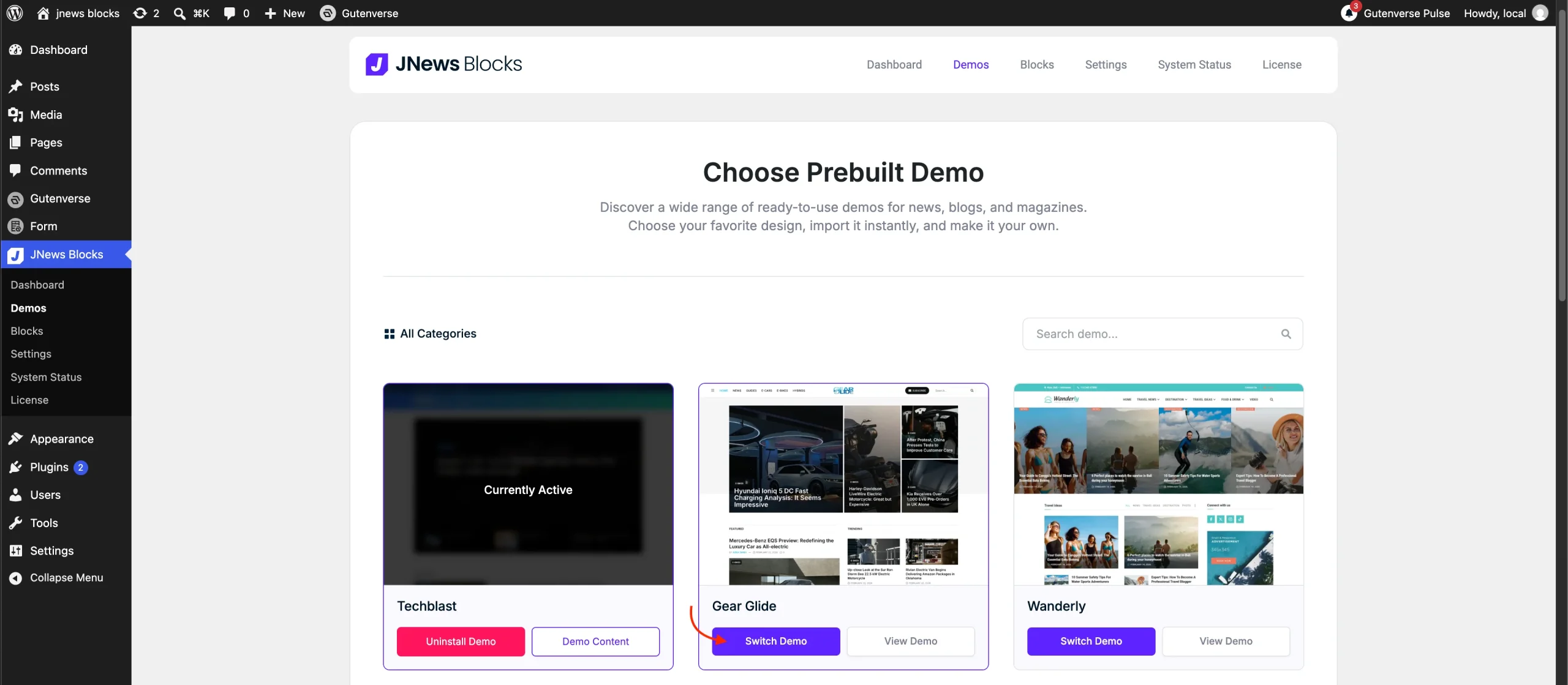
Switching demos will delete content imported from the previous demo. Posts and pages you created yourself will not be deleted. The removed content includes demo pages, patterns, media files, and other imported content. Changes made to templates and template parts will also be overwritten, and the previous demo’s imported global styles will be removed and replaced. We recommend backing up your website before proceeding, especially if you have customized the current demo.
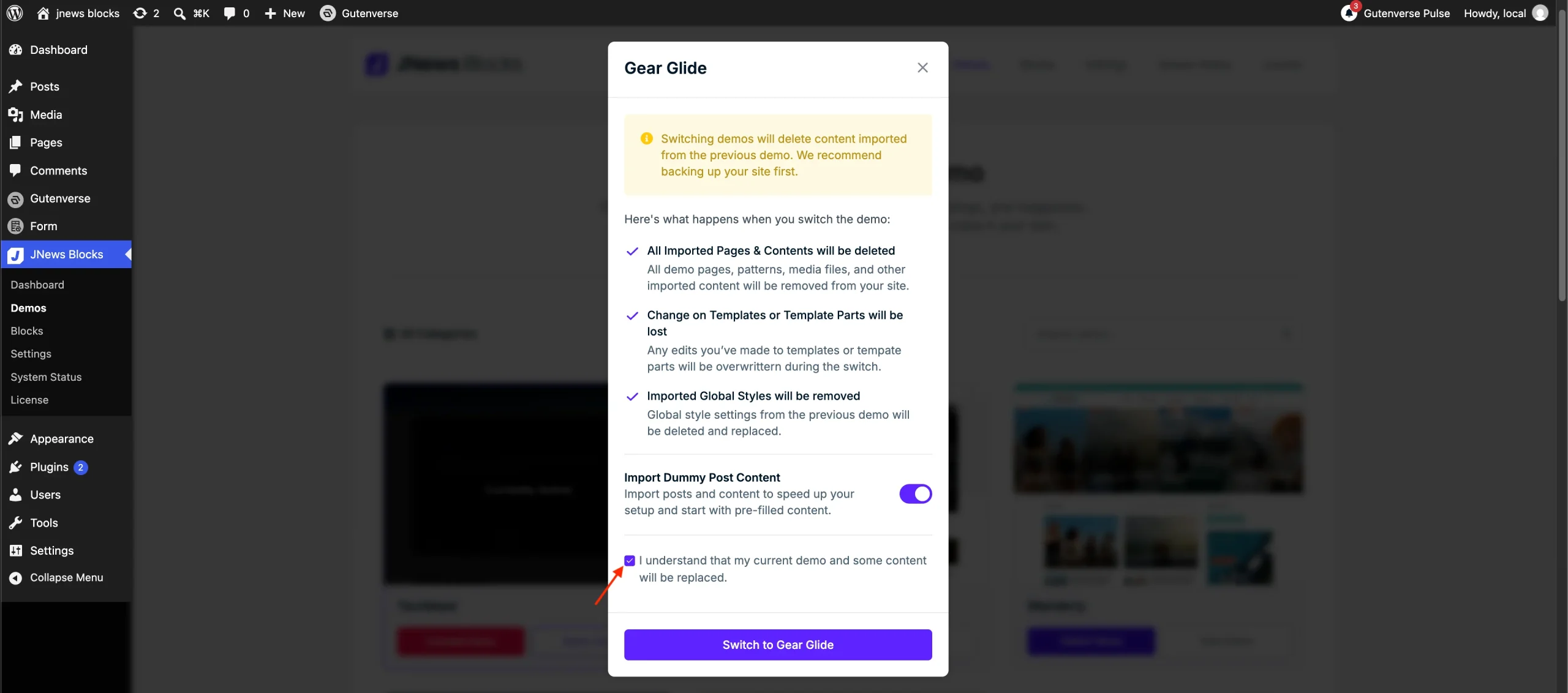
Review the information in the confirmation dialog, then select “I understand that my current demo and some content will be replaced.” Click Switch to Demo Name to begin. Keep the page open and do not refresh or close it until the process finishes.
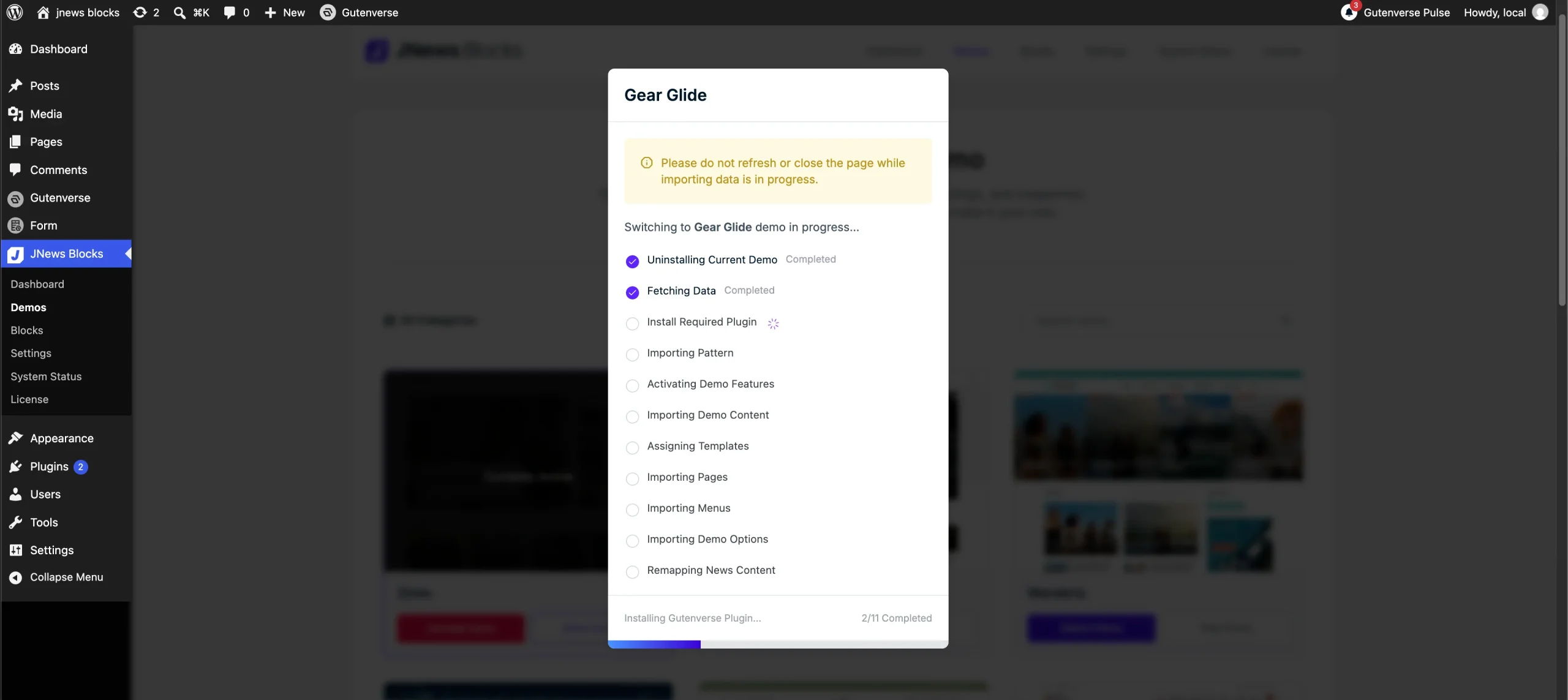
Once the switch is complete, visit your website to review and customize the new demo. Your own posts and pages will remain available, while content imported from the previous demo will have been removed.
Managing Demo Content
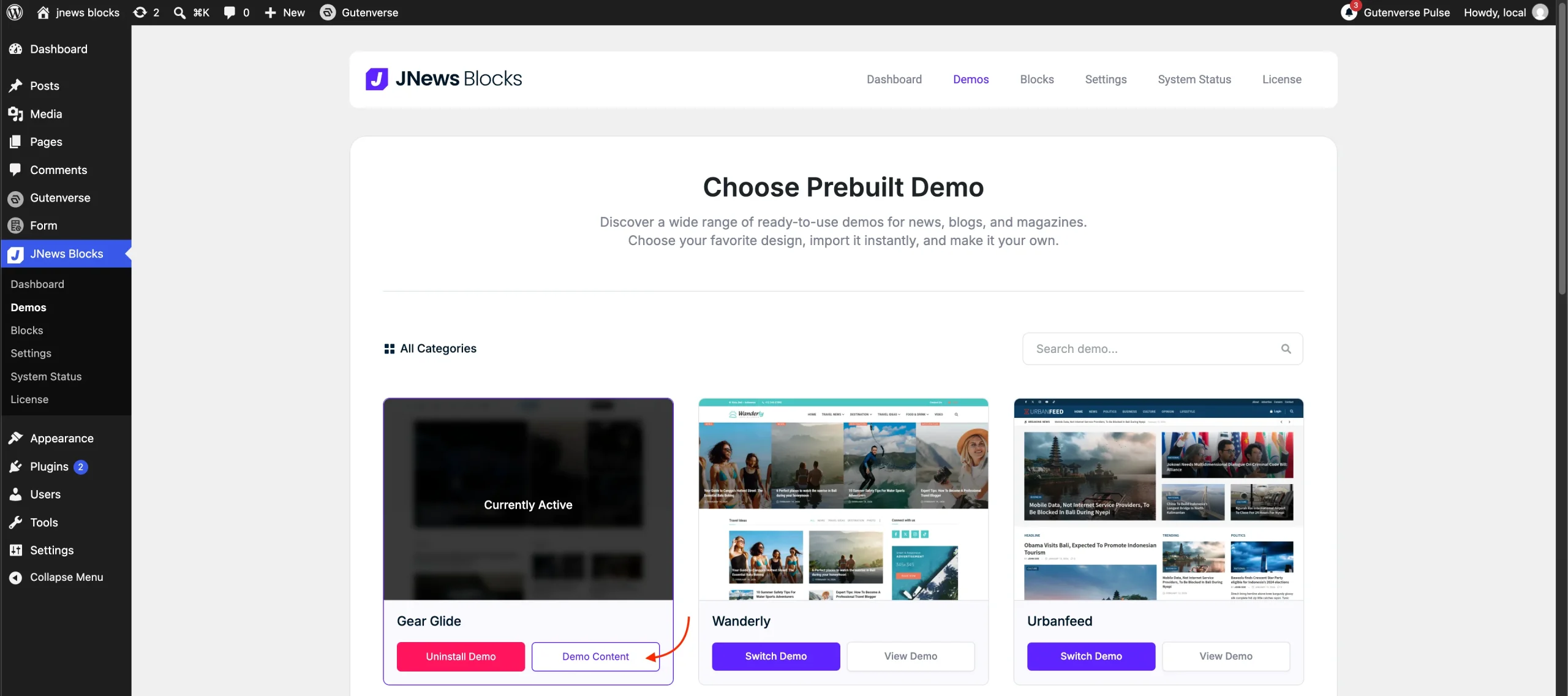
Demo content refers to the prebuilt content included with a demo, such as sample posts, pages, and related content, as described in the previous sections. After importing a demo, you can manage its content from your WordPress dashboard. Navigate to JNews Blocks > Demos, find the demo marked Currently Active, and click Demo Content.
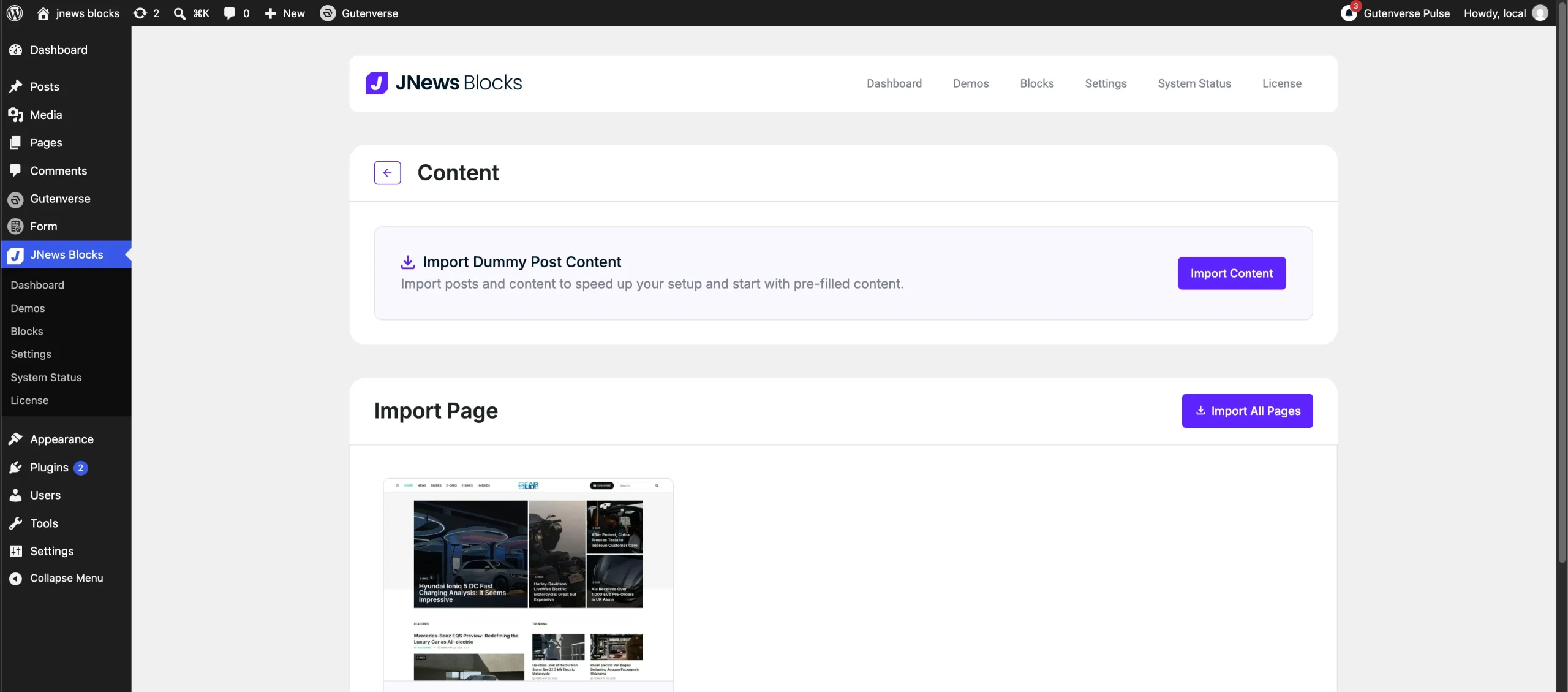
The Content area displays different options depending on whether you imported dummy post content during the initial demo setup. If you skipped it, the Content panel displays an Import Content button, allowing you to add the sample content later.
If dummy post content has already been imported, two panels appear. The Content panel displays a disabled Imported button to indicate that the content is already installed. The Content panel provides a Delete Content button for removing the previously imported dummy post content.
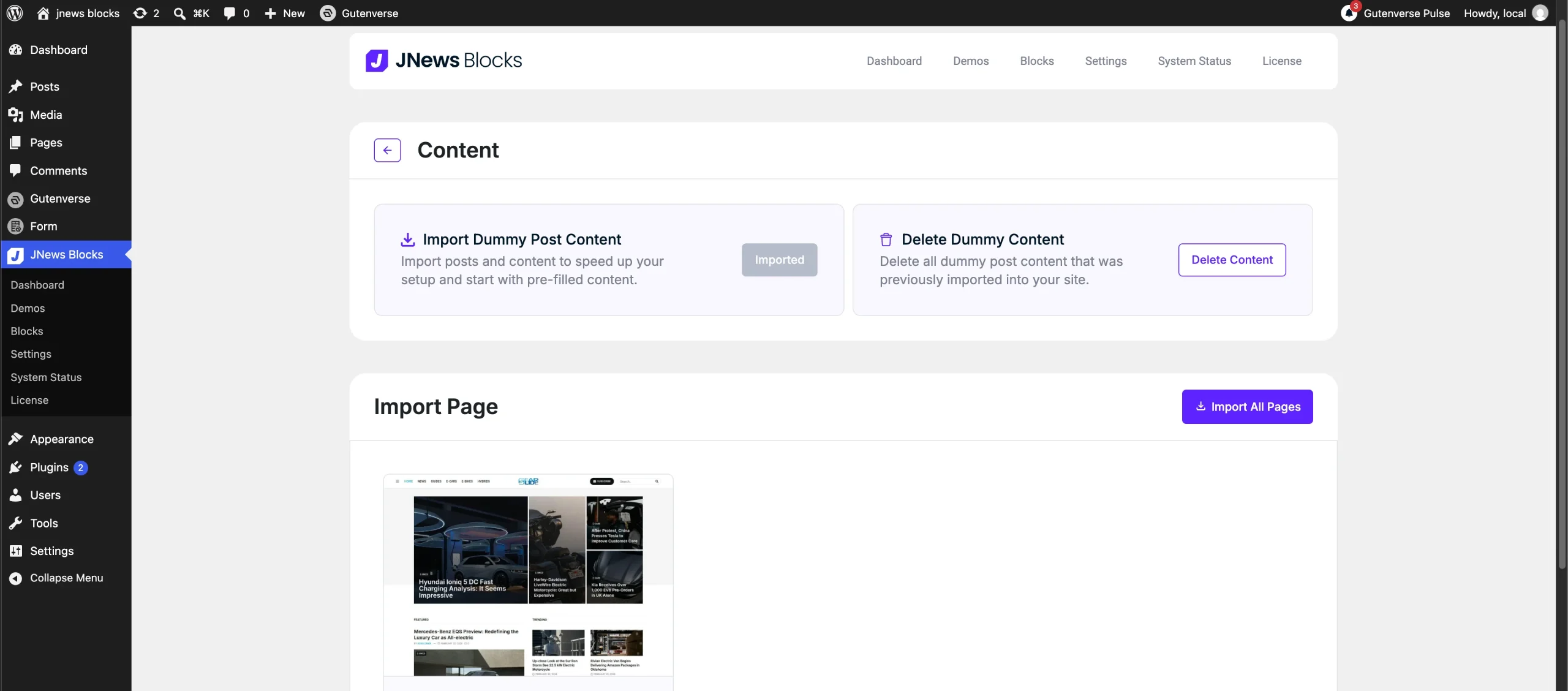
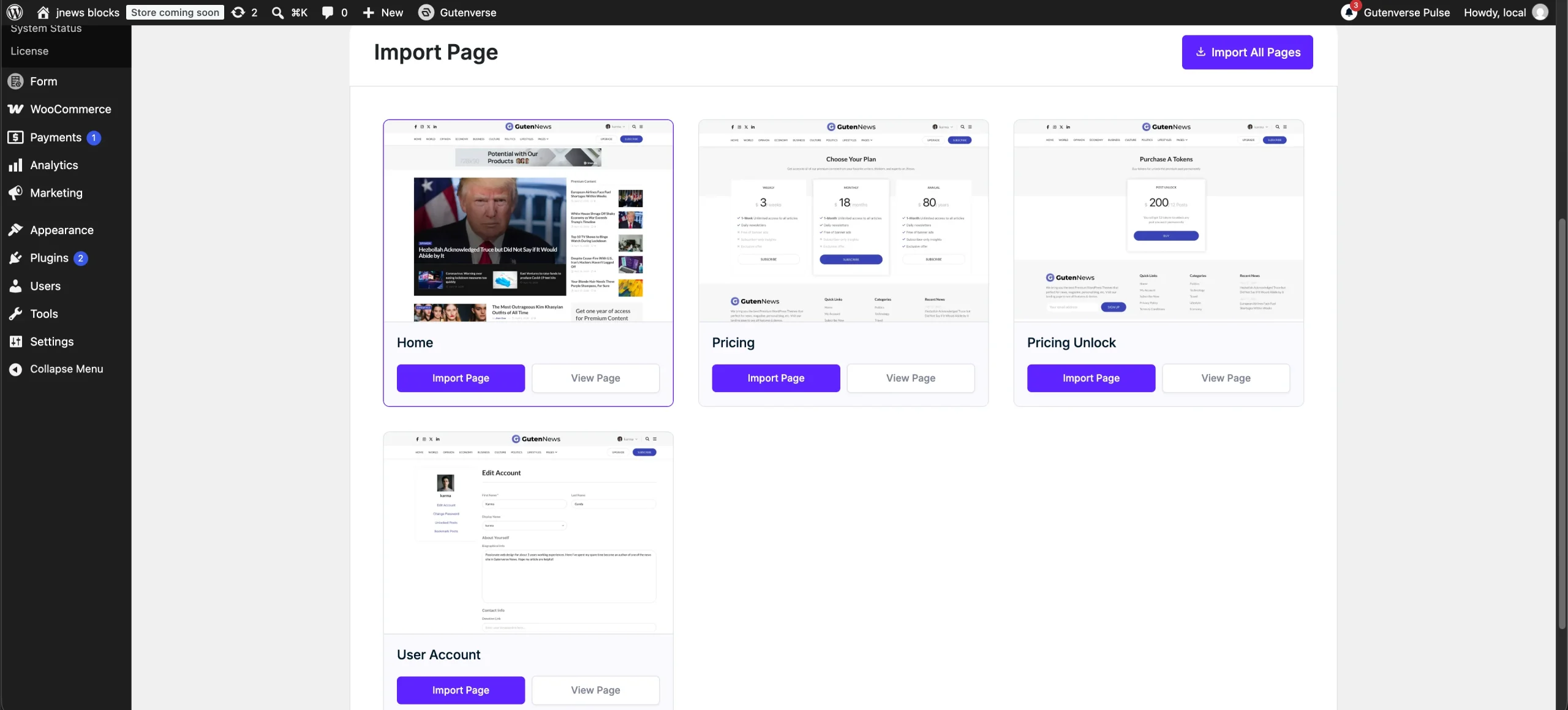
Below the Content area, the Import Page section lets you import the active demo’s pages individually or all at once. This is useful if you already deleted a demo page and want to import it again without importing the entire demo.
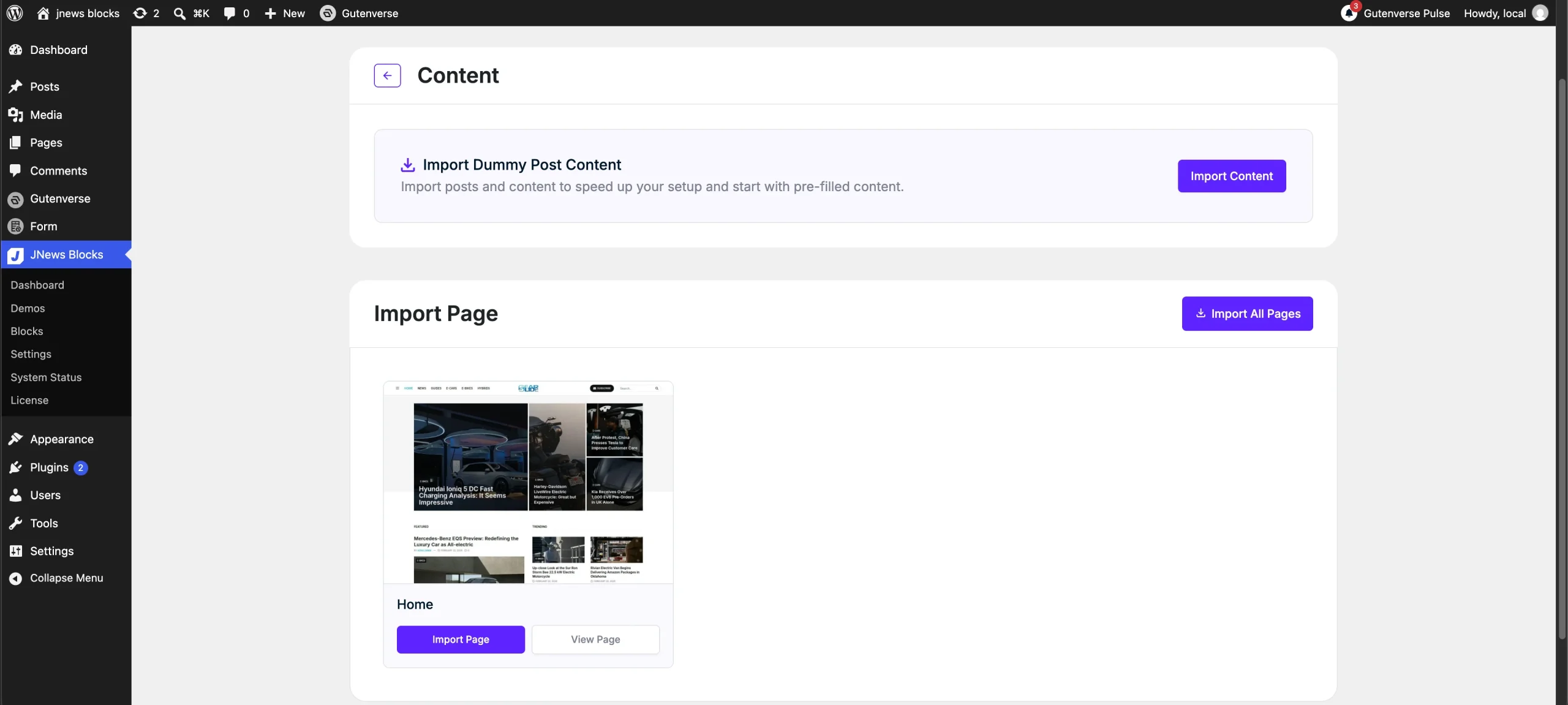
Click Import Page on a page card to import that specific page, or click Import All Pages to import all available pages together. You can also click View Page to preview a page before importing it. The number of available pages varies by demo. For example, Guten News includes four pages: Home, Pricing, Pricing Unlock, and User Account.
Uninstalling a Demo
To uninstall your current demo, navigate to JNews Blocks > Demos in your WordPress dashboard. Find the demo marked Currently Active and click Uninstall Demo.
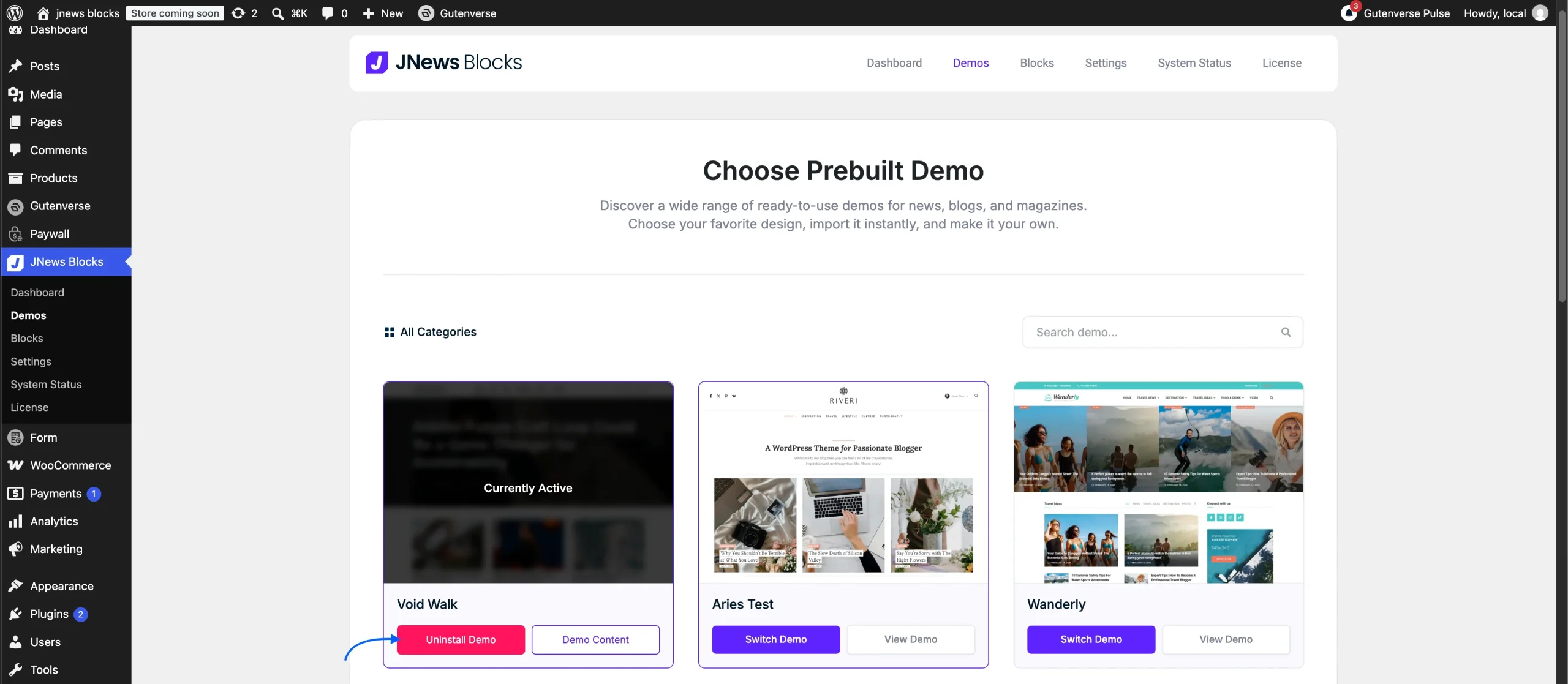
Uninstalling a demo removes all imported demo content and returns your website to the default JNews Block Theme. Posts and pages you created yourself will not be deleted. We recommend backing up your website before proceeding.
Troubleshooting Demo Errors
If an error occurs while importing a demo, try the action once more. If the error persists, open your browser’s Console to collect the error details before contacting our support team.
In Chrome or Edge, press Ctrl + Shift + J on Windows or Command + Option + J on Mac to open the Console. Alternatively, right-click the page, select Inspect, and open the Console tab.
Look for the error response object logged from jnewsblockpro.js?ver=x.x.x. The filename appears beside the Console entry. Click the small arrow beside the object to expand it and display its properties and values. For example, the screenshot shows a code property with the value fetch_error and a message property with the value Could not get a valid response from the server. Your error details may differ.
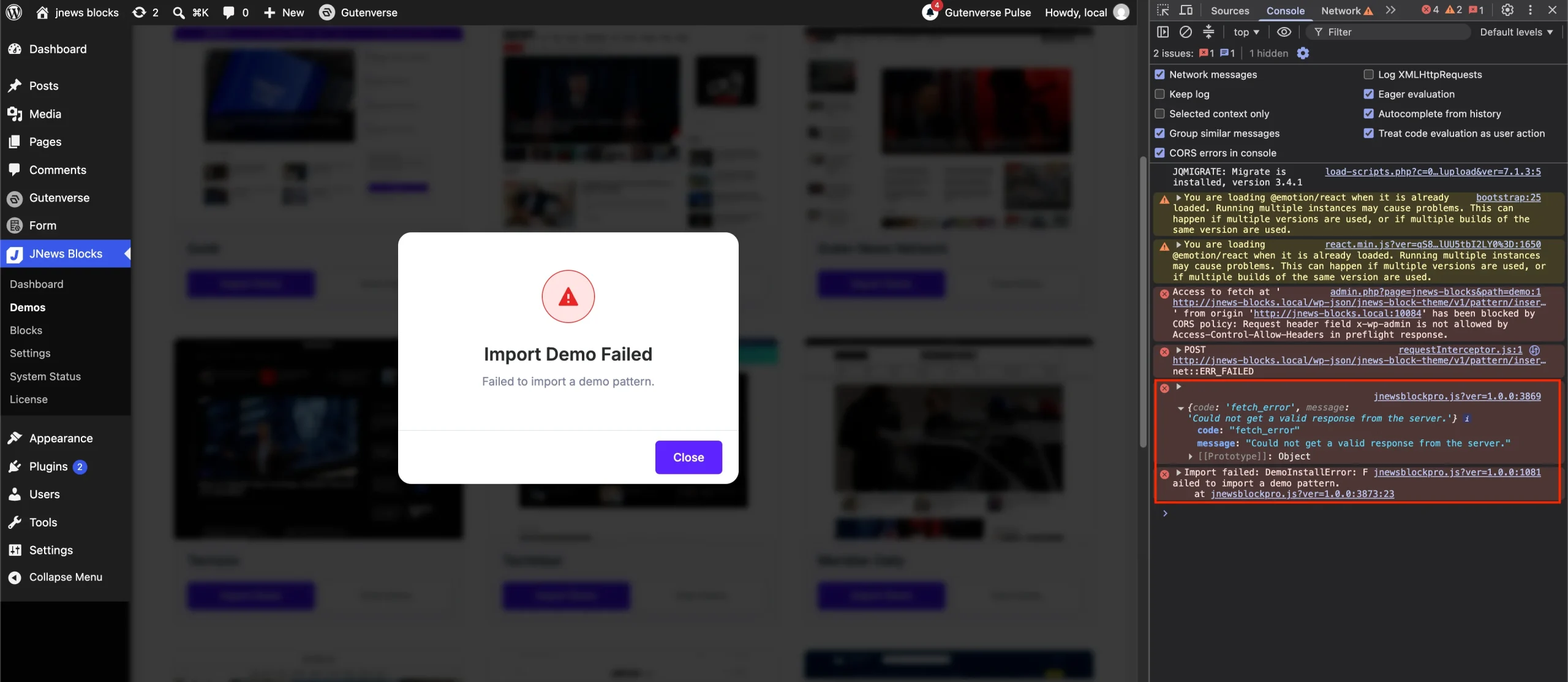
For further assistance, please visit our Support Center and submit a new support ticket. Include a screenshot of the expanded response object or copy its properties and values into your message. Please also mention the demo name and the action you were performing when the error occurred so we can investigate.