Bookmark is a useful feature that helps readers save their favorite content for later. JNews Blocks provides a built-in Bookmark feature that lets users easily create a personal reading list directly from article pages. We designed this feature based on common interaction patterns used in modern content platforms, then implemented it in a lightweight block for Gutenberg.
By enabling this feature, you can add a bookmark button to your Single Post layout, make your article pages feel more interactive. By enabling this feature, you will also be able to filter content type post in the JNews Block based on posts the user has bookmarked.
There’re a few things that we’ll explain to you on this section :
- Installation & Requirements
- General Settings
- Showing Bookmark Button
- Showing Bookmark Button on Post Meta
- Showing Bookmark Post
1. Installation & Requirements
To enable and use the Bookmark feature, you need to have a JNews Blocks Pro license. After that, you need to activate the following plugins:
- Gutenverse
- Gutenverse Pro
- JNews Blocks
- JNews Blocks Pro
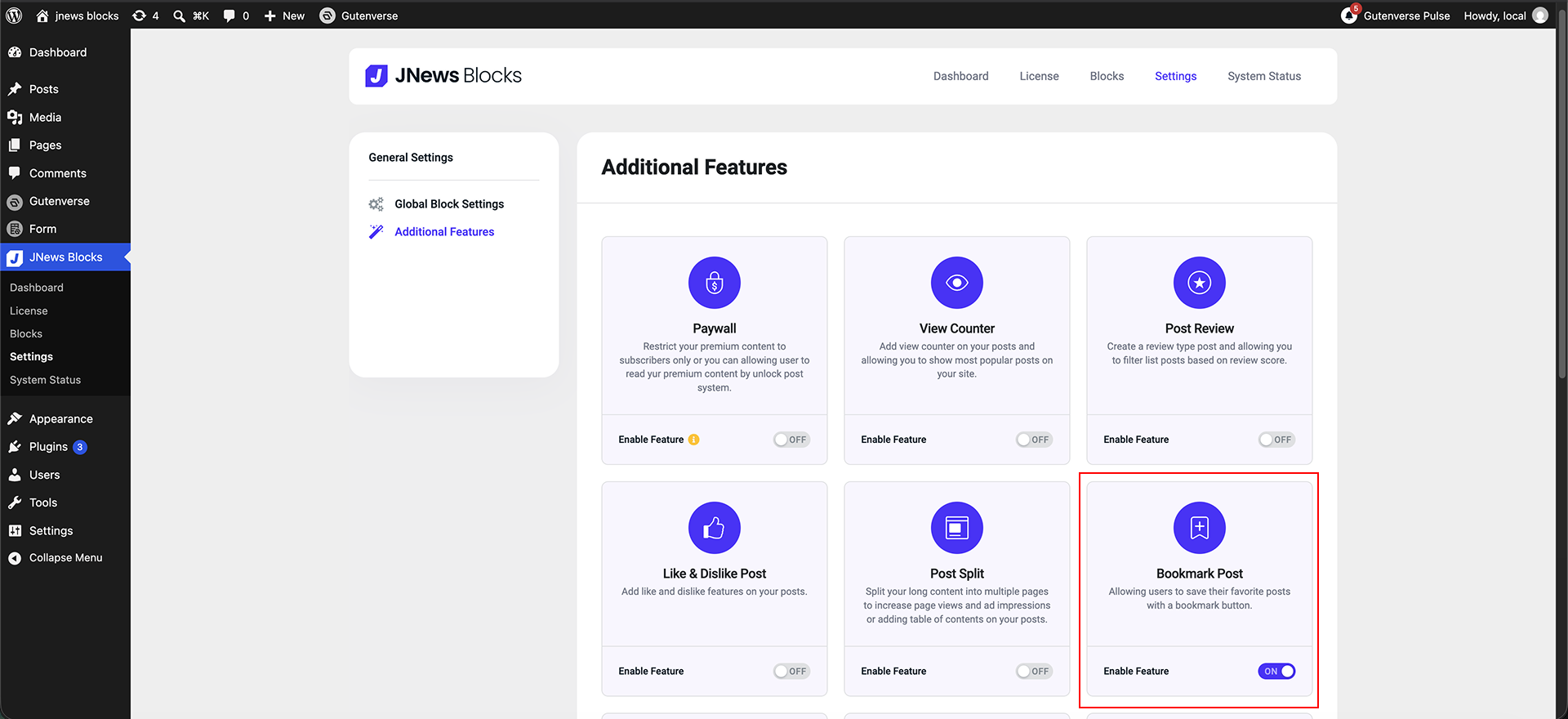
After that, you can go to the JNews Blocks -> Settings -> Additional Features menu and enable the Bookmark Post feature.
2. General Settings
After successfully enabling the Bookmark feature on your website, a Bookmark sub-menu will appear under JNews Blocks > Settings > General Settings, allowing you to configure the Bookmark feature. Below is an explanation of the available option:
- 1. Allow Guest

Enable this to allow non-logged-in users to bookmarked your posts. The data is stored in browser cookies. - 2. Guest Bookmark Cookie Time

This option appears only if Allow Guest is active to set how long the guest data is stored (30, 60, or 90 days). If the guest logs in within this period, their data will be automatically transferred to their account.
3. Showing Bookmark Button
Once enabled the feature, the Bookmark Button block will be available in the Gutenberg editor. You can add this block to the Single Posts template based on your layout needs.
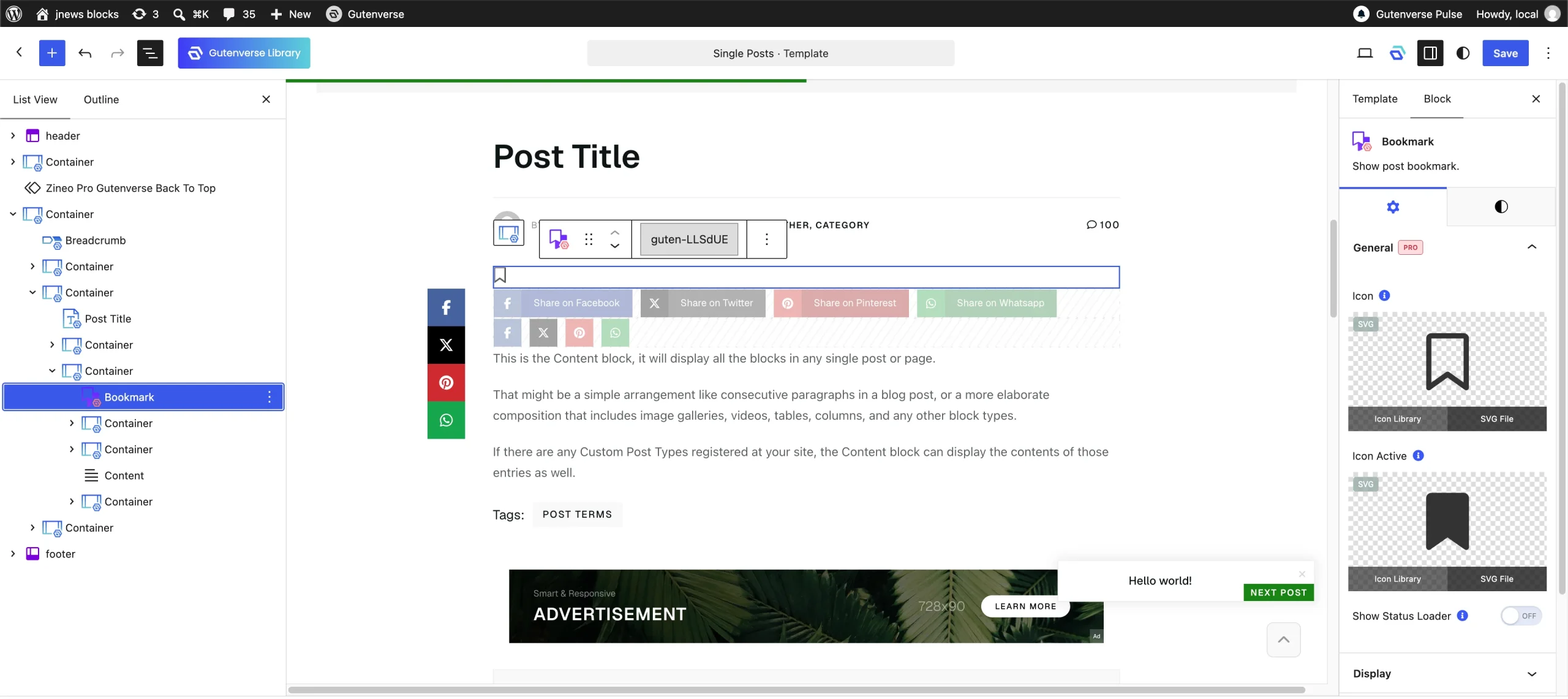
You can also customize the SVG icons for each state button.
4. Showing Bookmark Button on Post Meta
The Bookmark Button feature is designed to work seamlessly with other JNews Blocks elements. By enabling this feature, it automatically unlocks a new bookmark element within the Post Meta options. You can add bookmark element to the left or right Post Meta element.
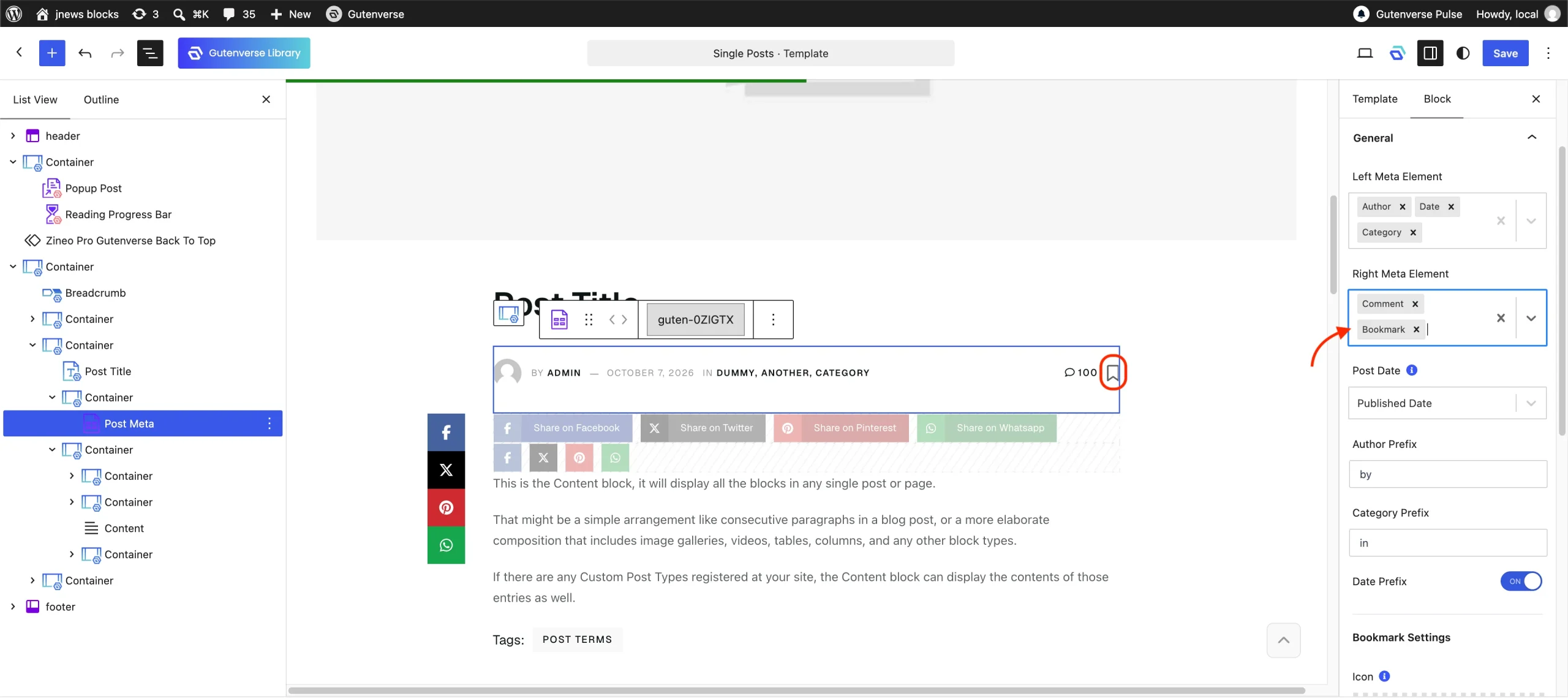
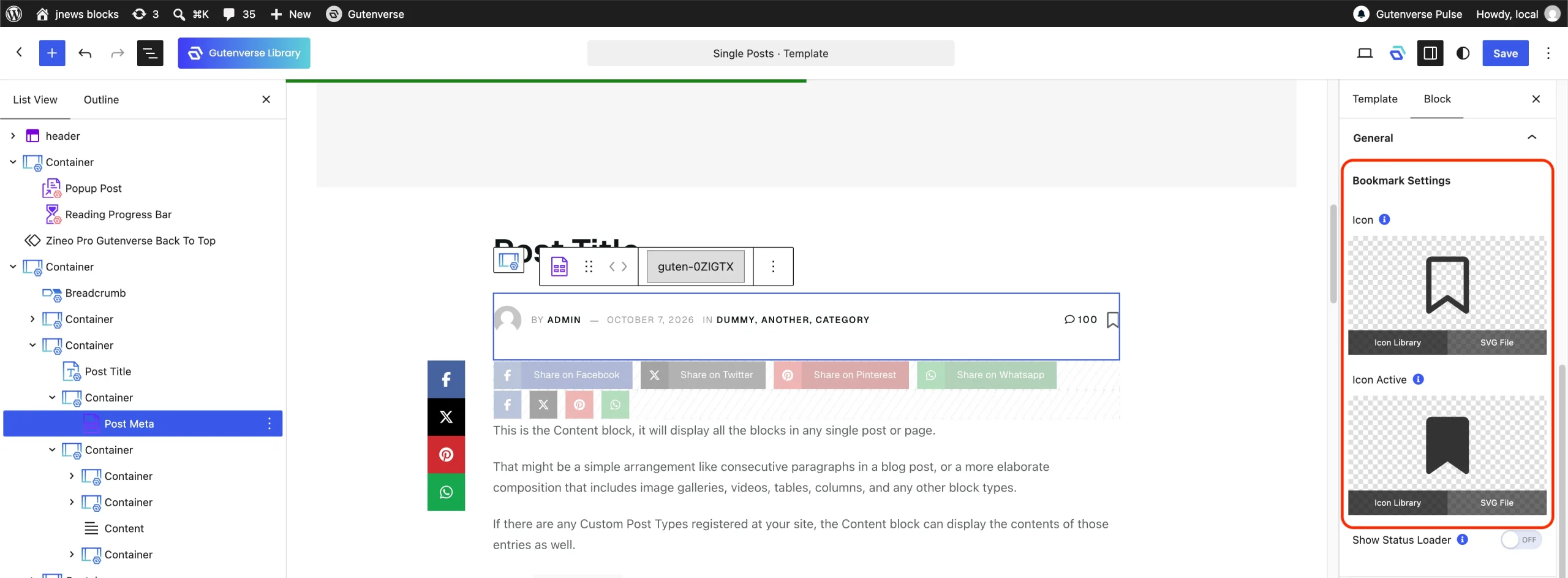
After adding Bookmark element to Post Meta, the settings for bookmark will appears at the bottom of the general panel. The settings exactly the same as the settings on the Bookmark Button.
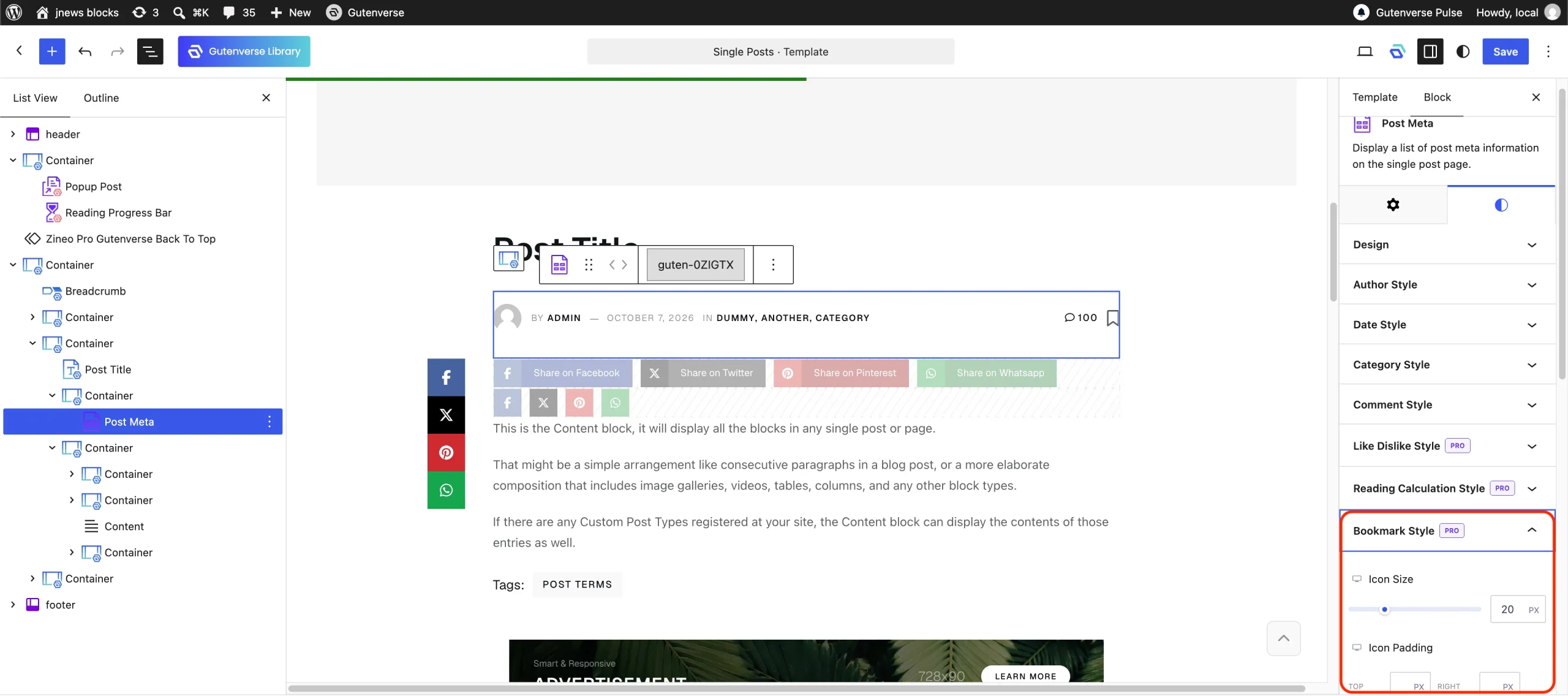
After adding Bookmark element to Post Meta, it will also unlock the style settings for bookmark in post meta.
5. Showing Bookmark Post
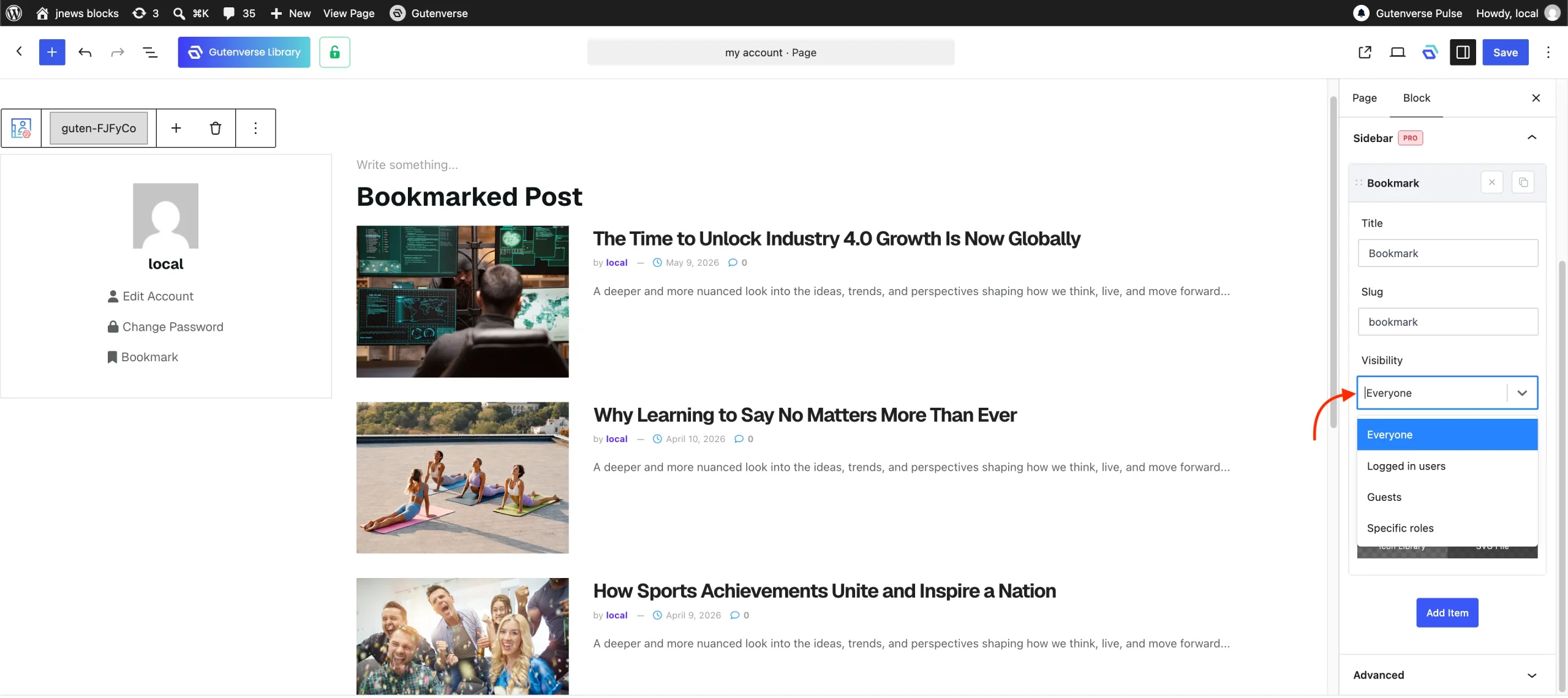
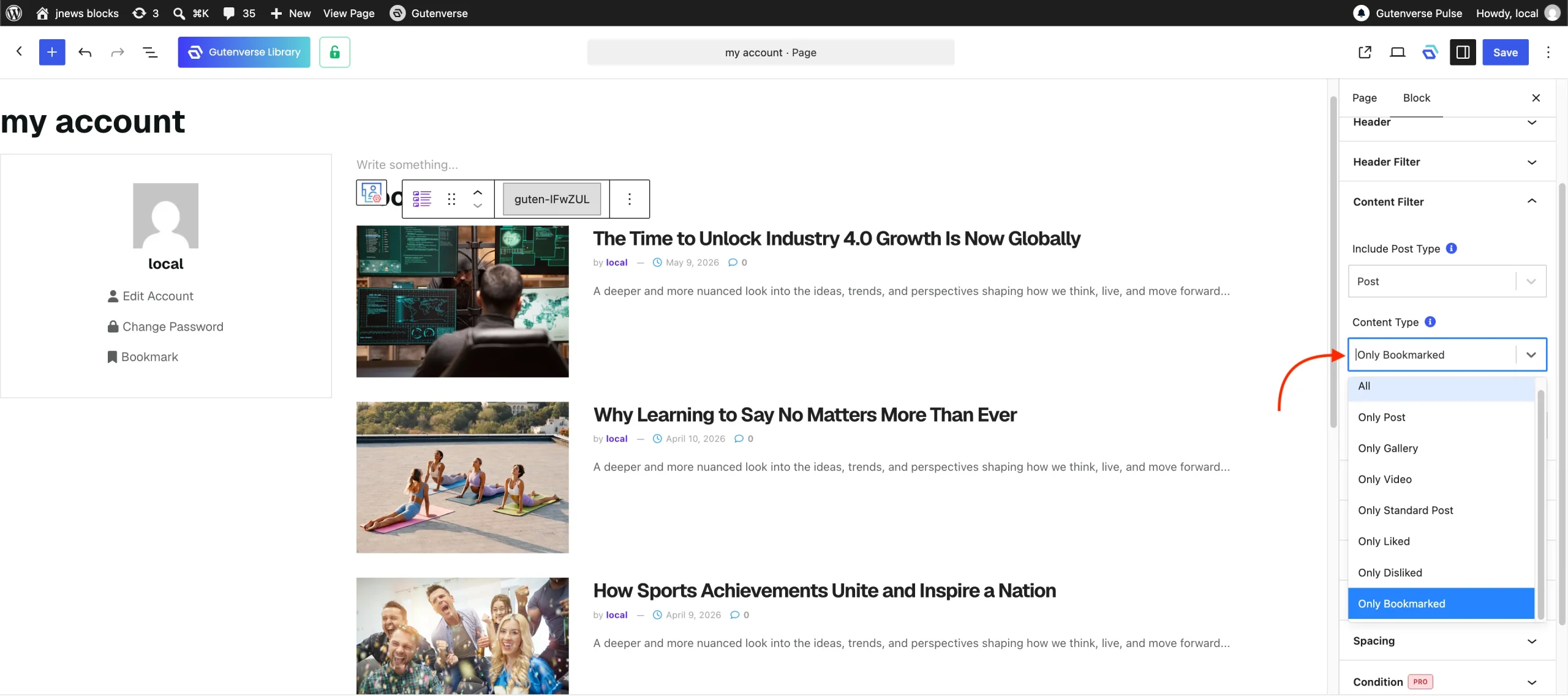
To allow each user to view their bookmarked posts, you can add any module block and filter the content to Only Bookmarked to your Account Page. If you are not familiar with the Account Page feature, you can refer to the related documentation.
If you allowing guest to bookmarked the posts, to ensure that the Bookmark menu is accessible to logged-in users and guest, you can set the Visibility option to Everyone.