
There’re a few things that we’ll explain to you on this section :
1. Installation & Requirements
To enable and use the Post Review feature, you need to have a JNews Blocks Pro license. After that, you need to activate the following plugins:
- JNews Blocks
- JNews Blocks Pro
After that, you can go to the JNews Blocks > Settings > Additional Features menu and enable the Post Review feature.

After enabling the Post Review feature, you will have access to the Post Review block and several additional options in the JNews Blocks module. To add a review to a post, simply add the Post Review block to that post.


If a post contains a Post Review block, it will have review metadata that can later be displayed using the JNews Blocks Module Meta.
2. Post Review Block
As mentioned earlier, the Post Review block is a special block that adds review metadata to a post. The Post Review block provides several options, including the review list, pros and cons, pricing, and description, which you can configure to suit your needs. Here is an explanation of all the options available in the Post Review block.
General Settings
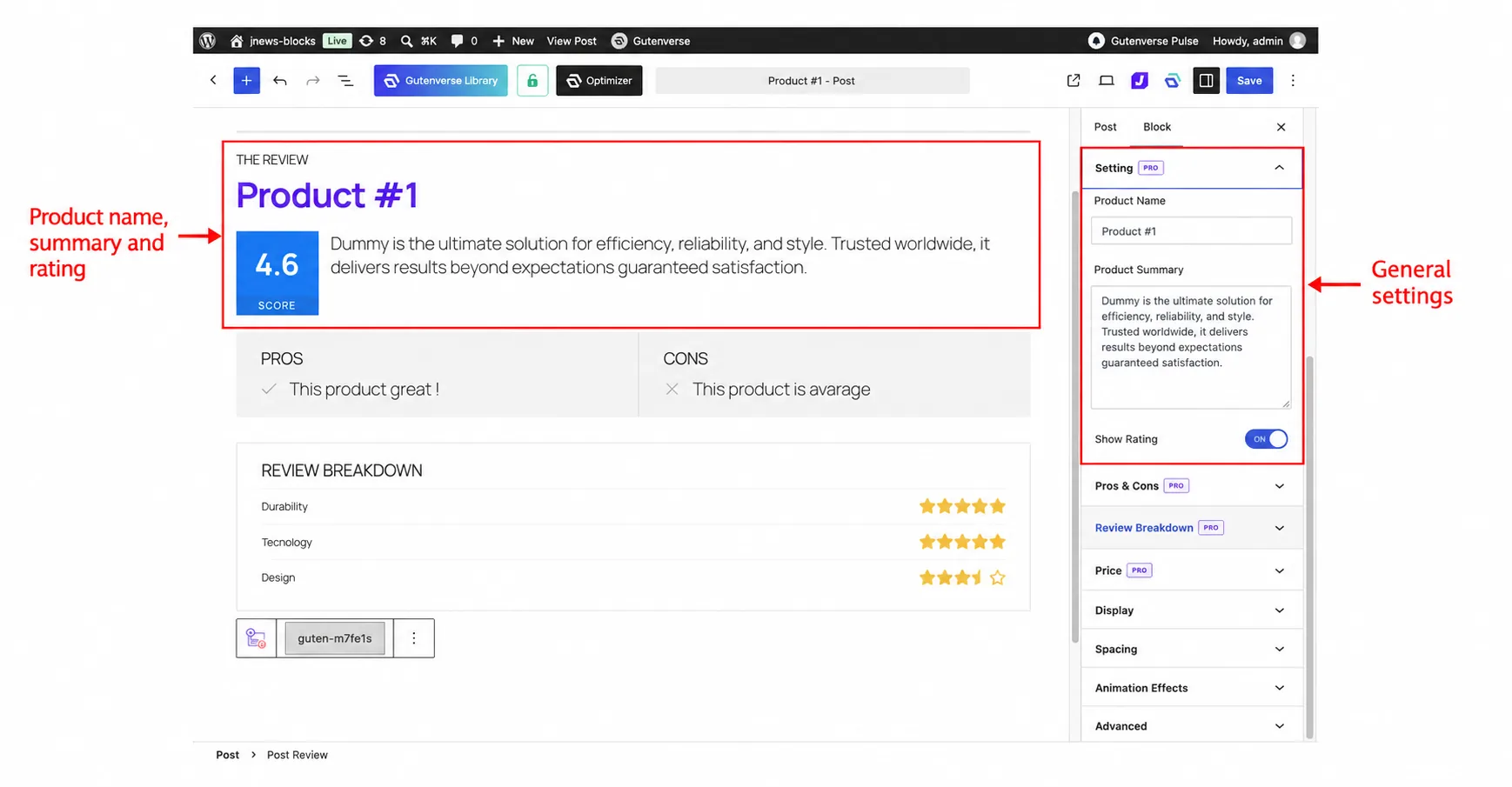
The following is an explanation of all the options available in General Settings.
- Product Name : Displays the name of the product being reviewed.
- Product Summary : Displays a short description of the product being reviewed.
- Show Rating : Option to display the total rating.
Pros & Cons Settings
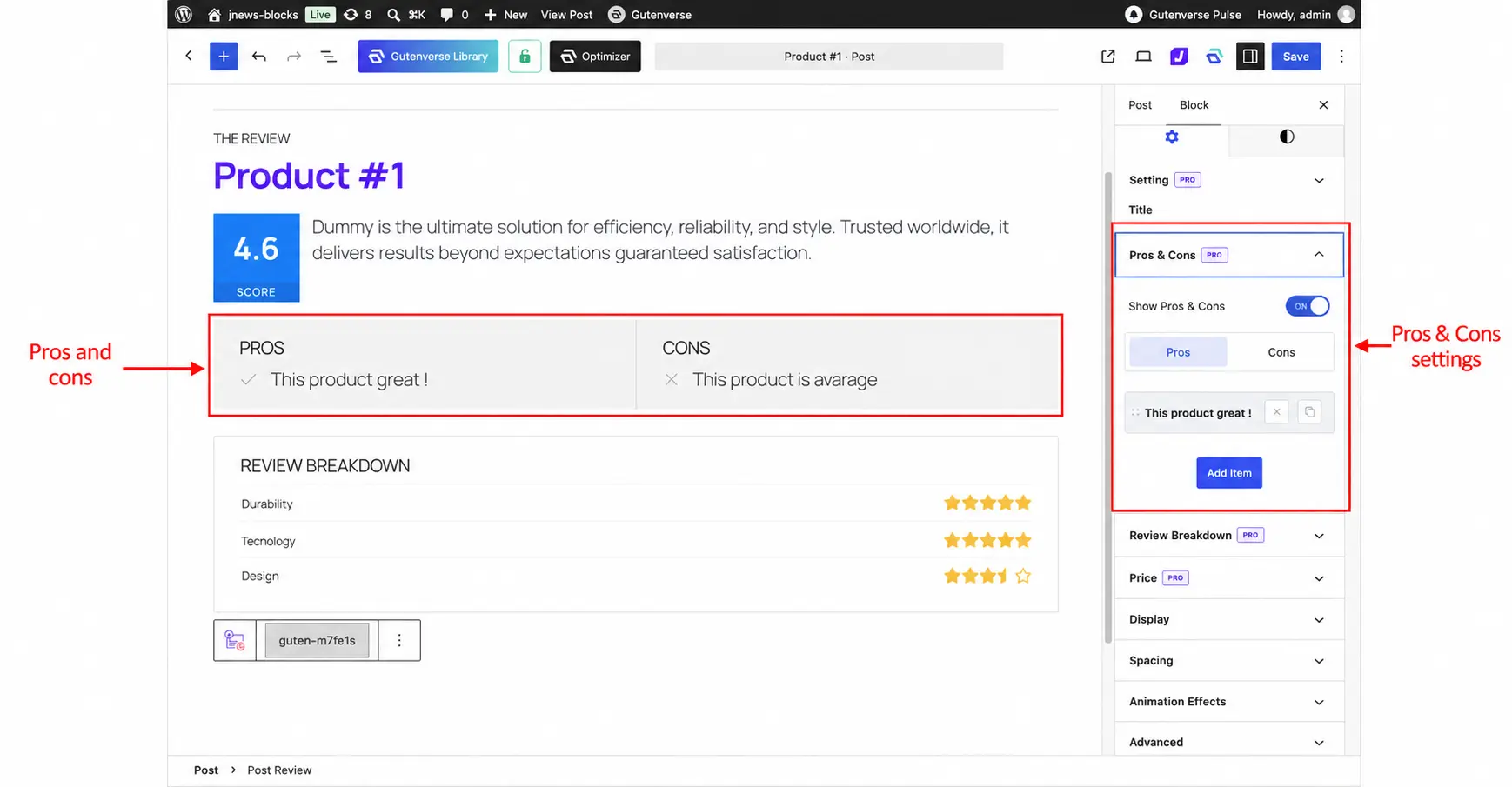
The following is an explanation of all the options available in Pros & Cons Settings.
- Show Pros & Cons : Whether to display the pros and cons.
- Pros : You can add multiple Pros by toggling to Pros and clicking Add Item.
- Cons : You can add multiple Cons by toggling to Cons and clicking Add Item.
Review Breakdown
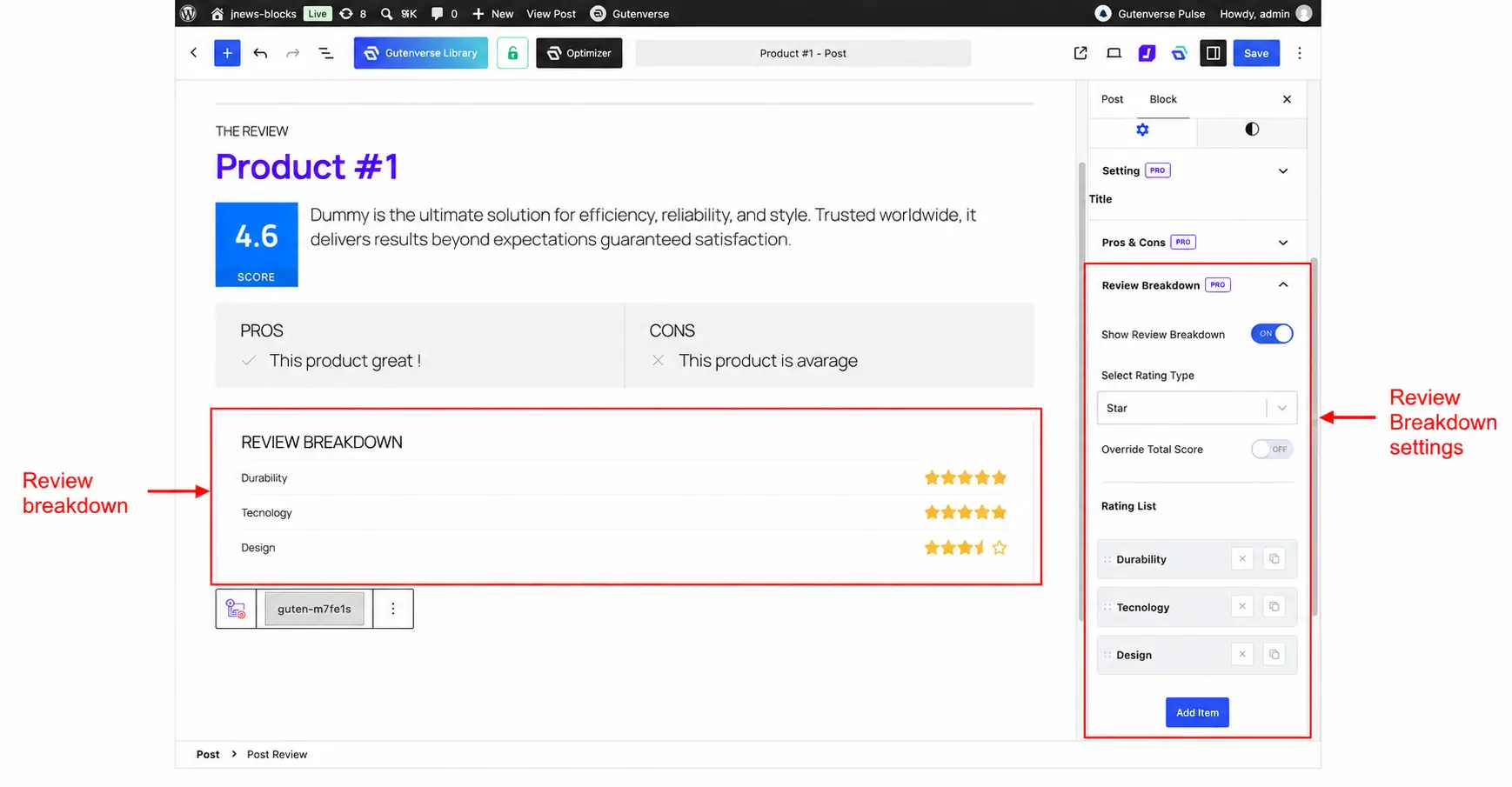
The following is an explanation of all the options available in Review Breakdown.
- Show Review Breakdown : Whether to display the review breakdown.
- Select Rating Type : Allows you to choose how the ratings are displayed, using Point, Star, or Percentage.
- Override Total Score : Option to manually set the total review score instead of using the score calculated from the Rating List.
- Rating List : You can add multiple review criteria by clicking Add Item. Click an item to configure its Text, which is the name of the criterion, and Rate, which is its rating value.
Price Settings
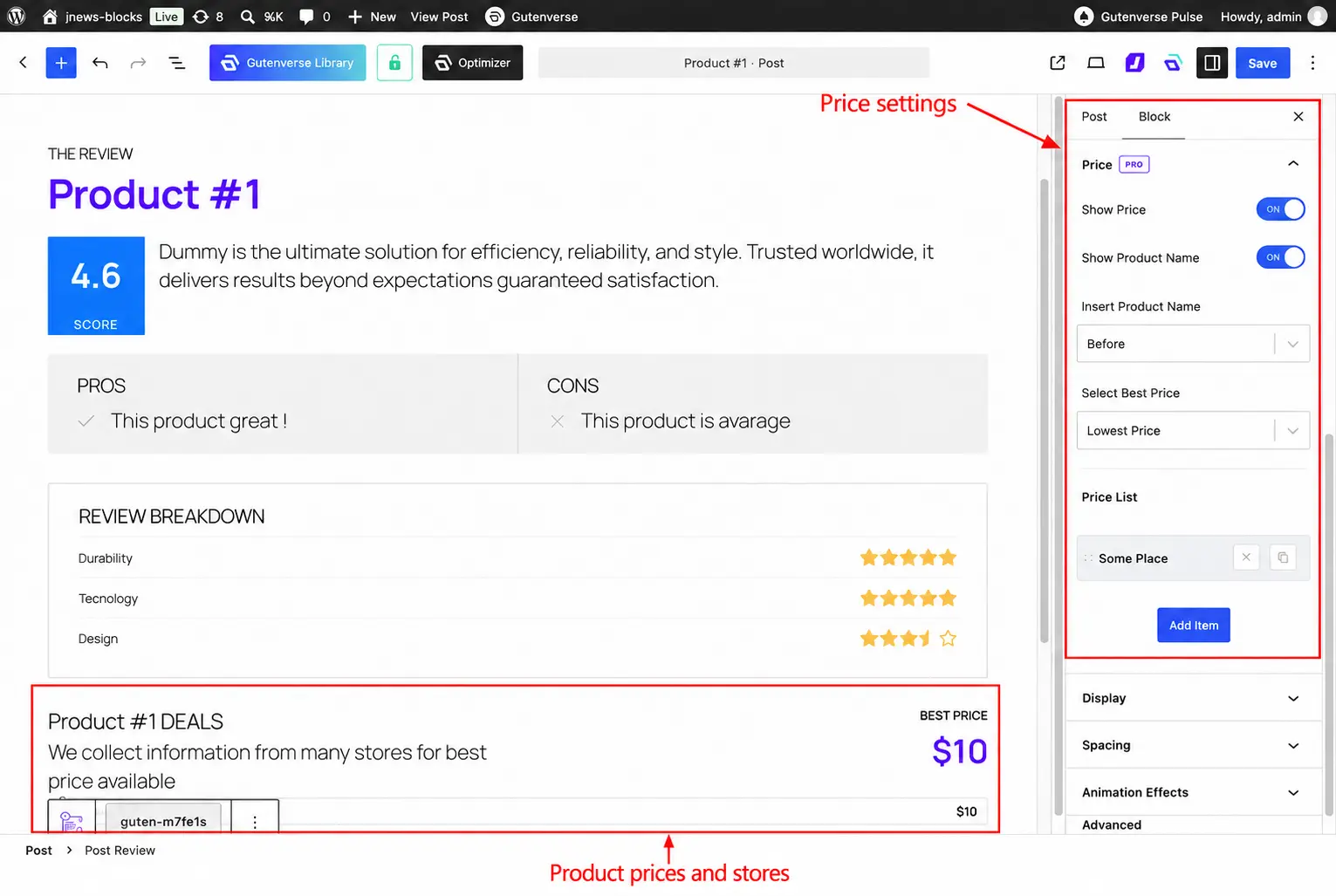
The following is an explanation of all the options available in Price Settings.
- Show Price : Whether to display the product prices and store list.
- Show Product Name : Option to display the product name in the price section title.
- Insert Product Name : Once the Show Product Name option is enabled, you can choose whether to insert the product name Before or After the price section title.
- Select Best Price : Allows you to choose which price is highlighted as the best price. Select Lowest Price to use the lowest price in the list, First Item to use the first item, or Set From Item to choose an item manually.
- Price List : You can add multiple stores by clicking Add Item. Click an item to configure its store details and price.
- Where to Buy : Displays the name of the store where the product can be purchased.
- Price : Sets the product price for the store.
- Shop Logo : Allows you to add the store logo by clicking Select Image.
- Shop Link : Sets the link to the store or product page where readers can purchase the product.
- Override Currency : Option to use a custom price prefix and suffix for the store.
- Price Prefix : Once the Override Currency option is enabled, you can add text or a currency symbol before the price.
- Price Suffix : Once the Override Currency option is enabled, you can add text or a currency symbol after the price.
- Set Best Price : When Select Best Price is set to Set From Item, enable this option on the store item you want to highlight as the best price.
3. Global Options
Once you enable the Post Review feature, you can access its global options from the JNews Blocks > Settings > Post Review menu. These options allow you to configure the default currency text and decimal values used by the Post Review block.
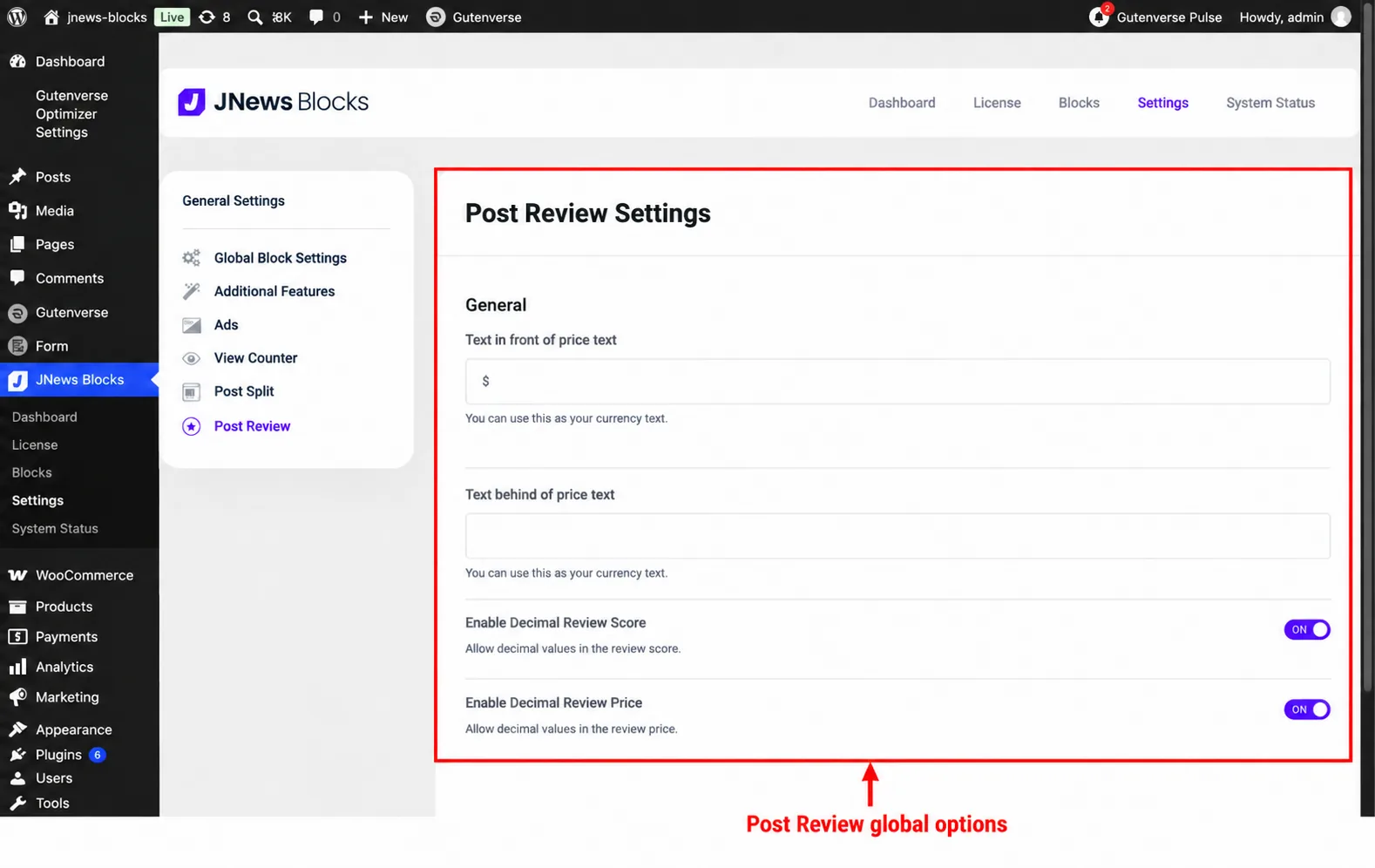
The following is an explanation of all the options available in Global Options.
- Text in front of price text : Sets the text or currency symbol displayed before the price, such as $.
- Text behind of price text : Sets the text or currency symbol displayed after the price, such as USD.
- Enable Decimal Review Score : Option to allow decimal values in the review score, such as 4.6.
- Enable Decimal Review Price : Option to allow decimal values in the review price, such as 19.99.
The currency text is used as the default for the Price List. To use different currency text for a specific store, enable Override Currency in that store item and configure its Price Prefix and Price Suffix.
After adjusting the options, click Save Changes to apply your configuration.
4. Review Meta
As mentioned earlier, adding a Post Review block to a post provides review metadata that can be displayed in supported JNews Blocks modules. This allows readers to see the post’s review rating directly in a post list without opening the full review.
To display the review metadata, select the JNews Blocks module in the editor and open its Meta Settings panel. Enable Show Meta, then enable Show Meta Review.
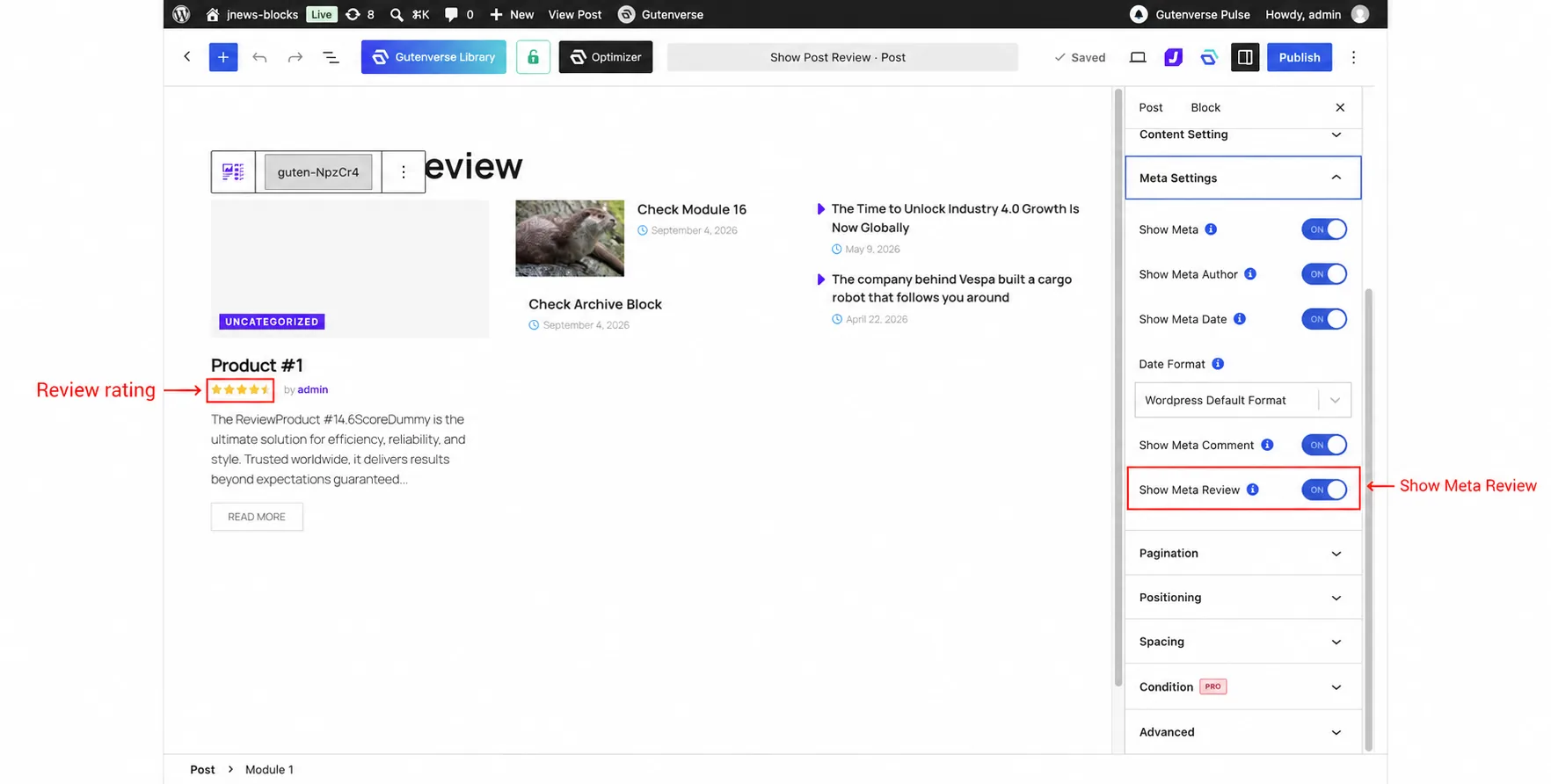
The displayed rating comes from the Post Review block in the original post. To change the rating, edit that post’s Post Review block and adjust its Review Breakdown settings. Posts without review metadata will not display a review rating.