Ads are an important feature for websites that want to improve monetization while maintaining a good user experience. JNews Blocks provides a built-in Ads feature that makes it easier to display advertisements across your website with flexible placement and configuration options. We designed this feature by analyzing common advertising needs on modern news and magazine websites, allowing you to manage ads more efficiently while keeping your content layout clean and organized.
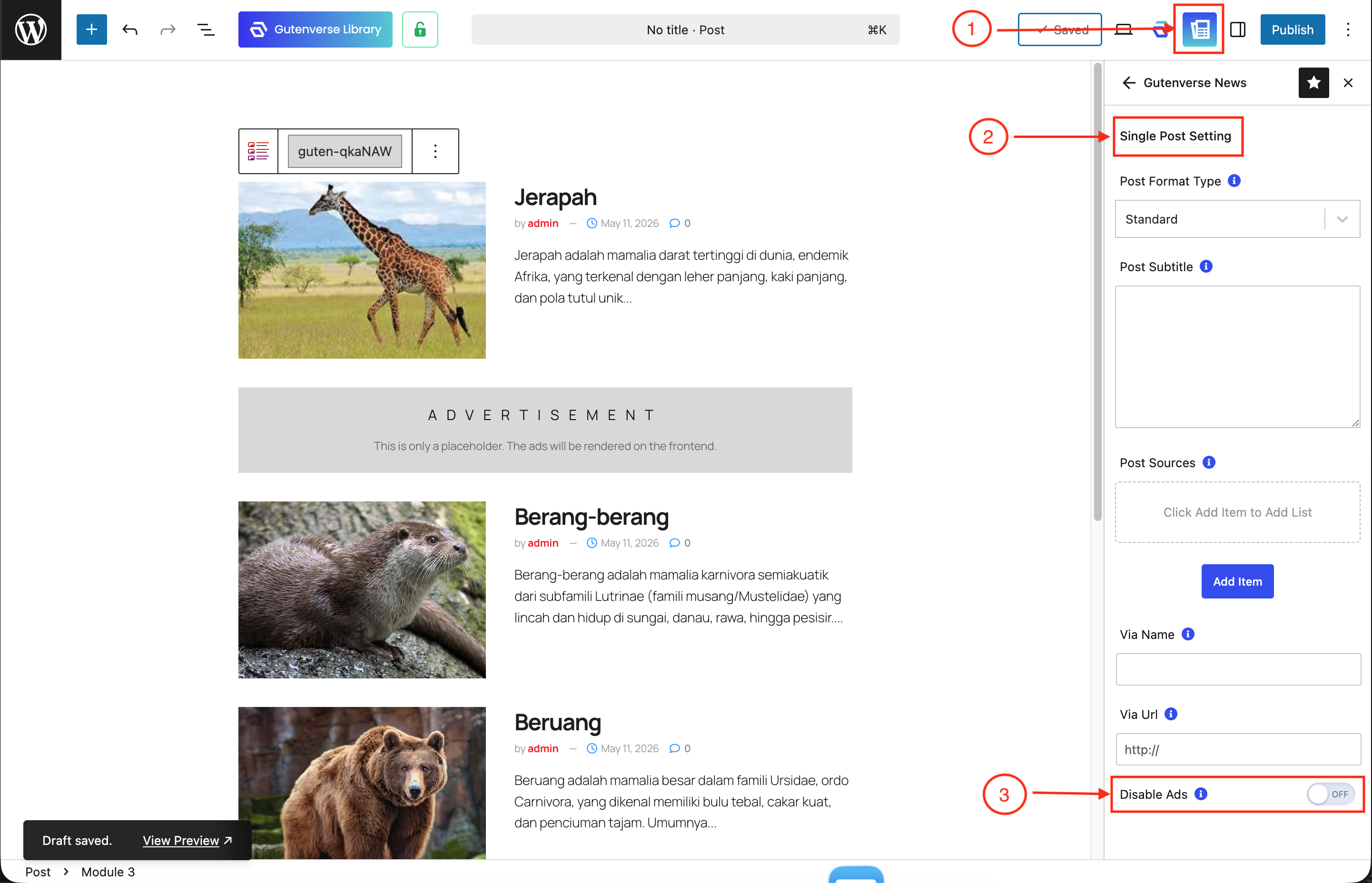
By enabling this feature, several advertising-related options will become available across JNews Blocks. You will gain access to the Ads blocks, which can be used to display advertisements in various areas of your website, as well as the Inline Content Ads option for inserting ads naturally within your post content. In addition, some JNews Blocks modules will also include a Module Ads option, allowing you to integrate advertisements directly into supported modules more easily.
1. Installation & Requirements
To enable and use the Ads feature, you need to have a JNews Blocks Pro. After that, you need to activate the following plugins:
- Gutenverse
- Gutenverse Pro
- JNews Blocks
- JNews Blocks Pro
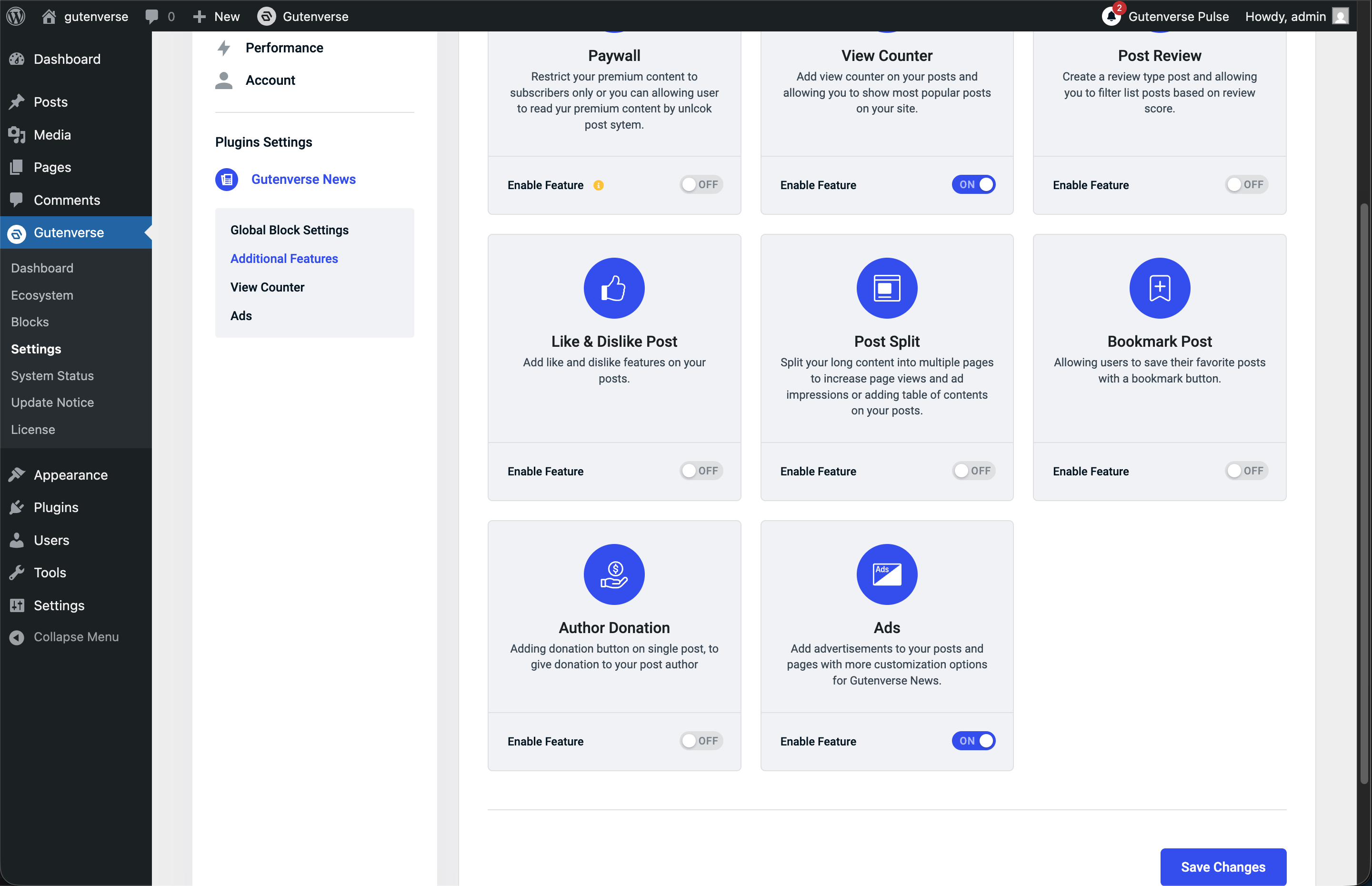
After that, you can go to the JNews Blocks -> Settings -> Additional Features menu and enable the Ads feature.
2. Ads Type
The Ads feature supports multiple advertisement types, including Image Ads, Google Ads, Shortcode Ads, and Script Ads. Each ad type comes with its own configuration settings, allowing you to customize how the advertisement is displayed and integrated within your website content. Below is an explanation of each available ads type.
1. Image Ads
The Image Ads type allows you to display advertisements using custom images uploaded to your website. This ad type is suitable for banners, promotional graphics, or custom-designed advertisements, and includes various settings to help you control how the image ad is displayed within your content. Below are the options available for Image Ads.
- Image
Configure responsive image sources to ensure the ad image displays properly across different screen sizes and devices. - Link
Set the destination link for the image ad when users click on the advertisement. - Alternate Text
Set the alternate text for the image ad to improve accessibility and provide additional information about the image. - Fetch Priority High
Enable high fetch priority to load the ad image earlier for better visibility and faster display performance. - Image Load
Configure how the ad image should be loaded, such as using lazy load or eager load behavior. - Open New Tab
Enable this option to open the ad link in a new browser tab when clicked. - Aria Label
Set an aria label for the image ad to improve accessibility and provide a clearer description for screen readers.
2. Google Ads
The Google Ads type allows you to display advertisements from Google AdSense or other Google advertising services directly within your website content. This ad type includes several configuration options to help you integrate and manage Google Ads more easily within your layout. Below are the options available for Google Ads.
- Publisher ID
Enter your Google Ads publisher ID to connect the advertisement with your Google advertising account. - Slot ID
Enter the Google Ads slot ID used to identify and display the specific advertisement unit. - Responsive Size
Enable responsive size to allow the ad to automatically adjust and display properly across different screen sizes and devices. - Fixed Width & Height
Set a fixed width and height for the ad display area. This option is only available when responsive size is disabled. - Hide If Unfilled
Hide the ad container when no advertisement is available. If disabled, a placeholder will be displayed instead when the ad is unfilled.
3. Script
The Script Ads type allows you to insert custom advertisement scripts directly into your website content, such as Google Ads scripts or codes from other third-party advertising networks. This option gives you more flexibility when integrating external ad services that require their own custom embed or JavaScript code. Below are the options available for Script Ads.
- Ads Code
Insert the custom advertisement script or embed code that will be used to display the ad on your website.
4. Shortcode
The Shortcode Ads type allows you to display advertisements using shortcodes from other ads plugins or your own custom advertisement shortcodes. This option provides a flexible way to integrate and manage ads from various sources directly within your website content.
- Shortcode
Insert the custom shortcode that will be used to display the ad on your website.
3. Inline Content Ads
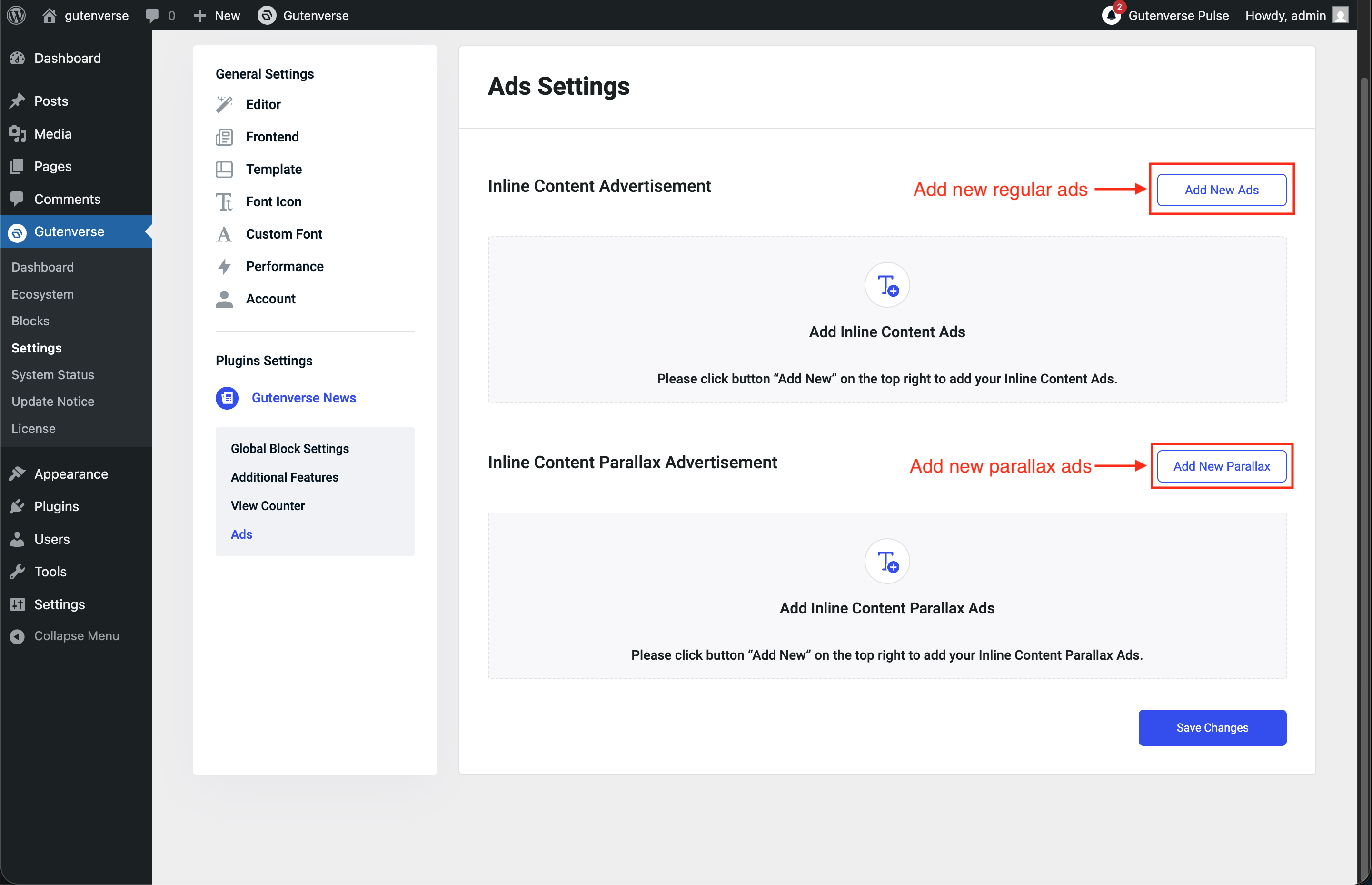
After successfully enabling the Ads feature on your website, an Ads sub-menu will appear under JNews Blocks > Settings > General Settings, allowing you to configure the Inline Content Ads option. This option is used to insert ads between your post paragraphs. You can add multiple ads, whether they are Parallax Ads, Regular Ads, or both. To insert an ad into your post, you can click Add New Ads for regular ads or Add New Parallax for parallax ads.
Each ad comes with its own configuration options, such as ads type, position, and more. Below is an explanation of the available options:
1. Ads Type

Configure the ad type that you want to use. Each ad type comes with its own set of configuration options and settings, allowing you to customize how the ad will appear and behave inside your post content.
2. After Paragraph

This option allows you to determine after how many paragraphs the ad will appear within your post content. By adjusting this setting, you can control the placement of the ad to better balance visibility and reading experience.
3. Random Position

This option allows the ad to appear in a random position within your post content instead of a fixed paragraph location. Enabling this feature can help create more varied ad placements across different posts while keeping the content layout more dynamic.
4. Align

This option allows you to configure the alignment of the ad inside your post content. You can choose to float the ad to the left or right side of the paragraph, helping the advertisement blend more naturally with the content layout.
5. Show Text

This option allows you to display an “Advertisement” label below the ad to clearly indicate sponsored content to your readers. Enabling this feature can help improve transparency while keeping the ad placement more informative and organized.
4. Parallax Inline Content Ads
The Parallax Ads works similarly to a regular ad, but with an additional parallax scrolling effect to create a more dynamic appearance while users scroll through the post content. This effect helps the ad stand out more visually while still blending naturally within the article layout.
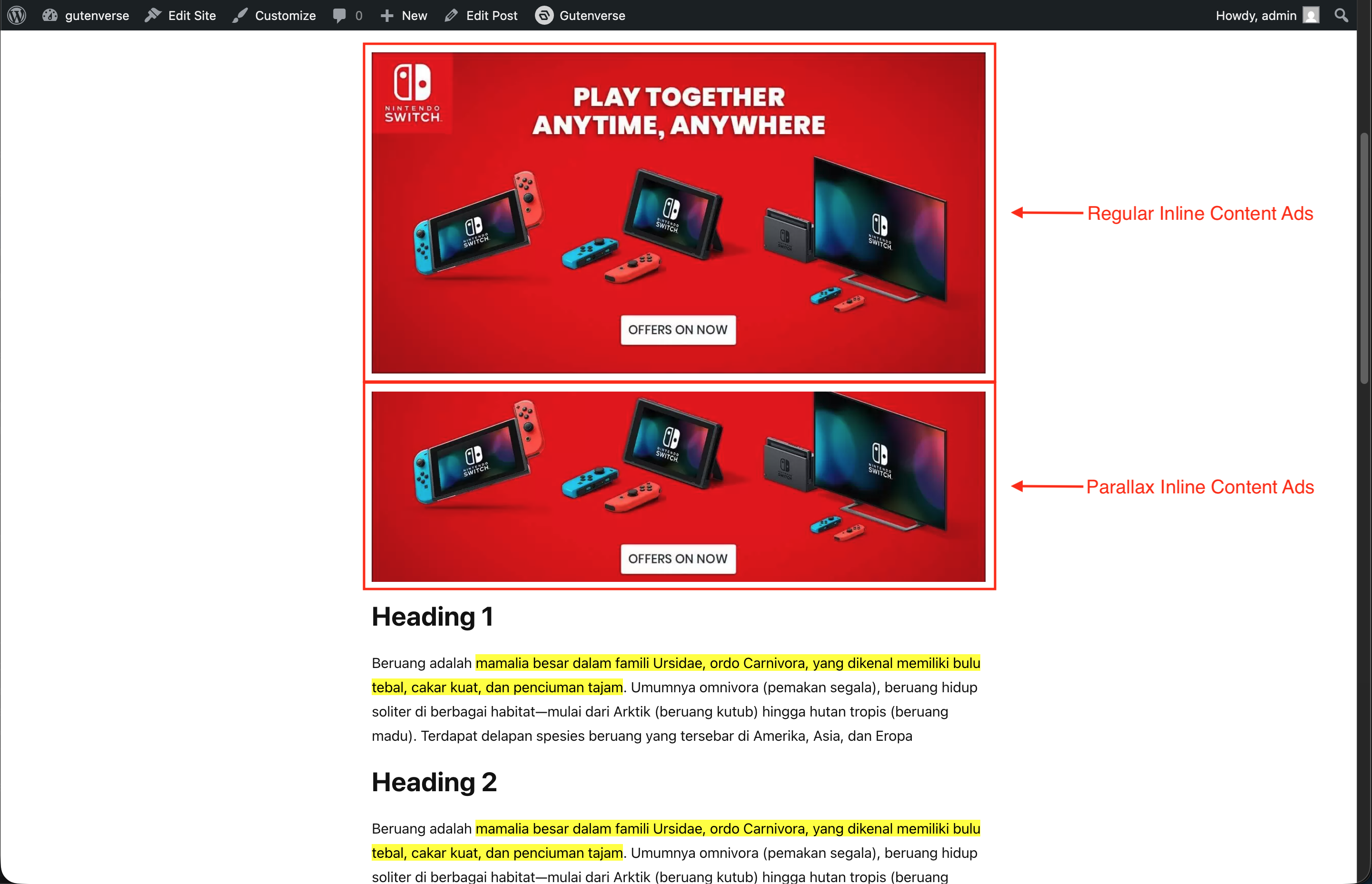
The Parallax Ads also includes several additional configuration options that allow you to customize the parallax behavior and appearance more precisely. Below is an explanation of the additional options:
1. Container Height
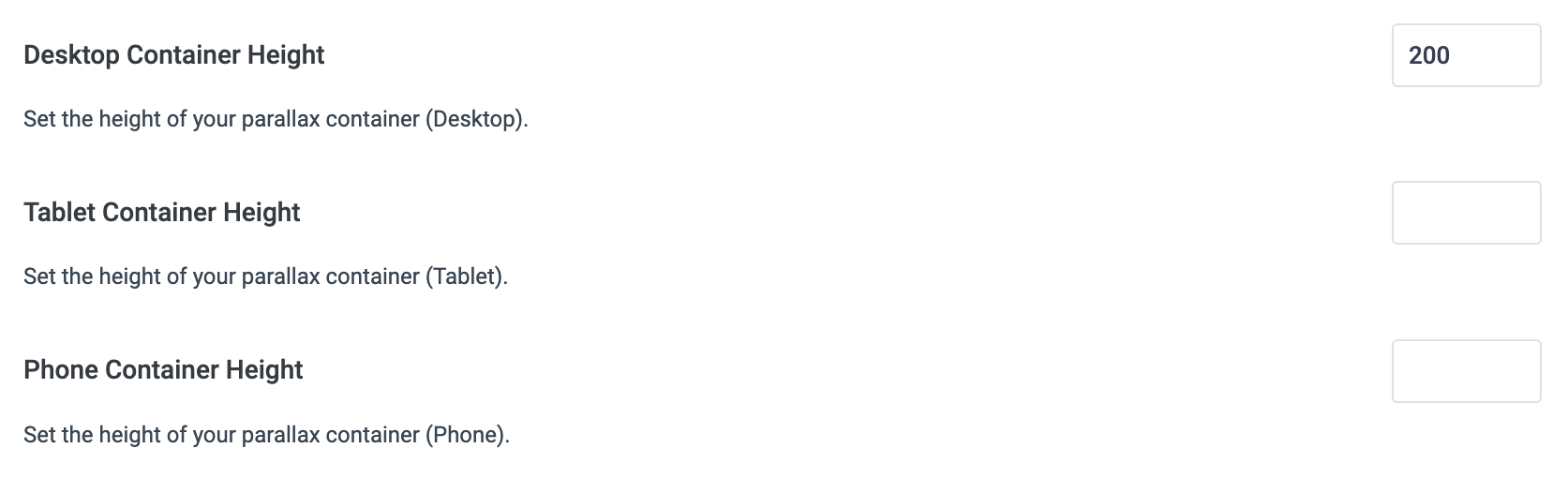
This option allows you to configure the height of the parallax ad container inside the post content. Adjusting the container height helps control the visible area of the parallax effect and ensures the ad fits more naturally within your article layout.
2. Content Full Width

This option allows you to force the parallax ad to use the full width of the container area. Enabling this setting helps the advertisement appear wider and more immersive within the post content layout.
3. Scale
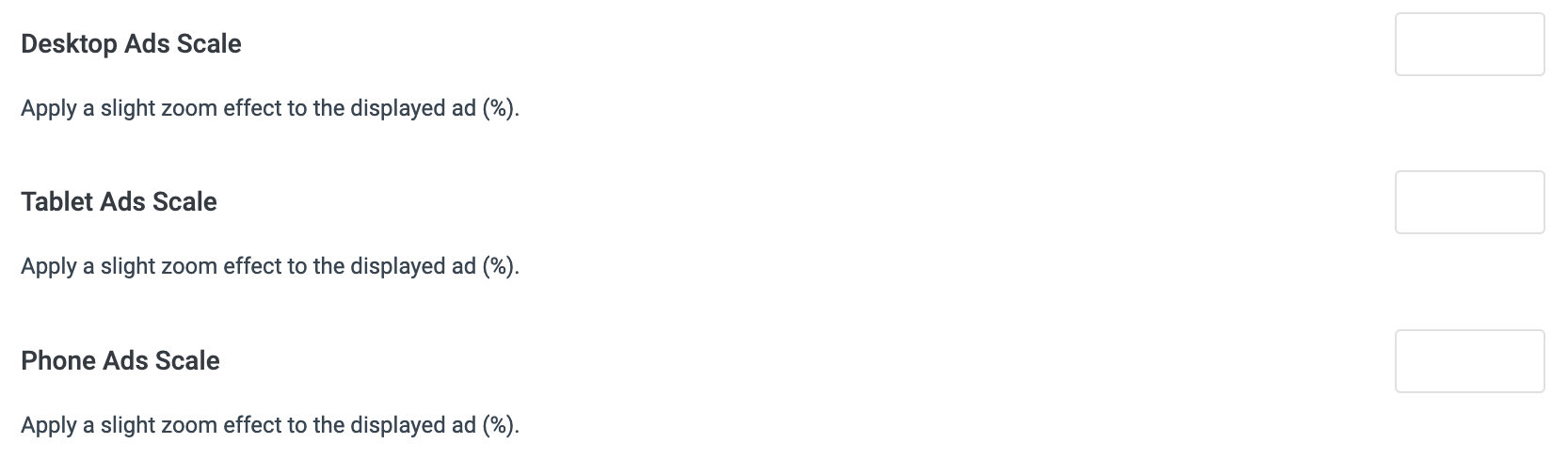
This option allows you to configure the content scale of the parallax ad effect. Adjusting the scale can help control the size and visual impact of the ad while creating a smoother and more dynamic scrolling experience within the post content.
3. Hide Responsive
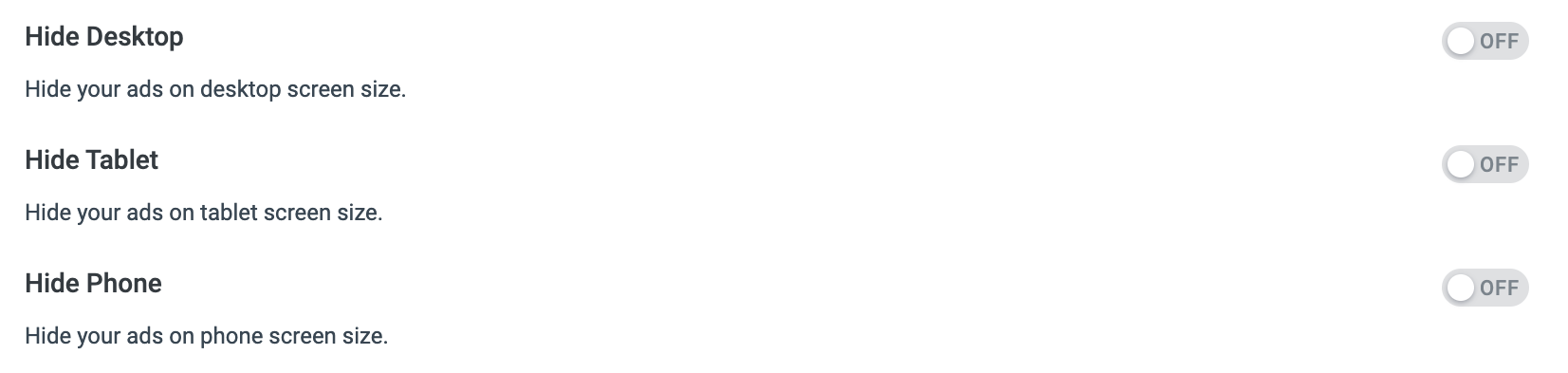
This option allows you to hide the parallax ad on responsive devices. Enabling this setting can help improve readability and maintain a better browsing experience for users on tablets and mobile devices.
5. Ads Block
The Ads block allows you to easily display advertisements anywhere on your website using the block editor. With this block, you can place ads inside posts, pages, templates, or other content areas while keeping the layout flexible and easy to manage.
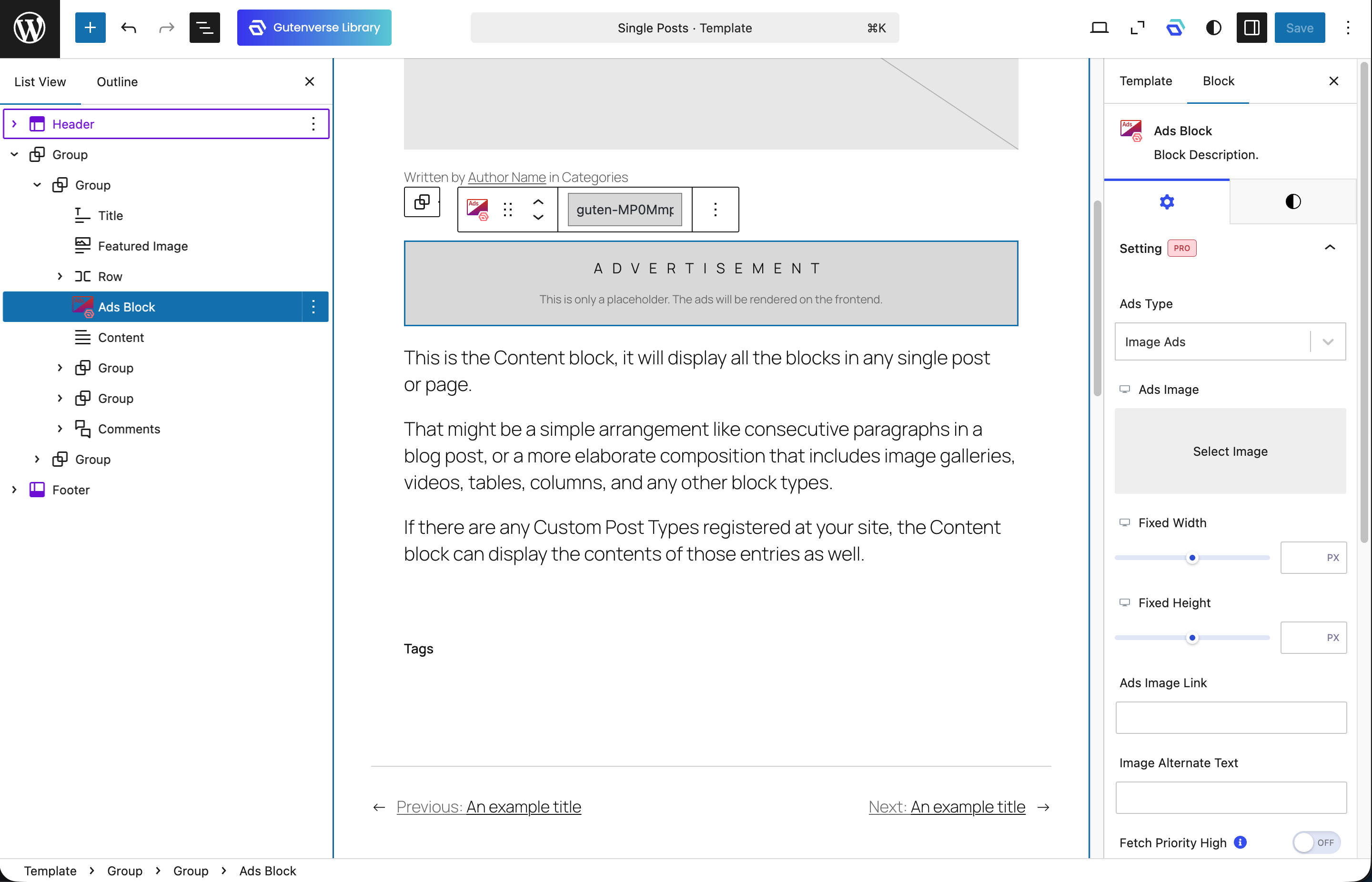
The Ads block includes the common advertisement settings used across the Ads feature, along with additional options for customizing the styling of the advertisement text. These extra settings allow you to adjust the appearance of the label or text elements so the ad can better match your website design and overall layout.
6. Module Ads
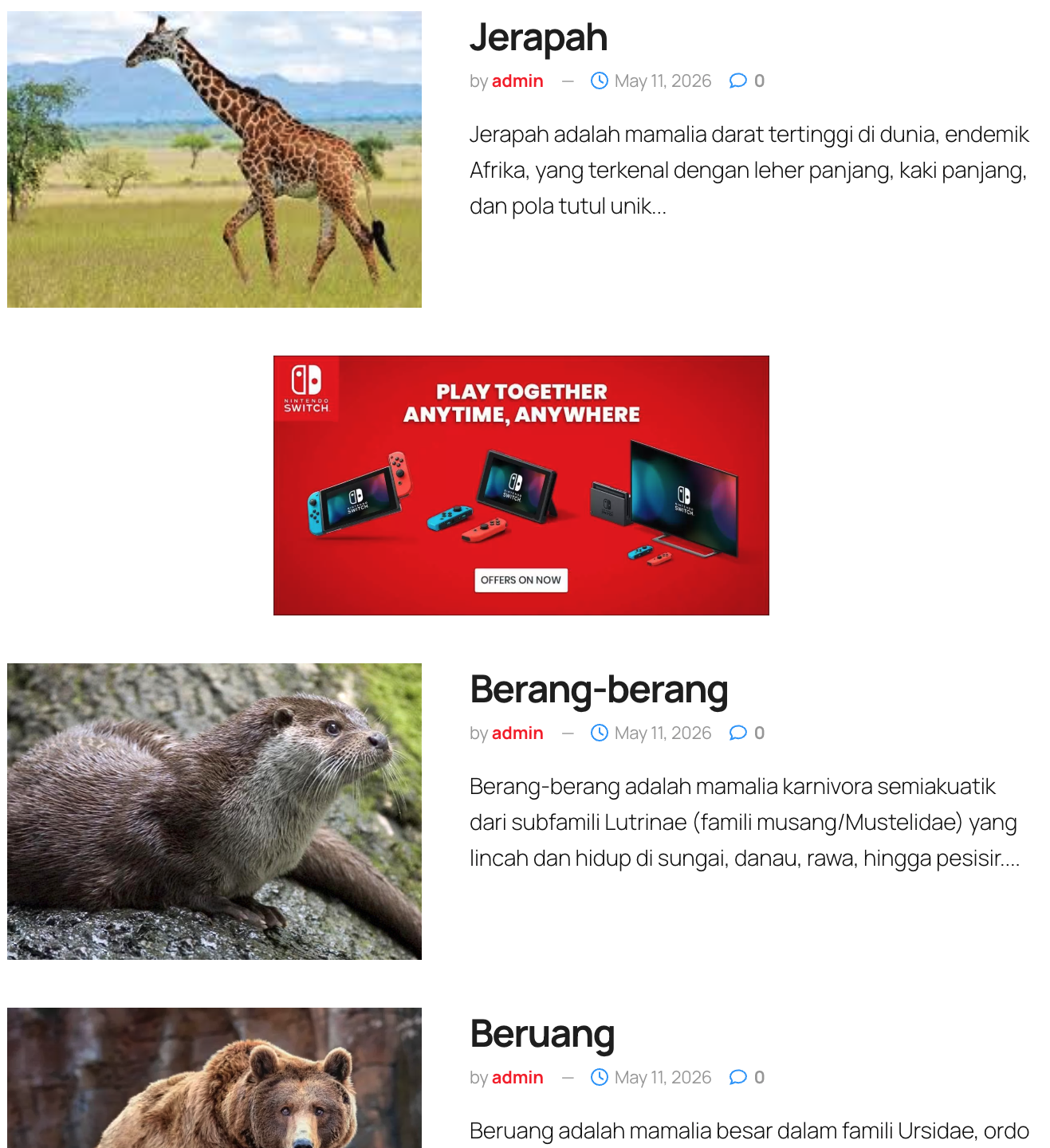
The Module Ads option provides additional advertisement settings for supported JNews Blocks modules, allowing you to insert ads between module items automatically. This feature helps you integrate advertisements more naturally within post listings while maintaining a clean and organized module layout.
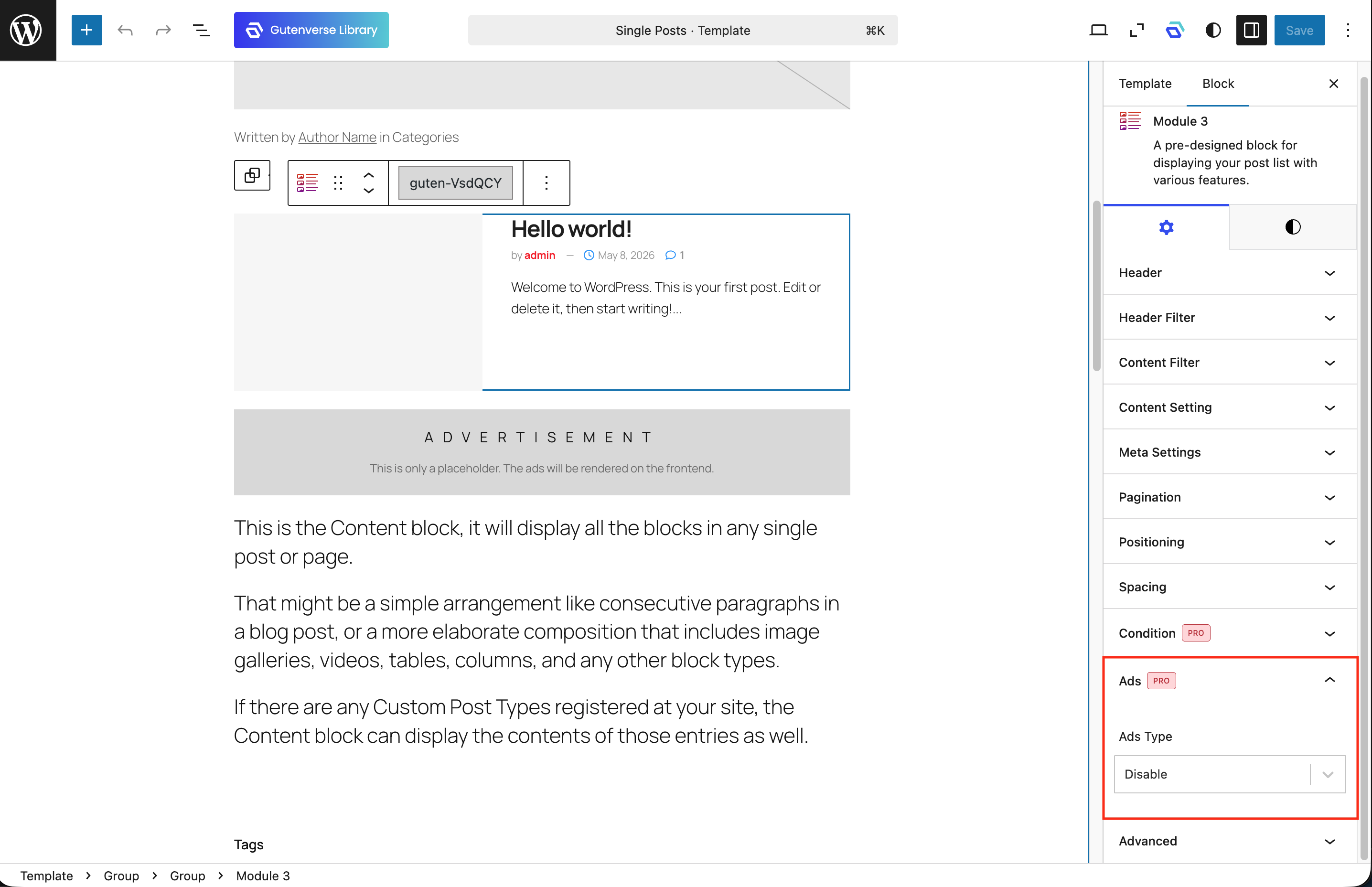
Please note that the Module Ads option is currently only available for JNews Blocks Module 3, 4, 5, 6, 7, and 25. These modules support ad insertion between items, allowing advertisements to blend more naturally within the module content layout. The Module Ads option also includes the regular ads settings, allowing you to configure the advertisement type, placement, alignment, and other common ad options directly within the supported JNews Blocks modules.
7. Disable Ads
This option, available in the Single Post Setting inside JNews Blocks Metabox post editor, allows you to disable all advertisement features for the current post. When enabled, all ads will be hidden on that post, including Inline Content Ads, Module Ads, and Ads blocks.