In the following documentation, we will explain the additional settings available for Single Posts. There are many additional settings in Single Posts, such as Post Format, Post Subtitle, Post Sources, and Post Via.
1. Installation & Requirements
To use the additional Single Post Settings, you need to have a JNews Blocks Pro license. After that, you need to activate the following plugins:
- Gutenverse
- Gutenverse Pro
- JNews Blocks
- JNews Blocks Pro
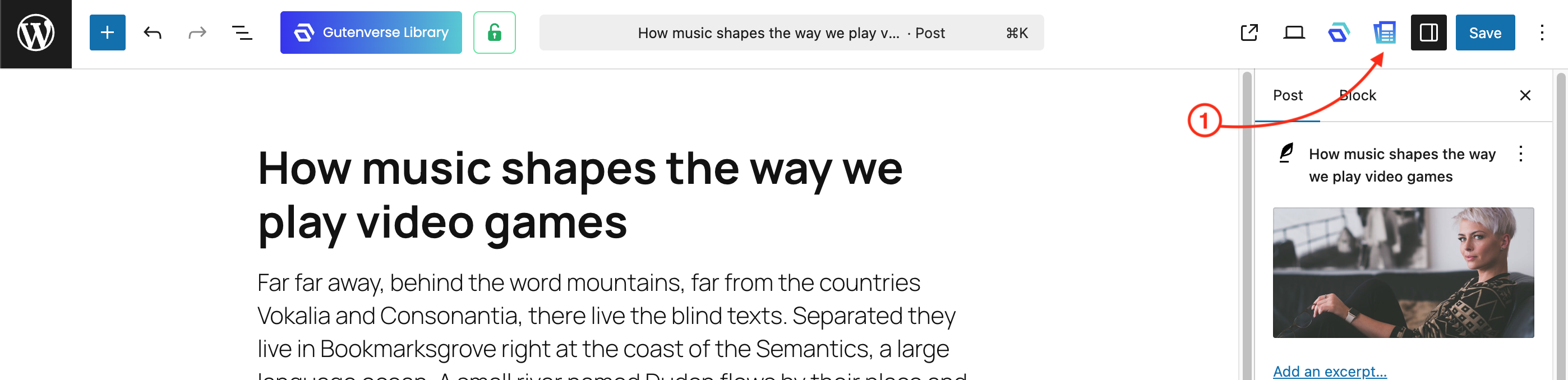
To access the additional settings for Single Posts, edit your post and open the JNews Blocks Metabox menu in the right corner of your editor.
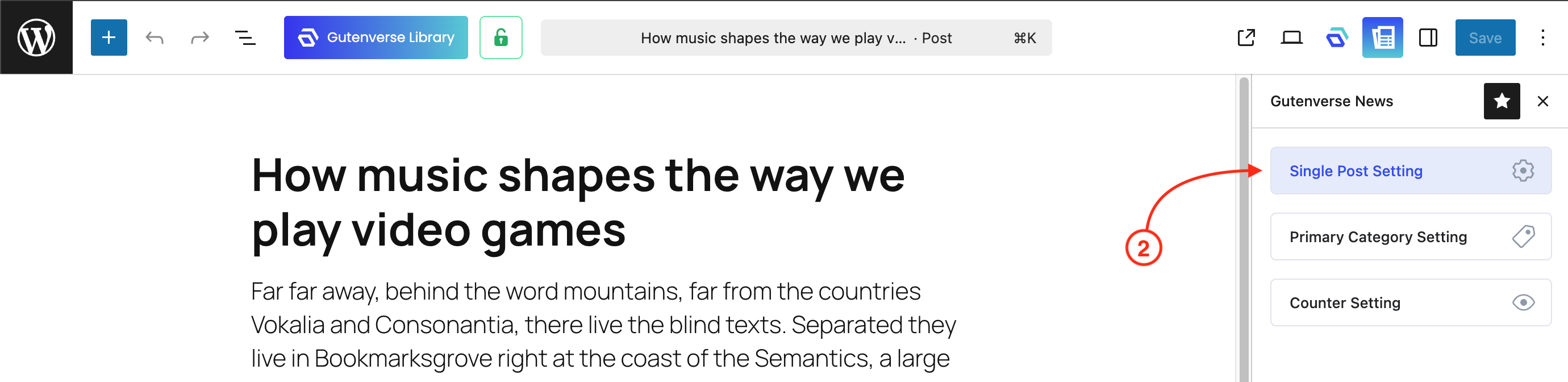
After that, you can open the Single Post Setting menu.
2. Post Format Type
We provide 3 post formats that you can choose for your post: Standard, Gallery, and Video. You can display the Featured Image, Gallery Image, or Video on your single post page by changing the Post Format Type option. The Post Format Type option is integrated with the Post Featured block.
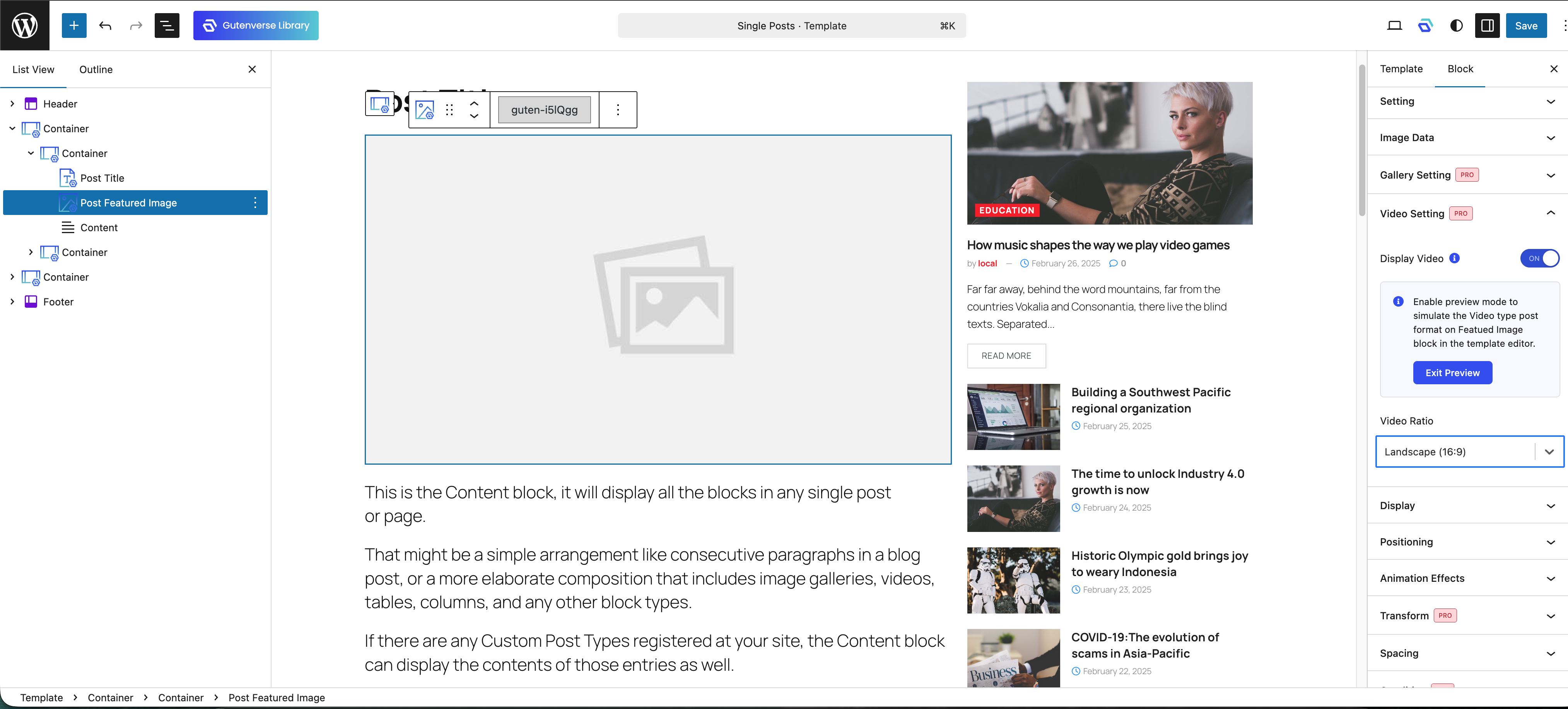
To use this feature, you need to add the Post Featured block to your single post template, then enable the Display Gallery Image and the Display Video option.
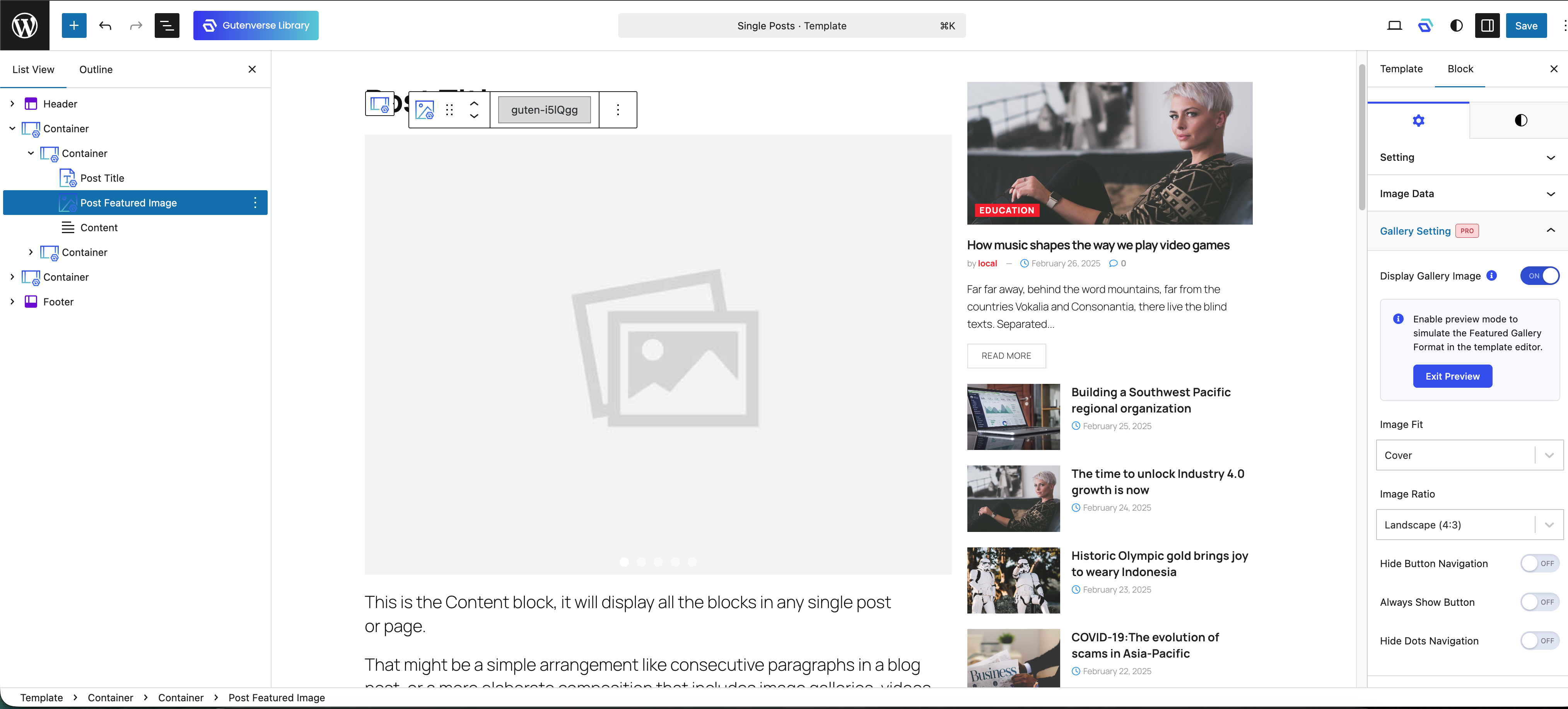
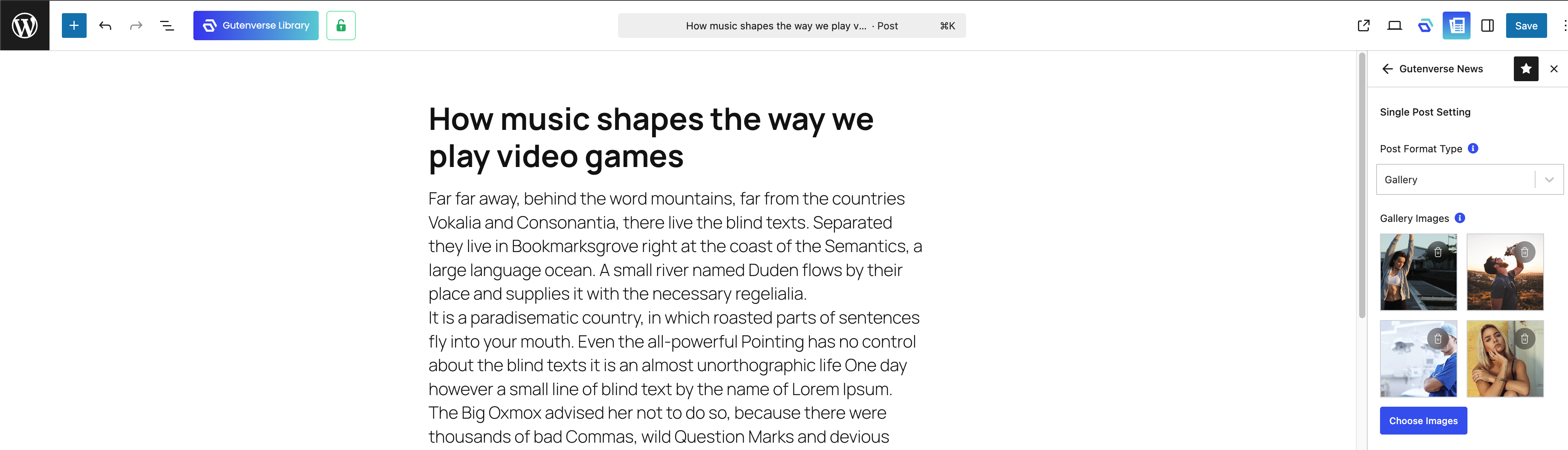
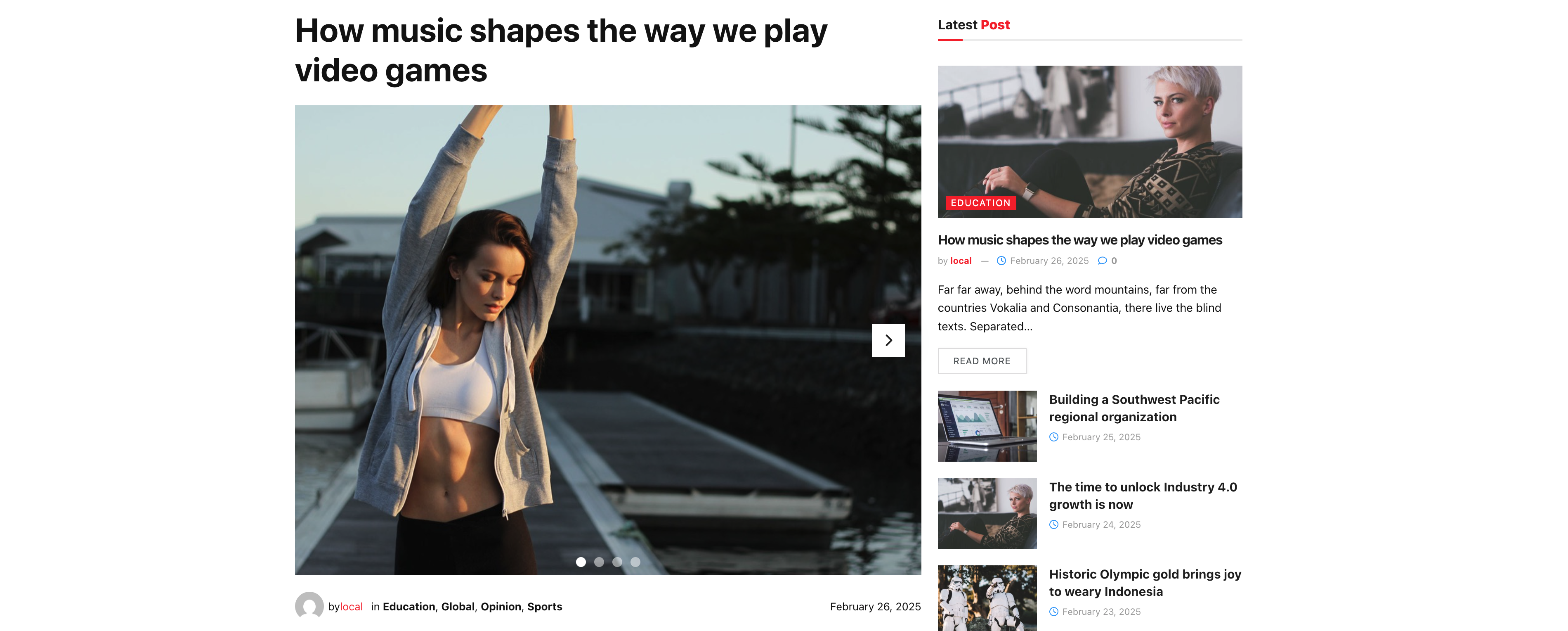
- Gallery Post
When you select Gallery in the Post Format Type option, you can add a list of images in the Gallery Images option. The image list will then be displayed as a gallery in the Post Featured block on your single post page.
- Video Post
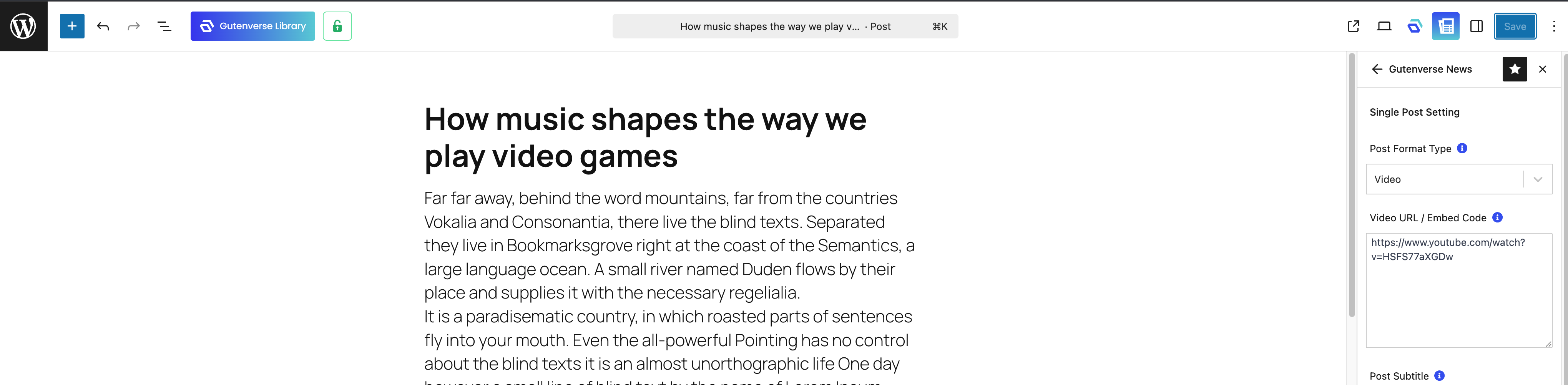
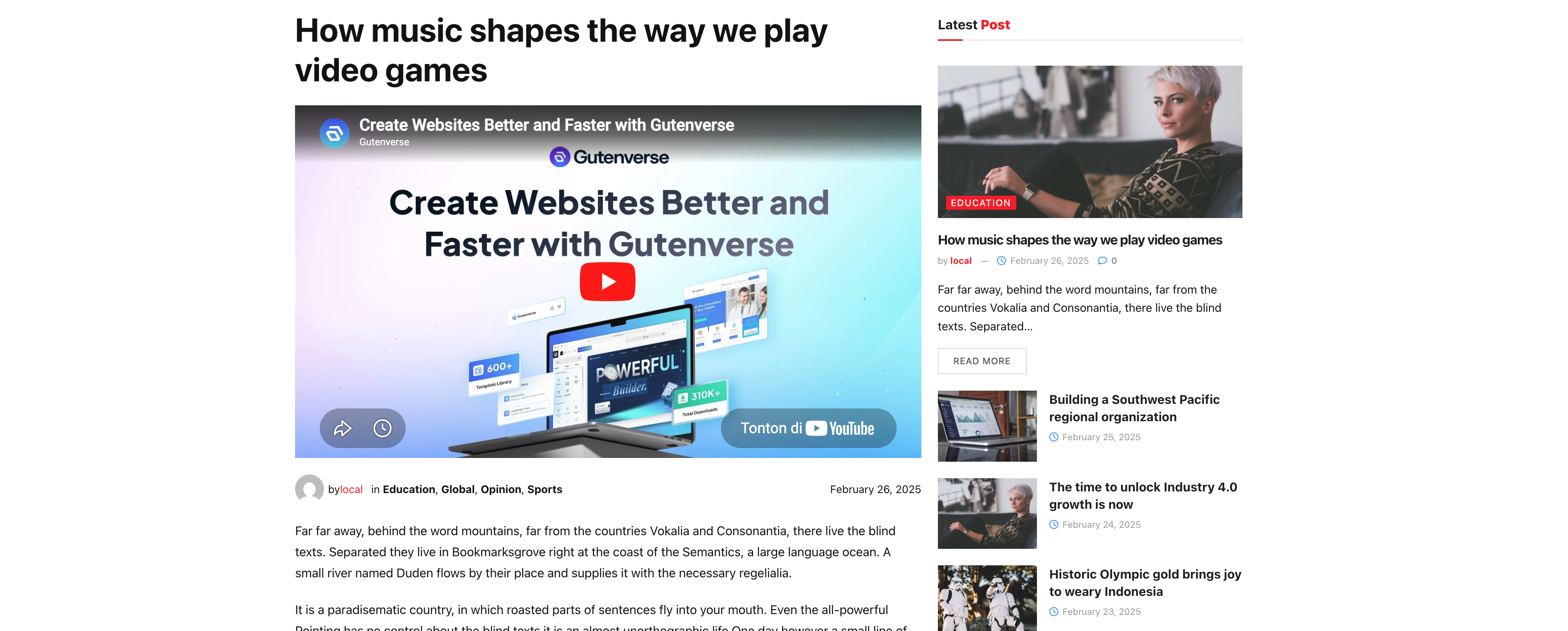
When you select Video in the Post Format Type option, you can add a video URL or video embed code in the Video URL / Embed Code option to display a video in the Post Featured block.
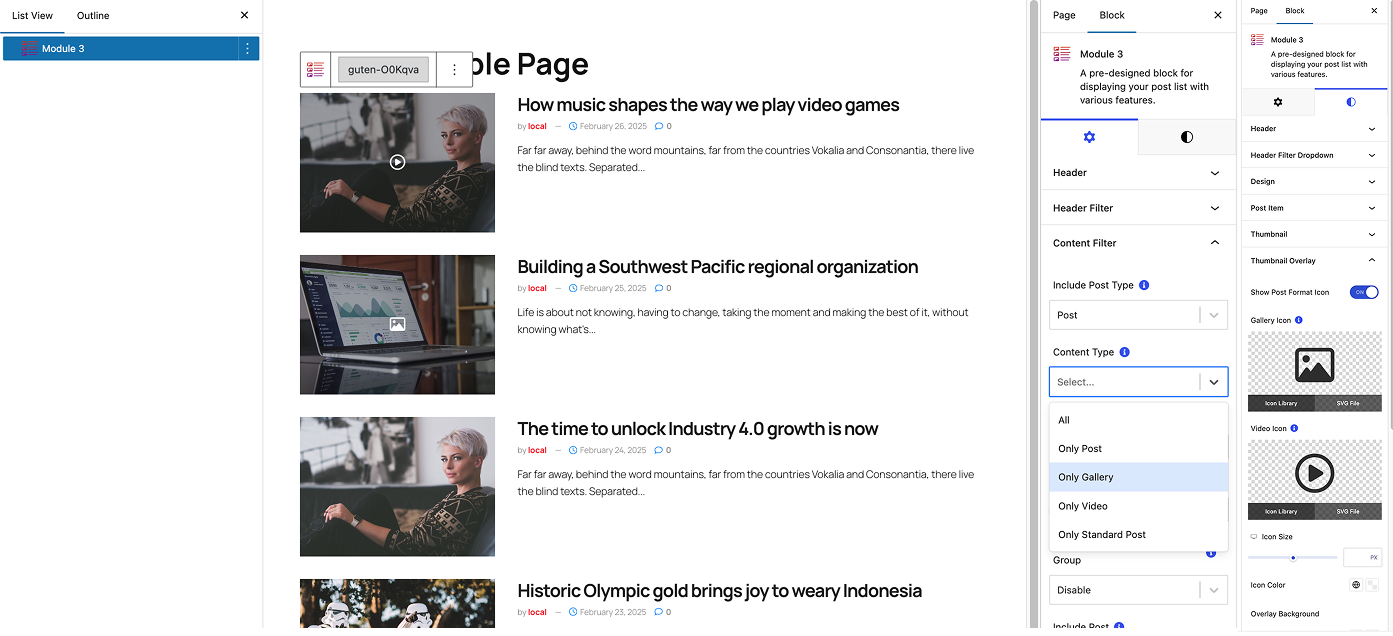
Gallery and Video Post Formats can also be integrated with post list blocks in JNews Blocks, such as Module, Hero, Slider, and others.
You can filter posts based on Post Format and also display a Gallery and Video icon if the post uses the Gallery or Video format.
3. Post Subtitle
By default, WordPress provides a Title field for every post you create. We provide the Post Subtitle option so you can add a subtitle to your post.
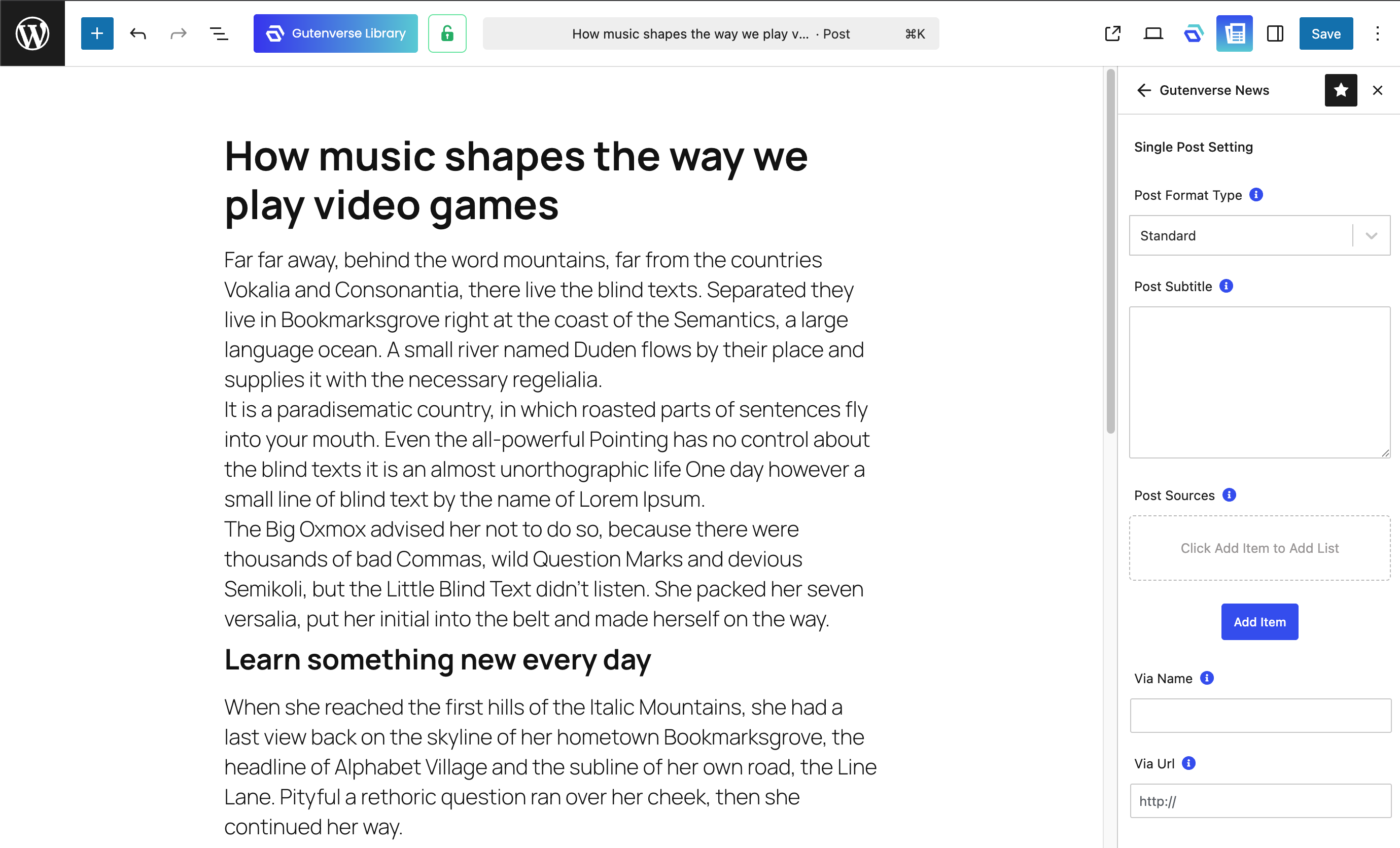
To add a Post Subtitle to your post, go to JNews Blocks Metabox → Single Post Setting, then add your subtitle in the Post Subtitle field.
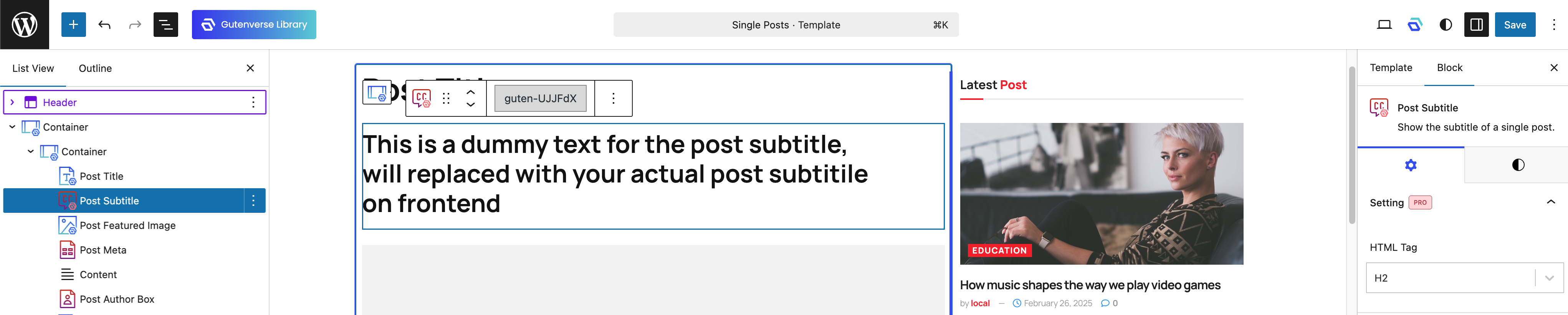
To display the Post Subtitle on your single post page, you can add the Post Subtitle block to your single post template.
4. Post Sources
When writing an article, you may use references from various sources. To display a list of reference sources for your article, you can add them through the Post Sources option in JNews Blocks Metabox → Single Post Setting.
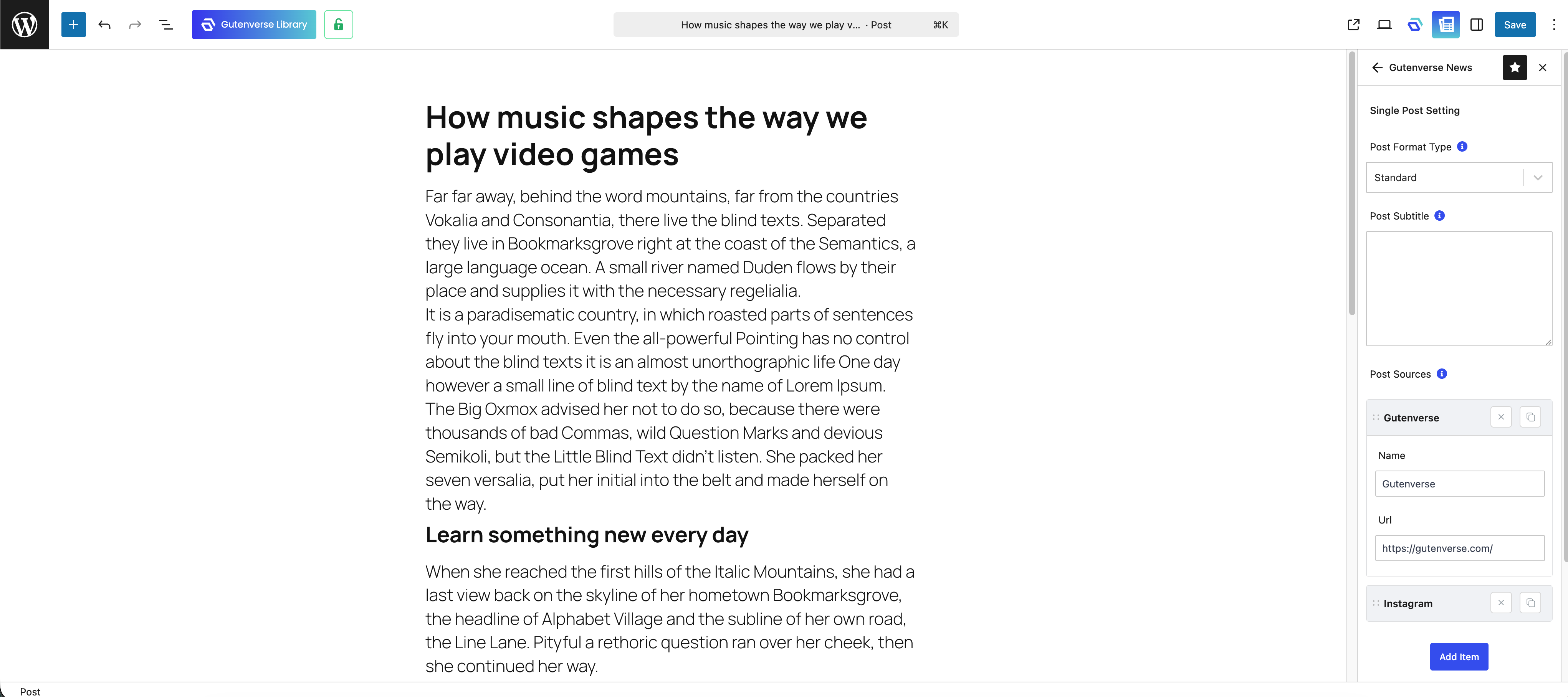
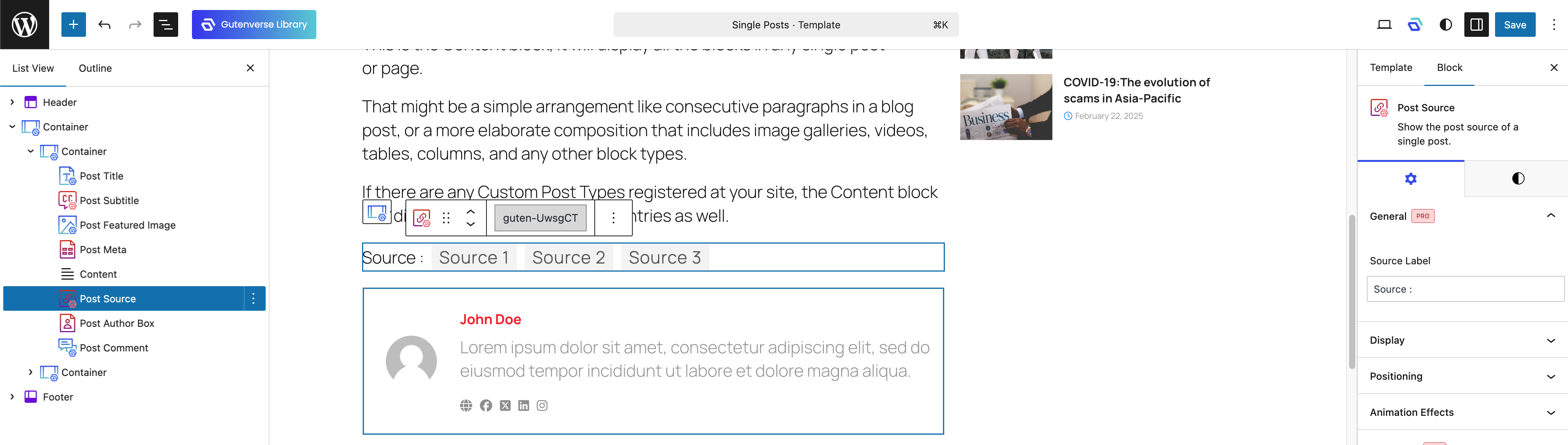
To display those source lists on the single post page, you need to add the Post Source block to your Single Post Template.
5. Post Via
If you create a post where is republished from another website, you can add credit to the original source through the Via Name and Via URL options provided in Gutenverse News Metabox → Single Post Setting.
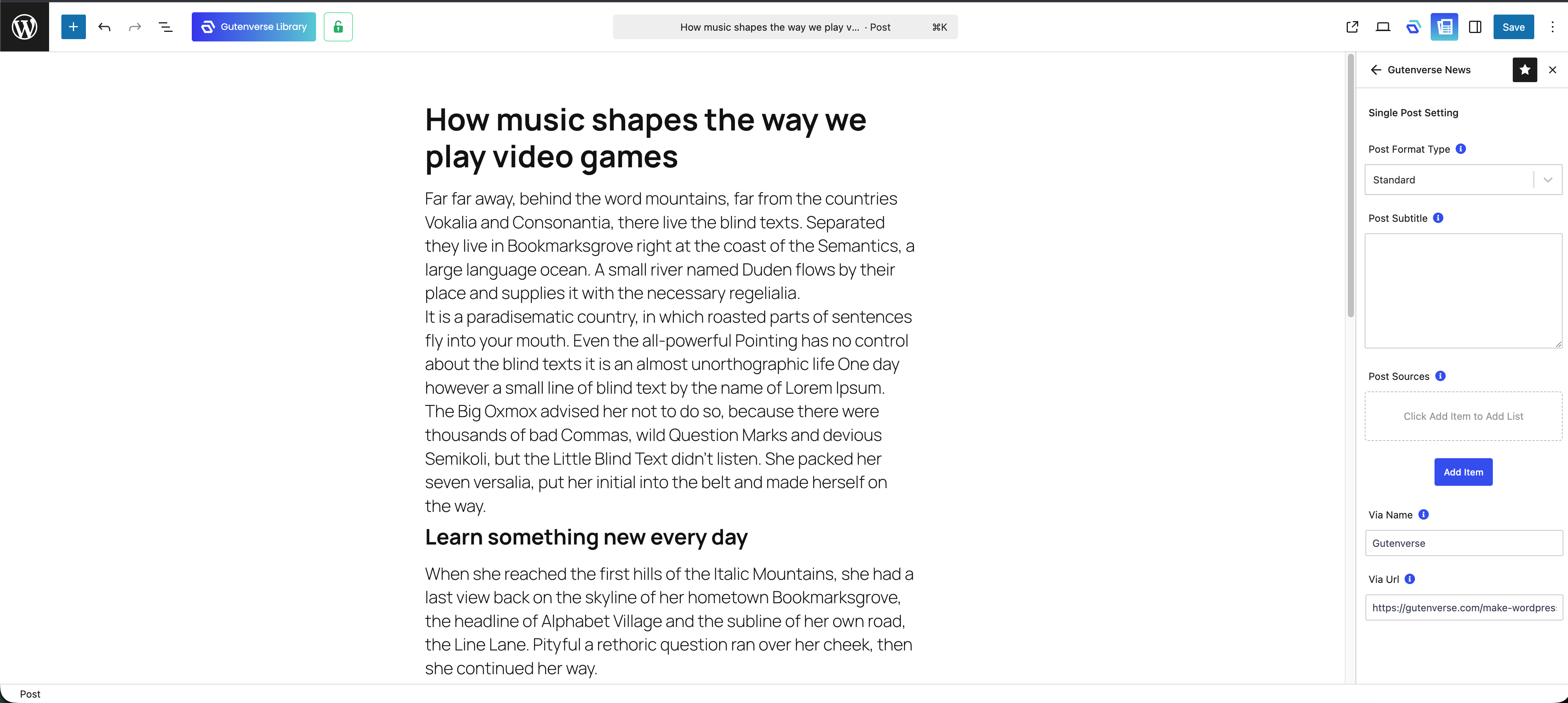
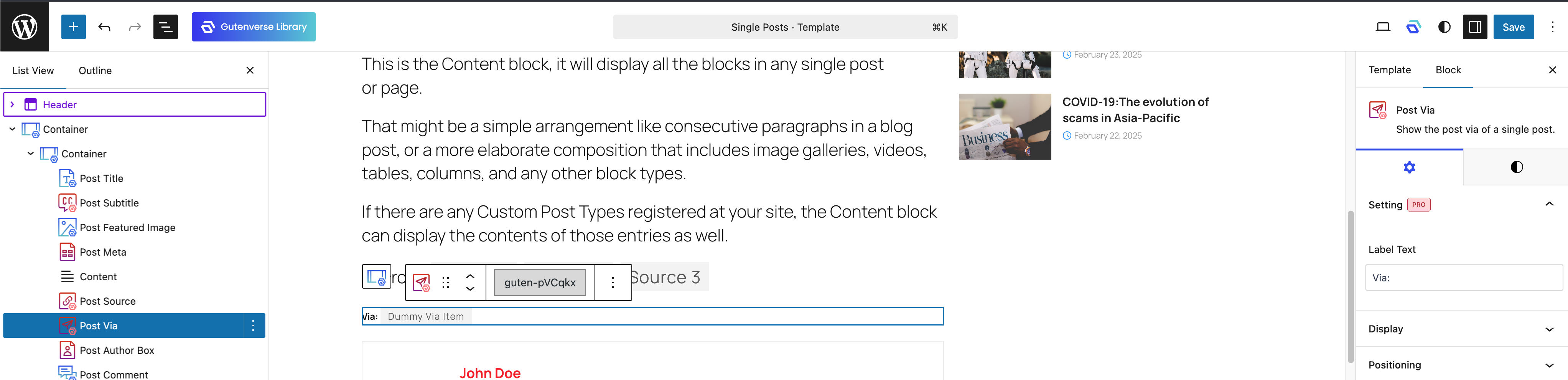
To display the Post Via information on your single post page, you can add the Post Via block to your single post template.