
View counter is a useful feature that a good website should own to provide statistical information. JNews Blocks has provided a built-in view counter plugin that we branch from the most popular view counter plugins. We have analyzed those popular plugins and implemented the pros into our built-in view counter feature. In other words, we can get all benefits from various plugins and implement the best practical feature in JNews Blocks.
By enabling this feature, several additional blocks will become available for you to use, such as Popular Posts, Tab Posts, View Counter, and View Counter Stats. By enabling this feature, you will also be able to sort post lists in the JNews Blocks based on the number of article views. For usage instructions, you can refer to the explanation below.
1. Installation & Requirements
To enable and use the Paywall feature, you need to have a JNews Blocks Pro license. After that, you need to activate the following plugins:
- Gutenverse
- Gutenverse Pro
- JNews Blocks
- JNews Blocks Pro
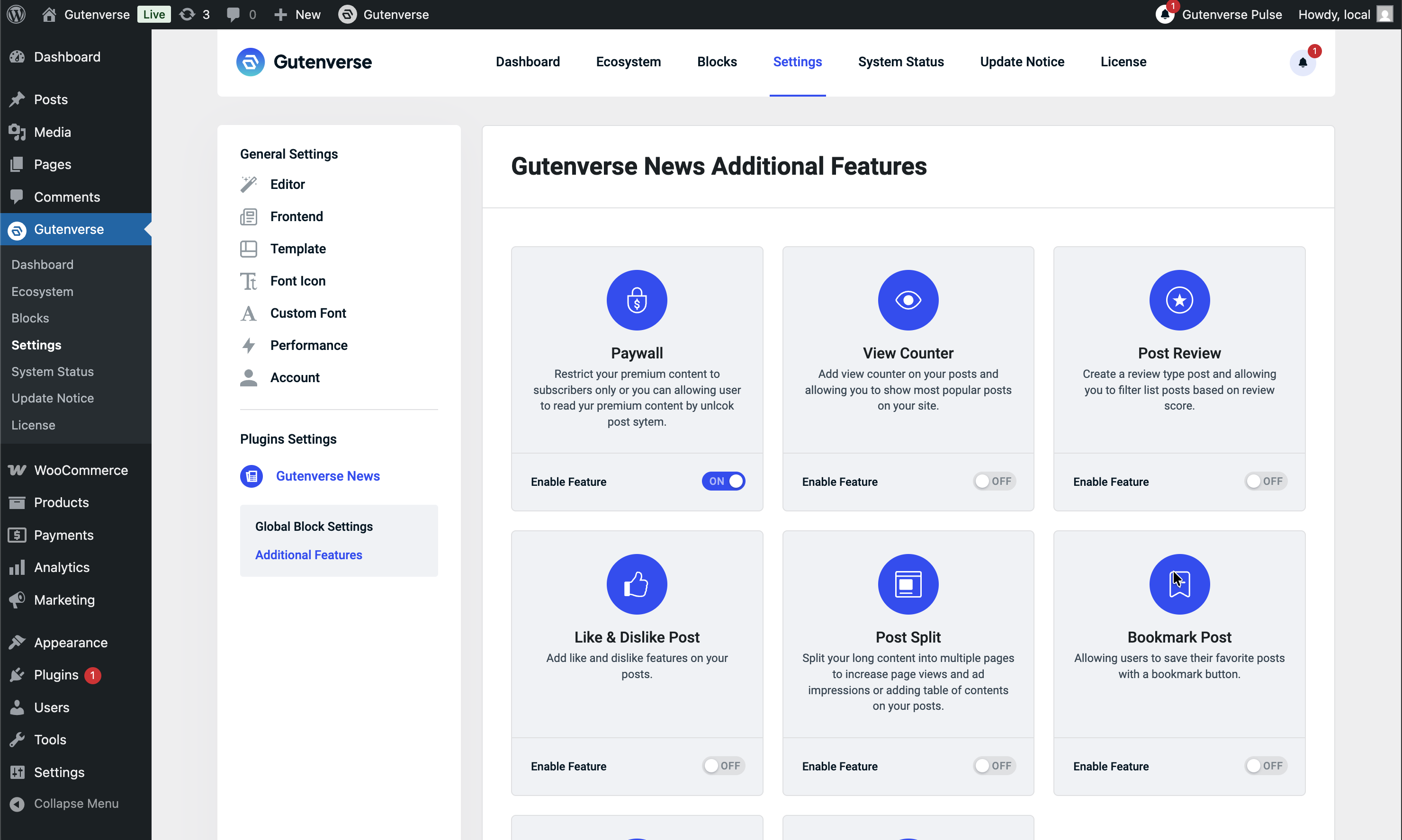
After that, you can go to the JNews Blocks -> Settings -> Additional Features menu and enable the VIew Counter feature.
2. General Settings
After successfully enabling the View Counter feature on your website, a View Counter sub-menu will appear under JNews Blocks > Settings > General Settings, allowing you to configure the View Counter feature. Below is an explanation of the available options:
1. Data Setting
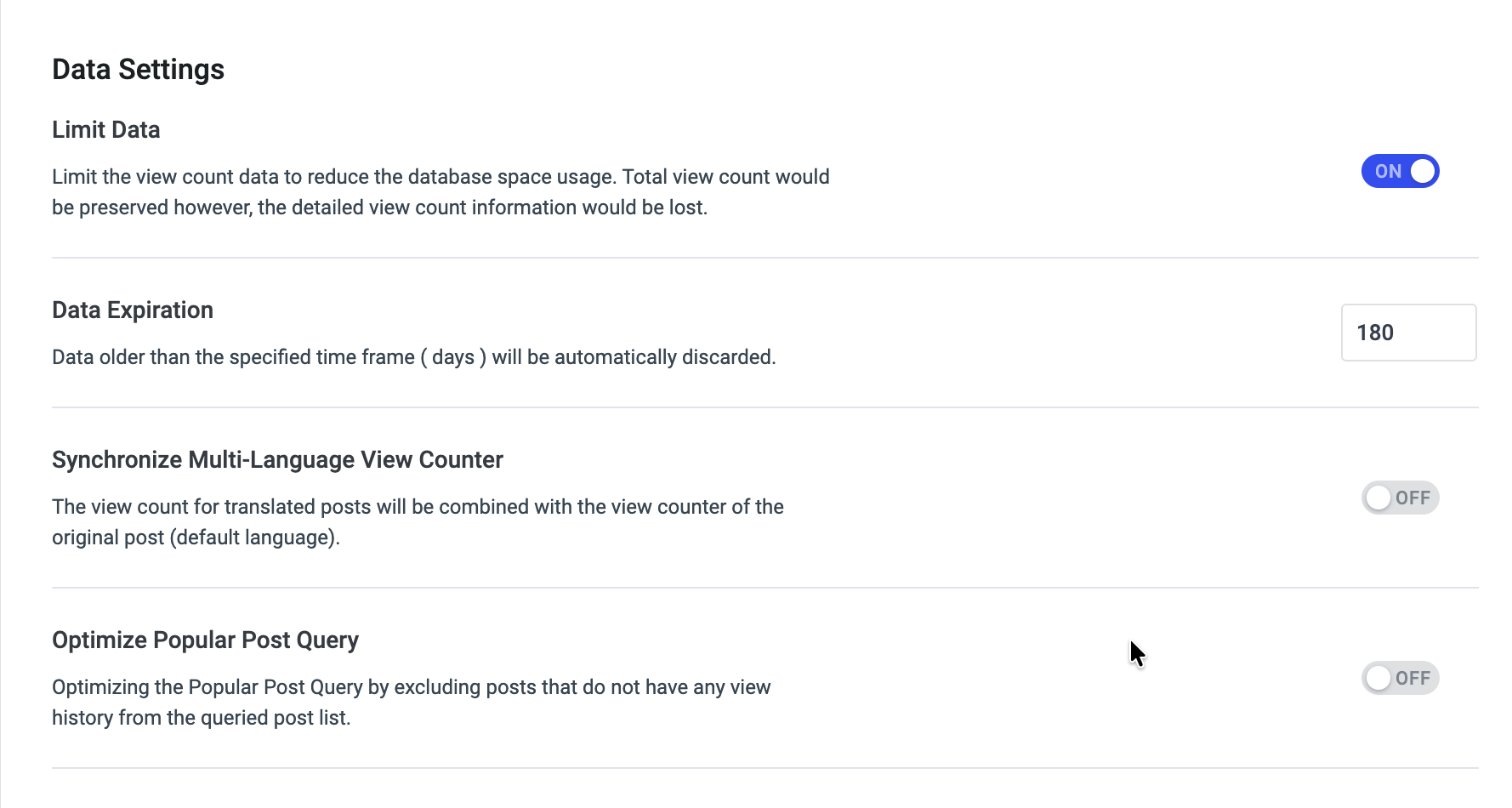
In this section, you can set data options for the view counter.
- Limit Data
Limit the view count data to reduce the database space usage. Total view count would be preserved however, the detailed view count information would be lost. - Data Expiration
Data older than the specified time frame in days will be automatically discarded. - Synchronize Multi-Language View Counter
Synchronizes the view count for multilingual posts. The original post’s view count is the same as the translated post’s view count. Each time a visitor views a post in a specific language, the original post’s view count increases, and the translated post displays the same view count as the original post. We recommend to disable this option to make sure post from another language not displayed on the popular list posts. - Optimize Popular Post Query
Optimizing the Popular Post Query by excluding posts that do not have any view history from the queried post list. By enabling this option, your Popular Posts Query will run faster. However, if there are no posts with any views yet, no posts will be displayed in the block.
2. View Settings
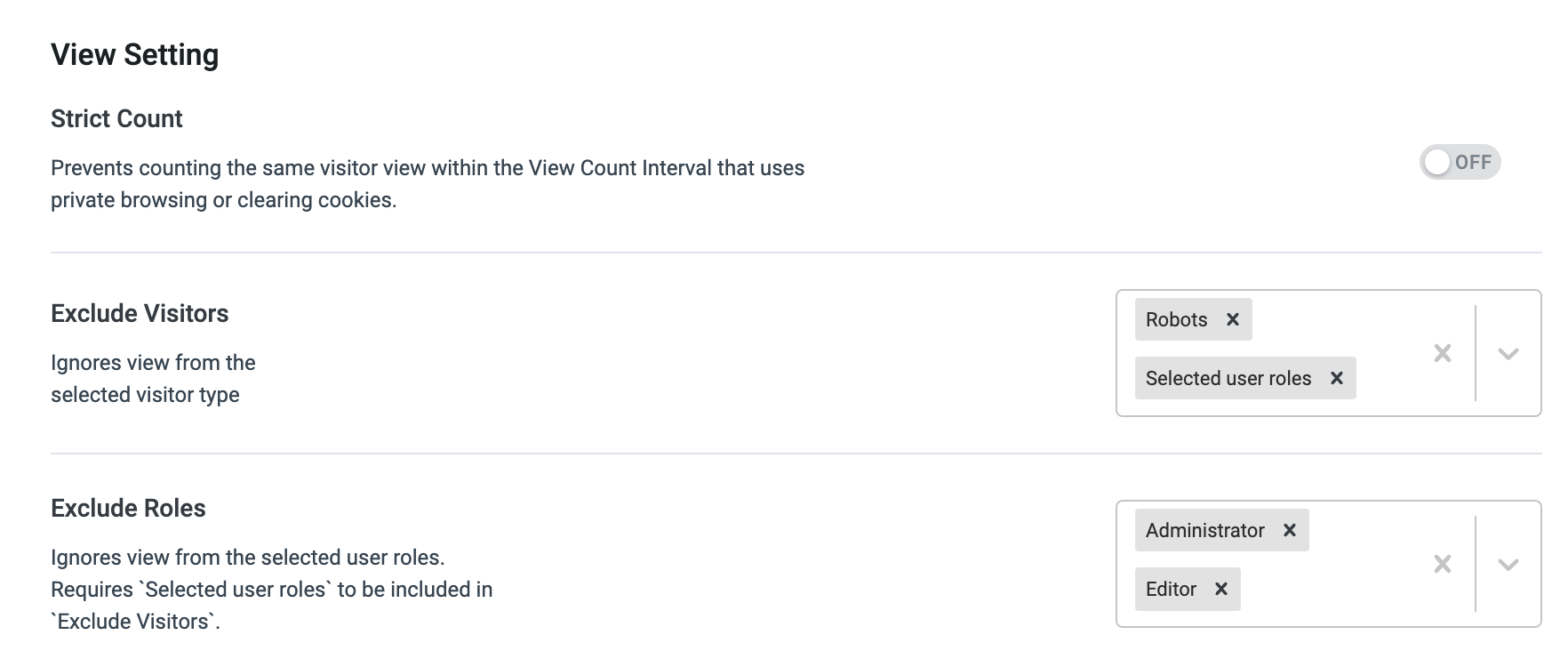
In this section, you can set data options for the view counter.
- Strict Count
Prevents counting the same visitor view within the View Count Interval that uses private browsing or clearing cookies. - Exclude Visitors
Ignores view from the selected visitor type. - Exclude Roles
Ignores view from the selected user roles. Requires Selected user roles to be included in Exclude Visitors option.
3. Cache Setting
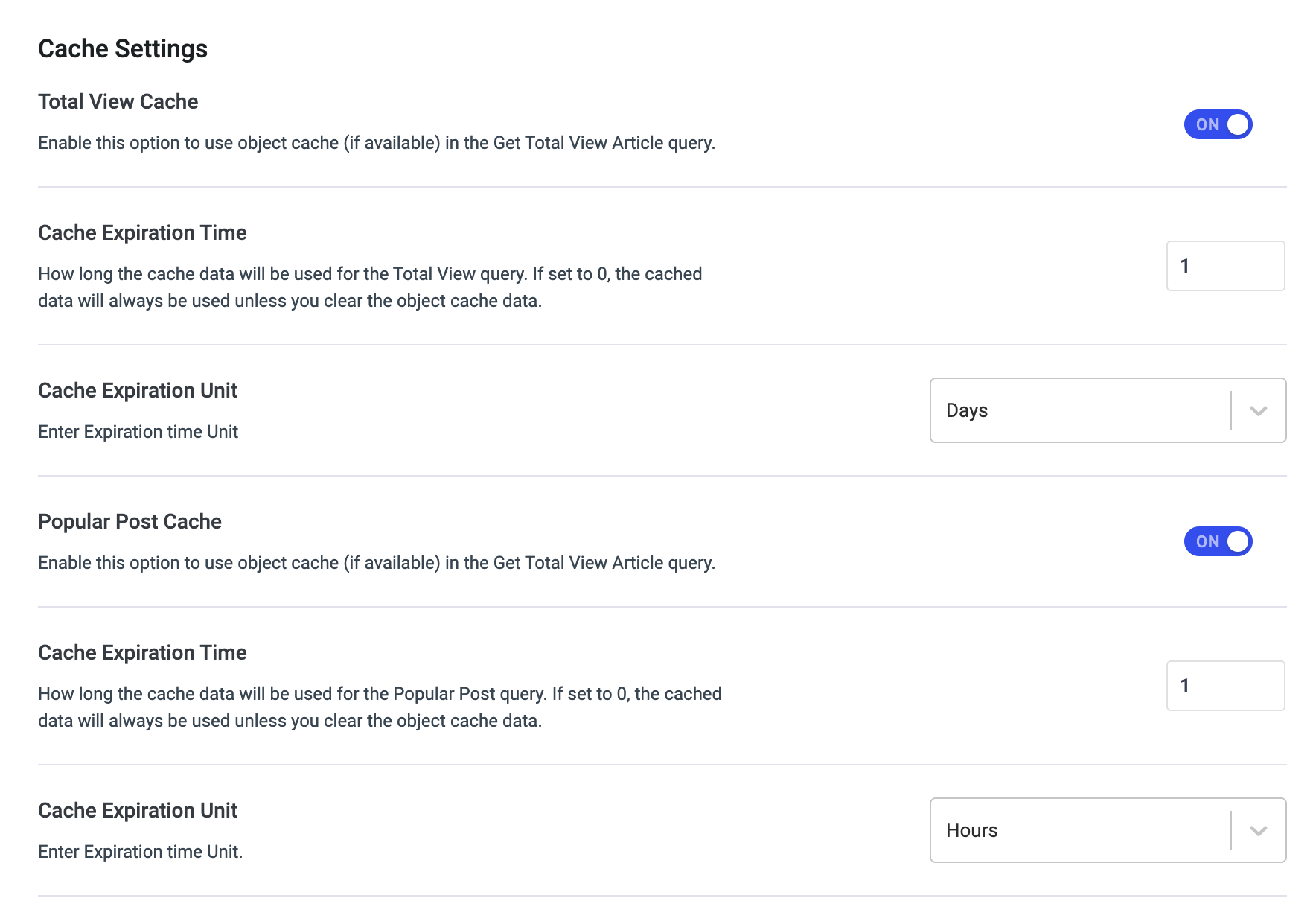
In this section, you can set data options for the view counter.
- Total View Cache
Enable this option to use object cache (if available) in the Get Total View Article query. - Cache Expiration Time
How long the cache data will be used for the Total View query. If set to 0, the cached data will always be used unless you clear the object cache data. - Cache Expiration Unit
Enter Expiration time Unit. For example if you want to use the cache on 1 day, you can set Cache Expiration Time to 1 and set the Cache Expiration Unit to Days - Popular Post Cache
Enable this option to use object cache (if available) in the Get Total View Article query. - Cache Expiration Time
How long the cache data will be used for the Popular Post query. If set to 0, the cached data will always be used unless you clear the object cache data. - Cache Expiration Unit
Enter Expiration time Unit. For example if you want to use the cache on 1 hour, you can set Cache Expiration Time to 1 and set the Cache Expiration Unit to Hours
4. Custom Post Tye

Enter your Custom Post Type list in this option to track views for those post types.
3. Showing View Counter
If you want to display the number of article views on your single post page, you can add the View Counter block to your Single Post template.
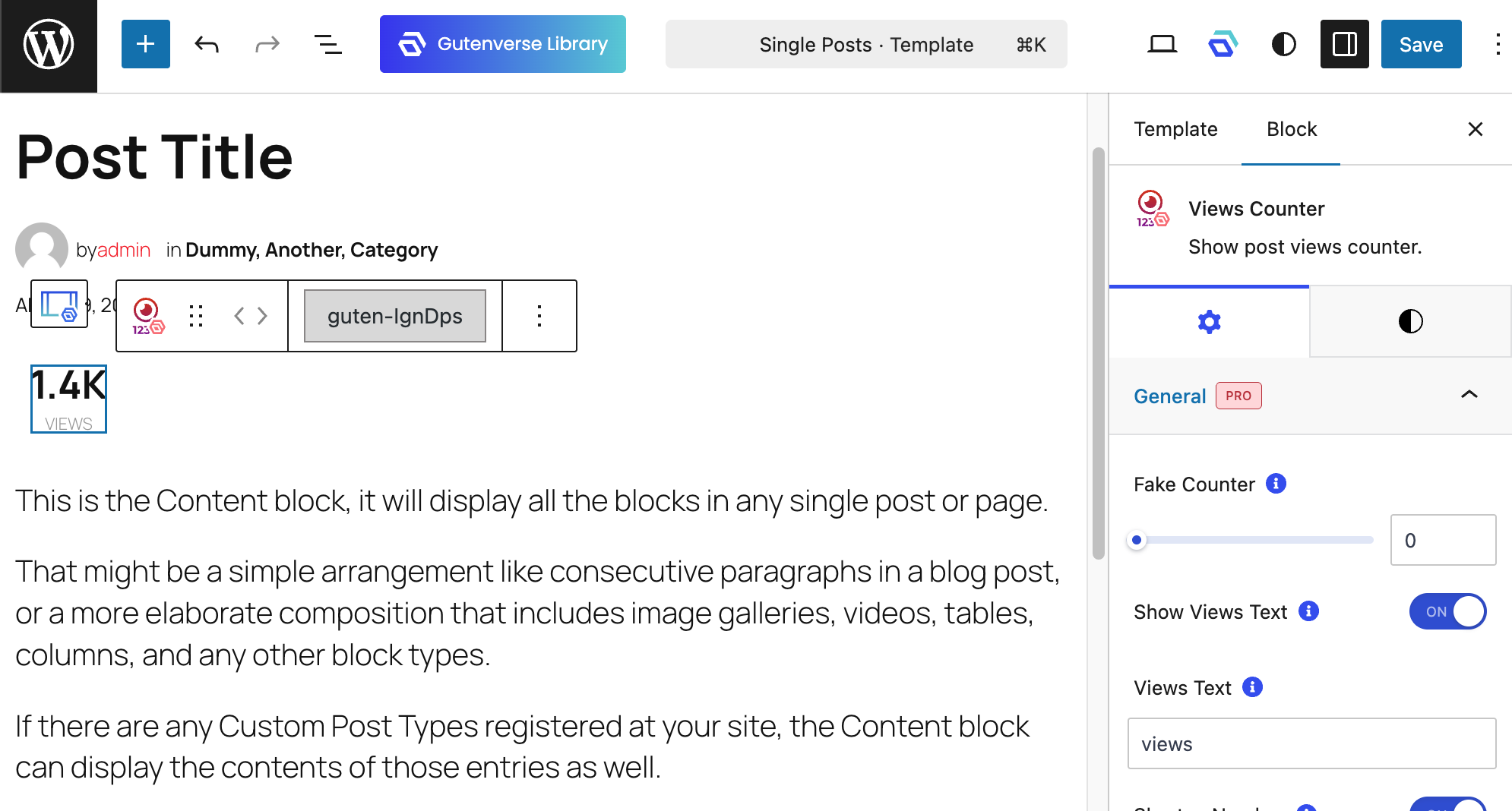
You can also set a Fake Counter value in the block to added as the initial view count for each of your articles. If you add a Fake Counter value, the total views displayed will be the sum of Fake Counter + Real View. The Fake Counter value can also be overridden using the Override Counter option for each post, which will be explained in the section below.
4. Single Post Settings
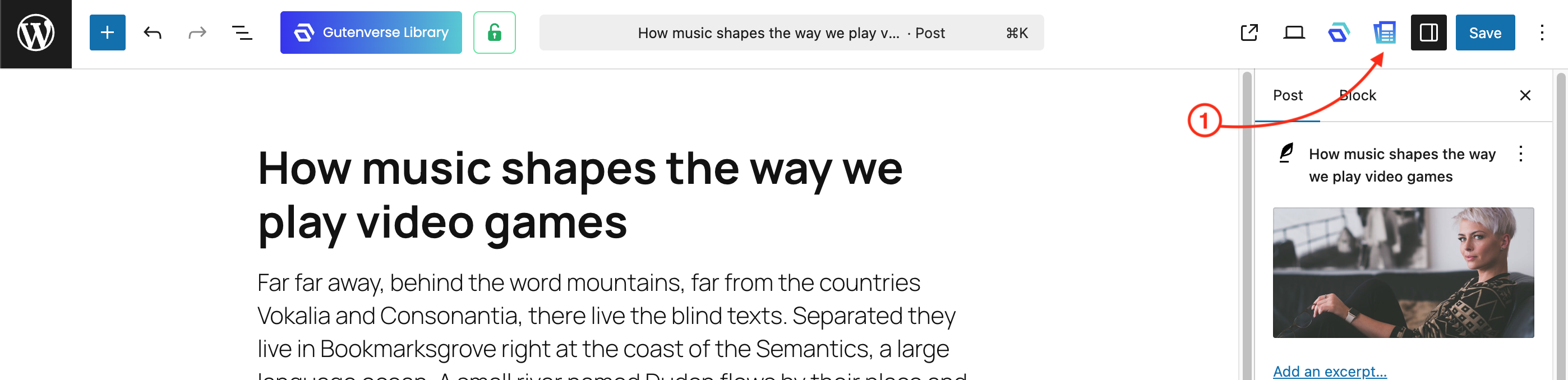
To change or assign a Fake Counter value for a specific post, you can edit your post and then open the JNews Blocks panel in the top-right corner of the editor.
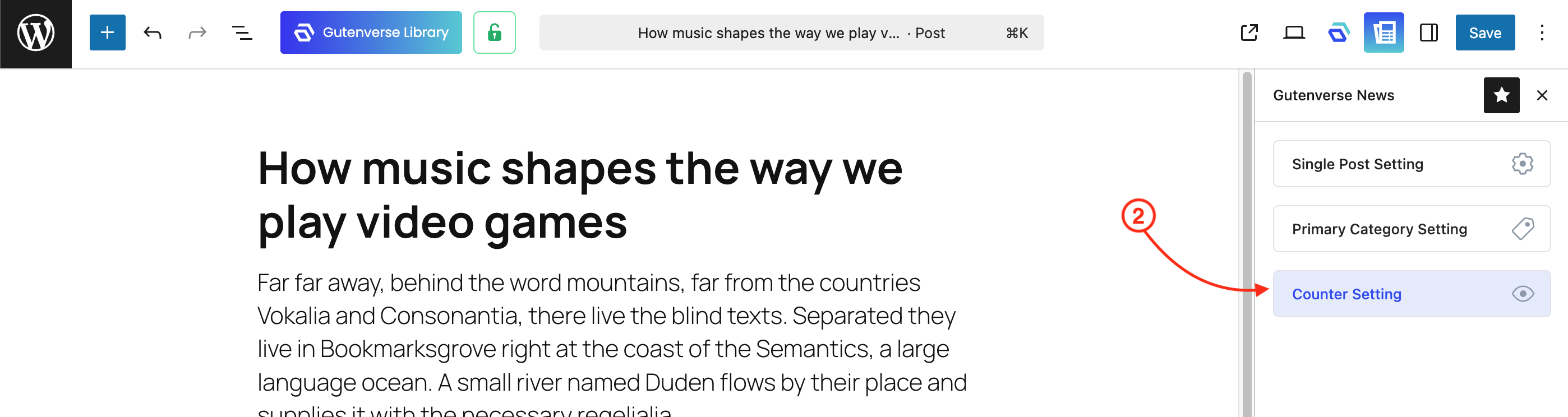
Next, open the Counter Setting section.
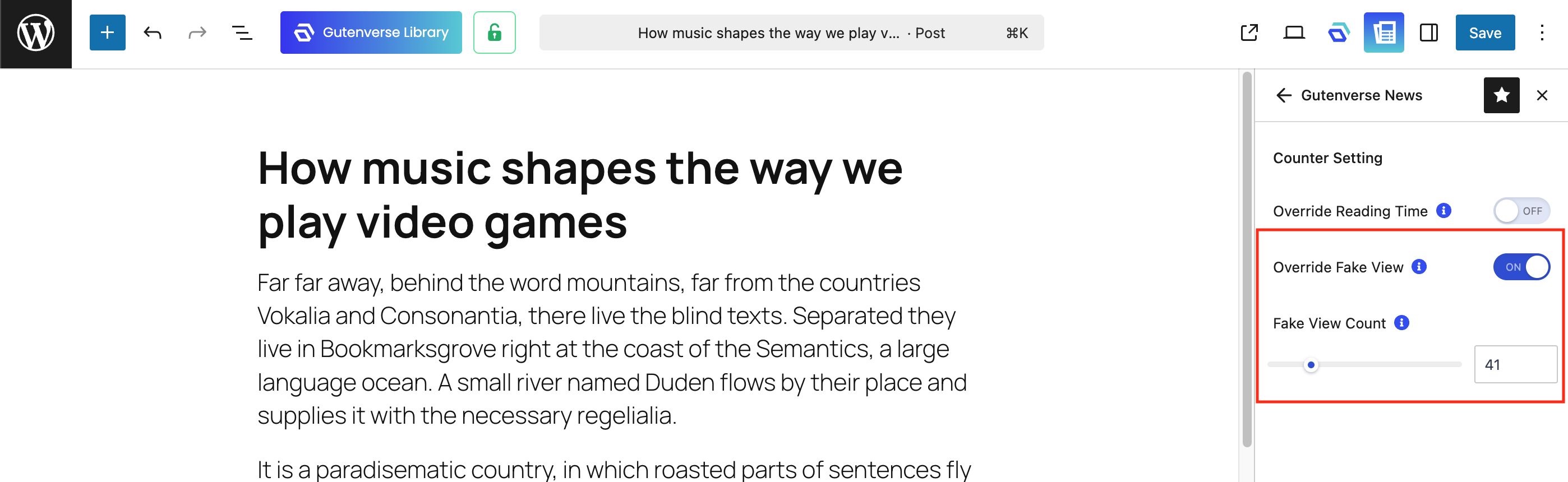
After that, enable the Override Fake View option and set the desired initial fake count in the Fake View Count field.
5. Post View Stats
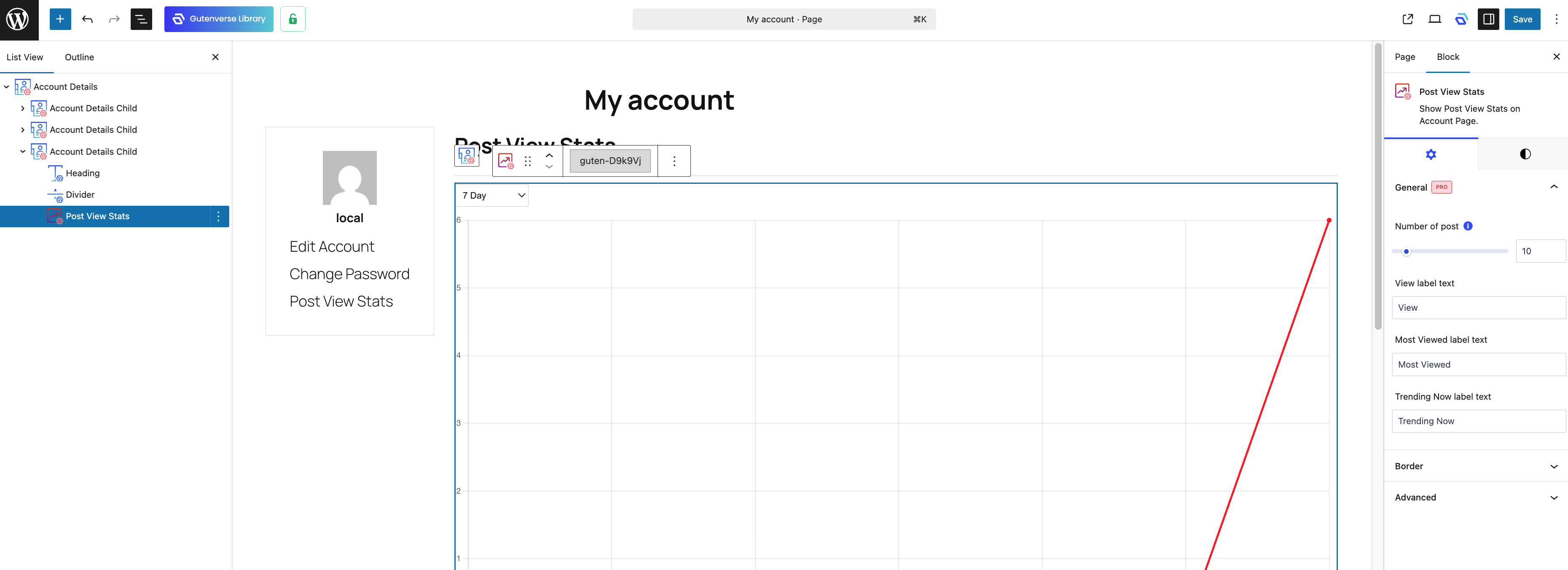
To allow each author to view the statistics of their article views, you can add the Post View Stats block to your Account Page. If you are not familiar with the Account Page feature, you can refer to the related documentation.
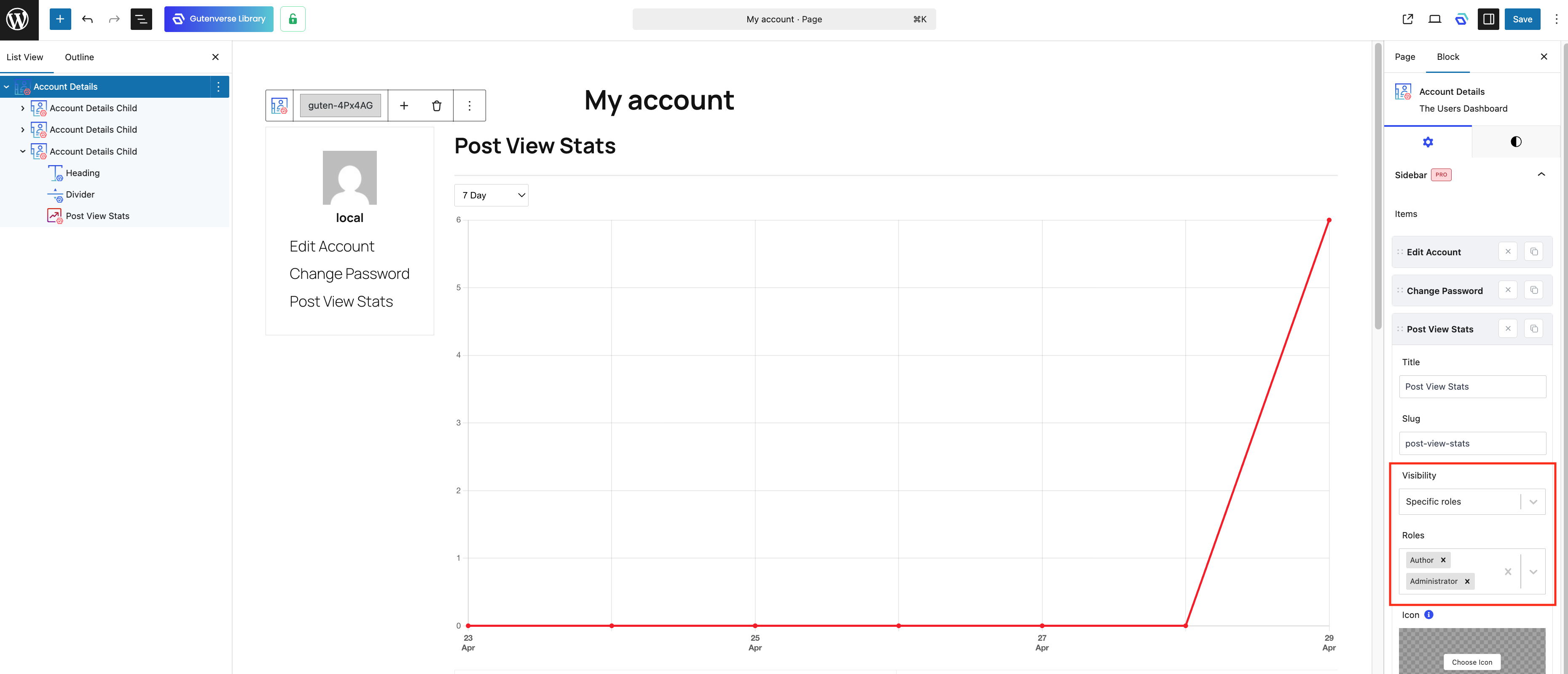
To ensure that the View Stats menu is only accessible to users with the Author and Administrator roles, you can set the Visibility option to Selected Role and add the Author and Administrator roles in the Roles option.
6. Showing Popular Posts
To allow each author to view the statistics of their article views, you can add the Post View Stats block to your Account Page. If you are not familiar with the Account Page feature, you can refer to the related documentation.
To ensure that the View Stats menu is only accessible to users with the Author and Administrator roles, you can set the Visibility option to Selected Role and add the Author and Administrator roles in the Roles option.