
Show the content of the single post.
In this section, we will show you how to create Content with JKit – Post Content. This guide is separated into sections below. Click on the top to navigate to the specified section.
Activate JKit Post Content
Before starting, make sure that JKit elements are enabled in Element Dashboard. Jeg Elementor Kit Dashboard → Elements.

Adding JKit Post Content to Page
To add JKit Post Content to your page, you can open Elementor on your page, and search for “JKit – Post Content” in the sidebar.

Style Setting
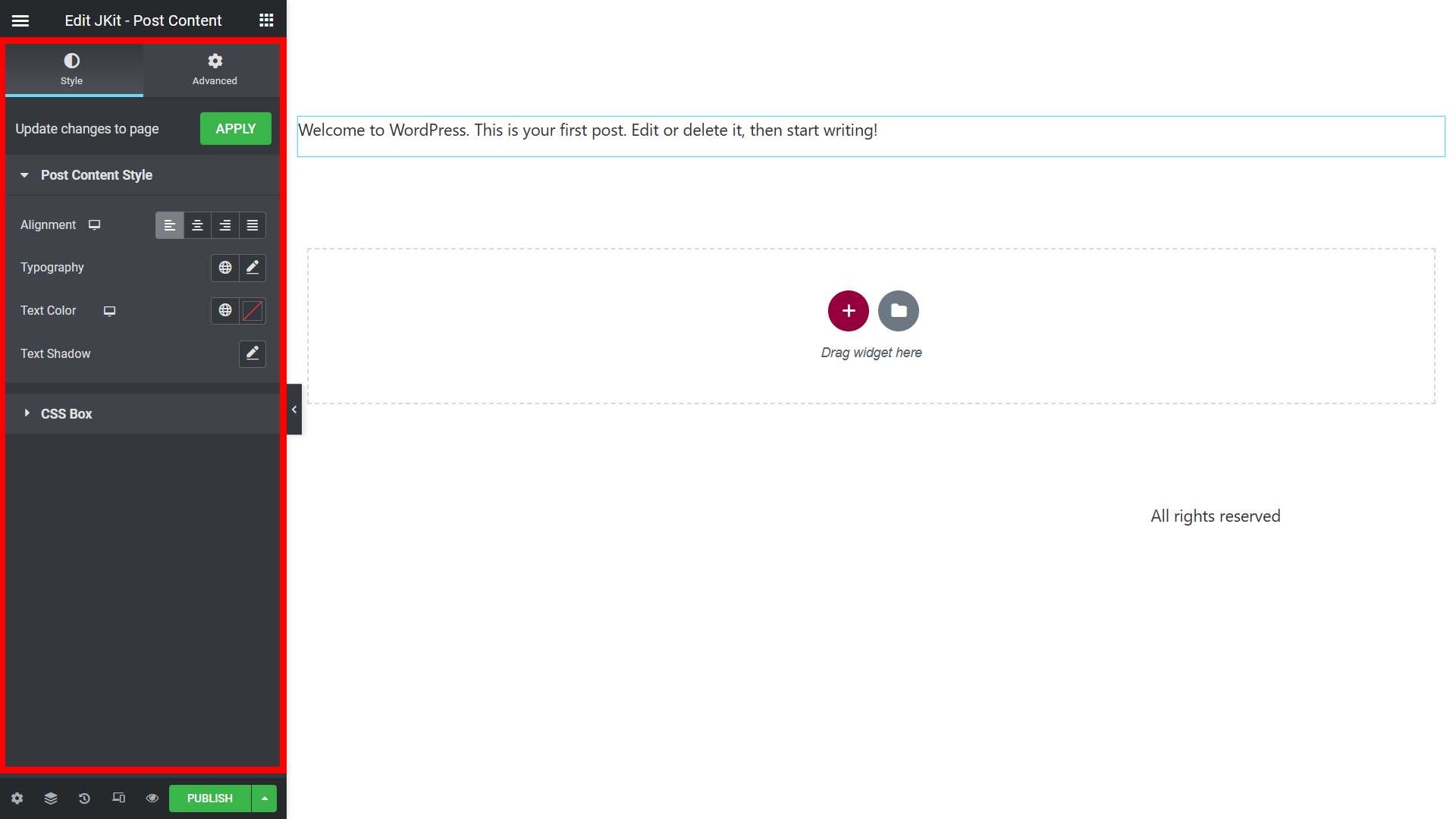
The JKit Post Content style settings are divided into groups, so you can change them according to your needs. Click on it to navigate to the designated group.
Post Content
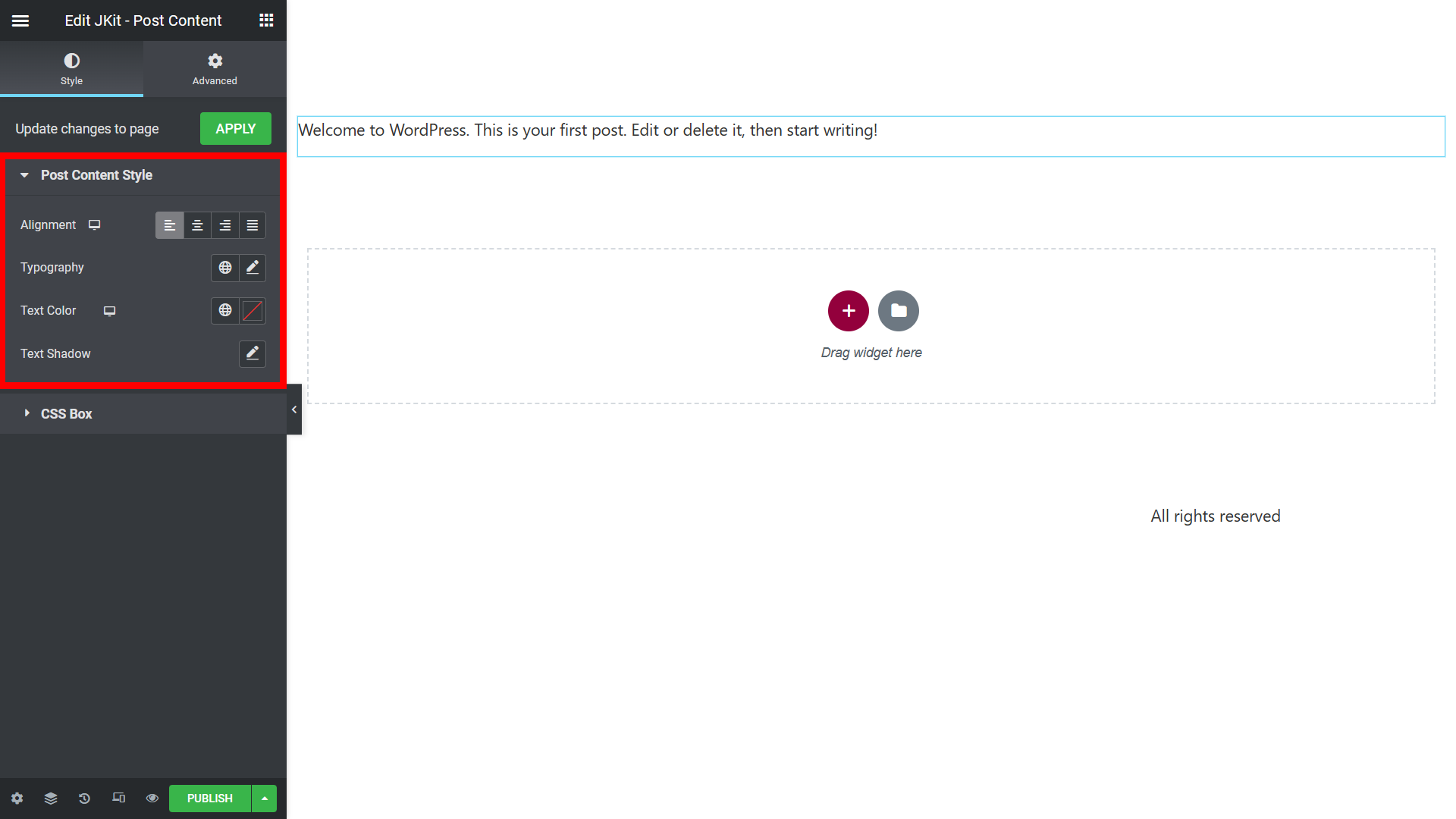
You can change several options on the post Content of the Post Content menu.
-
- Alignment
Set the position of the text in the content according to your needs - Typography
To change some of the settings for the text layout of the content - Text Color
to change the color of the text - Text Shadow
Add a shadow to the text in the content- Color
Give the color to the shadow - Blur
Change the shadow to blur - Horizontal
Change the shadow to horizontal - Vertikal
Change the shadow to vertical
- Color
- Alignment
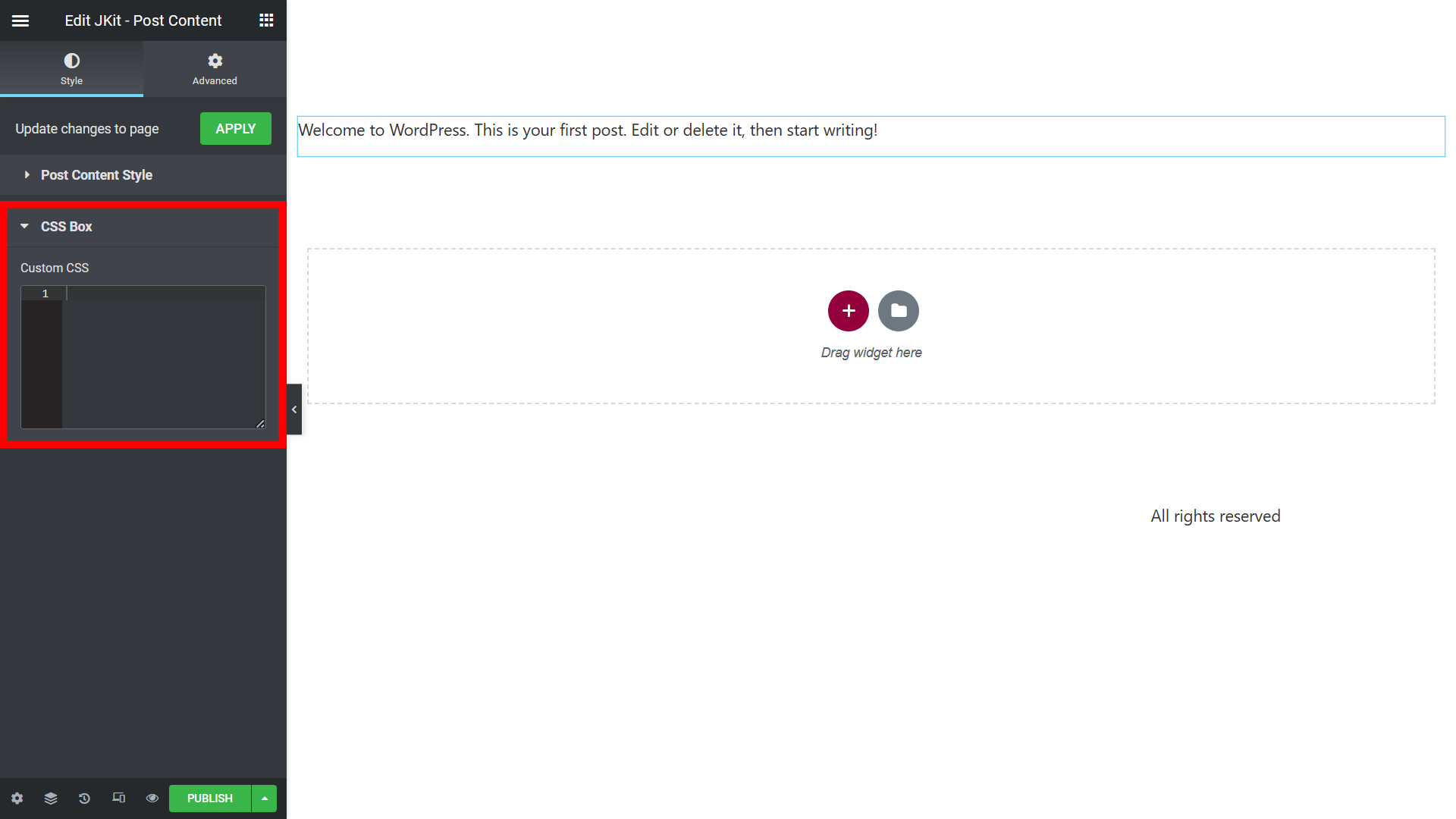
CSS Box
You can add CSS code according to the class and id that was made before.
Created in Denpasar, Bali by Jegtheme. 2025