
JNews Blocks provides a System Status report in the JNews Blocks Dashboard. This report allows you to check your theme information, WordPress environment, server environment, and currently active plugins.
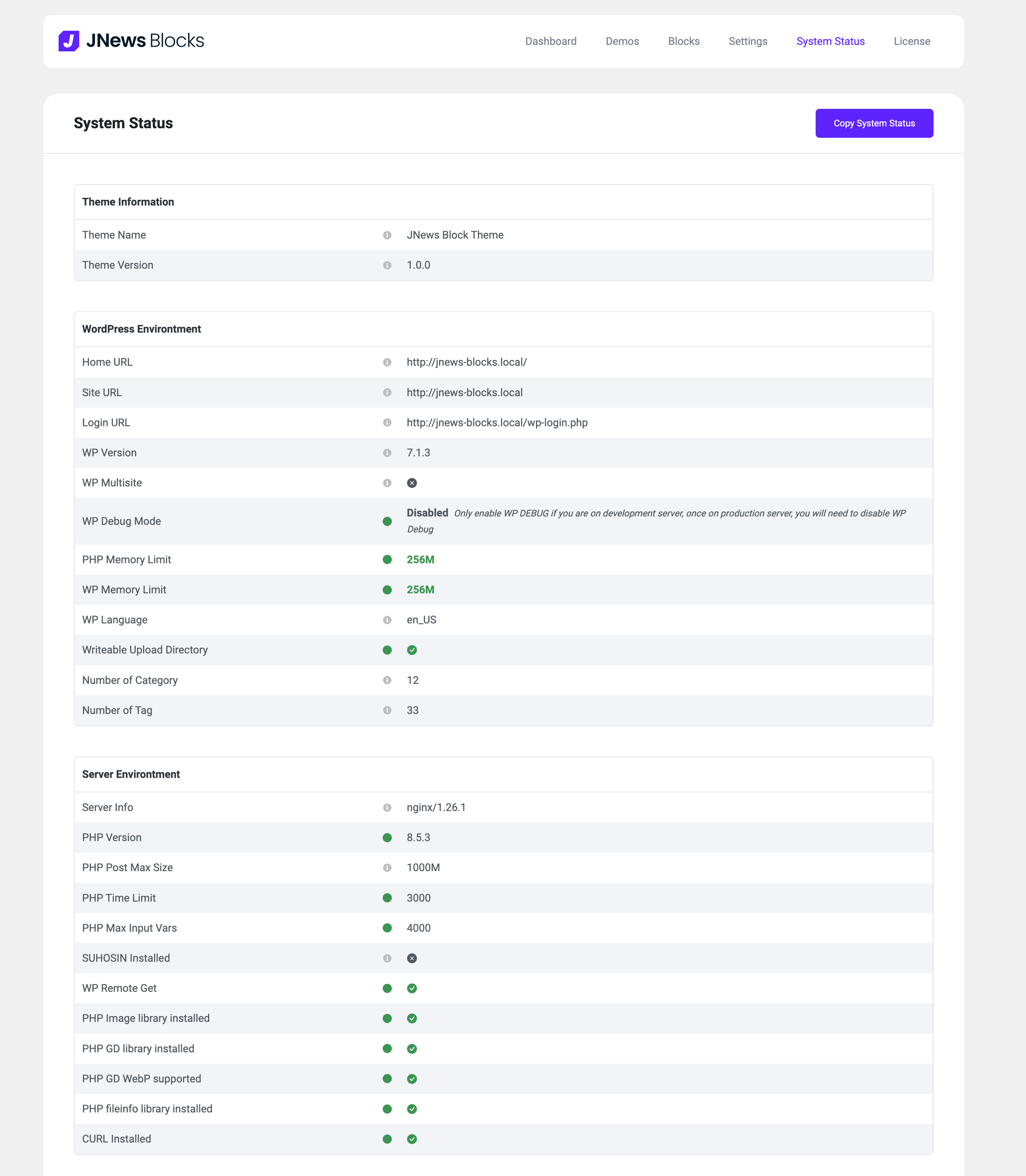
When requesting support through our support forum, you can include this information to help our team identify potential issues. We also recommend following the JNews Blocks system requirements to ensure compatibility and maintain optimal website performance.
In this guide, we will cover the following settings:
- WP Debug
- Memory Limit
- Max File Upload
1. WP Debug
WP_DEBUG is a PHP constant that enables debugging mode in WordPress. It helps developers identify PHP errors, warnings, and notices when troubleshooting website issues.
Important: We recommend enabling WP_DEBUG only in a local or staging environment. Avoid displaying debugging information on a live website because it may expose sensitive information.
You can find the WP_DEBUG setting in the wp-config.php file located in your WordPress root directory. By default, debugging is disabled on standard production installations.
To disable debugging, use the following code:
define( 'WP_DEBUG', false );To enable debugging, change the value to true:
define( 'WP_DEBUG', true );If you need to record errors without displaying them to visitors, you can also configure the following settings:
define( 'WP_DEBUG', true );
define( 'WP_DEBUG_LOG', true );
define( 'WP_DEBUG_DISPLAY', false );
With these settings enabled, WordPress will save debugging information to the wp-content/debug.log file without displaying WordPress debugging messages on the frontend.
Make sure to add these constants before the /* That's all, stop editing! Happy publishing. */ line in your wp-config.php file. If a constant already exists, update its value instead of defining it again.
After troubleshooting, disable debugging and remove any sensitive log files that are no longer needed.
2. Memory Limit
WordPress requires sufficient PHP memory to run themes, plugins, and other website processes. If your website exceeds the available memory, you may encounter an error such as Allowed memory size exhausted.
To help prevent memory-related issues, we recommend setting the PHP memory limit to at least 128 MB. Depending on your website configuration and active plugins, you may need 256 MB or more.
You can increase the memory limit using one of the following methods. The available options depend on your hosting environment.
Method 1: Increase the Memory Limit via php.ini
If your hosting provider allows you to modify PHP configuration settings, you can increase the memory limit through the php.ini file.
Locate the active php.ini file used by your website and find the memory_limit directive. Update its value as follows:
memory_limit = 128MThis configuration sets the PHP memory limit to 128 MB.
The location of the php.ini file depends on your hosting environment. Some hosting providers offer a control panel for modifying PHP settings instead of providing direct access to this file.
After saving your changes, you may need to restart the PHP service or contact your hosting provider for the new configuration to take effect.
Method 2: Increase the Memory Limit via wp-config.php
You can also configure the WordPress memory limit through the wp-config.php file located in your WordPress root directory.
Open the file and add the following code before the /* That's all, stop editing! Happy publishing. */ line:
define( 'WP_MEMORY_LIMIT', '128M' );This instructs WordPress to request up to 128 MB of PHP memory for normal operations.
If you need additional memory for WordPress administration tasks, you can also define:
define( 'WP_MAX_MEMORY_LIMIT', '256M' );Note: These settings cannot override restrictions enforced by your hosting provider. If your server does not allow WordPress to increase its PHP memory limit, you will need to update the server configuration or contact your hosting provider.
Method 3: Increase the Memory Limit via .htaccess
If your server uses Apache with mod_php, you may be able to increase the PHP memory limit through the .htaccess file.
Locate the .htaccess file in your WordPress root directory and add the following directive:
php_value memory_limit 128MSave the file and check whether the new memory limit has taken effect.
Important: This method only works on compatible Apache configurations using mod_php. If your server uses PHP-FPM, Nginx, or another PHP handler, this directive may not work and can cause a server error.
If you encounter a 500 Internal Server Error after adding the directive, remove it and use another configuration method.
Method 4: Contact Your Hosting Provider
If you cannot access the PHP configuration files or the previous methods do not work, contact your hosting provider.
Ask your hosting provider to increase the PHP memory limit to at least 128 MB, or 256 MB if your website requires additional resources.
Your hosting provider can also confirm the maximum memory limit supported by your hosting plan and help you apply the appropriate configuration.
3. Max File Upload
The maximum file upload size determines how large a file you can upload to your WordPress website. This setting affects uploads such as images, videos, themes, and plugins.
If you encounter an upload size error, you may need to increase the PHP upload limits.
Below are two methods you can use, depending on your hosting configuration.
Method 1: Edit the php.ini File
Locate the active php.ini file and update the following directives:
upload_max_filesize = 64M
post_max_size = 128M
max_execution_time = 300
max_input_time = 300
These settings configure the following limits:
upload_max_filesize: Sets the maximum size of an individual uploaded file to 64 MB.post_max_size: Sets the maximum size of the entire POST request to 128 MB, including uploaded files and other form data.max_execution_time: Sets the maximum PHP script execution time to 300 seconds.max_input_time: Sets the maximum time PHP can spend parsing input data to 300 seconds.
Important: The post_max_size value should be larger than upload_max_filesize to allow enough space for additional request data.
After saving your changes, restart the PHP service if required by your hosting environment.
Method 2: Edit the .htaccess File
If your server uses Apache with mod_php, you may be able to change the upload limits through your .htaccess file.
Open the file and add the following directives:
php_value upload_max_filesize 64M
php_value post_max_size 128M
php_value max_execution_time 300
php_value max_input_time 300
Save your changes and check the maximum upload size in WordPress.
Note: These directives are not supported by every hosting environment. If your server uses PHP-FPM or Nginx, you may need to configure PHP settings through your hosting control panel or contact your hosting provider.
For Nginx servers, the client_max_body_size setting may also need to be adjusted to allow larger uploads.
If you cannot modify these settings or the upload limit does not change, contact your hosting provider for assistance.