
Installing JNews Blocks theme is quite easy. Basically, installing this theme is almost the same as installing other themes. This part will guide you on how to install JNews Blocks for a few minutes only.
There’re a few things that we’ll explain to you on this section :
Downloading the JNews Blocks Theme
To download the JNews Blocks theme files, go to this URL, open the Downloads menu, and select the file you want to download. You can download the bundle containing all the required plugins or only the JNews Blocks Theme.
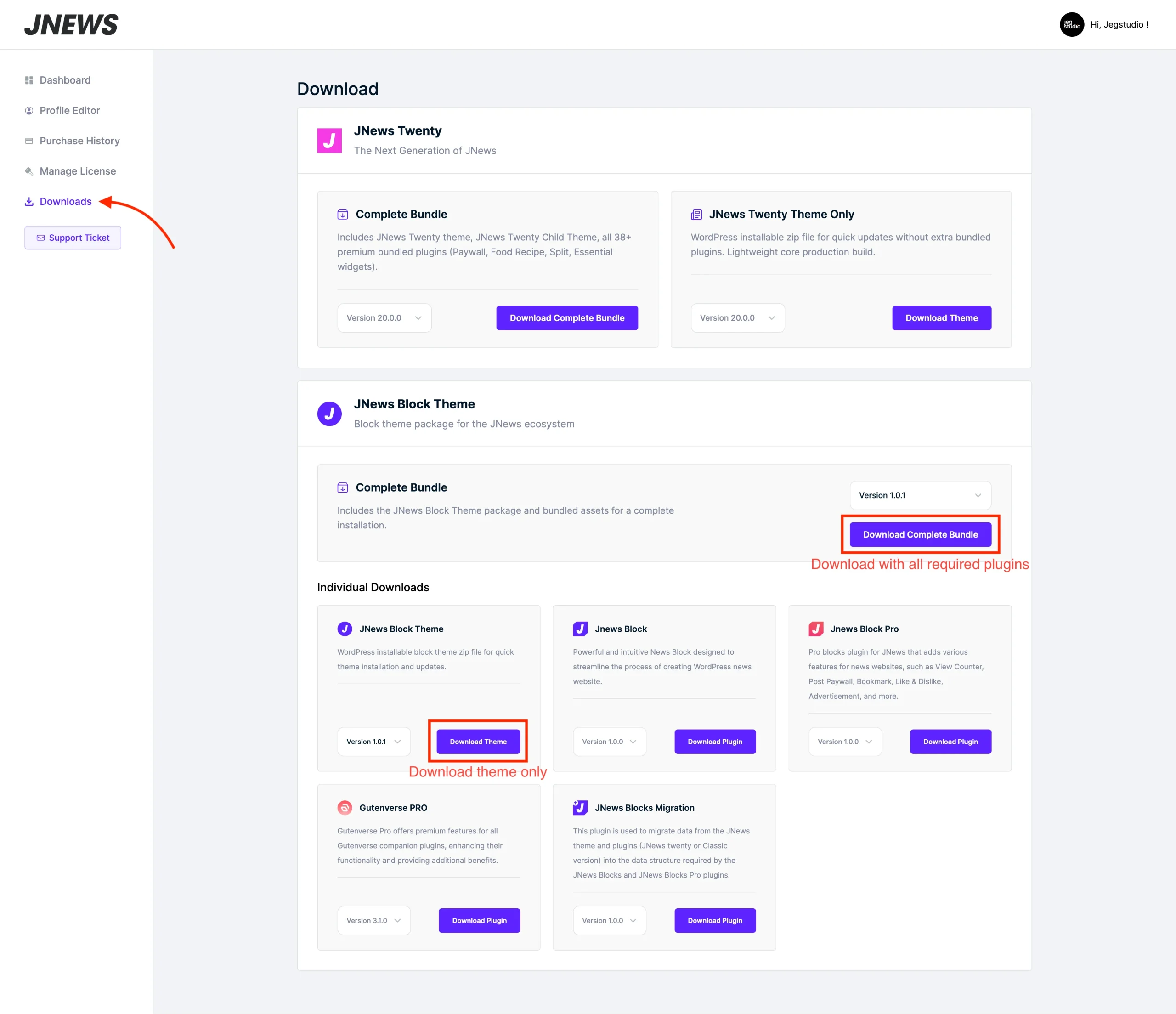
Installation via WordPress
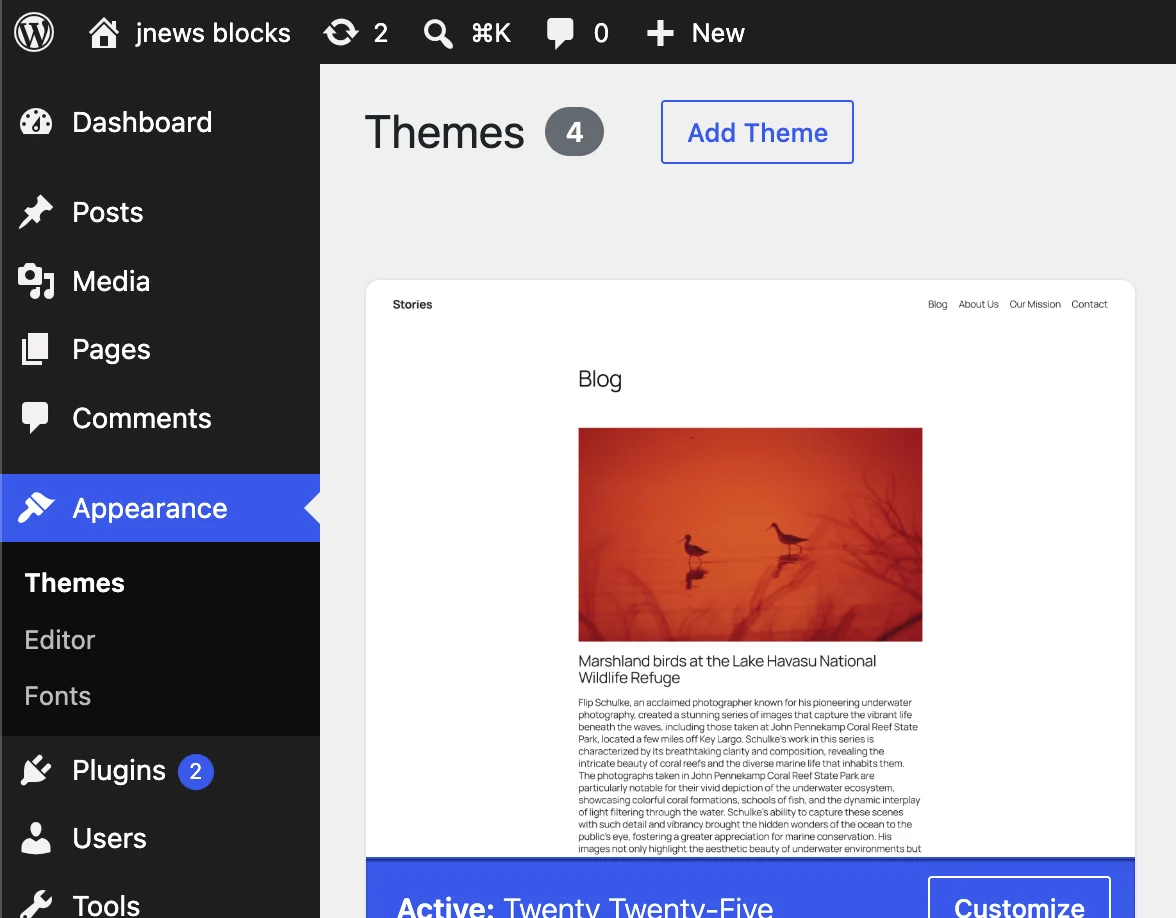
- Go to Dashboard → Appearance → Themes on your WordPress Admin Dashboard. Then click the Add Theme button at the top of the page and then choose Upload Theme option.
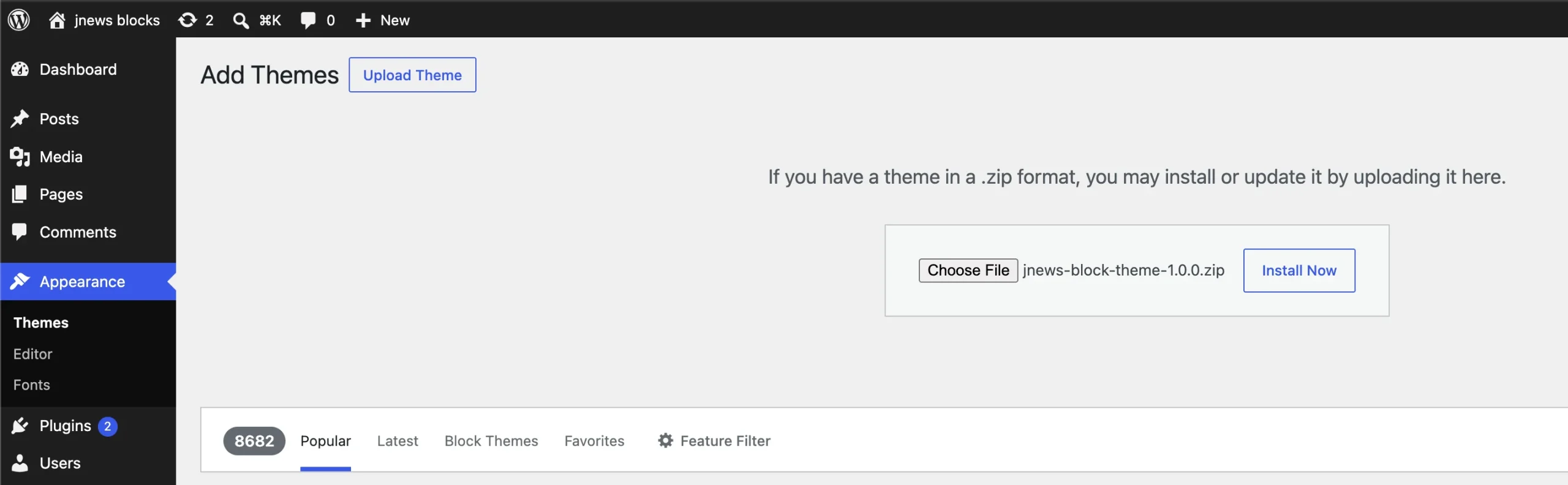
- After that upload file jnews-block-theme.zip and click Install Now button.
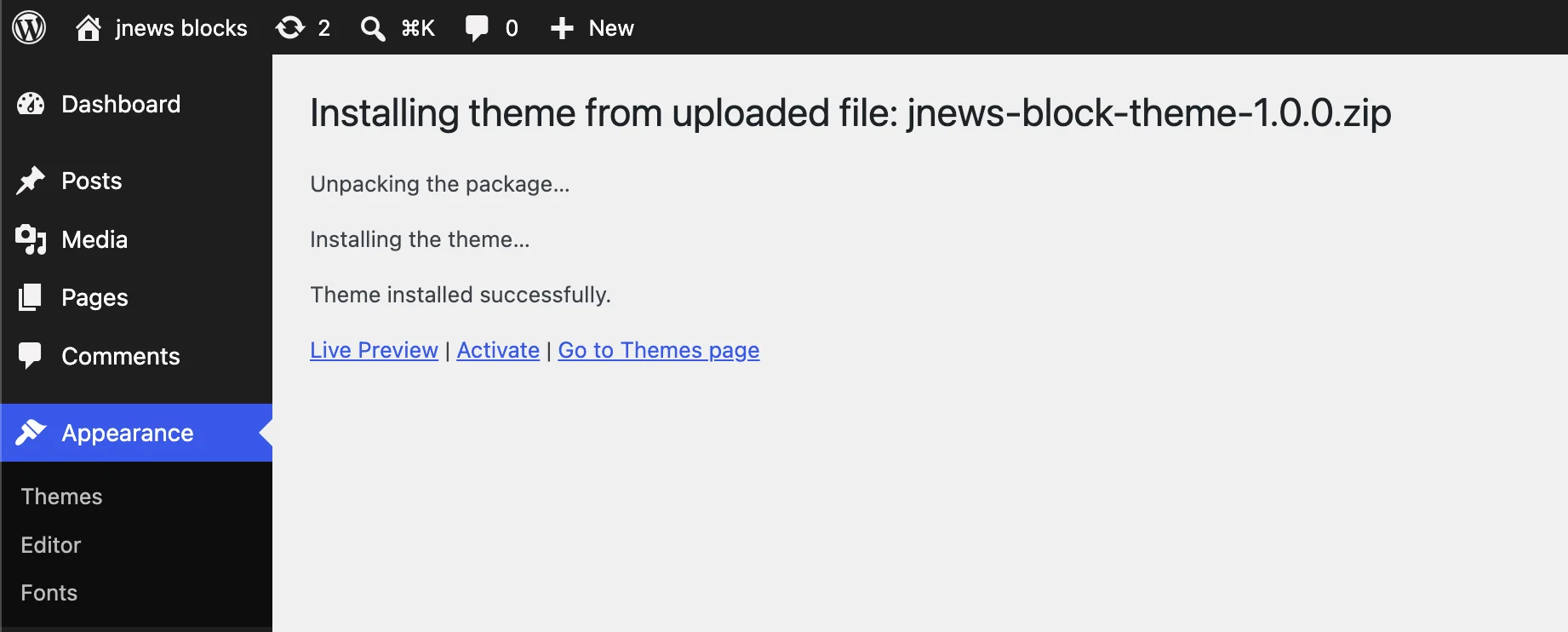
- If the upload process has finished, click the Activate button.
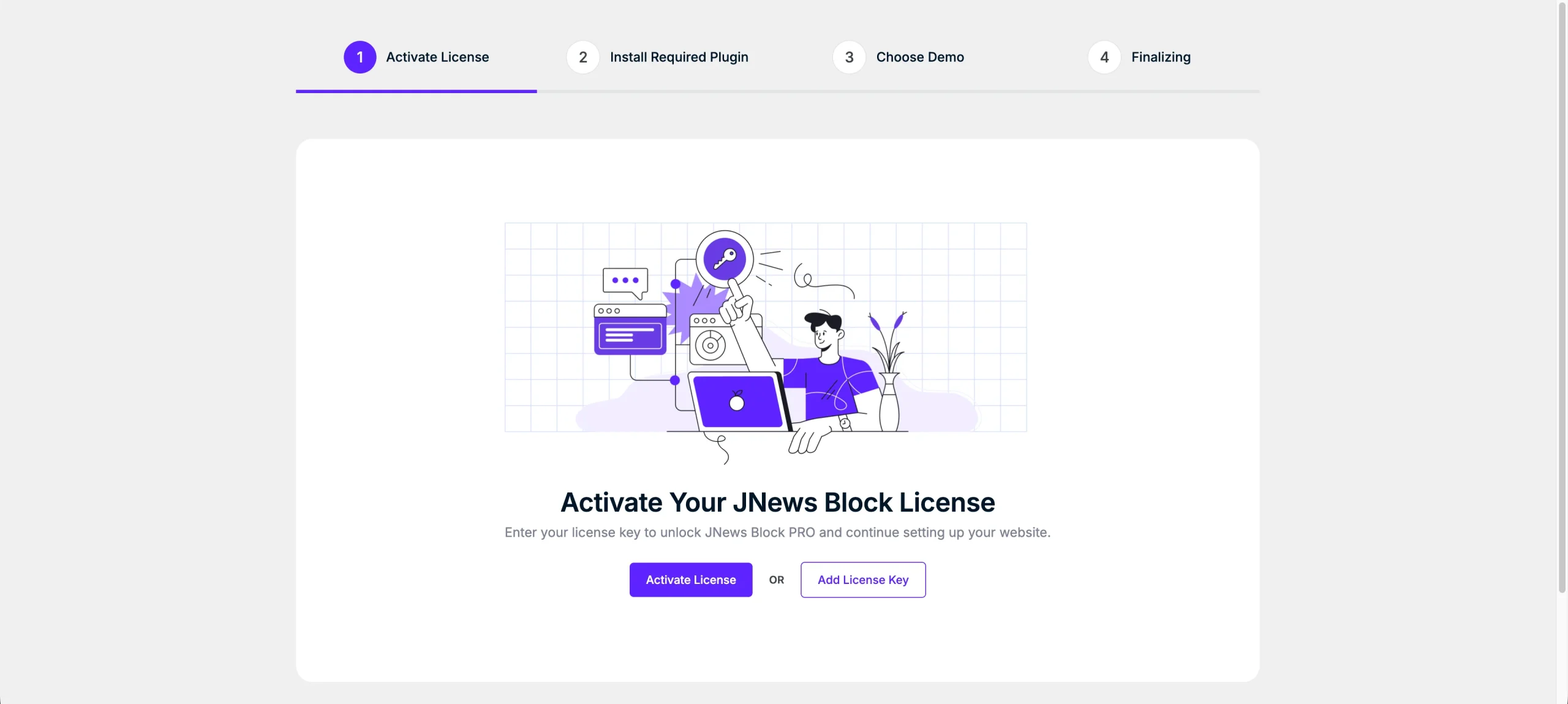
- Right after installing the theme, you will be redirected to wizard setup theme. You can follow all the steps in the wizard. For more detail information, you can refer right here.
Install via FTP
- Login into your FTP client.
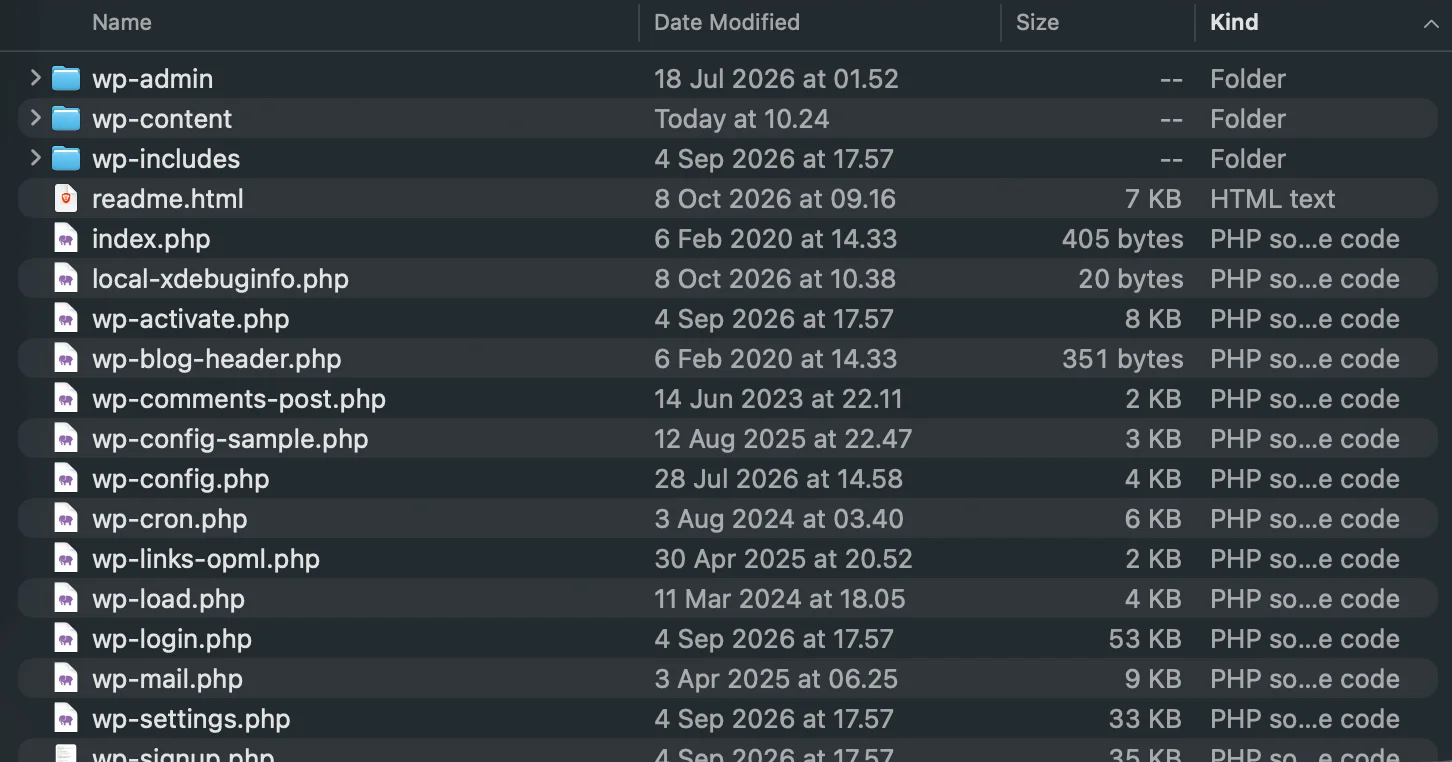
- Then access wp-content/themes/ directory on your host web server.
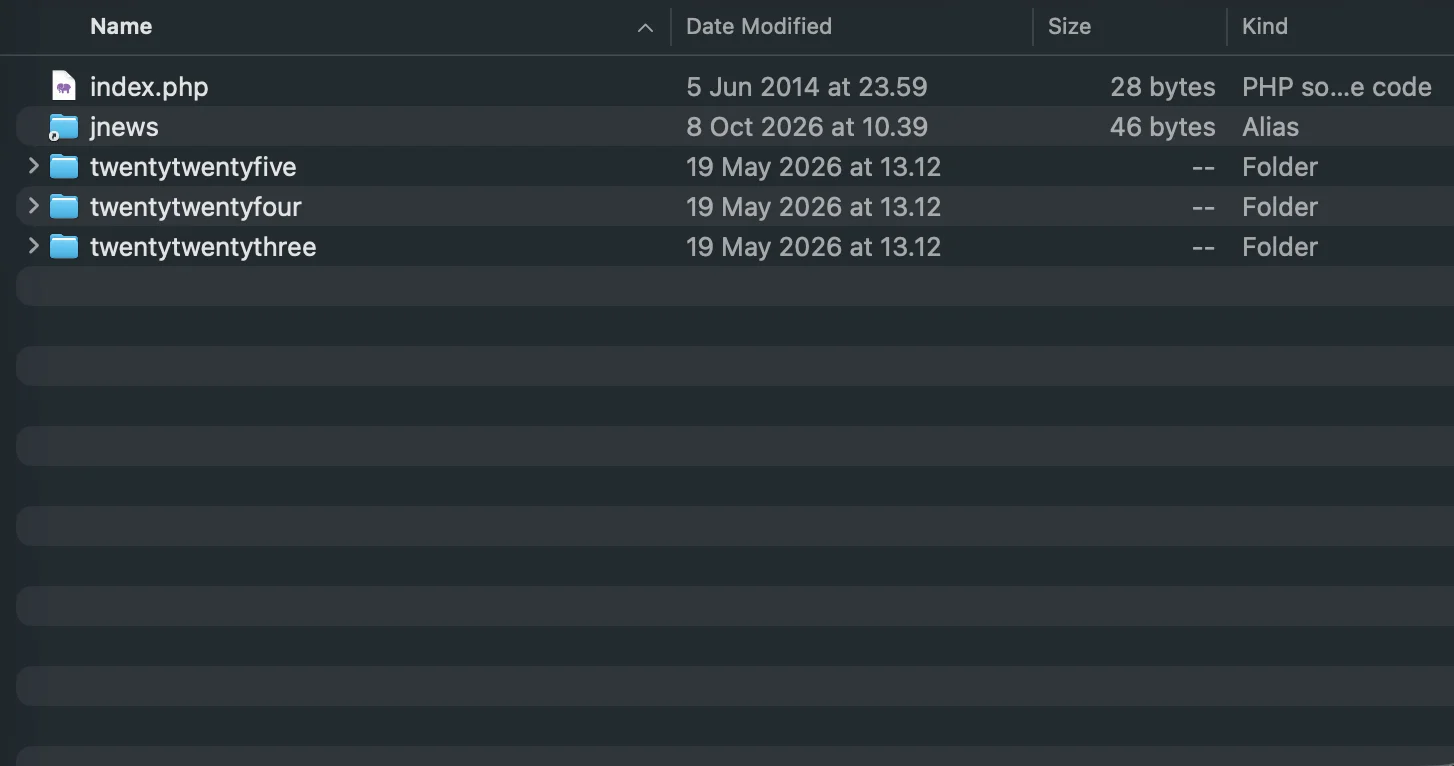
- After that browse to find the jnews-block-theme.zip file and unzip the file.
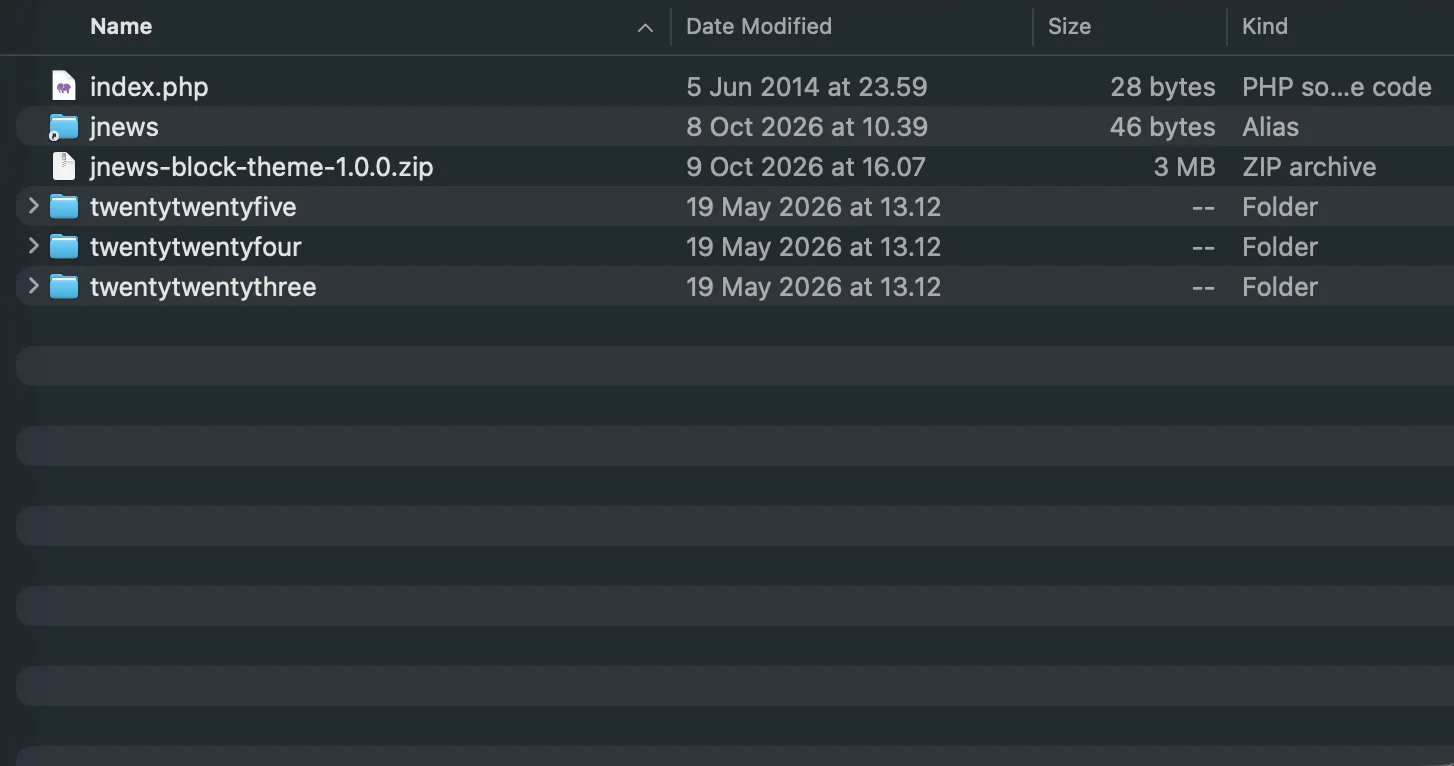
- Upload the jnews folder into wp-content/themes/ directory.
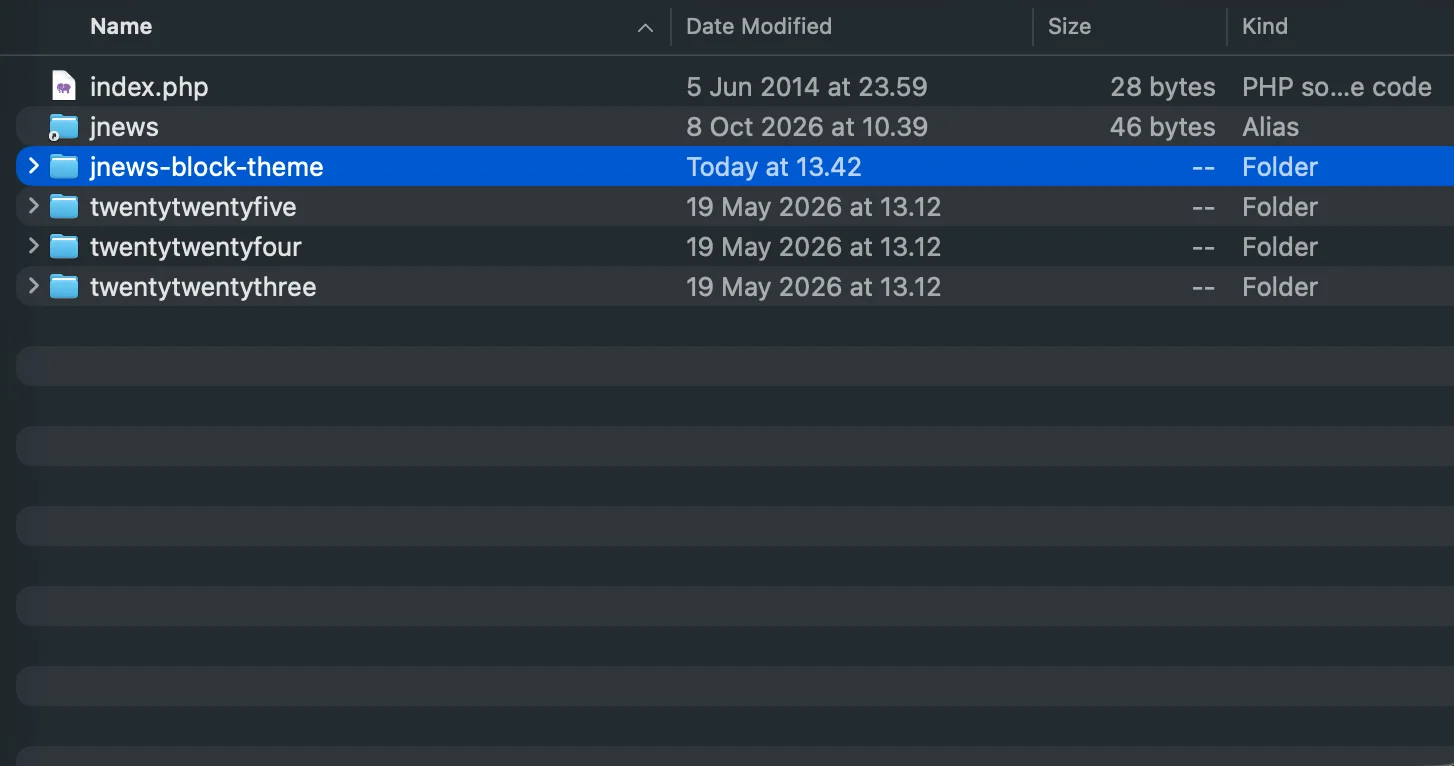
- After uploading process finishes, go to your Dashboard → Appearance → Themes and hit the Activate button.
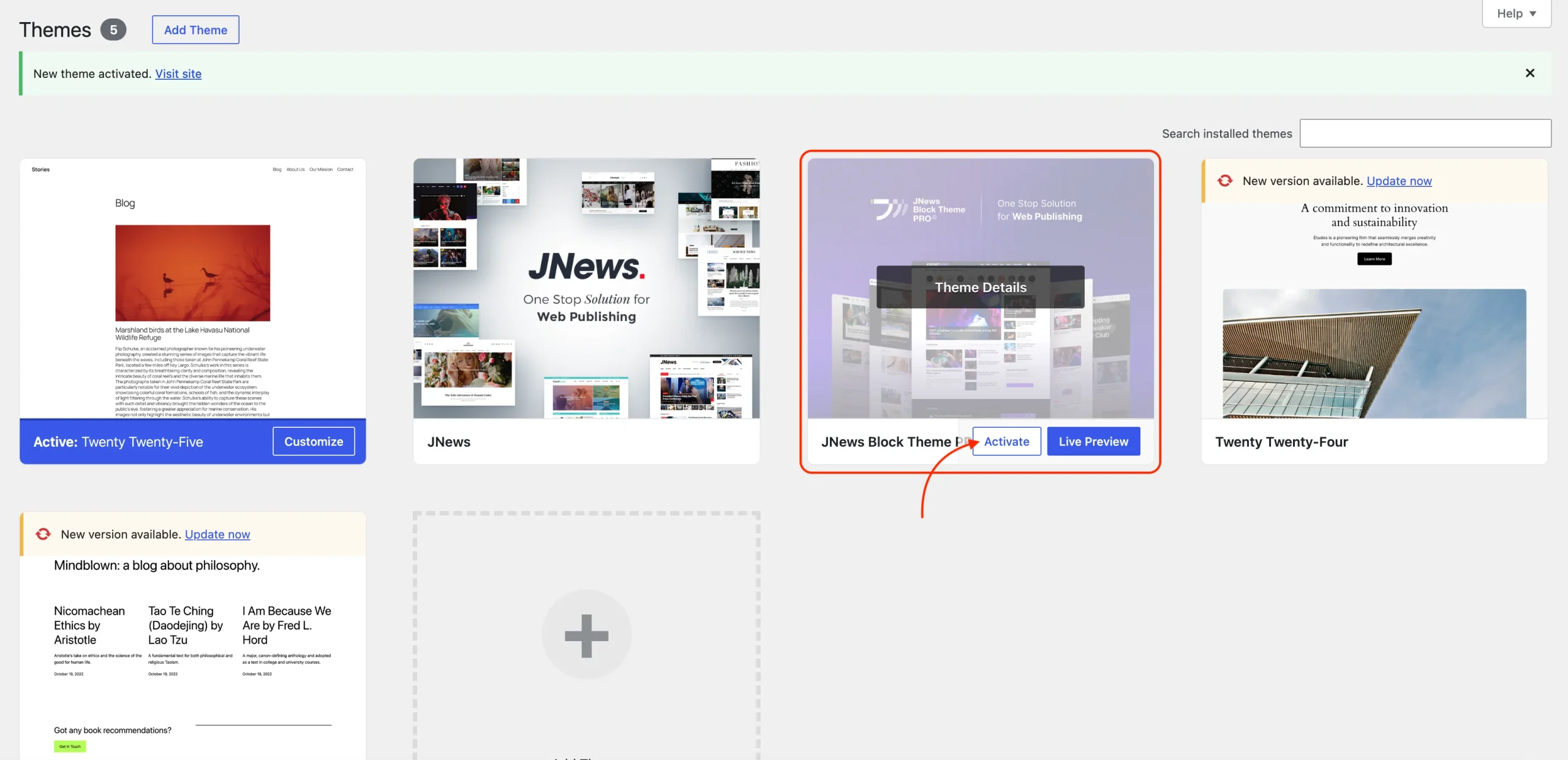
Right after finishing JNews Blocks Theme activation, please activate your theme license to receive all benefits from JNews Blocks such as theme updates, import content & style, and unlock all other features.
Please follow this link for more detail information.
We highly recommend to check your System Status in order to make JNews would work as expected. You can find more complete information about system requirements for JNews by following this link.