
Progress Bar element with escalating animation. This time we will give you a tutorial using JKIT, as follows
The guide is separated into the sections below. Click on it to navigate to the designated section.
- Activate JKit Progress Bar (#)
- Adding JKIT Progres Bar to Page (#)
- Content Setting (#)
- Style Setting (#)
Activate JKIT Progres Bar
Before starting, please make sure the JKit button is already activated on Jeg Elementor Kit Dashboard ➞Elements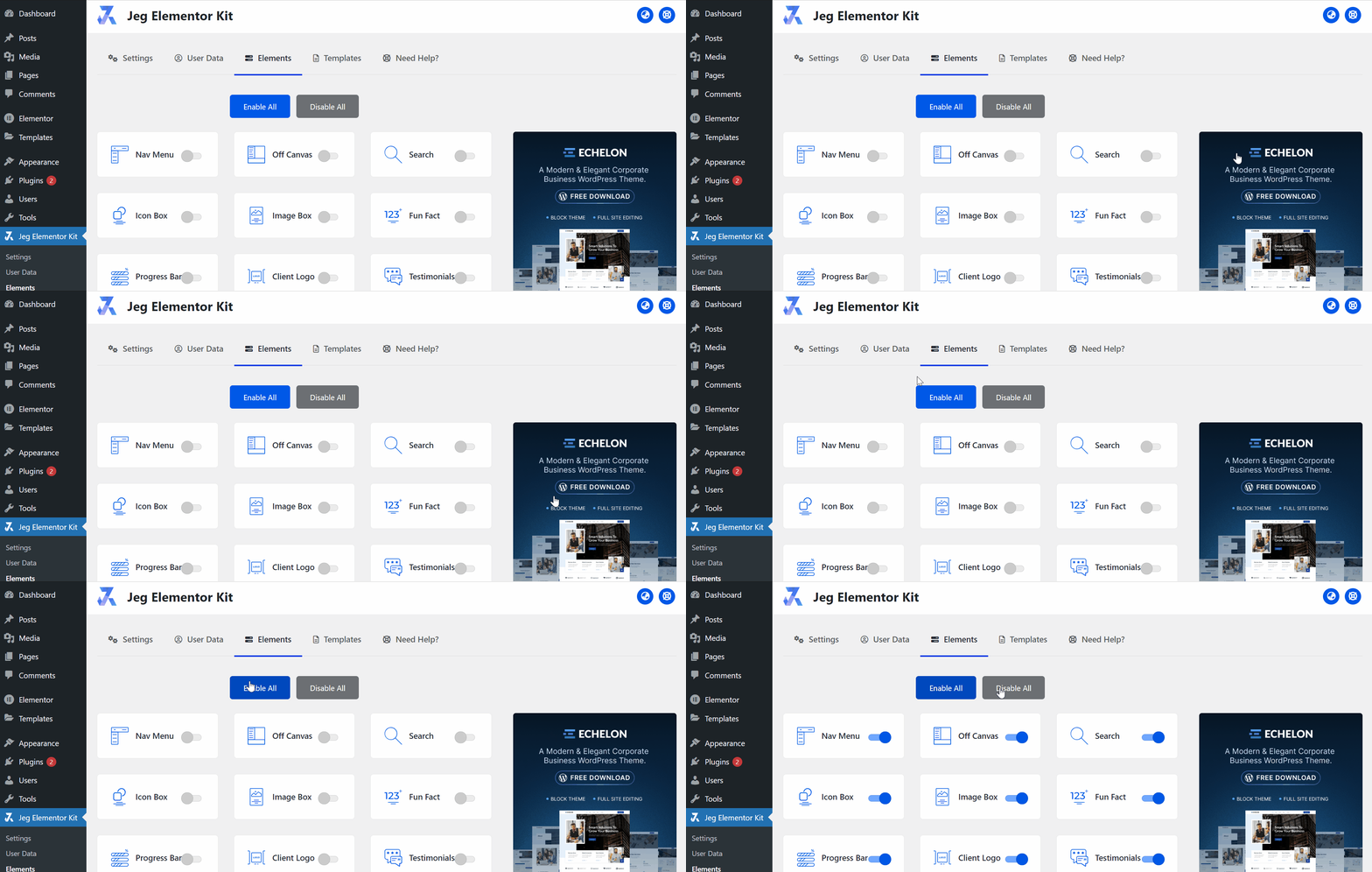
Adding JKIT Progress Bar To The Page
to add a JKit Progress Bar to your page you can open Elementor on your page after Elementor opened you can search for “Progress Bar” on the sidebar
Content JKit – Progres Bar

- Style
choose a progress type - Title
Enter title words - Percentage
set the percentage amount - Animation Duration
determine the delay percentage
Style Setting
You can adjust the style of the button as you like, JKit Progress Bar style settings are separated into several groups. Click on it to navigate to the designated group
BAR (#)

- Background Type
Choose the line background color - Height
set the line bar size - Shadow
add a shadow effect - Border Radius
to tidy up every corner of the progress bar - Padding
leave blank space for the progress bar - Margin
Adjust the position of the icon to make it tidier
Track (#)
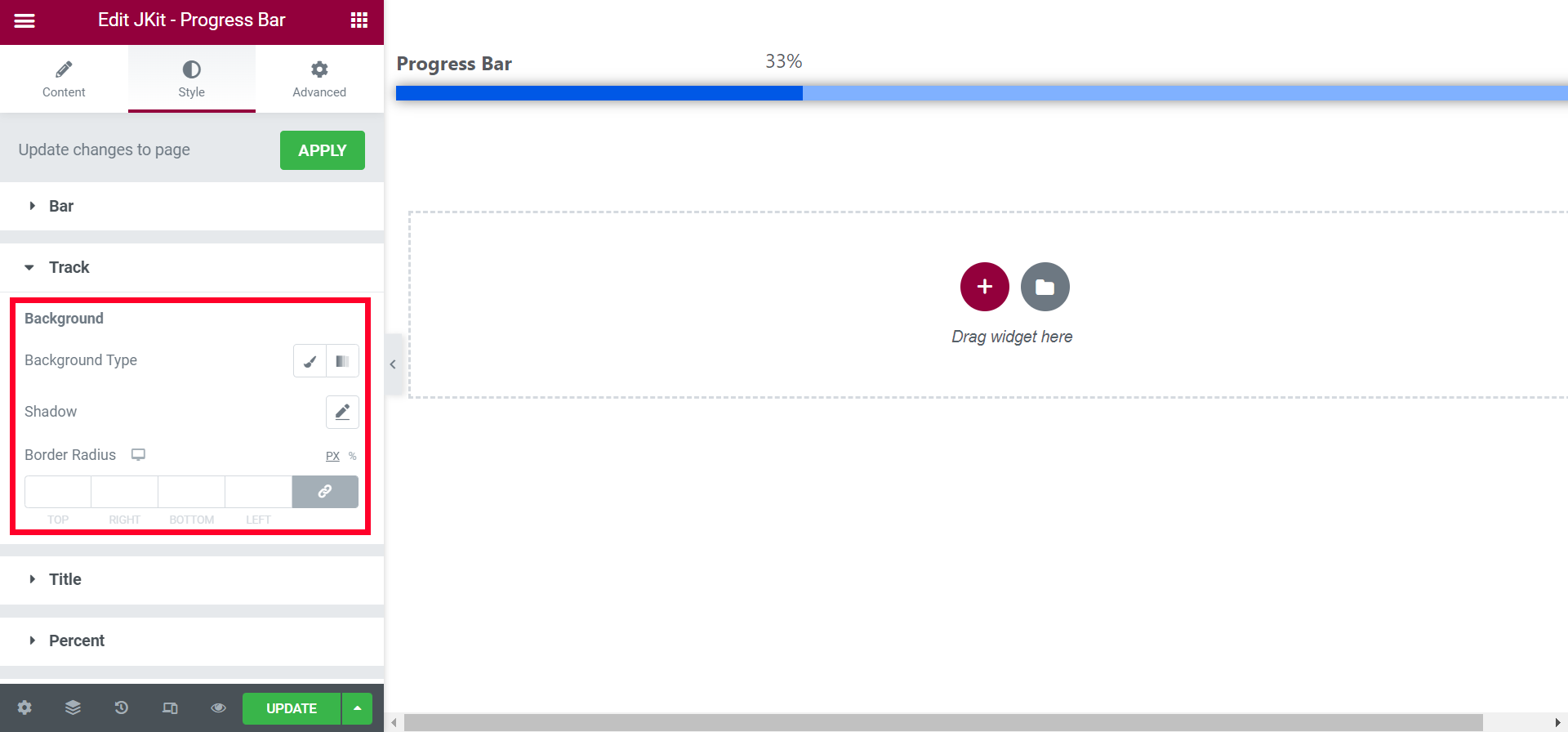
- Background Type
choose color for progress br - Shadow
add shadow effect - Border Radius
to tidy up every corner of the progress bar
Title (#)
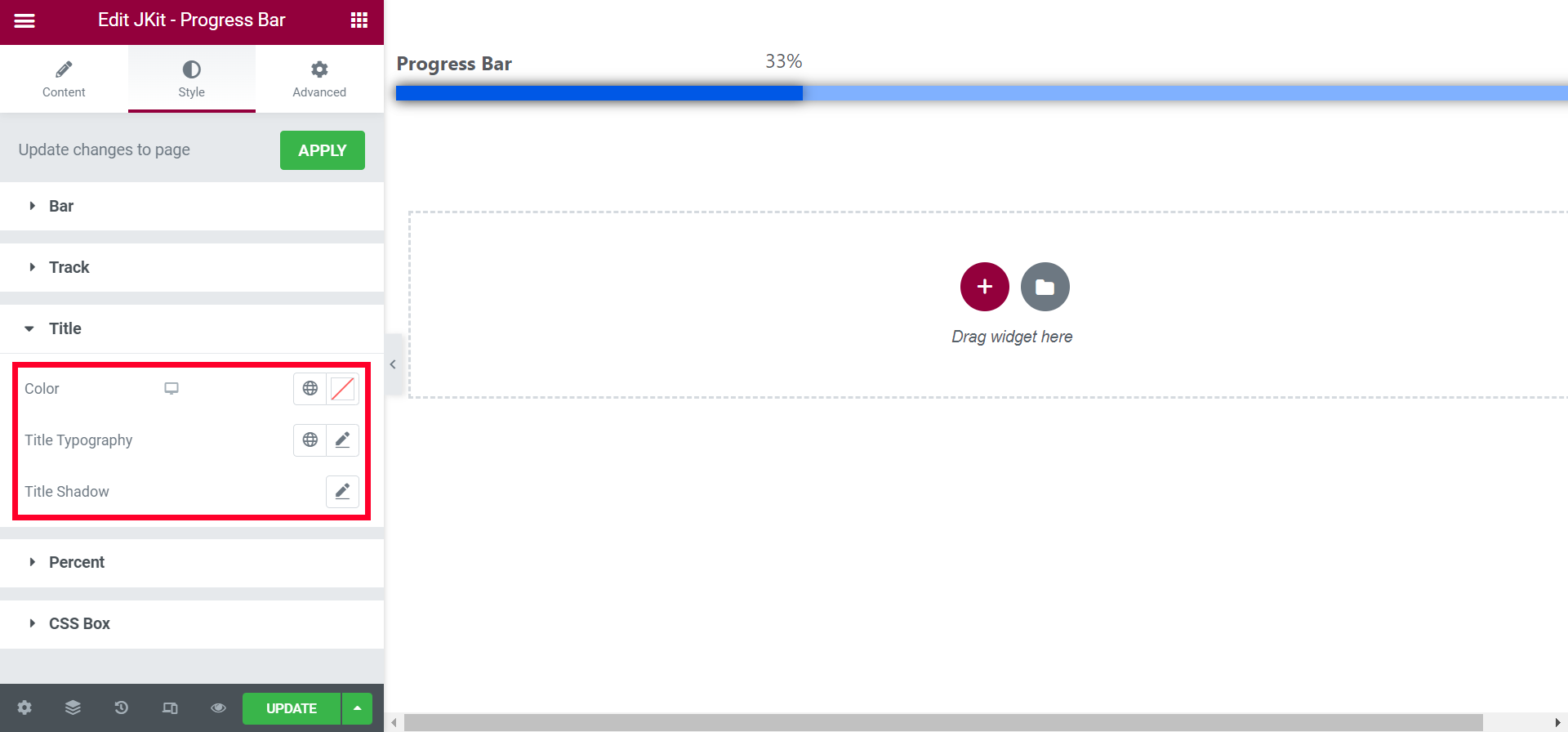
- Color
choose a color for the title - Title Typography
choose the font type for the title - Title Shadow
to tidy up every corner
Percent (#)
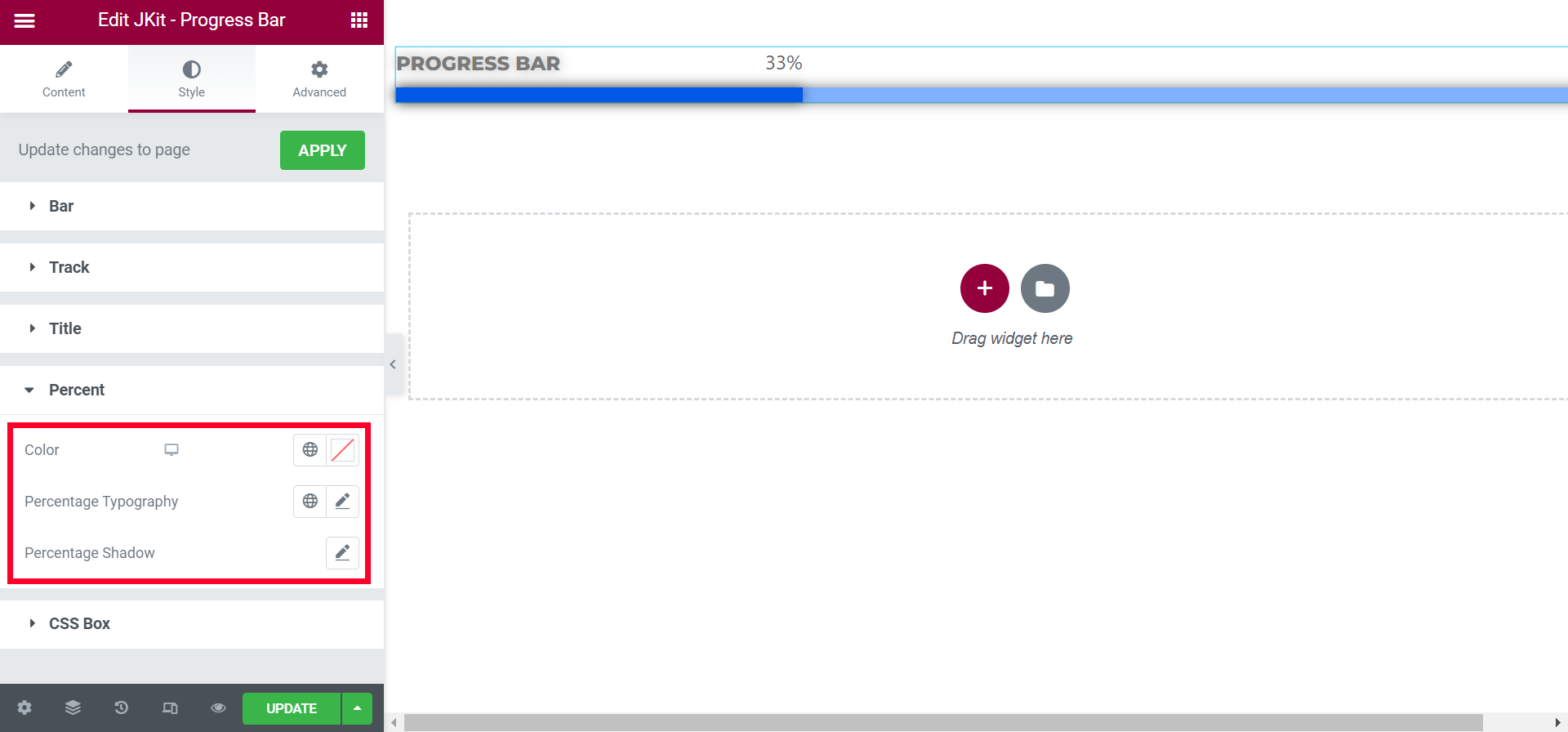
- Color
choose a color for the percentage - Title Typography
choose the font type for the percentage - Title Shadow
to tidy up every corner
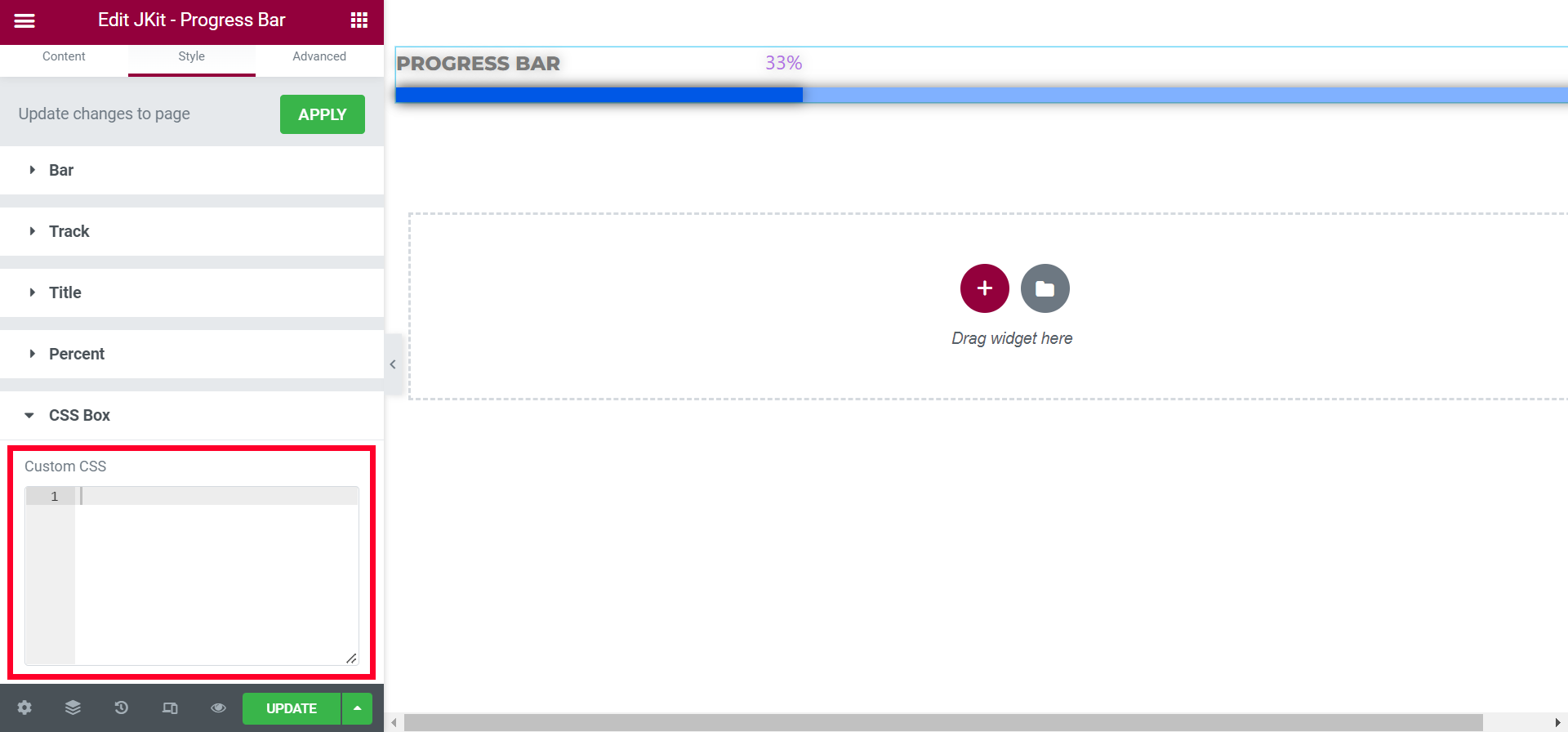
CSS BOX (#)
You can additional CSS on this box
Created in Denpasar, Bali by Jegtheme. 2026